Enabling the Client SuiteScript Feature
Before you can do the rest of the steps in this tutorial, you'll need to make sure the Client SuiteScript feature is enabled in your NetSuite account.
If you're not sure whether the feature's enabled, check by going to Customization > Scripting > Scripts. If you can follow that path, the feature is enabled. If you don't see the option, it might be because you don't have permission or the menu path was customized. If you're still not sure, ask your account administrator.
An account administrator or anyone with the Enable Features permission can turn on the feature. To enable it, follow these steps.
To enable the Client SuiteScript feature:
-
Go to Setup > Company > Enable Features.
-
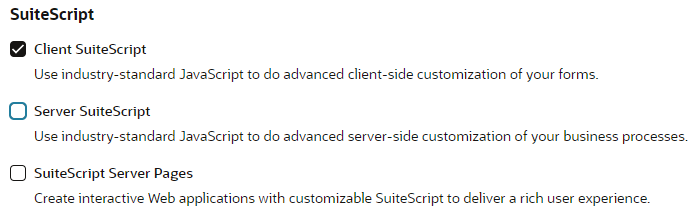
On the SuiteCloud subtab, check the Client SuiteScript box.
-
If the box is already checked, skip to Creating and Uploading the Client SuiteScript File.
You'll see a window with the terms of service.
-
If you agree to the terms, scroll to the bottom and click I Agree.
-
You don't need Server SuiteScript for these steps, but if you plan to do more SuiteScript development later, you may want to check the Server SuiteScript box. If you check the box, you'll see another window with the terms of service. Click I Agree.
-
Click Save.