Constructing Your Custom Record Icon File
These steps explain how to create an icon image file that meets NetSuite's custom record icon requirements. For an overview of general requirements and file specifications, see Creating Icons for Custom Records.
To Construct Your Icon File:
-
You can create the icon yourself or obtain one from a royalty-free source. When you have the icon, the first step in creating the final icon image file is to create an outline of it. This outline is used to create the two grayscale icon versions.

The outline version of your icon should be plain, but it should also have sufficient detail so that it can be recognized when it appears on your dashboard's New Bar. Start by using a 1-pixel pencil tool in your image editing application, and trace an outline of your icon. In addition to the outline, trace some of the internal components of your icon to make it be easier to recognize.
-
Take the outline tracing of your icon and follow these directions to create your grayscale icon for dark backgrounds:
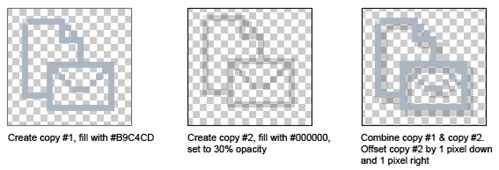
-
Take the outline tracing of your icon and follow these directions to create your grayscale icon for light backgrounds:
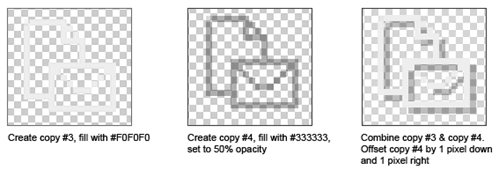
-
After the two grayscale versions are complete, create the color versions. This involves placing the color icon that you already have on a variety of background colors to check its appearance. Try these background colors:
-
#5A759C - default color for the New Bar
-
#F1F4F9 - default color for the Recent Records menu
-
#EBECEF - default color for the Create New menu
Try other colors, such as light and dark reds and then test the colors of your NetSuite color theme. After you see how your color icon looks on various background colors, you can create the last version of your icon.
If you believe that your color icon looks fine regardless of background color, make a copy of it to be placed in the fourth slot of your .png image.
-
-
Place the four versions of your icon in a single PNG image, using the proper spacing previously described. Save your icon image file as a PNG-24 file, and upload it to your NetSuite account.