Enhancing All Text in a Field Using AI
Fields with Text Enhance contain a button in the lower right corner of the field. You can use this button to perform AI actions for the entire field.
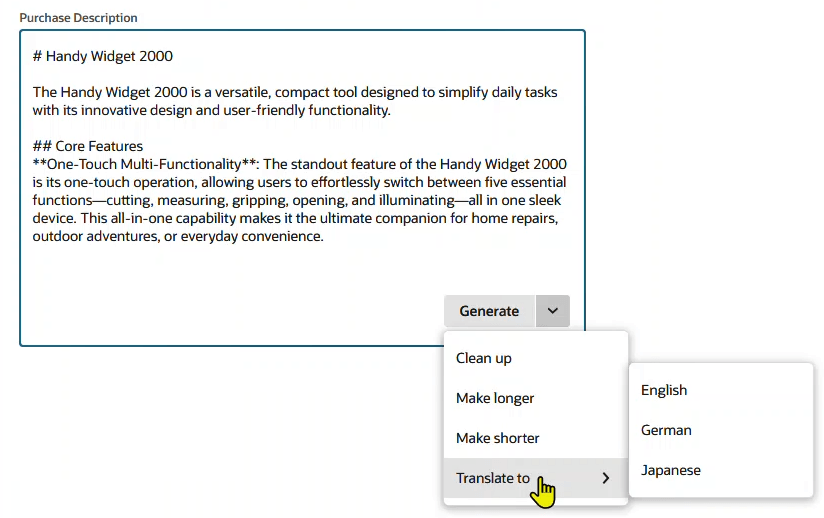
To Use Text Enhance:
-
On the page where Text Enhance is supported, complete the required fields. You can also add extra details you'd like Text Enhance to use into the field with Text Enhance.
-
Locate the Text Enhance button in the lower right corner of the field. The button label shows the default action (usually Clean Up but sometimes Generate). When you click the arrow, the dropdown list displays more Text Enhance actions.
-
Click the button to perform the default Text Enhance action, or select a Text Enhance action from the dropdown list.
Available actions may include one or more of the following:
-
Generate: Using information that you've already entered, Text Enhance generates text appropriate for the field.
-
Clean Up: Text Enhance refines the existing text. This option corrects grammar and spelling errors, and it may also rephrase some text to use effective style and tone. Only available when there's text in the field.
-
Make Shorter: Text Enhance shortens the text. Only available when there are more than 200 characters (about three sentences) in the field.
-
Make Longer: Text Enhance takes the text entered in the field and expands it into well-written business prose. Only available when there's sufficient space in the field (less than half the character limit).
-
Translate to: Select a language, and Text Enhance translates the text in the field into the language you selected.
Note:On first use, Text Enhance displays a confirmation message to inform you that you're using an artificial intelligence (AI) feature. The message is as follows: "Text Enhance is an AI feature that generates content for your use. Your data may be processed globally according to the Oracle Services Privacy Policy." Click the link if you want to view the policy. It'll open in a new web browser tab or window. Click OK to close the message and continue the Text Enhance action that you selected.
To complete an action, Text Enhance uses data from the required and optional fields that you've already completed. The system shows the new or updated content in the field when it's done.
-
-
Review the content carefully and refine it as desired. Optionally, you can select another Text Enhance action. You can also make your own changes and override any text from Text Enhance.
Important:Always read the Enhance Text content carefully before you save your changes to the page. Generative AI services, such as Text Enhance, use creativity in their responses. A person should always validate the generated content for accuracy and quality.
-
When you're done, click Save.