Working in the Designer 2.0 Mass Edit Tab
Use the Mass Edit tab to make edits to multiple rules at once. This is useful if you have a large number of rules and you know that a change you are making will impact many of your rules.
For example, assume that you have a model that has a large number of rules, and you want to add a member to all the rules in all the rule sets in the model. Instead of editing each rule individually on the Waterfall Setup tab, you can filter and select rules on the Mass Edit tab, and then add the member to all the selected rules at once.
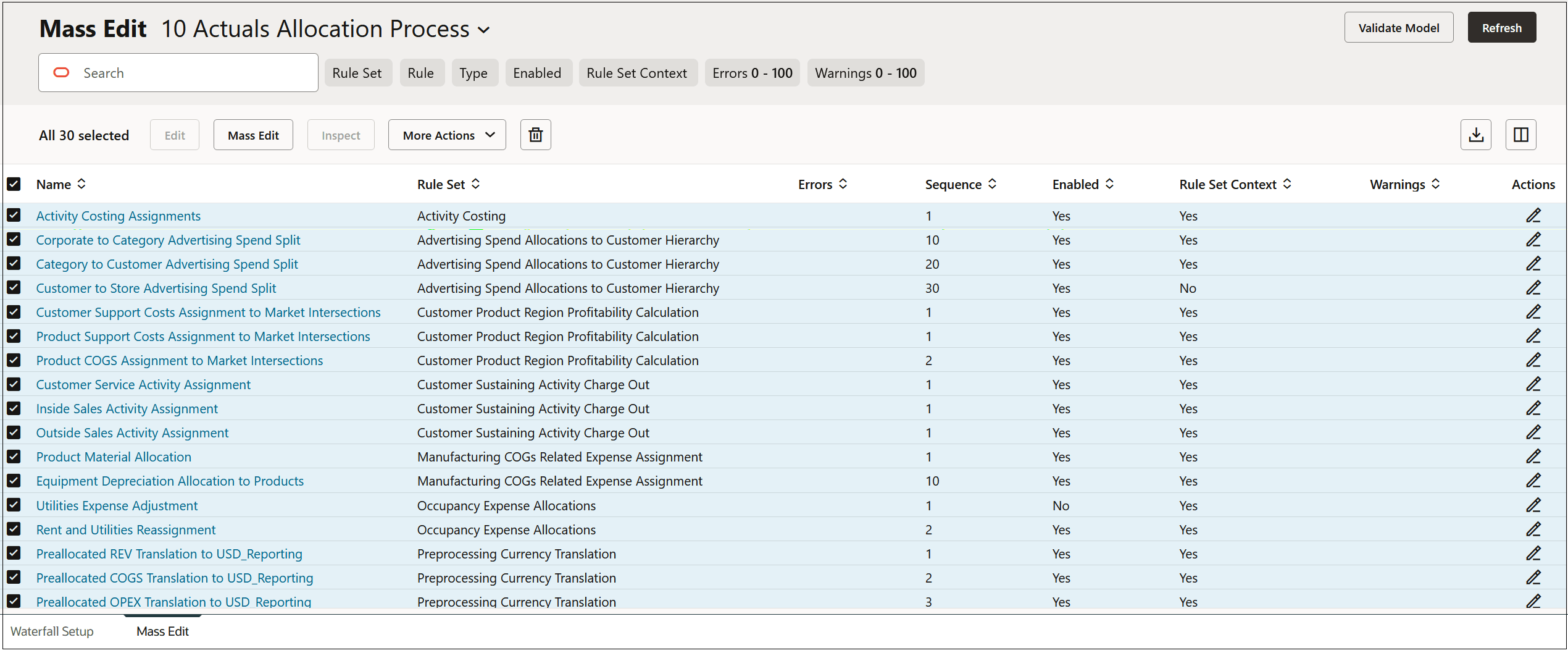
Tasks that you can perform on the Mass Edit tab include:
- Defining the Columns that Display on the Mass Edit Tab
- Filtering Which Rules Are Displayed
- Inpecting Rule Details
- Editing Multiple Rules from the Mass Edit Tab
- Editing a Single Rule from the Mass Edit Tab
- Copying Rules to a Rule Set
- Coying Rules to a Model
- Enabling and Disabling Rules
- Running Model Validation
Tip:
Edits that you make to your rules on the Mass Edit tab are displayed as jobs in the Jobs console. See Viewing Rules Jobs.
Tip:
Edits made on the Mass Edit tab cannot be undone. Use the migration tools for backups if necessary. To access the migration tools, from the Home page, select Tools, and then Migration. See Using Migration.