Create an Authorization Profile
Authorization Profile can be created at the Service Manager level or the deployment level. If you create an Authorization Profile in the Service Manager, then it can be shared by multiple deployments. If you create an Authorization Profile within a deployment, then it is only available for use within that deployment.
Use the following steps to set up an authorization profile for a deployment:
- In the Authorization Profile dialog box, you can select from one of the
external IdP providers and configure the options.If you select the IDCS authorization profile, you need to configure the options shown in the following image:
Note:
Configuring IDCS, IAM, or Microsoft Entra ID as external IdPs require similar values to be specified.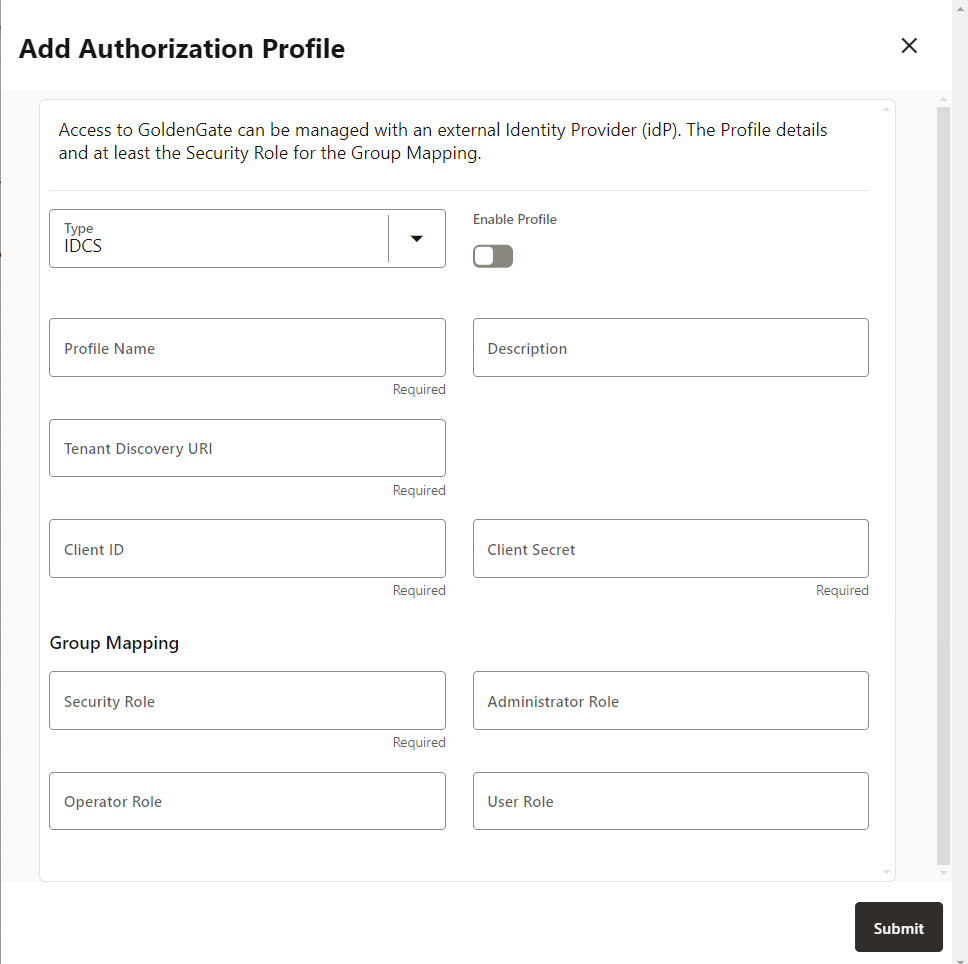
The options that need to be configured are based on the configurations done on the external identity provider. Keep those values ready before you bring up this configuration. Refer to these values from Configure IAM for Oracle GoldenGate.
These values are described as follows:
-
Profile Name: Name of the authorization profile.
-
Description (optional): Short summary of the profile being created.
-
Enable Profile: Activates the profile for the deployment.
-
Authorization Profile Type: IDCS
-
Tenant Discovery URI: IDP server's OpenID Discovery Docs endpoint (
/.well-known/openid-configuration). -
Client ID: IDP application’s client ID
-
Client Secret: IDP application’s client secret (securely stored)
-
In the Group Mapping section, the user mapping for IDCS groups to Oracle GoldenGate user roles is configured. You need to enter the name of the IDCS group with the corresponding user role. These values are case-sensitive. The user role options that map the name of a group with respective role in IDCS include Security, Administrator, Operator, and User.
-
- If you select OAM as the external IdP, the following options are
displayed:
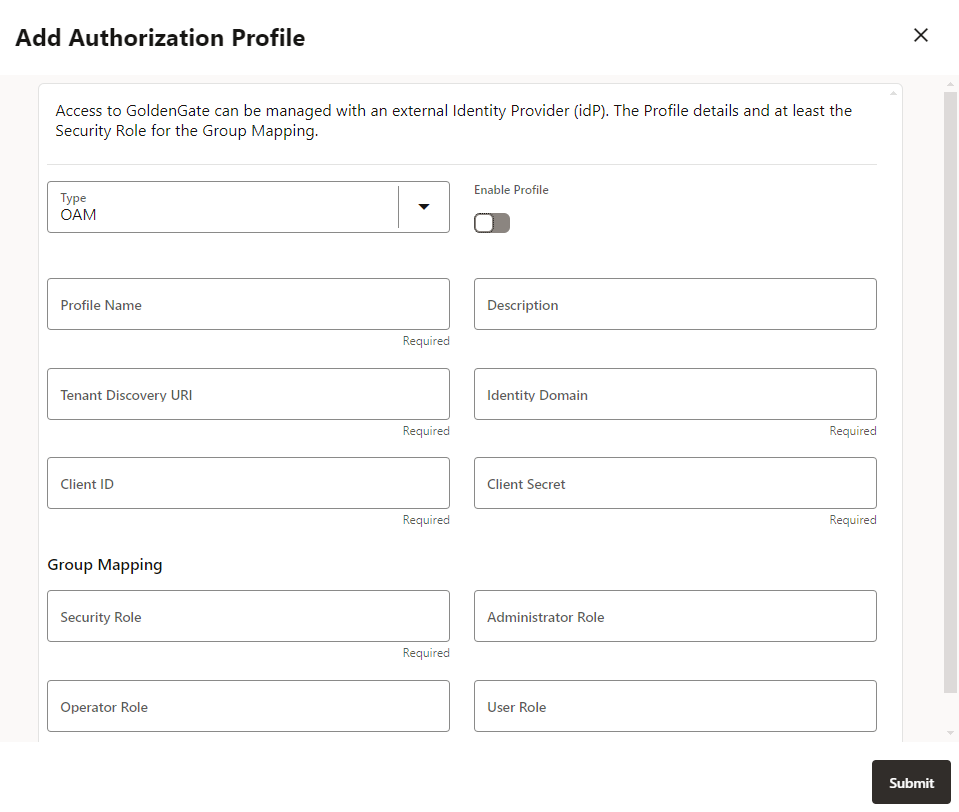
To know the required values, see Configure OAM for Oracle GoldenGate.-
Profile Name: Name of the authorization profile.
-
Description (optional): Short summary of the profile being created.
-
Enable Profile: Activates the profile for the deployment.
-
Authorization Profile Type: IDCS
-
Tenant Discovery URI: IDP server's OpenID Discovery Docs endpoint (
/.well-known/openid-configuration). -
Identity Domain: An Identity Domain corresponds to the notion of a tenant. All clients and resource servers are created under an Identity Domain.
-
Client ID: IDP application’s client ID
-
Client Secret: IDP application’s client secret (securely stored)
-
In the Group Mapping section, the user mapping for IDCS groups to Oracle GoldenGate user roles is configured. You need to enter the name of the IDCS group with the corresponding user role. These values are case-sensitive. The user role options that map the name of a group with respective role in IDCS include Security, Administrator, Operator, and User.
For more information, see Creating an Identity Domain.
-
- If you select EntraID, then the following options are displayed:
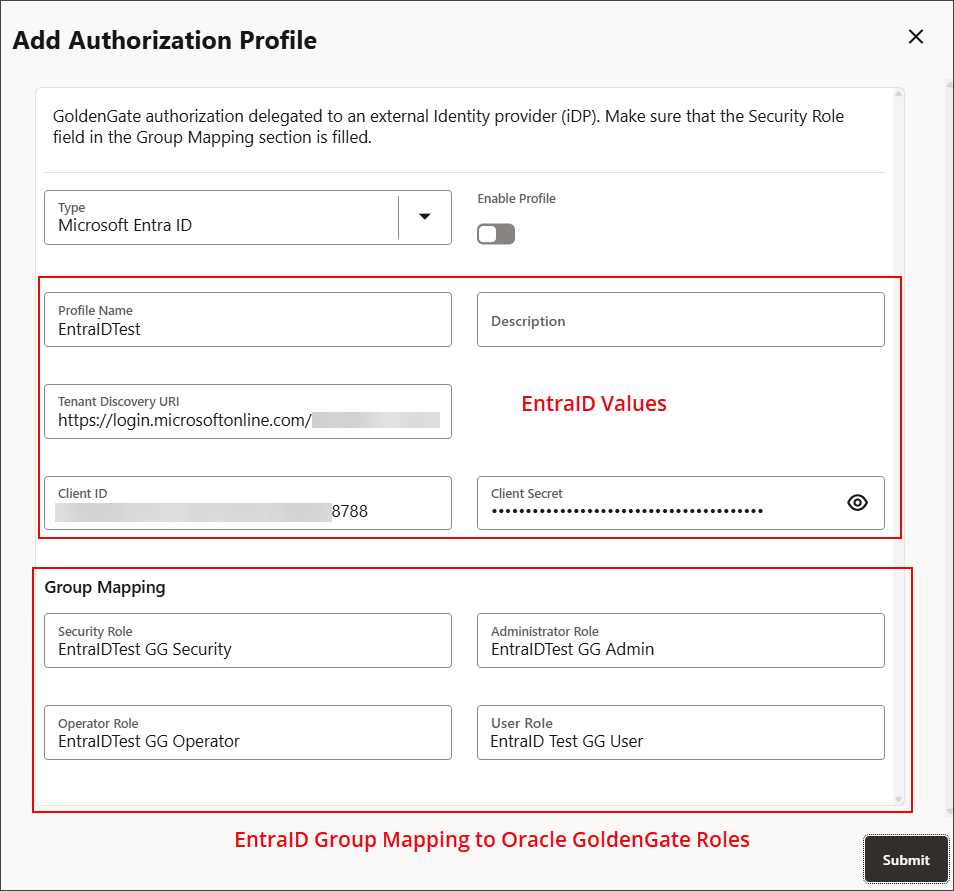
To know the required values, see Configure Microsoft Azure EntraID for Oracle GoldenGate.