View Location Information for a Device or Edge Node
The Location tab on an individual device or edge node page helps you review location details for that hardware item and provides access to the location update workflow.
The Location tab shows deployment coordinates and a map centered on the deployment location. The item details pane continues to show Registration Address in the left pane.
The pencil icon opens the Update location drawer, where you can manage registration and deployment location details.
Figure 8-1 Location Tab Showing Deployment Location on a Device
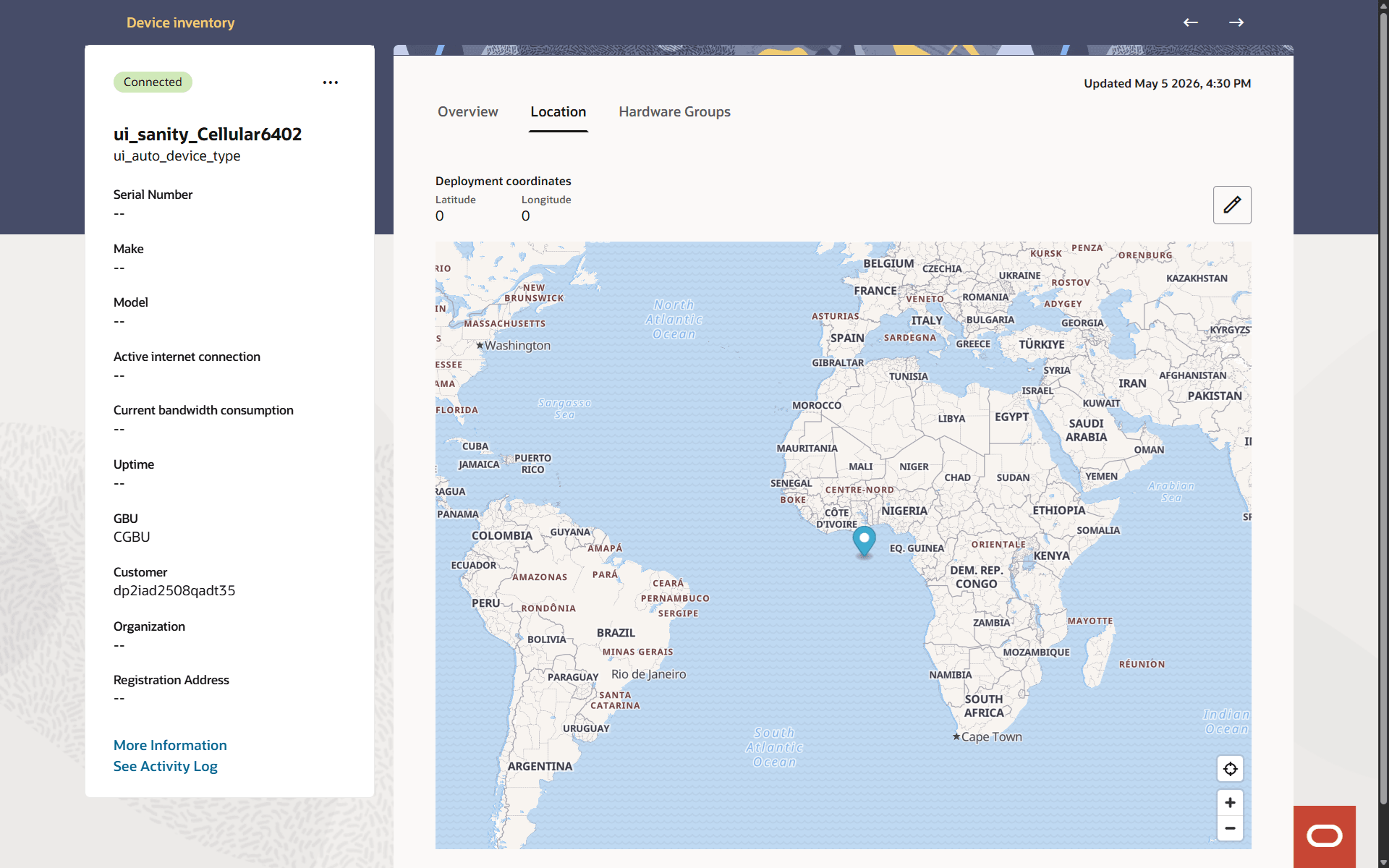
When location details are available on the map, the deployment location appears as a pushpin marker that provides additional location information. For supported MDM-enabled devices, the Location tab can also show GPS location as a blue dot in addition to the deployment marker.
Map Tools
The map on the Location tab includes a small set of controls for moving around the map and returning to the selected location. You can also drag the map to view a different area.
Table 8-1 Map Tools
| Control | Icon or Label | Description |
|---|---|---|
| Zoom In | + | Increase the map zoom level. |
| Zoom Out | - | Decrease the map zoom level. |
| Reset Zoom |
Figure 8-2 Reset Zoom icon  |
Return the map to the default zoom level or bring the selected location back into view. |
| Recenter |
Figure 8-3 Recenter Icon  |
Return the selected location marker to the visible map area. |