Explore Inventory Map View
Inventory Map View helps you understand where devices and edge nodes are deployed, identify assets in a region, and move from grouped results to individual asset details. You view one inventory type at a time, such as Devices or Edge Nodes.
The inventory page uses Table and Map to switch between the two views. The map displays deployment location, and the banner identifies this as Viewing Deployment Location. Inventory Map View does not show GPS location.
Switch Between Table and Map Views
Oracle ECP keeps filters synchronized between table view and map view.
Oracle ECP also preserves the current zoom level, map position, filters, and selected view when you switch between devices and edge nodes, when you return from item overview to the inventory map, and when you leave Inventory and return later in the same session. If you leave Inventory while Map is selected, Oracle ECP opens Map again when you return.
Map Navigation
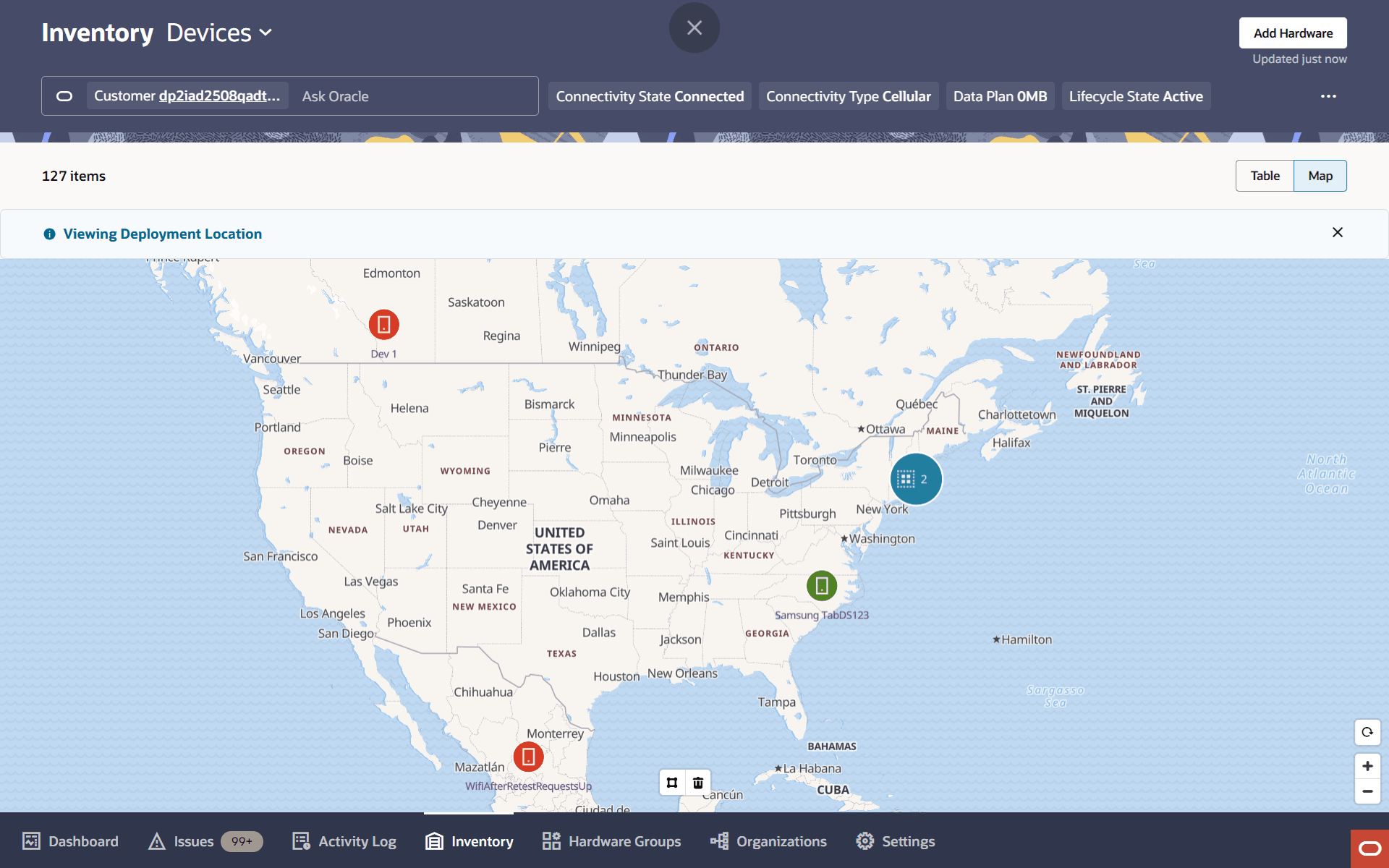
Map navigation controls help you change zoom level, return to the default map view, and move to a different area of the map. The inventory map uses icon-only controls for reset, zoom in, and zoom out. You can also drag the map to view a different area.
Figure 8-4 Inventory Map Navigation Controls
Markers and Clusters
You can use markers and clusters to understand what is on the map before you inspect individual assets. Markers help you identify hardware type and connectivity state at a glance. Clusters help you work with large numbers of assets by grouping nearby results until you zoom in to a more detailed view.
Figure 8-5 Inventory Map Showing Markers and Clusters
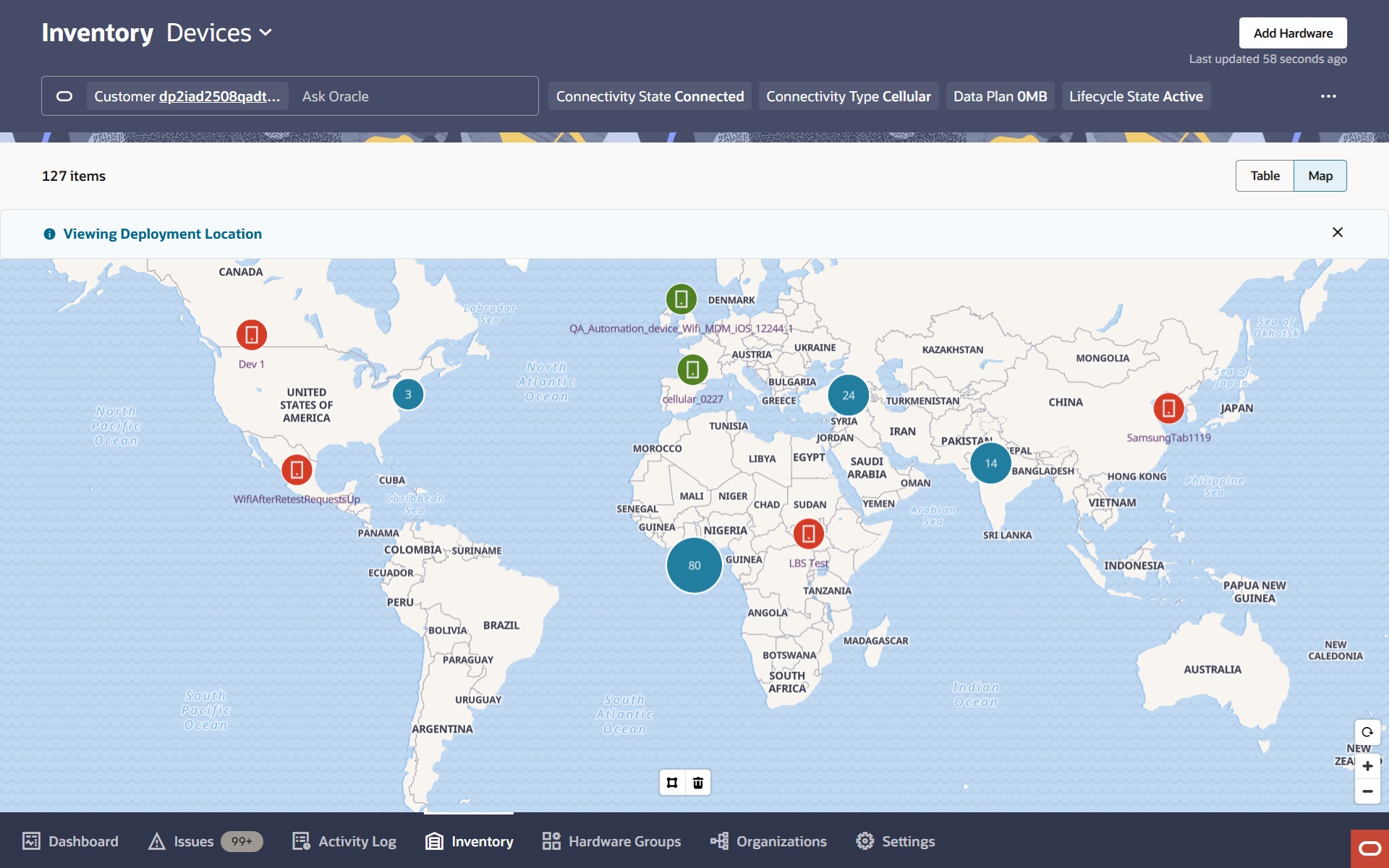
Marker shape and color help you identify hardware type and connectivity state on the map. Devices and edge nodes use different marker shapes. Green indicates a connected asset. Red indicates a disconnected asset.
When several assets are near each other, Oracle ECP groups them into a cluster and shows the number of assets in that cluster. As you zoom in, clusters break into smaller groups and then into individual assets. As you zoom out, the map groups nearby assets again.
If multiple assets share the same coordinates, they remain grouped and use a grid-style cluster icon to indicate that the assets are at the same location.
On the Location tab, hovering over a deployment-location marker displays a pop-up with the associated latitude, longitude, and address information when available.
View Asset Details from the Map
Markers and clusters help you move from a map view of your inventory to information about a specific asset or group of assets. Selecting a marker or cluster opens a details drawer that shows the asset name, lifecycle state, and connectivity type. The asset name in the drawer links to the item overview page.
When you return to the inventory map from item overview, Oracle ECP restores the same map state.