Create an Edge Configuration Template
Use this procedure to create a user-defined edge configuration template from an existing template version.
Before You Begin
Identify the source template and version that you want to copy.
- Open the Edge Configurations Template page.
- Select the row for the template that you want to copy.
- Click Create Template.
- In the drawer, select the source version.
- Enter a template name.
- (Optional) Enter a description.
- Click Create.
Oracle ECP adds the new template to the list.
Edit a Draft Template Version
Use this procedure to open a draft template version in the configuration editor and update its configuration blocks.
Each configuration block groups the related settings for one area of edge node behavior. In this procedure, you use your knowledge of the edge node requirements to set the required values across the configuration blocks. Each configuration block groups related settings for one area of edge node behavior. This guide describes those settings in the relevant feature topics. Use this procedure to set the values that your edge node requires across the configuration blocks.
- A header area with template and version information, status, and actions.
- A left pane that lists the configuration blocks.
- A right pane that displays the settings for the selected block.
Each configuration block contains the related settings for one area of edge node behavior. This guide describes those settings in the relevant feature topics. Use the configuration blocks to set the values that your edge node requires.
This is the main working stage in the lifecycle. You move through the configuration blocks, review the current values, and update the settings that belong in the next revision.
- Open the Edge Configuration Templates page.
- Click the template name.
- Select the draft version that you want to edit.
- In the left pane, select the configuration block that you want to review, and then review its corresponding settings in the right pane.
- Click Update to update the settings that you want to change.
- Repeat these steps for each configuration block that you want to update.
Publish a Draft Template Version
Use this procedure to publish a draft template version after you finish your configuration changes.
Publish a draft template when you finish setting the values in the configuration blocks and want a stable version that you can apply to edge nodes. Publishing creates a read-only version that you can use for deployment while preserving the draft-to-published revision history.
Before You Begin
Confirm that you completed the required updates in the draft version.
Publishing marks the end of the editing stage in the lifecycle. After you publish the draft, Oracle ECP makes that version read-only and eligible for apply operations.
- Open the required draft template version.
- Review the updated configuration blocks.
- Click Publish Draft.
- Confirm the action if Oracle ECP prompts you.
Oracle ECP publishes the version and makes it read-only.
What to Do Next
- Apply the published version when you are ready.
- If you need more changes later, create a new draft from the published version.
Apply a Configuration Template to Edge Nodes
Use this procedure to apply a published template version to one or more compatible edge nodes.
Apply a configuration template when you want compatible edge nodes to use the same validated set of configuration values. This helps you deploy a consistent configuration to one edge node or to multiple edge nodes without setting each value separately on each node.
- Confirm that the template version is published.
- Confirm that the selected edge nodes are compatible with the template.
- Confirm that the selected edge nodes are in the Connected connectivity state and the Active lifecycle state.
Apply is the deployment stage in the lifecycle. On the Inventory page, the Apply Configuration action appears above the table when you select one or more edge nodes. Oracle ECP filters available templates by hardware and platform compatibility. Oracle ECP does not let you apply a draft version.
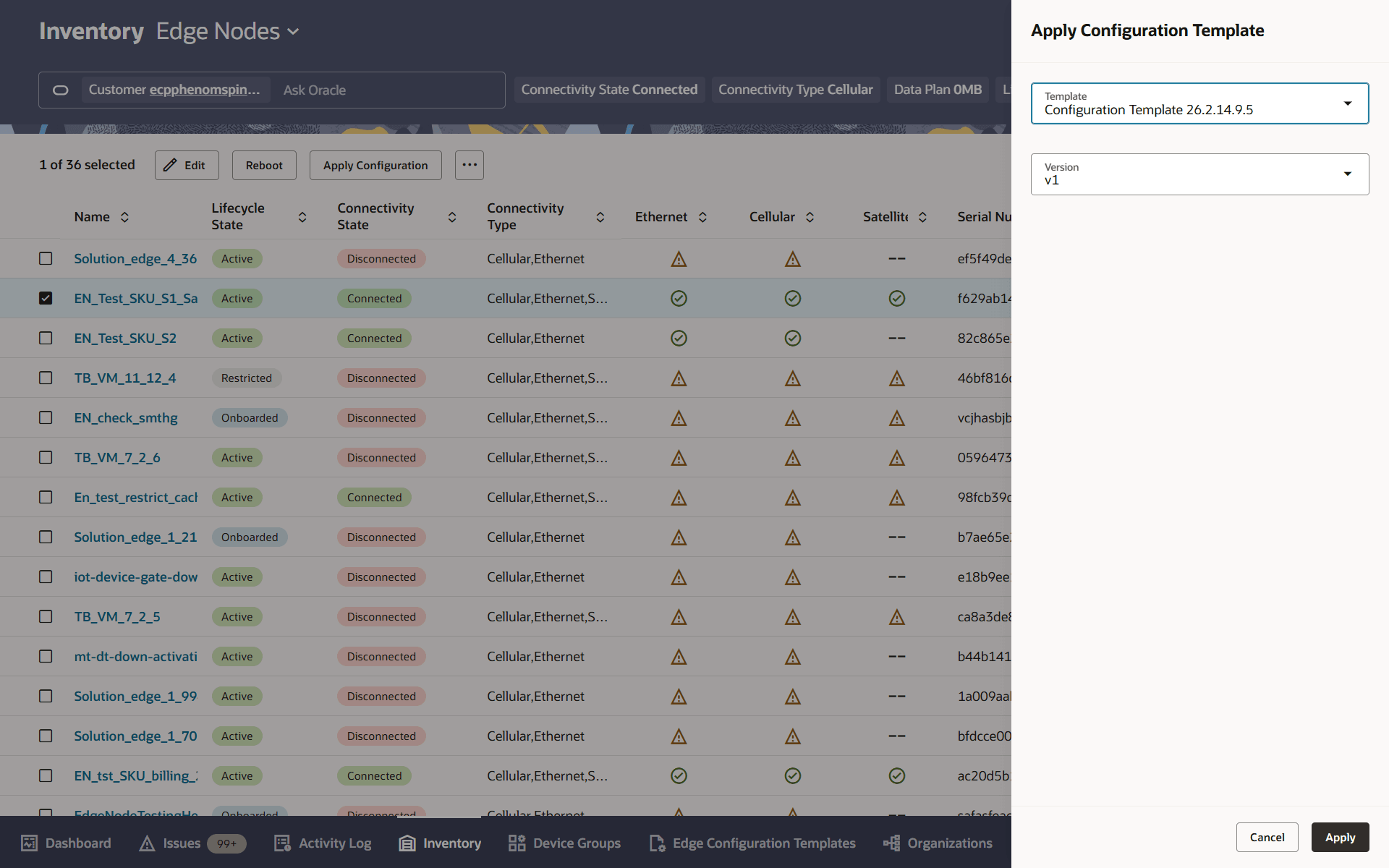
The Apply Configuration Template drawer includes the Template field and, after you select a template, the Version field.
Oracle ECP applies configuration templates only to eligible edge nodes. An eligible edge node must be in the Connected connectivity state and the Active lifecycle state.
Figure 14-2 Select Edge Node for Configuration Apply
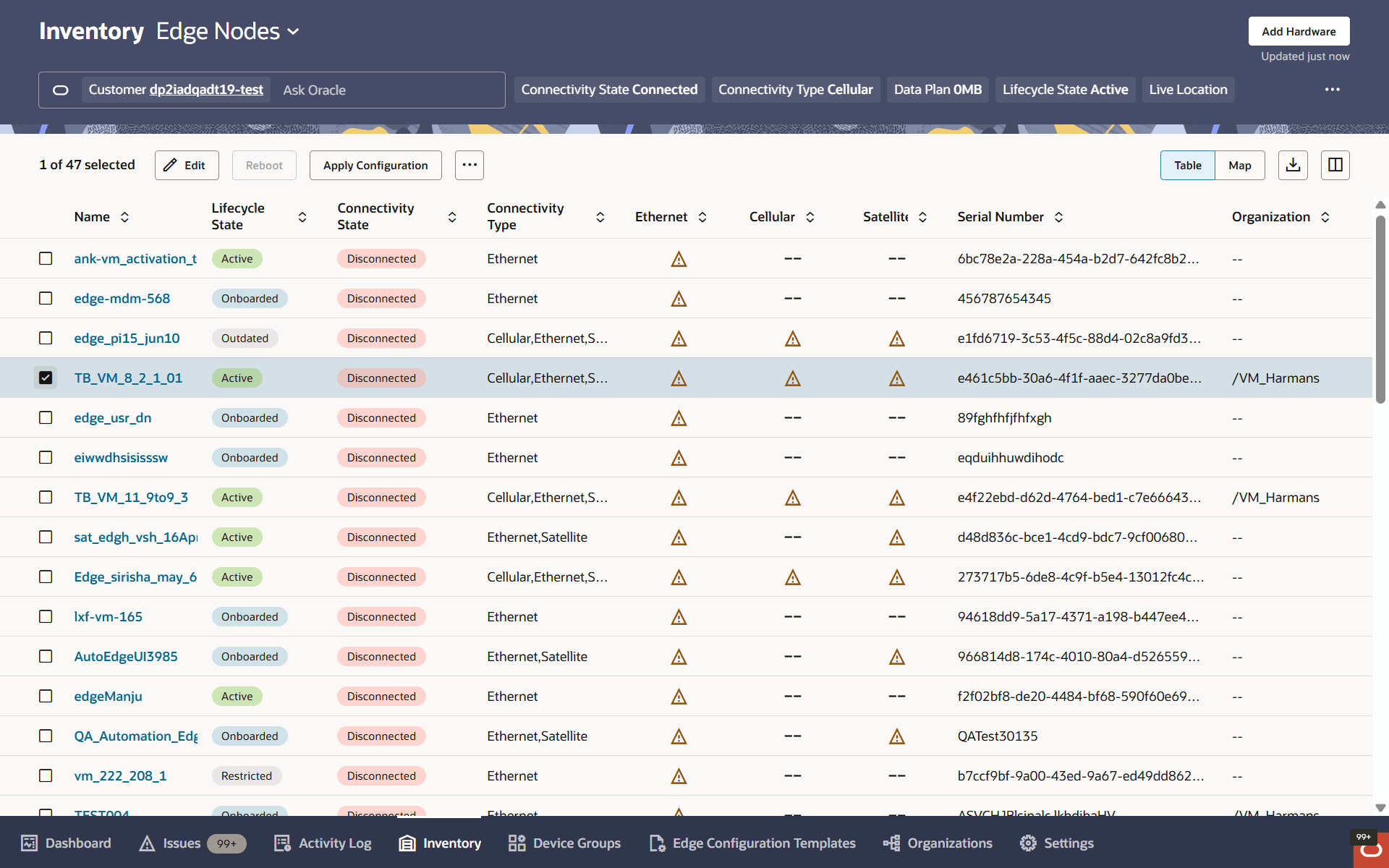
Figure 14-3 Apply Configuration Template Drawer
- In the Inventory page, select Edge Nodes from the context chooser.
- Select one or more compatible edge nodes.
- Click Apply Configuration.
- In the Apply Configuration Template drawer, review any eligibility message or connectivity warning.
- In the Template dropdown, select the template that you want to apply.
- In Version, select the published version.
- Click Apply.
Oracle ECP submits the request and displays a confirmation message.
What to Do Next
Review the activity log to monitor the apply operation.
After the request completes successfully, Oracle ECP shows the applied template association in the left panel or Edge Node Details page and in the Edge details drawer of a single edge configuration editor. You can also review the same association from View Edge Nodes in the template editor.
Return to the template later if you need to review assignments or create another draft.
Review Configuration Update Progress
Use this procedure to review the progress of a template apply or single-edge configuration update.
Configuration apply runs in the background after you submit the request. Oracle ECP creates an activity log entry so you can monitor the request and confirm whether it completes successfully or fails.
When you apply a template, the activity log summary identifies the template, the template version, and the target edge node. If you apply the template to multiple edge nodes, Oracle ECP shows the number of target edge nodes instead of listing one edge node name.
When you update one edge node directly, the activity log uses a single-edge summary for that edge node instead of a template-and-version summary.
While a configuration update is in progress, Oracle ECP does not allow another configuration update for the same edge node. During this time, you cannot make changes from the existing network settings area or from Edit Configurations for that edge node.
Figure 14-4 Activity Log page for configuration requests
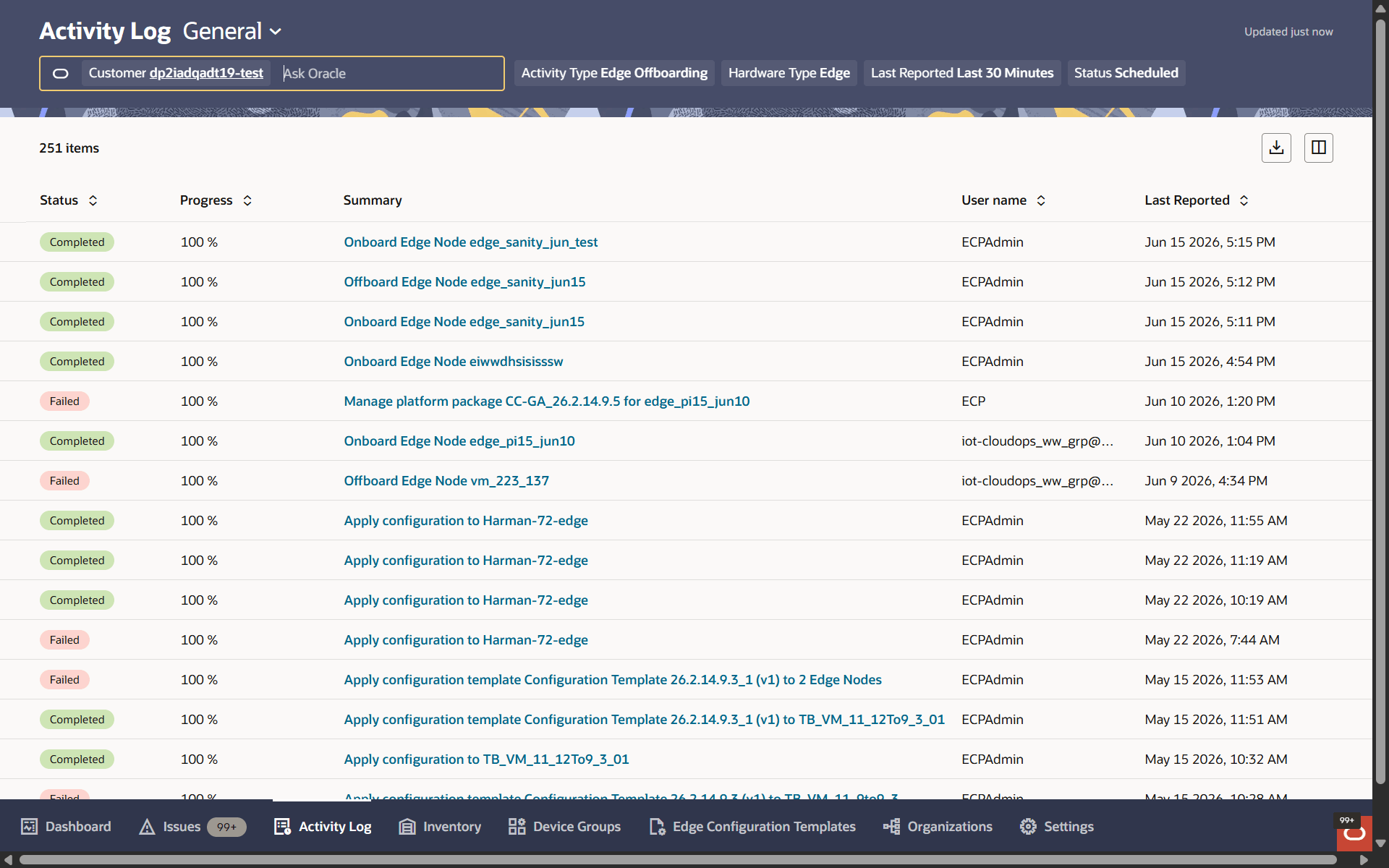
- Go to Activity Log and select General in the context chooser.
- In the Summary column, click the summary link for the configuration request. These fields show the overall state of the configuration request and the time range for the operation.
- On the request details page, review the Status, Start Time, and End Time values. Select the edge node row that you want to review.
- Click View Process.
- In the Apply Configuration pane, review the status for Validate configuration, Download configuration, and Apply configuration. These stages show the progress of the configuration request at the task level.
- Optional: Click See Details to review additional request information.
- Confirm whether the request completed successfully or failed.
Oracle ECP displays the current request state and the task-level progress for the configuration update.
Review an Applied Template on an Edge Node
Use this procedure to confirm that Oracle ECP applied the template to the required edge node.
The More Information drawer provides additional details for the edge node, such as Status, Details, Satellite, and Authentication.
Oracle ECP shows the current template association for the selected edge node.
View Edge Nodes Assigned to a Template Version
Use this procedure to review the edge nodes that currently use a published template version.
Confirm that the template version is published.
- Open the required published template version.
- Click View Edge Nodes.
- Review the list of assigned edge nodes.
View Template Details
Use this procedure to review additional information for a template version.
- Open the required template version in the configuration editor.
- Click Template Details.
Delete a Template Version
Use this procedure to delete the current version of a user-defined template.
Confirm that the template is user-defined. On the Edge Configuration Template page, use Created By to identify whether the template is user-defined or system-defined.
If Oracle ECP removes the final remaining version, the user-defined template no longer appears in the list.