4.2 GitHub Notebooks
Oracle Machine Learning UI supports direct interaction of Oracle Machine Learning Notebooks with your external GitHub repositories. You can now directly import notebooks from your GitHub repositories.
Note:
You may encounter an error if you retrieve information too frequently. This is because both public and private GitHub repositories are subjected to specific request limits. While it is unlikely that you will exceed the private repository limit of 5,000 requests per hour, it is common to hit the public limit of 60 requests per hour. GitHub restricts the number of API requests to prevent abuse and denial-of-service attacks, and also to ensure that the API remains available to all users.With GitHub integration, you can interact with your GitHub repositories in the following ways:
- Create GitHub Credentials
You must have separate credentials to connect to your GitHub repositories. The credential object with your GitHub credentials are stored in the Autonomous AI Database. To connect to your GitHub repositories that are marked private, you require credentials containing the necessary information such as name, email, personal access token and so on. - Clone and Access your GitHub Notebooks
To clone and access your GitHub notebook in Oracle Machine Learning UI, you must import the notebook from your GitHub repository. When you import the notebook, it clones the notebook and makes it available both on the Notebooks listing page and GitHub Notebooks listing page in Oracle Machine Learning UI. - Edit and Sync your GitHub Notebook
You can update remote changes in your notebooks and also upload local changes in the notebooks back to your GitHub repository using the Version Control options—Pull changes and Push & commit in OML notebook editor to synchronize the cloned notebook with your GitHub repository copy of the notebook. - Manage GitHub Notebooks
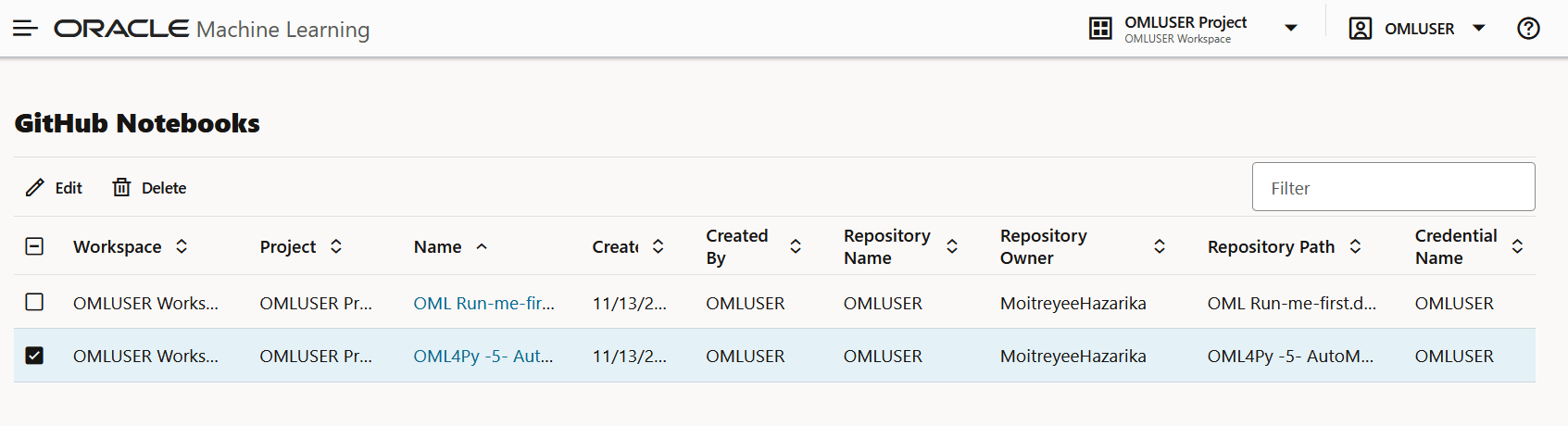
This page lists all the notebooks that you have cloned from a remote GitHub repository.
Parent topic: OML Notebooks
4.2.1 Create GitHub Credentials
You must have separate credentials to connect to your GitHub repositories. The credential object with your GitHub credentials are stored in the Autonomous AI Database. To connect to your GitHub repositories that are marked private, you require credentials containing the necessary information such as name, email, personal access token and so on.
Note:
GitHub repositories that are public can be accessed without credentials.- Create: Click Create to create GitHub credentials
- Delete: Select a credential and click
Delete. Deleting a credential also deletes the
repository definition associated with the credential.
Note:
When you delete a credential, all notebooks associated with the credential are converted into regular Oracle Machine Learning notebooks. As the credential is deleted, you can longer access and edit the associated notebooks in the GitHub repository.
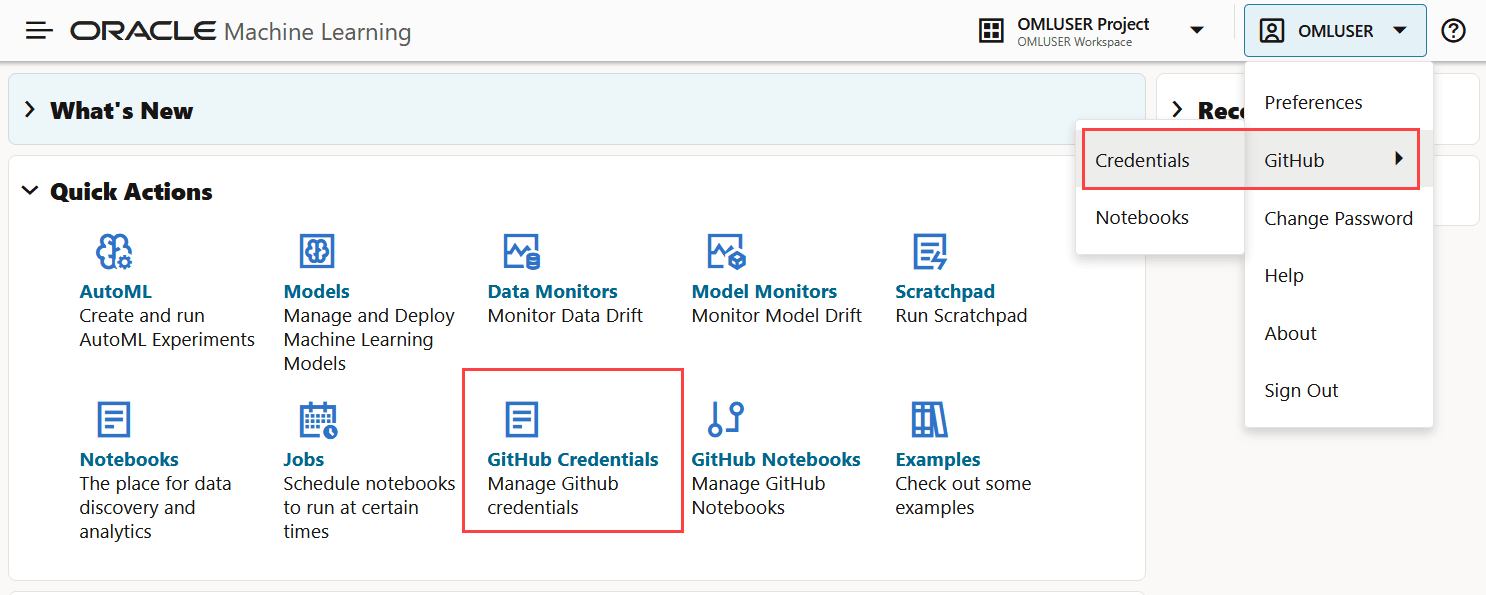
- On the Oracle Machine Learning UI home page, click GitHub Credentials. Alternatively,
you may click on the user profile drop-down menu, click
GitHub and then click
Credentials. This opens the GitHub
Credentials page.
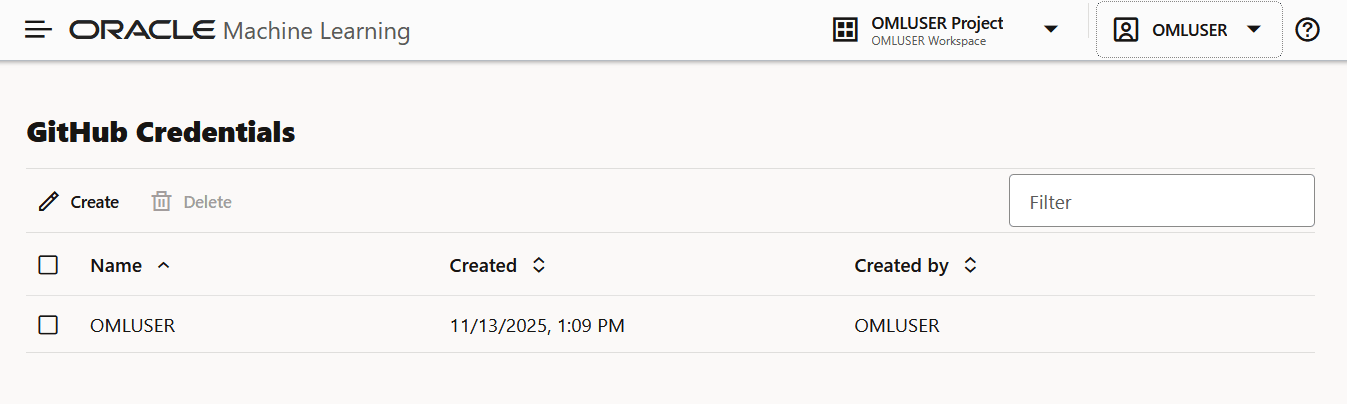
- On the GitHub Credentials page, click Create. The
Create Credentials dialog opens.
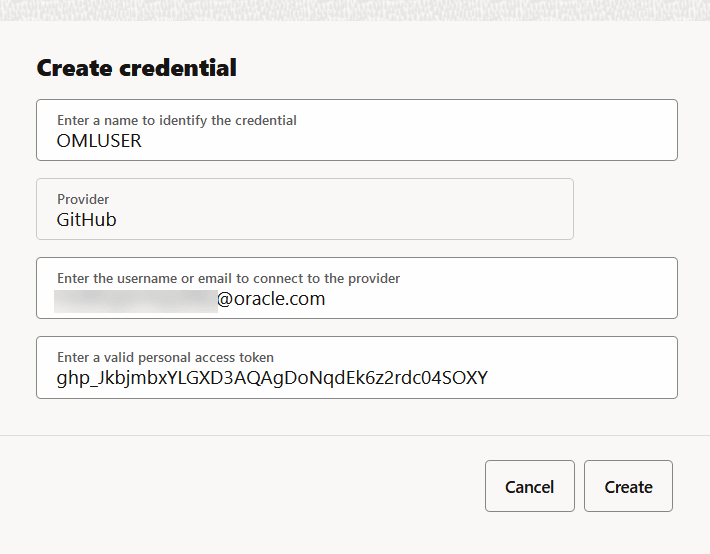
- On the Create Credentials dialog, provide the following
details:
- Name: This is a name to identify
this credential.
Note:
The length of the name is limited to 64 characters only. The valid characters are alphanumeric, underscore and the dollar sign. - Provider: This is the name of the external repository. Currently, only the GitHub repository is supported.
- Email: This is the email ID of the Git user that created the repository. The maximum limit is 128 characters.
- Token: This is the Personal Access Token, a secure method to authenticate with GitHub repository. You can generate it from your GitHub profile. See Generate Personal Access Token for details.
- Click Create.
This completes the task of creating the credentials and takes you back to the GitHub Credentials page. - Name: This is a name to identify
this credential.
- Generate Personal Access Token
A Personal Access Token (PAT) is an authentication token. It is a secure method used for user authentication.
Parent topic: GitHub Notebooks
4.2.1.1 Generate Personal Access Token
A Personal Access Token (PAT) is an authentication token. It is a secure method used for user authentication.
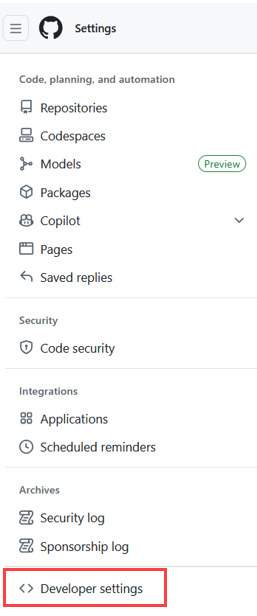
- On the left navigation of your GitHub Settings page, scroll down and click
Developer Settings.
Figure 4-15 Developer Settings on left navigation pane
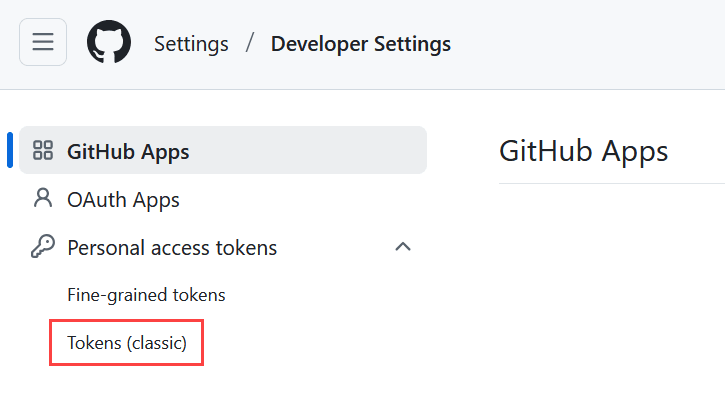
- On the left navigation of the Developer Settings page, expand
Personal access tokens and click Tokens
(classic).
Parent topic: Create GitHub Credentials
4.2.2 Clone and Access your GitHub Notebooks
To clone and access your GitHub notebook in Oracle Machine Learning UI, you must import the notebook from your GitHub repository. When you import the notebook, it clones the notebook and makes it available both on the Notebooks listing page and GitHub Notebooks listing page in Oracle Machine Learning UI.
- You must have your GitHub credentials created.
- The notebooks to be cloned must reside in your GitHub repository.
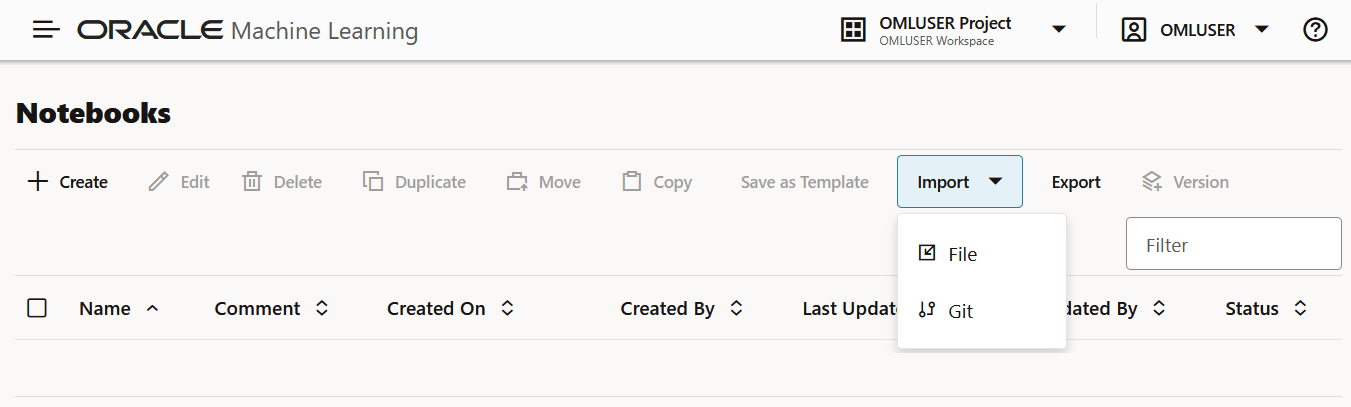
- Go to your Oracle Machine Learning Notebooks listing page and click Import. Here, you have two
options—File and Git.
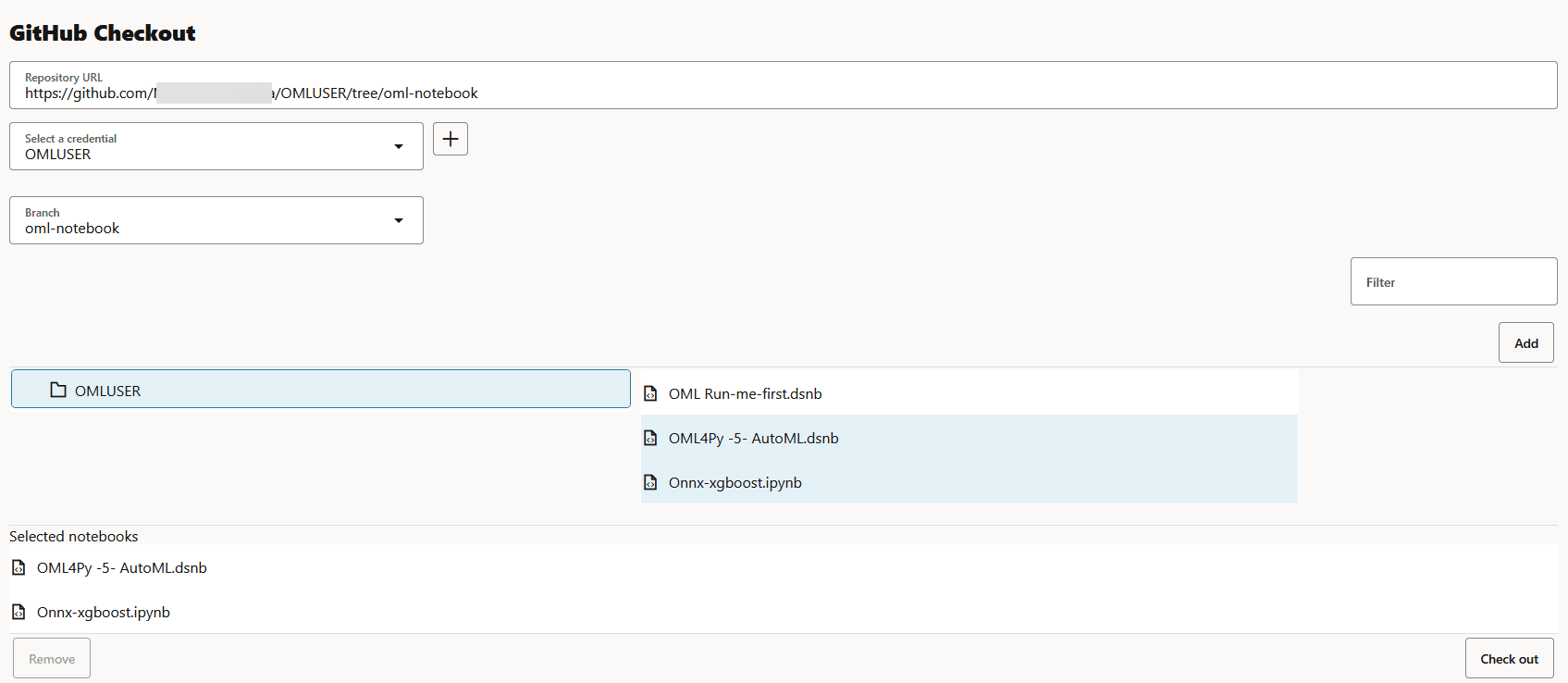
- On the GitHub Checkout page, enter these details:
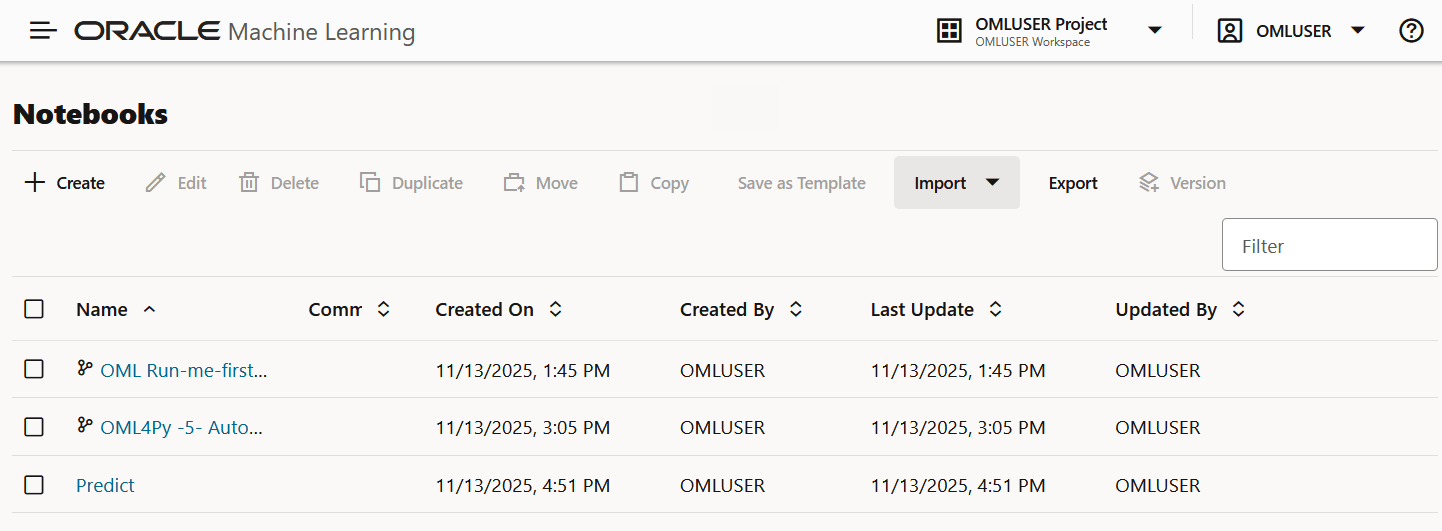
- You can access all your cloned GitHub notebooks from the Oracle Machine Learning Notebooks listing page or from the GitHub Notebooks listing page.
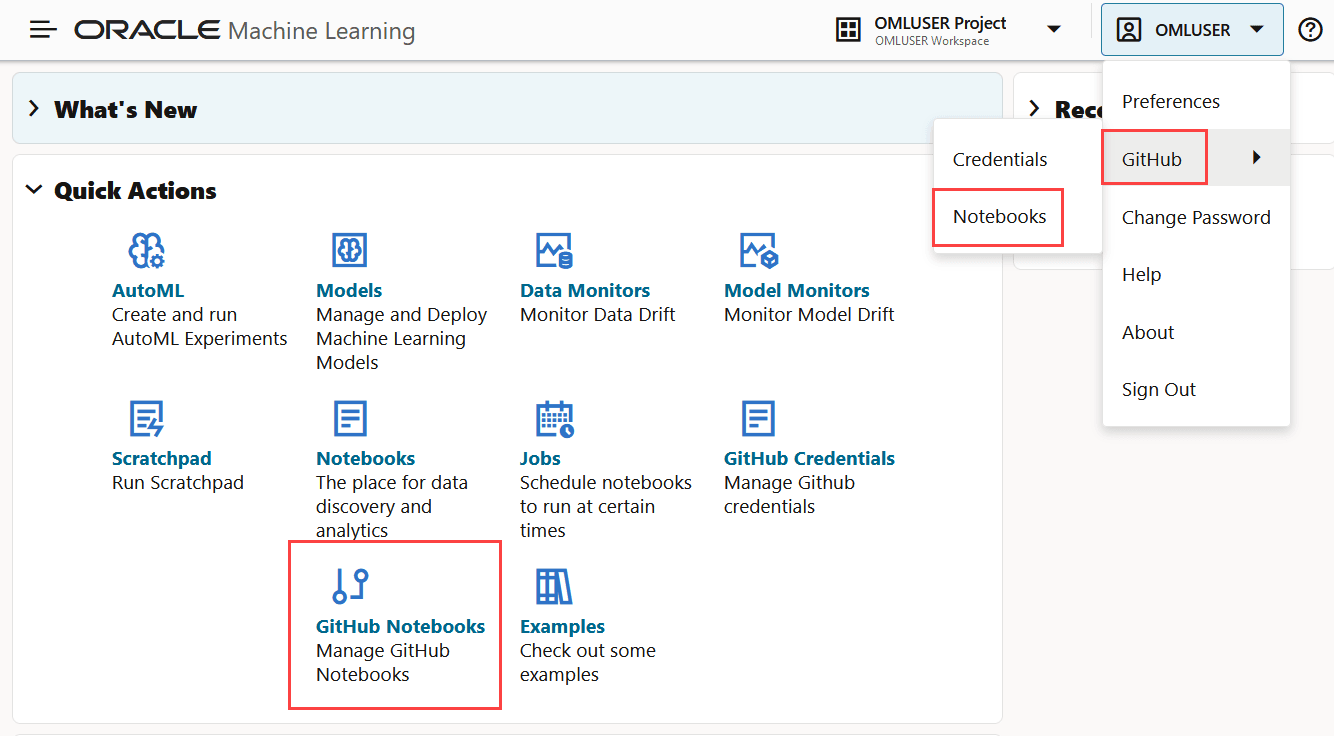
Figure 4-19 GitHub Notebooks option on the User Profile menu and OML UI home page
- To access your GitHub Notebooks listing page, click on the user profile drop-down menu on the top-right corner of the Oracle Machine Learning UI home page. Click GitHub, and then click Notebooks.
- Alternatively, you can access the GitHub Notebooks listing page by clicking GitHub Notebooks on the Oracle Machine Learning UI home page.
On the GitHub Notebooks listing page, click on the cloned notebook name to open it in the editor. - To access your cloned GitHub notebooks from your Oracle Machine Learning Notebooks listing page, click on the notebook with the
 icon.
icon.
Parent topic: GitHub Notebooks
4.2.3 Edit and Sync your GitHub Notebook
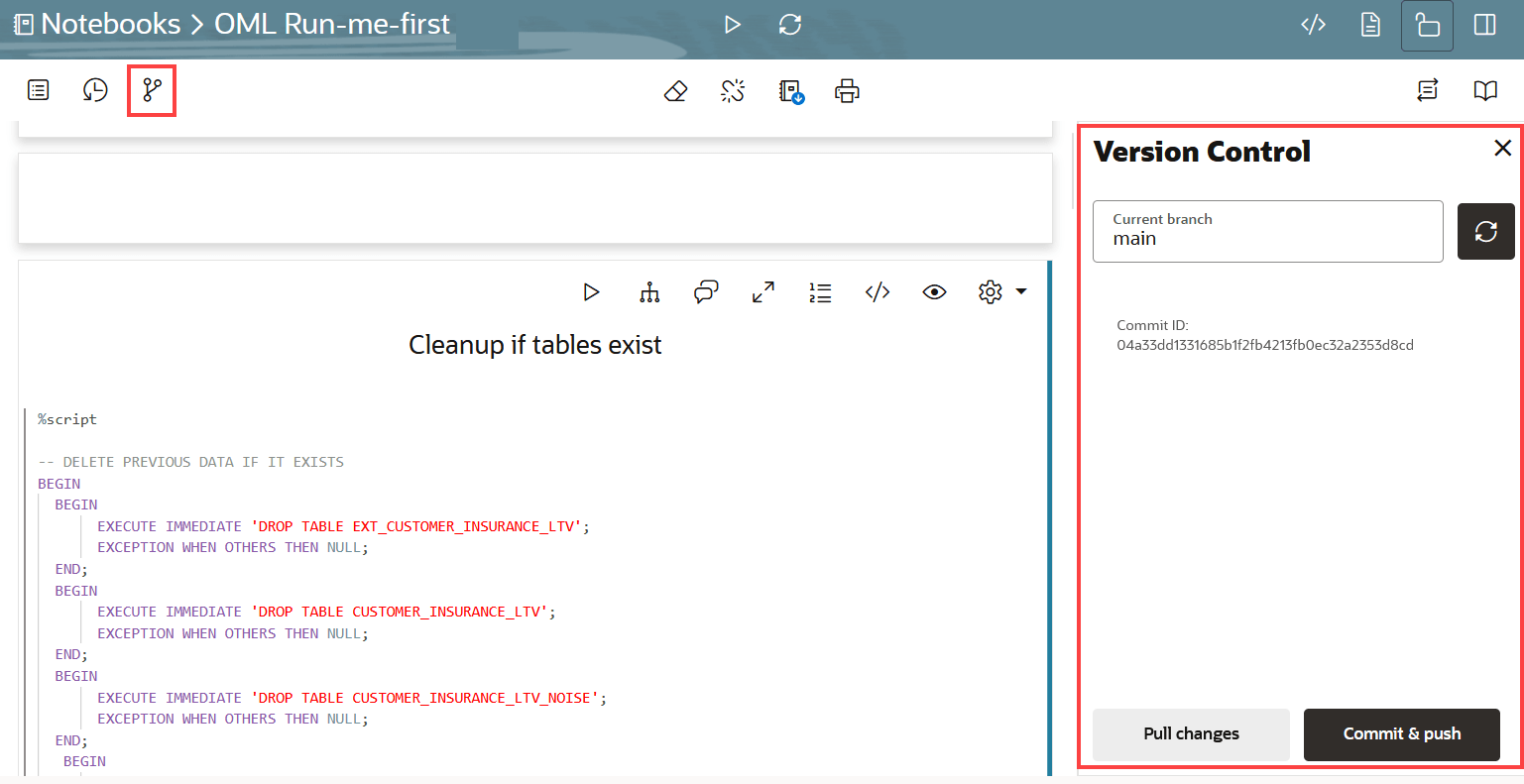
You can update remote changes in your notebooks and also upload local changes in the notebooks back to your GitHub repository using the Version Control options—Pull changes and Push & commit in OML notebook editor to synchronize the cloned notebook with your GitHub repository copy of the notebook.
- Import the notebook from the GitHub repository. For more information, see Clone and Access your GitHub Notebooks
- Open the notebook:
- Either from the GitHub Notebooks listing page. See Manage GitHub Notebooks
- Or, from the Oracle Machine Learning Notebooks listing page. See Access your Oracle Machine Learning Notebooks.
- On the Version Control pane:
Figure 4-22 Version Control in OML notebook editor
Note:
To use these features, you must have your credentials linked to the GitHub notebook. Otherwise, the operations will fail.- Click Commit & Push to save and
commit the edits done to the local (cloned) copy of your notebook to the
mainbranch of your Git repository. This opens the Commit and Push dialog. Evaluate the changes (highlighted in a different color), provide a comment and click Continue. Once the changes are committed, it displays the confirmation message:New commit <commit ID> created and pushed. - Click Pull changes to pull all
changes in the notebook from your Git repository to your cloned copy in
Oracle Machine Learning UI. Note the Git repository/branch name in the
Current branch field. A confirmation dialog
opens with the repository/branch name. Click Pull
to confirm. Once complete, it displays the confirmation message:
Notebook pulled from the <branch name>. - Click
 to change the branch and pull all changes in the notebook from
the updated branch to your cloned copy in Oracle Machine Learning UI. In
the Current branch field, copy paste the name of
the branch if you want to change the branch from the default
to change the branch and pull all changes in the notebook from
the updated branch to your cloned copy in Oracle Machine Learning UI. In
the Current branch field, copy paste the name of
the branch if you want to change the branch from the default
mainto another branch. Once complete, it displays the confirmation message:Current branch is set to <branch name>.
- Click Commit & Push to save and
commit the edits done to the local (cloned) copy of your notebook to the
Parent topic: GitHub Notebooks
4.2.4 Manage GitHub Notebooks
This page lists all the notebooks that you have cloned from a remote GitHub repository.
- Workspace: This is the name of the workspace where the project (in which the notebook is saved) is created.
- Project: This is the name of the project in which the notebook is saved in Oracle Machine Learning UI.
- Name: This is the name of the notebook. It is a clickable link. You can click on the name to open and edit it directly in the notebook editor.
- Created: This is the date and time of creation and last edit of the notebook.
- Created By: This is the name of the OML user.
- Repository Name: This is the name of the GitHub repository.
- Repository Owner: This is the name of the GitHub repository owner.
- Repository Path: This is the file name of the notebook.
- Credential Name: This is the name of the user credential
- Edit: To update repository path or credentials, select a
notebook and click Edit. The Update
Repository dialog opens. You can perform the following
information: , you can update the GitHub repository URI and choose a different
credential.
- Update the URI of the GitHub notebook.
- Click the down arrow to choose a different user.
- Click the + icon to create a new GitHub credential.
- Open: To open a notebook, click on the notebook name. It opens the notebook directly on the Oracle Machine Learning Notebook editor.
- Delete: To delete any notebook, select the notebook and click Delete. This deletes the local (cloned) copy of your GitHub notebook.
Related Topics
Parent topic: GitHub Notebooks