SR Summarization is Now a Configurable AI Agent
The SR Summarization capability has been upgraded from a static prompt template into a seeded, runnable Oracle AI Agent. The agent runs out of the box and can be fully customized through Oracle AI Agent Studio and integrated via Visual Builder Studio. The active agent is controlled by a variable inside the summarization fragment, making it easy to swap or extend behavior without changing core application logic.
Example Use Cases
- Persona-based summaries — A customer configures two agents: one delivering a 2–3 sentence executive summary for team leads, and another with full interaction history for service agents handling escalations.
- Channel-specific summarization — A customer extends the agent to summarize only chat or phone interactions, filtering out irrelevant data to speed up SR resolution.
- Summary length and format control — A customer reduces the default character limit to enforce concise, structured summaries that fit their internal service review templates.
This change gives implementation teams more control over how SR summaries are generated and displayed — without deep development effort. Key benefits include:
- Faster time to value — the seeded agent works immediately with no setup required.
- Low-code customization — implementors can clone, modify, and publish a new agent directly in AI Agent Studio.
- Role-based flexibility — different summary formats can be served to different user personas (e.g., concise for managers, detailed for agents).
- Resilient UI behavior — if an agent is misconfigured or unavailable, the UI falls back gracefully with an error message instead of breaking.
Steps to enable and configure
There are no steps required to enable the SR Summary AI Agent. It is already updated in the out-of-the-box application, and you should consume the AI Agent from this version onward.
How to extend SR Summarization:
-
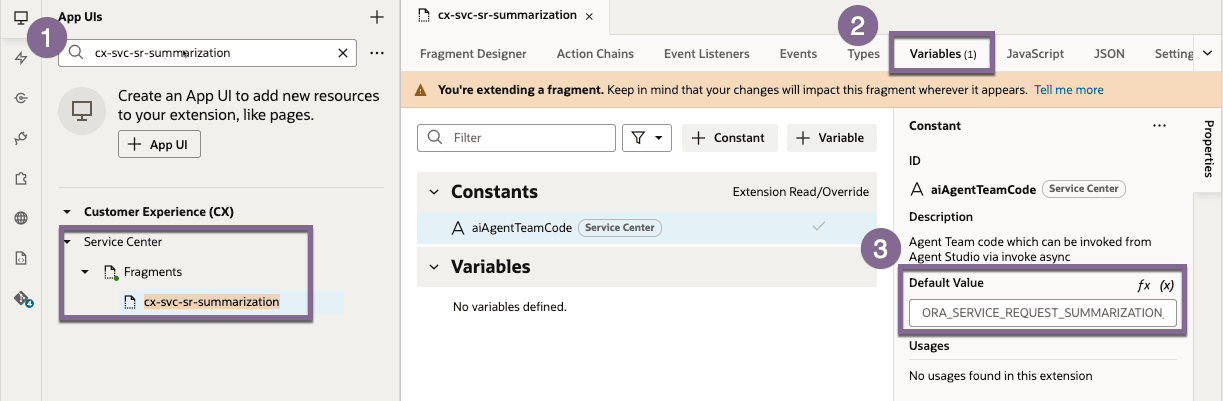
In Oracle Visual Builder Studio, search for cx-svc-sr-summarization.
-
Navigate to the Variables sub-tab.
-
Find the constant aiAgentTeamCode and replace it with your new AI Agent team code.
Notes:
-
Make sure the AI Agent you want to use is published.
-
You can use fx to apply a conditional setting, or
-
You can create a vbEnterListener event with an action chain to set the agent based on more complex business logic, including user roles and other conditions.
Tips and considerations
- Always publish your agent in AI Agent Studio before updating the team code variable in VB, otherwise the UI will fall back to an error state.
- Test role-based configurations in a non-production environment first, especially when multiple personas are involved.
- If the summary section shows an error instead of content, verify the agent team code is spelled correctly and the agent is in an active/published state.
- Character limit changes in the LLM instructions directly impact summary quality — test different ranges (e.g., 2,000–3,000 characters) to find what works best for your service process.
- Make sure to grant access to Fusion AI so that the agent can run when invoked by the Global Function.