Time-based Automations - Scheduling Data Lifecycle Management Actions
Oracle Fusion Service Center Business Rule Automation Framework includes rule based Data Lifecycle Management purge feature that enables Users schedule the removal of older Service Requests to control data growth and improve performance. Using a configurable policy, for example, purge SRs older than X months or all SRs created before a specific data such as 2019, Admins can compose business rules to adapt to evolving data retention needs. This feature helps reduce storage costs, improve database response times and keep SR data sets lean and compliant as data volumes grows.
Data Lifecycle Management streamlines and automates the management of Service Request (SR, HDHR, ISR and/or Case) data, empowering organizations to efficiently manage data growth through secure archiving or purging. With a simple two-step setup defining purge/archive conditions and scheduling businesses can easily maintain compliance with data privacy regulations (such as GDPR and CCPA) and effectively manage data growth. Out-of-the-box actions make audit readiness and risk reduction effortless, ensuring your data is always handled in line with best practices.
Steps to enable and configure
To use this feature
- Go to: Navigator --> Service --> Service Center Administration --> Productivity --> Create/Manage Workflows
- Click on Create
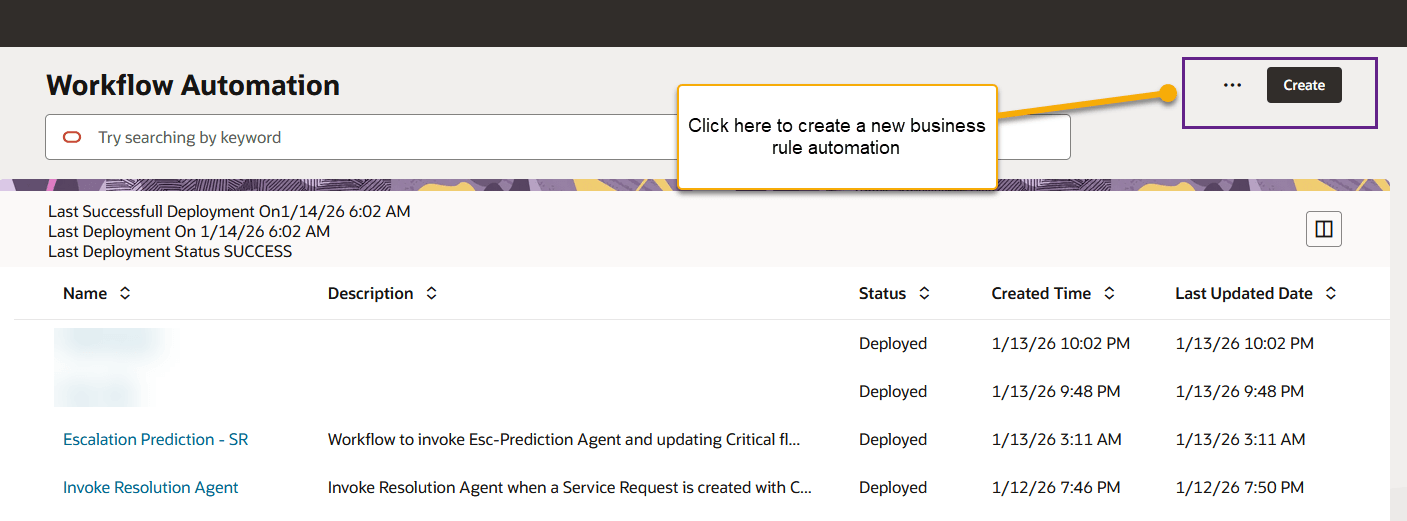
Create Automation
- In the ensuing screen, fill the form as shown in example:
- Workflow Template Name: Enter a clear name (example: “Automation to purge closed Service Requests”).
- Enabled: Leave OFF while drafting; turn ON only when you are ready to deploy.
- Parent Entity Name: Select “Service request” (or the relevant business entity such as HR Help Desk or Internal Service Request).
- Entity Name: Select “Service request” (child/target entity, if applicable).
- Stripe Code: Choose the applicable stripe (example shown: “CRM”).
- Description: Provide a purpose statement (example: “Purges Service Requests that are closed for more than 3 months”).
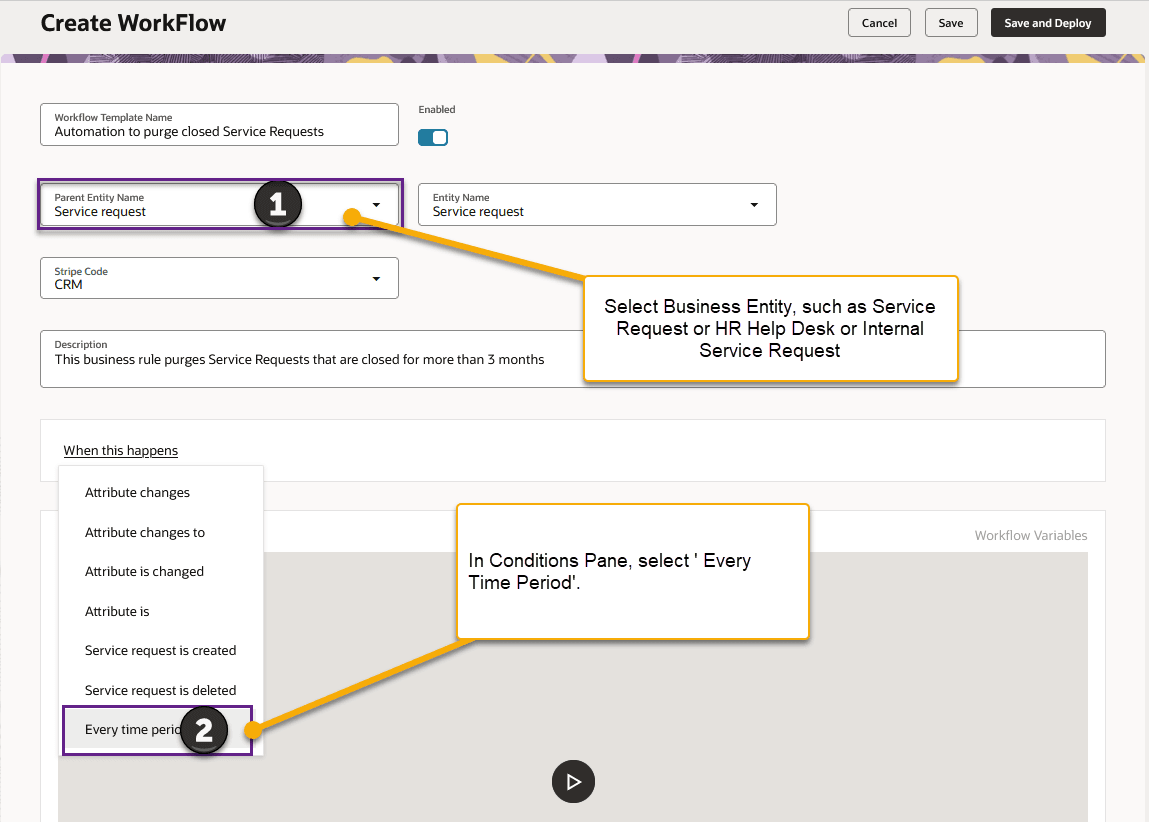
DLM Step1
- As shown in above screenshot, define the trigger (When this happens)
- In the Conditions pane, choose “Every time period.”
- This schedules the rule to run on a time-based cadence rather than on an attribute change or create/delete event.
- Configure the schedule
- Set the recurrence (e.g., daily or weekly) and the execution time that best fits your maintenance window.
- Ensure the schedule won’t overlap with other batch jobs.
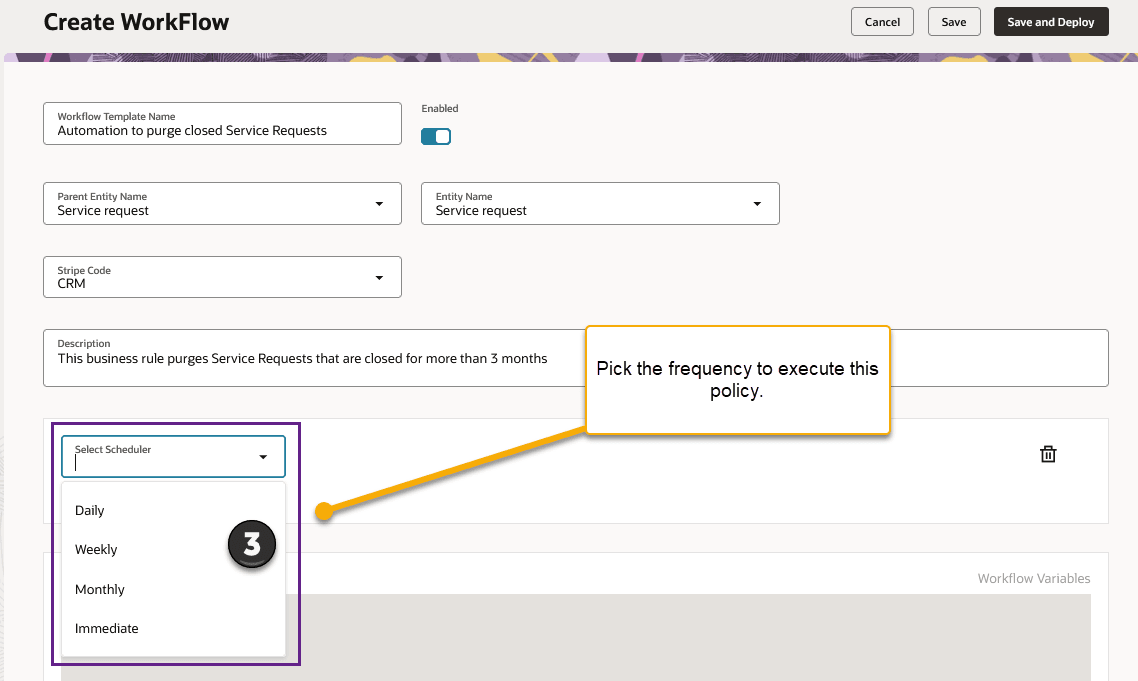
DLM Step2
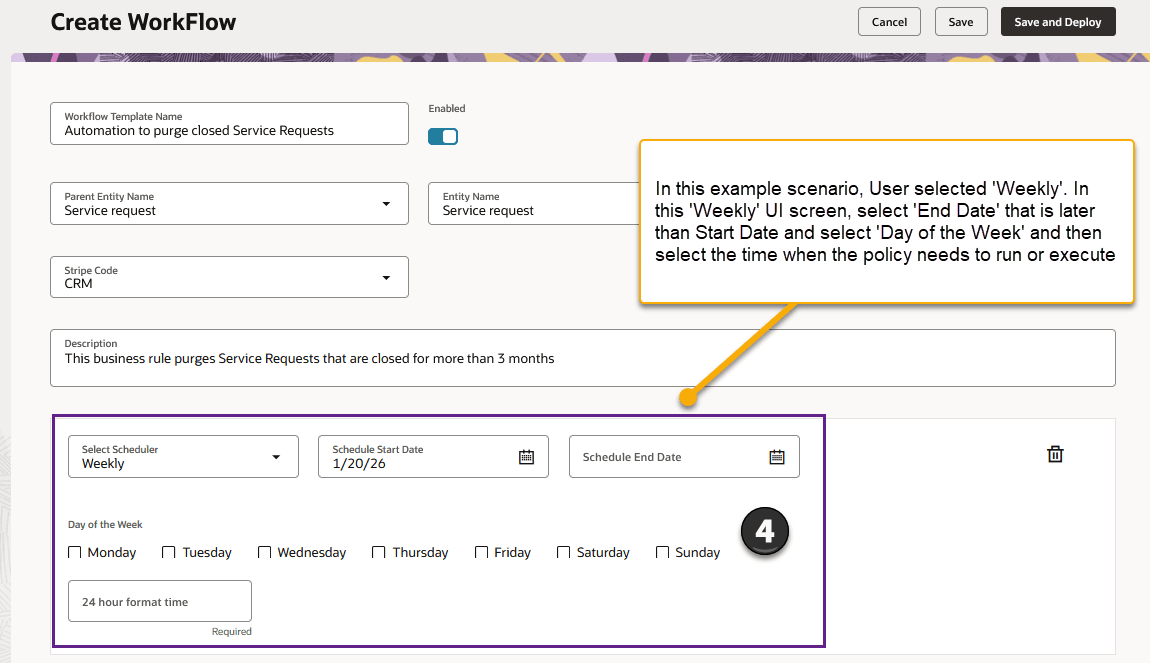
DLM Step3
- From Actions Pane à Action Catalog à Purge DLM. Note that Out of box DLM actions are visible and available for selection only when, Schedule Condition, i.e. ‘Every Time Period’ is selected.
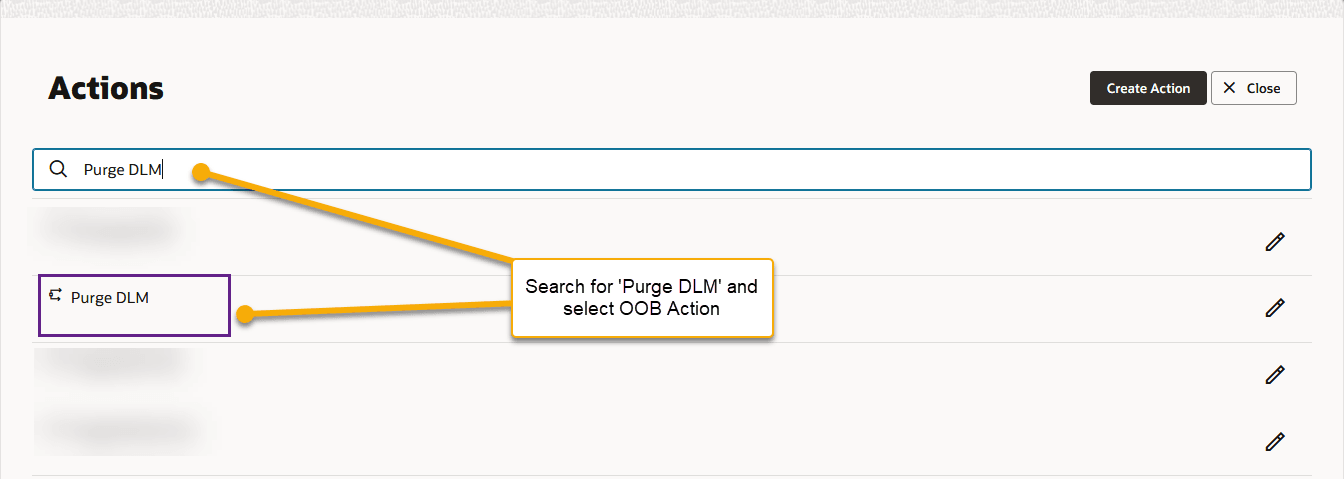
DLM Step4
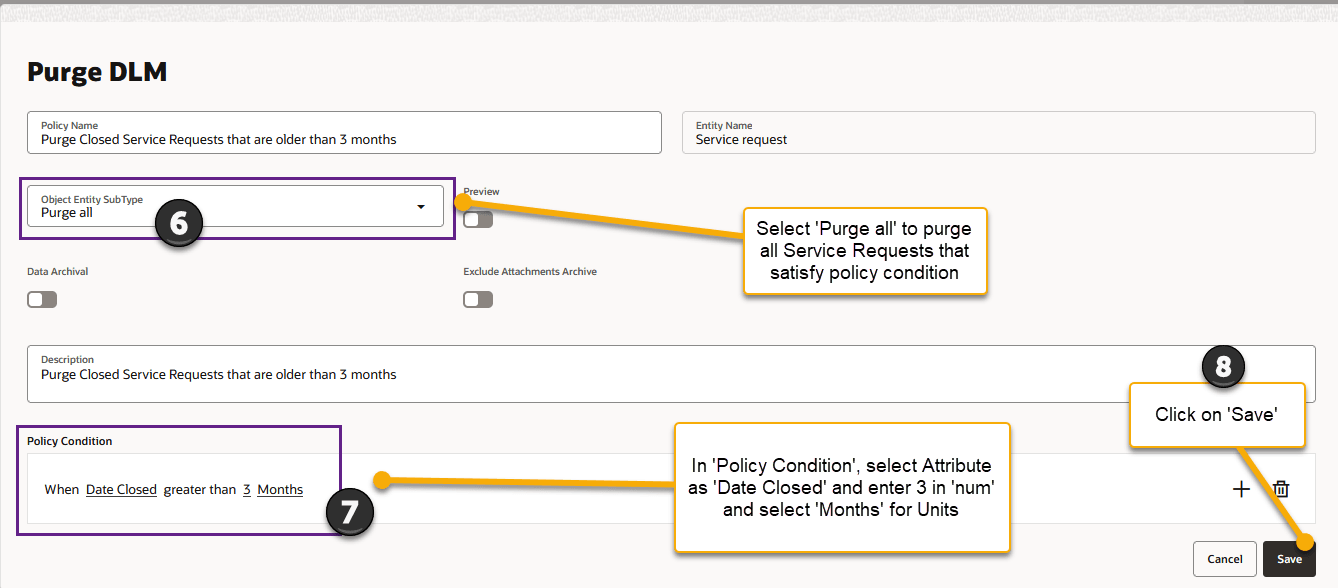
- Create the purge policy. Open Purge DLM and create a new policy.
DLM Step5
- Policy Name: Enter a clear name, for example: “Purge Closed Service Requests older than 3 months.”
- Object Entity SubType: Choose “Purge all.” This targets all Service Requests that meet the condition below.
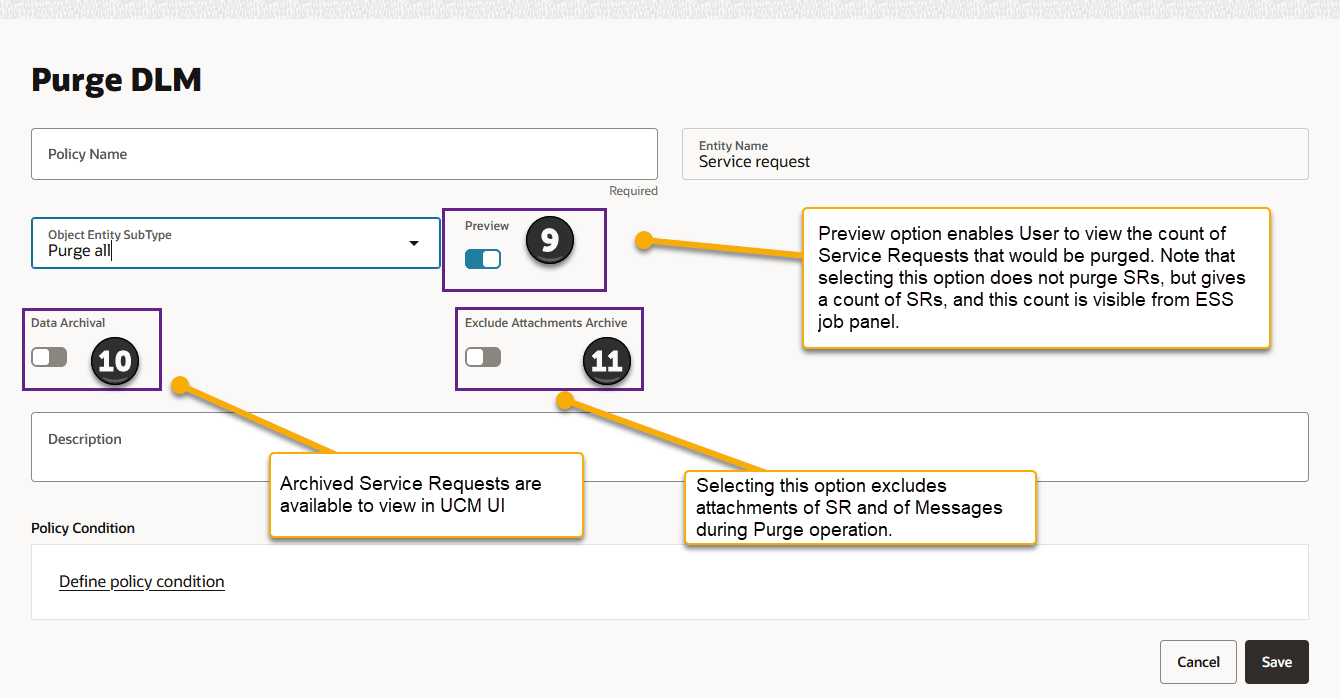
- Preview: Turn ON to simulate the purge without deleting data. Turn OFF only when you are ready to delete.
- Data Archival (optional):
- Enable if your process requires archiving records before purge.
- Exclude Attachments Archive: Enable if you do not want to archive attachments.
- Description: Add a concise explanation of the policy and the rationale.
- Policy Condition: Records with Date Closed earlier than or equal to “today minus 3 months” will be selected
- Attribute: Date Closed
- Operator: greater than
- Number: 3
- Units: Months
- Click Save.
- Purge Options
DLM Step6
- Preview Purpose: Validate policy scope.
- Output: Count of matching SRs, visible in the ESS job panel.
- No data change occurs.
- Purge/Archive:
- If Data Archival ON: SRs are archived to UCM, Attachments are included unless excluded.
- If Data Archival OFF: SRs (and attachments) are deleted per policy; nothing is archived.
- Monitoring results
- ESS Job Panel: Search for "Data Lifecycle Management Job" to monitor job status, review counts, and download logs. The preview count and purge/archival statistics are reported here
- Preview Purpose: Validate policy scope.
- Save and Deploy Workflow
Tips and considerations
Please monitor ESS job from Tools --> Scheduled Processes and search for "Data Lifecycle Management Job"
Access requirements
You need Sales Administration Role to compose and deploy (or publish) Business Rules.