Oracle Sales Connector Enhancements
This release introduces enhancements to the Oracle Sales connector in Data Orchestration within Fusion Unity Data Platform. These updates make it easier to configure parent and child Sales Cloud objects, map child-object attributes to CDP attributes, prevent duplicate destination-field mappings, and understand which Unity object a selected field belongs to.
Together, these enhancements provide a more complete and controlled configuration experience when exporting segment data from Unity to Sales.
Select Child Objects for a Sales Parent Object
Users can now select one or more child objects for a selected Sales parent object while configuring a Sales stage in Data Orchestration.
Key capabilities include:
- A new Add child objects option is available after the parent object field mapping section.
- The child-object list shows the available child objects for the selected Sales parent object.
- Selected child objects are added as tabs below the Add child objects option.
- Users can configure up to five child objects for a parent object.
- If five child objects are already selected, the Add child objects option is disabled and a message prompts the user to remove a selected child object before adding another one.
- Users can remove a selected child object by selecting the remove icon next to the child-object tab.
This helps users include related Sales child records as part of the same Data Orchestration configuration instead of managing the parent object only.
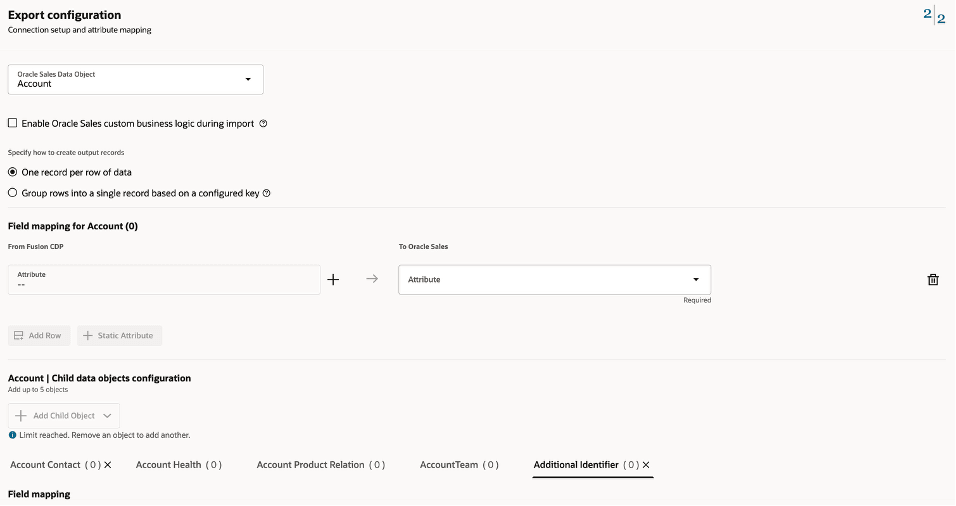
Select child objects from the parent object configuration
Configure Child Object Attribute Mapping
After a child object is selected, users can configure field mappings for that child object.
Each selected child object has its own configuration tab. Within the child-object tab, users can map child-object attributes to CDP attributes in the same field mapping style used for the parent object.
Key capabilities include:
- The selected child object is displayed as a tab and highlighted when active.
- Already selected child objects are shown as unavailable in the child-object selection list.
- Each child object tab includes a field mapping section.
- Users can map Sales child-object attributes to CDP attributes.
- Users can add more mapping rows by selecting Add row.
- Users can add a static value by selecting Static Attribute.
- Users can remove mapping rows by selecting the delete icon for the row.
- The same child-object configuration experience is available for each selected child object, up to the five-child limit.
These mappings are considered when segment data is exported to Sales through Data Orchestration.
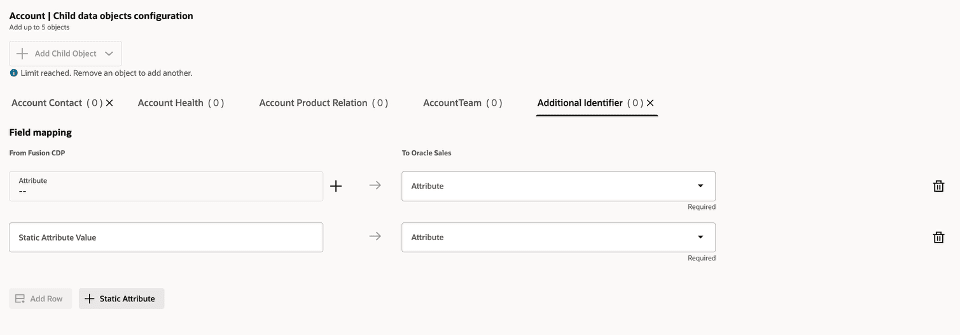
Open each child object tab and map its fields
Prevent Duplicate Destination Field Selection
Field mapping now prevents the same destination application field from being selected more than once in a connection stage.
When a destination field is selected in a mapping row, that field is no longer available for selection in other mapping rows. If the mapping is removed, the destination field becomes available again.
This behavior helps avoid conflicting exports where multiple source attributes are mapped to the same Sales destination attribute.
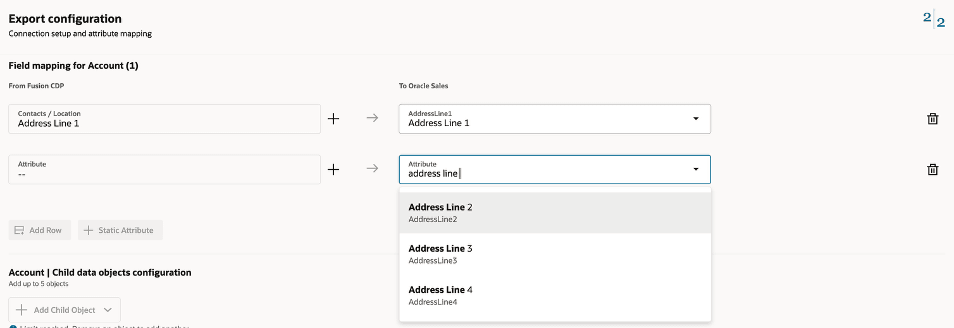
Select each destination application field only once
Show the Unity Object for Selected Fields
Field mapping areas now show the Unity object that a selected field belongs to.
This makes it easier to confirm the origin of selected CDP fields, especially when similarly named fields exist across multiple Unity objects. The object indicator helps users review mappings more confidently before saving or running the Data Orchestration.

See the field mappings
Business Benefits
- Supports richer Sales exports by allowing users to include selected child objects for a parent object.
- Reduces configuration effort by managing parent and child object mappings in the same Sales stage.
- Improves mapping accuracy by preventing duplicate destination-field selection.
- Reduces the risk of export conflicts caused by ambiguous or repeated field mappings.
Steps to enable and configure
You don't need to do anything to enable this feature. The enhancements are available in the FusioSales connector stage configuration experience for Data Orchestration.
To configure Sales parent and child object mappings:
- In FMK, open Data Orchestration.
- Create a new Data Orchestration or open an existing Data Orchestration that exports data to Sales.
- Add or open the Sales connection stage.
- Select the Sales parent object for the stage.
- Configure the parent object field mappings.
- Select Add child objects.
- From the available child-object list, select a child object for the selected parent object.
- Repeat the selection process as needed. You can select up to five child objects.
- Open each selected child-object tab.
- In the child-object field mapping section, map the required child-object attributes to CDP attributes.
- To add more mappings, select Add row.
- To set a constant value, select Static Attribute.
- To remove a mapping, select the delete icon for that row.
- Review the mappings and confirm that each destination field is selected only once.
- Save the stage configuration and continue with the standard validation and activation steps for the Data Orchestration.
To remove a selected child object:
- Locate the child-object tab below Add child objects.
- Click the "X" icon next to the child-object name.
- Review the configuration to confirm that any mappings for the removed child object are no longer needed.
- If needed, select Add child objects again to add another child object.
Tips and considerations
- You can select up to five child objects for a selected Sales parent object.
- If the maximum number of child objects has been reached, remove one selected child object before adding another.
- If you need to map a destination field to a different CDP attribute, remove the existing mapping first. The destination field will then become available again.
- Review parent and child object mappings before activating the Data Orchestration to reduce export errors.
- Validate the configuration in a non-production or test workflow when available before using it for production exports.
Access requirements
- Users must have the required access to Data Orchestration, the Oracle Sales connector, and the objects and attributes used in the configuration.
Note: Requires a subscription to Oracle Sales. Please contact your account manager for more information.