Event Triggered Tactic Entry
The new Event Triggered Entry capability allows marketers to trigger highly relevant messages based on rich, behavioral signals, such as form submissions, content engagement, product views, and more. This feature listens to real-time data streams and identifies when specific rules occur, thus triggering contextual, personalized outbound messages. With this enhancement, marketers can design dynamic tactics that respond to individual behaviors, providing a more tailored experience that leads to better outcomes.
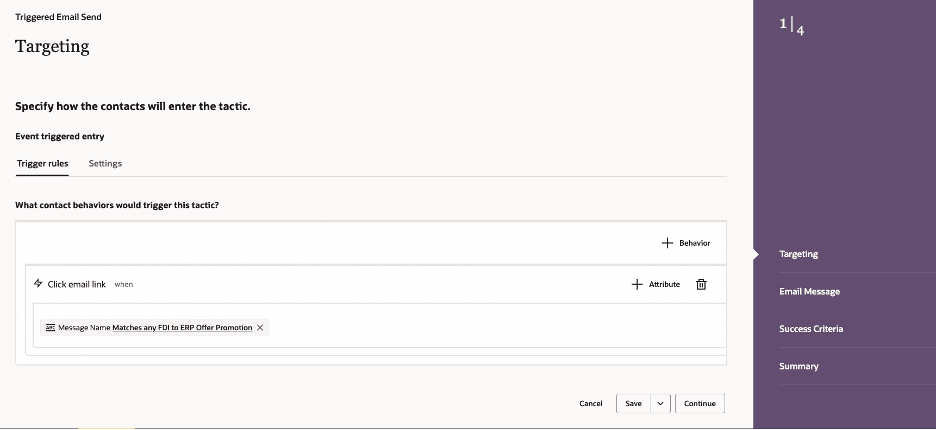
Configuring Triggered Email Send
Business Benefits:
- Increases campaign responsiveness: Delivers timely, event-driven communications when customer intent is at its highest, maximizing relevance and impact.
- Enables hyper-personalization: Leverages contextual triggers and behavioral insights, allowing for dynamic personalization of content, offers, and messaging.
- Boosts engagement and conversion rates: Addresses customers "in the moment," leading to higher open, click, and conversion rates compared to non-triggered tactics.
Steps to enable and configure
You don't need to do anything to enable this feature.
Tips and considerations
To start using this enhancement, a marketer would:
- Access the Tactic Template: Navigate to Tactic Templates section in Fusion Marketing (if a Tactic Template already exists with this Targeting option enabled, this step may not be required).
- Create a new Tactic Template with Event Triggered Entry: Select “Create” from the Tactic template. Choose the Tactic Type from either “Email Send” or “Email + landing page”, or “Email + Follow-up”. Enter a unique Name and Description for the Tactic Template.
- Define the Targeting Criteria: Select “Event Triggered Entry” in the Assign Targeting step.
- Complete the Tactic Template Configuration: Proceed with defining the constraints for email templates, landing pages, and success criteria where applicable in the guided process. Save the tactic template
- Create a new Tactic: Navigate to an existing program and select “Add Tactic”. Select the Tactic Template that was created with Event Triggered Entry.
- Navigate to the Targeting Step: Within the tactic designer, Configure the Trigger Rules:
- Select the behavior(s) that will trigger entry into the tactic—such as a click email link, view page, or submit form.
- Define the Settings for Event Triggered Entry
- Set condition for the time window for when the trigger rules will be evaluated. A marketer can specify from Days or Hours.
- Set Participant Entry into the tactic. A marketer can choose for a participant to enter the tactic after the time window expires or immediately when the trigger rules are met.
- Complete the Tactic Configuration: Proceed with configuring email templates, landing pages, and success criteria where applicable in the guided process. Save the tactic
- Review and Activate:
- Validate the full workflow, reviewing compliance prompts and legal checks where applicable.
- Activate the tactic and monitor for successful triggering and delivery.
Access requirements
Note: Requires Fusion Marketing Orchestration Add-on for Fusion Unity Data Platform. Please contact your account manager for more information.