Workforce Schedules Enhancements
Edit Past Schedules
Schedule managers can now make corrections to shifts in completed schedule periods, even after the period or shift has ended, by editing schedules from the workforce schedules landing page.
Tips and Considerations:
- The default editable window is two past periods. Administrators should plan if they need a broader retrospective edit capability when the configurable option becomes available.
- The application displays warnings when editing a shift, but they can be overridden. However, validation errors prevent saving the changes.
- Only users with Manage Workforce Schedule role can perform edits of the past schedules.
Common scenario:
- Use edits of the past schedule periods to align schedules with payroll and compliance records when required; Whether adjustments are required due to late attendance reporting, error corrections for payroll, or compliance and audit needs, managers can now directly update shift records retroactively—reducing manual exception handling.
Shift Note
A shift note icon is now directly displayed in the schedule view, providing immediate visual indication when notes are attached to a shift. Managers can hover over or click this icon to quickly review important information, special instructions, or contextual notes without needing to navigate away from the schedule interface.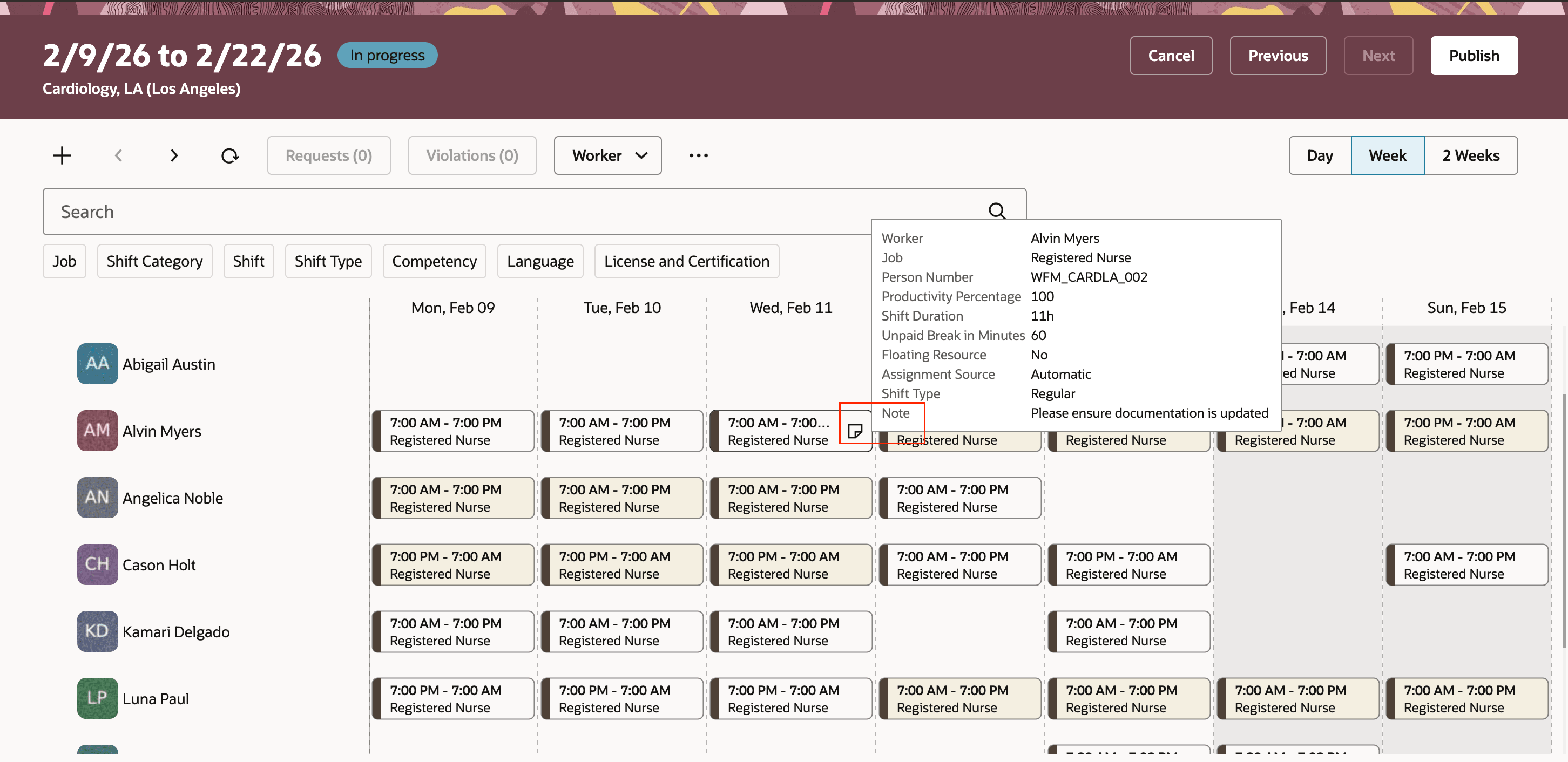
Note Icon at the Shift at the Workforce Schedule Page
Job profile type filter on the Gantt
Schedule managers can now use job profile type filter at the workforce schedule page to limit visible shifts to those associated with a selected job, position, scheduling group, or job family. The filter is available in both Worker and the corresponding job, position, scheduling group, or job family view and is populated from the shifts in the current schedule period.
- List of values (LOV) for the filter is derived from the jobs, positions, groups, and families present in the shifts for the selected schedule period and department.
- The job profile type filter affects only the Gantt display. It doesn't apply to Violations, Worker’s Metrics, or Coverage panels.
Common scenario: A manager could isolate all "Licensed Practical Nurse" shifts, making it easier to assess coverage and shift allocation for the specific job.
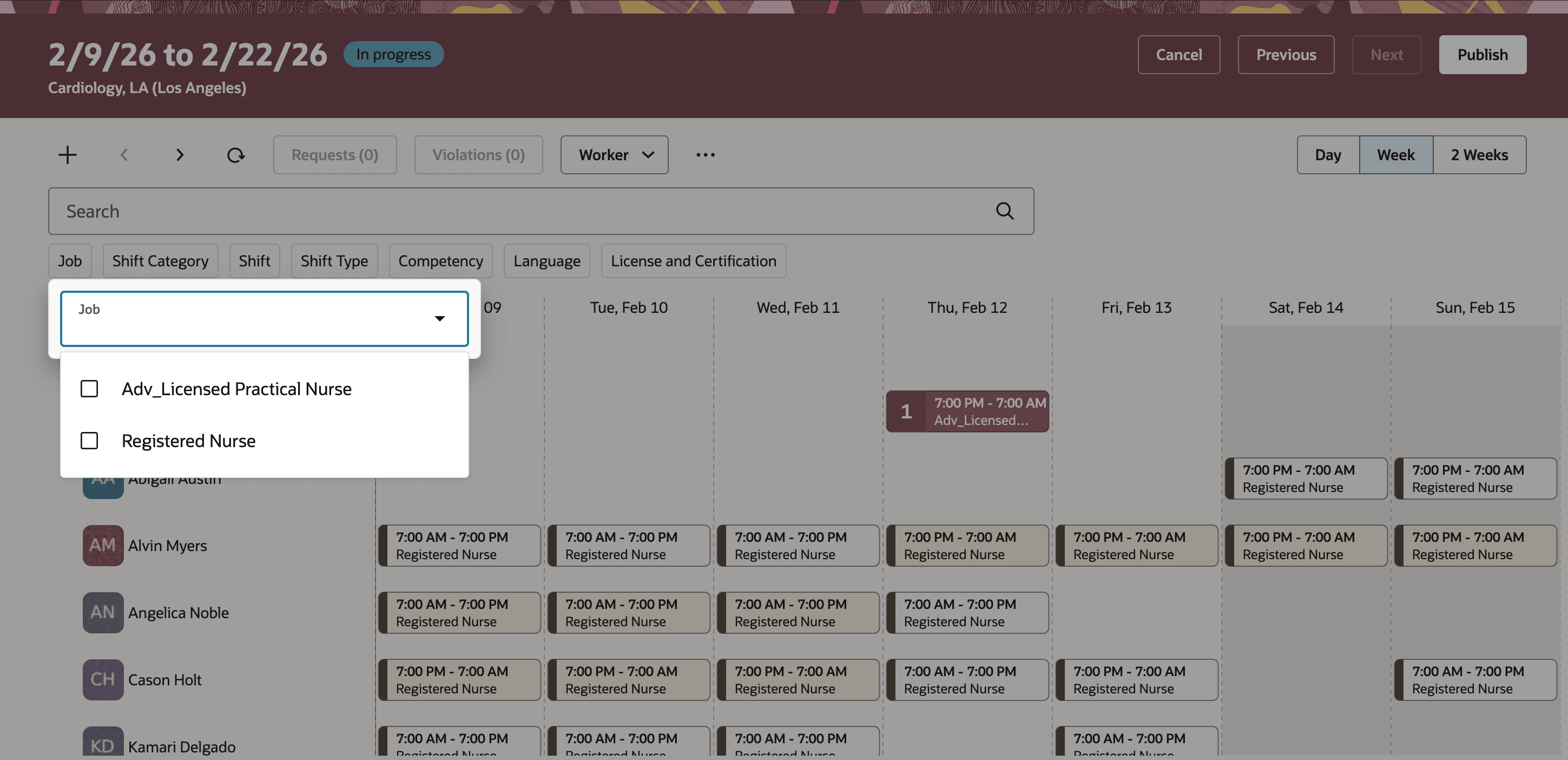
Job Filter in the Worker view at the Workforce Schedule Page
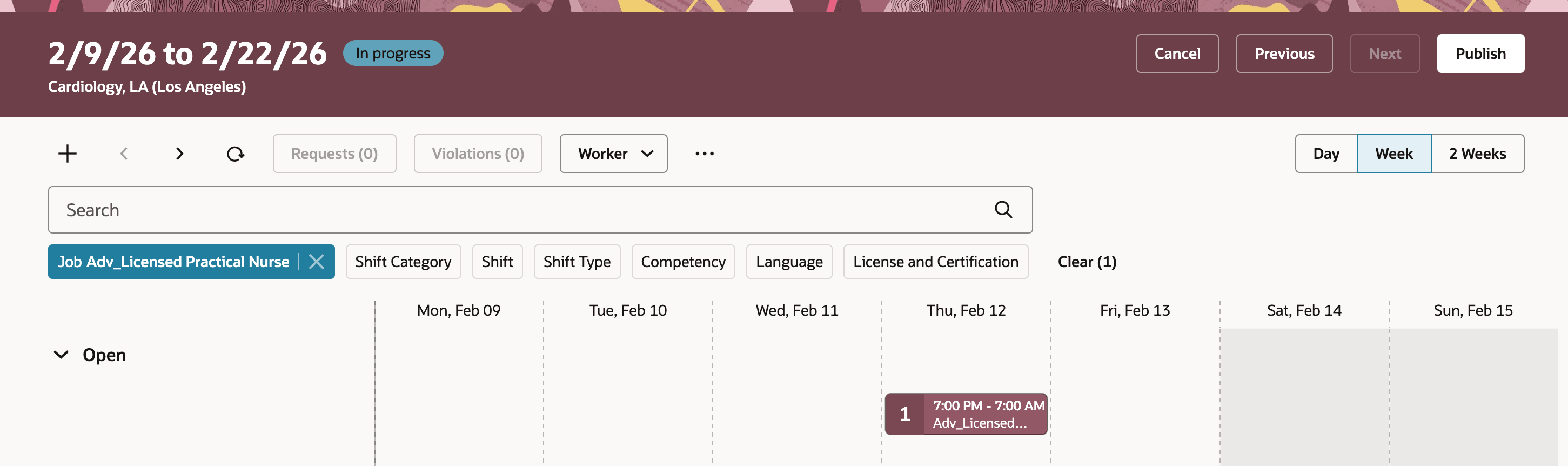
Applied Job Filter at the Workforce Schedule Page
Expand Scheduling Group/Job Family view to view Jobs
Schedule managers can now expand Scheduling Group or Job Family rows in the Workforce Schedule view to see the individual jobs and their shifts, improving visibility into scheduling and coverage within groups.
When the schedule is viewed by job profile type set to Scheduling Group or Job Family, each group or family can be expanded to reveal the jobs that belong to it and the shifts for those jobs. This view organizes open and assigned shifts for each job and surfaces coverage at the group level.
- Applicable when job profile type is set to Scheduling Group or Job Family in Schedule Gantt view.
- Each scheduling group or job family row can be expanded to display the jobs that are part of that group or family.
- Open shifts are grouped at the top of each job group; assigned shifts are shown and sorted by time for each job.
- Coverage information is shown at the group or family level to help assess staffing across the group.
- Job names appear as titles for each group of shifts so managers can identify jobs quickly.
Common scenario: When reviewing a department’s coverage, a manager can expand the scheduling group to spot coverage gaps or overstaffing at the job level, all without switching screens.
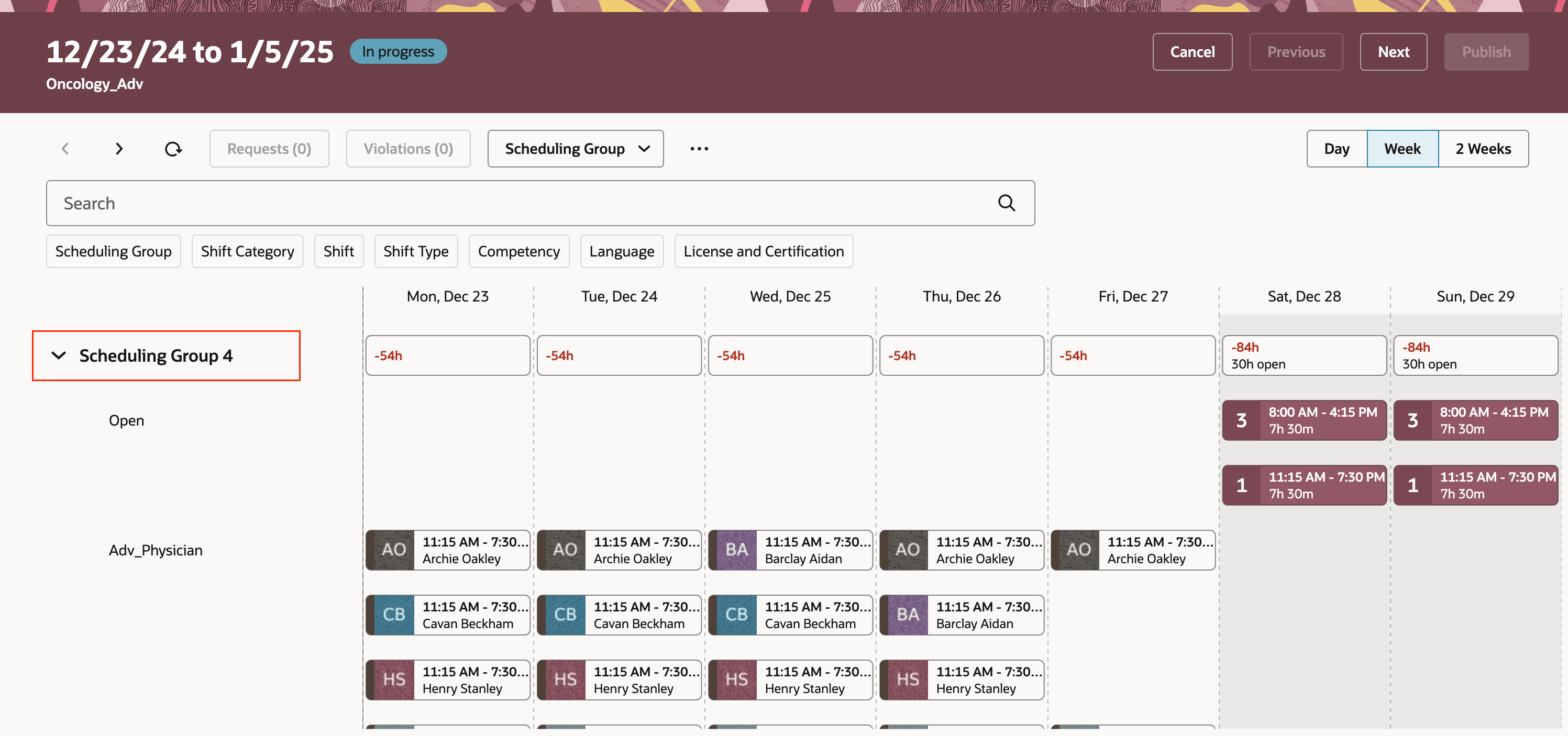
Expand Scheduling Group at the Workforce Schedule Page
Workers with no shift section in Schedule View by Job Profile Type
The workforce schedule interface now proactively displays workers who have not been assigned any shifts within the Job view. This information will appear as the top section when enabled in the Workforce Schedule Worker and Job view. The unscheduled employees are prominently listed, allowing managers to quickly identify staff who may be underutilized or accidentally overlooked during scheduling cycles.
Common scenario: When a manager spots an open shift that needs immediate coverage, they can quickly review the list of workers without assigned shifts to determine who is available. The enhanced view allows them to see which workers are truly free versus those with absences (PTO, sick leave, etc.), making it easier to identify the right person to assign without double-booking or assigning someone who is unavailable.
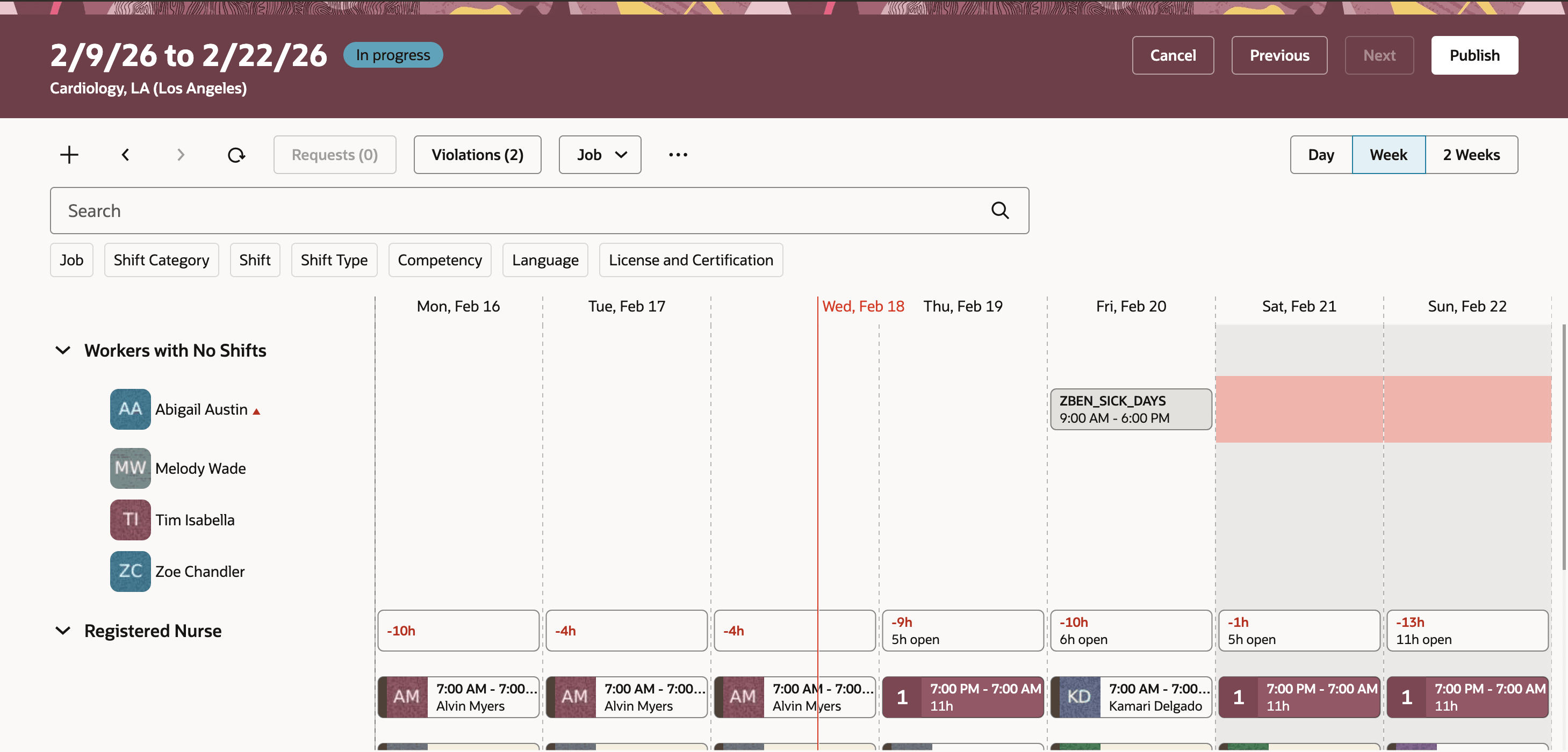
Workers with No Shifts section at the Workforce Schedule Page
These enhancements increase workforce scheduling effectiveness by offering greater visibility, control, and flexibility for schedule managers overseeing complex staffing environments.
Steps to enable and configure
You don't need to do anything to enable this feature.
Access requirements
| Privilege Name | Privilege Code | Description |
|---|---|---|
|
Manage Workforce Schedule |
ORA_HTS_MANAGE_WORKFORCE_SCHEDULE |
Allows users to manage the workforce schedules they're responsible for. |