Sales Custom Transaction Transform Action Workflow Example
Sales and purchase custom transaction types are available in the Transform Action in workflows, so you can add custom buttons to custom transaction pages.
You may want to create a custom transaction from an existing transaction type instance, or you may want to create a transaction instance from a custom transaction. You can use workflows to specify transformations with custom transactions. Use standard workflow functionality to specify when the button appears.
For example, on your Invoice page, you want to display a custom button that's available in View mode. When the user clicks the button, a new instance of the custom transaction opens, with the Customer, Date, Period, Subsidiary, Class, Department, Location, and Items fields prefilled. The user verifies the information and clicks Save.
You can also add a custom button to the custom transaction page, for example, a Pro-forma Invoice. When the user clicks the button, a new instance of the standard transaction opens, with the Customer, Date, Period, Subsidiary, Class, Department, Location, and Items fields prefilled. The user verifies the information and clicks Save.
Payment links and generic transformation links are used to transform custom transactions. A Transformation type link is created only if a Payment type link does not already exist. For example, transforming a Custom Sales Transaction to a standard Customer Payment record creates a payment link, but not a transformation link.
The Transformation type link creates a link between transformed transactions in custom transactions when you save the custom transaction. A transformation link is created whenever an instance of a custom transaction is the source or destination of a transformation. The link appears on target transaction in the Created From field and at the source transaction in Related Records.
Example:
We want to add a button to a sales custom transaction type for payment. Our example triggers the workflow on create, view, or update of a Sample Sales Transaction record.
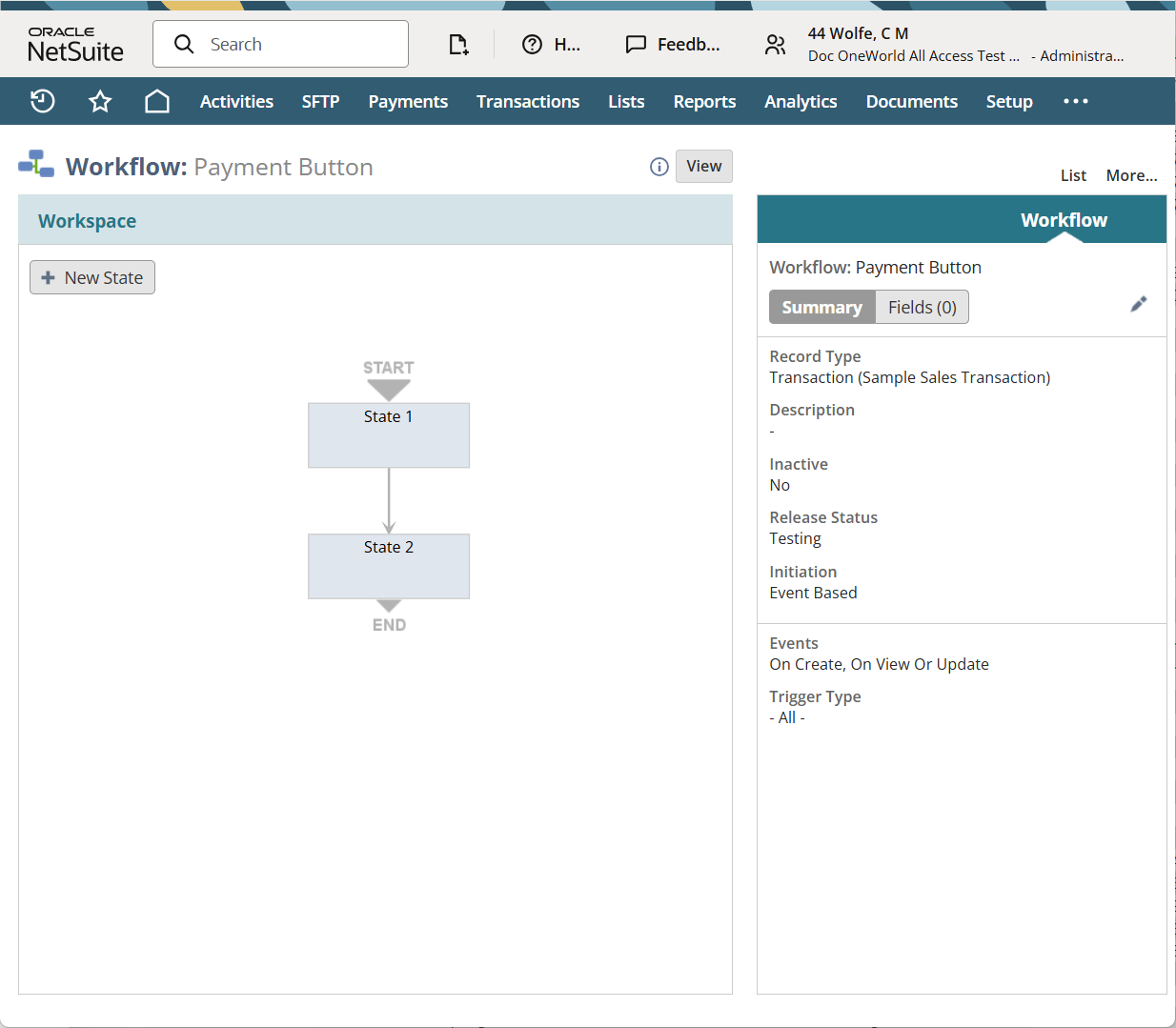
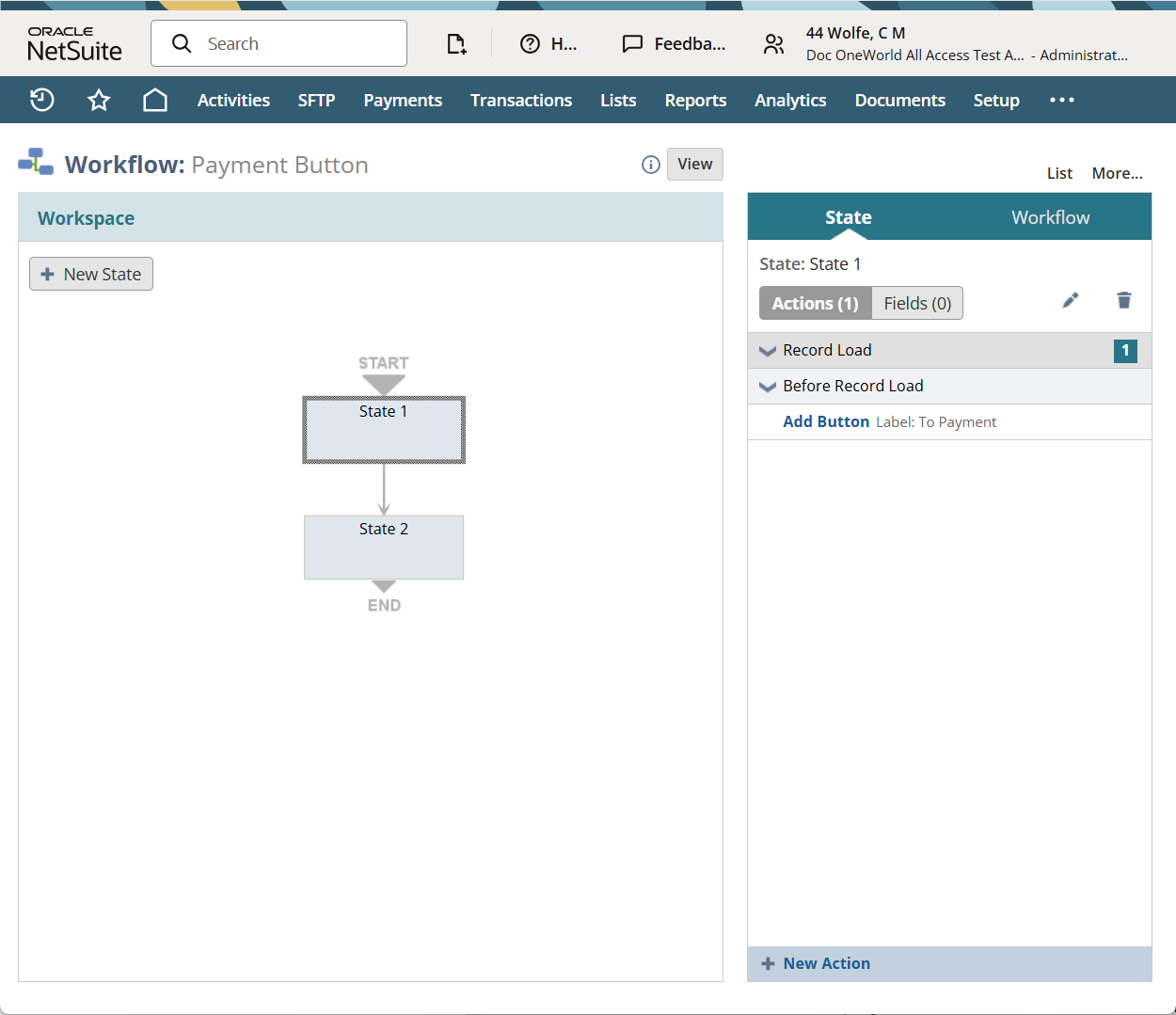
The first state occurs before the record loads to add a To Payment button.
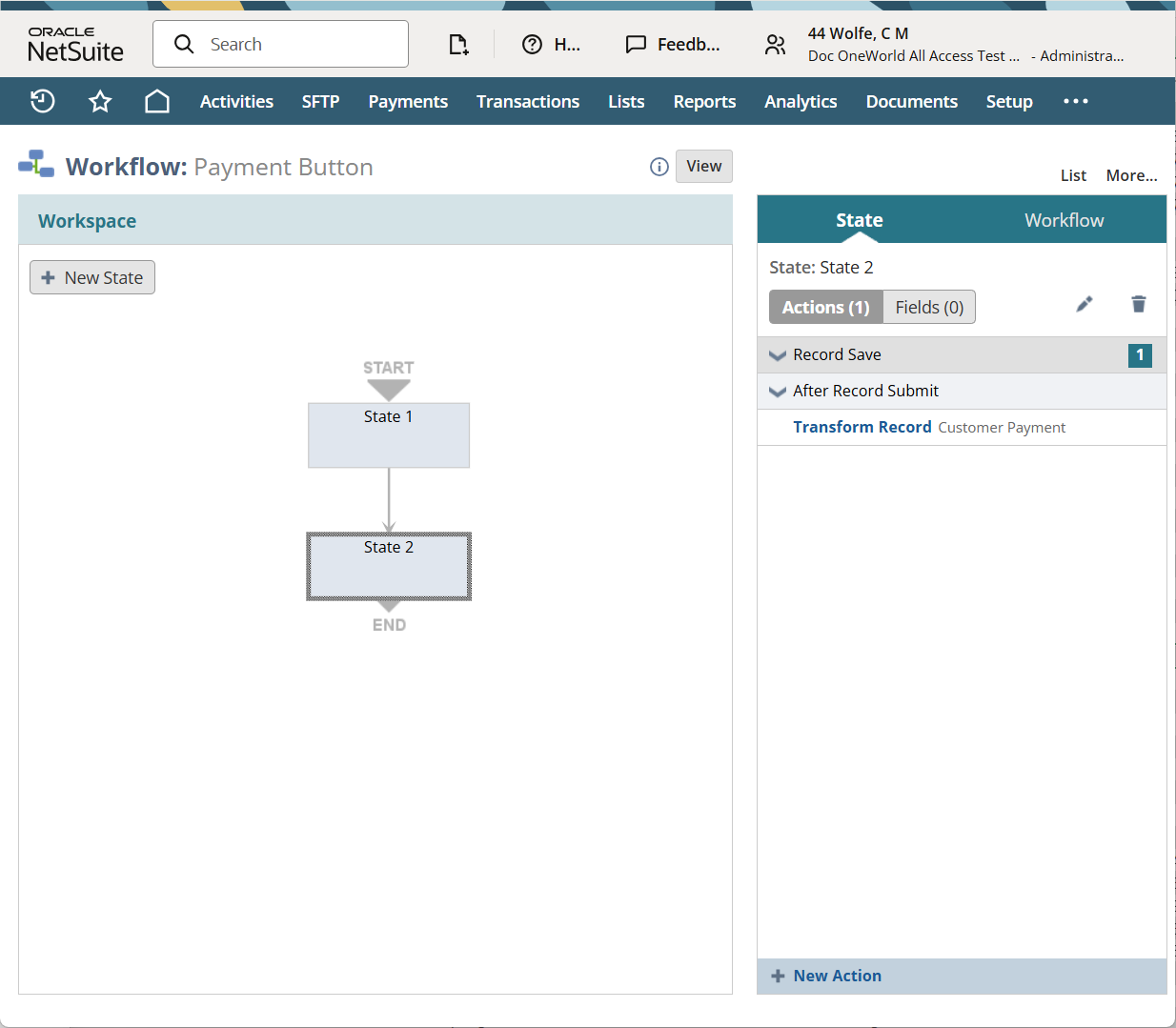
The second state specifies that when the button is clicked, the transaction is transformed to a customer payment. You could transform the transaction to a customer payment, customer refund, or a sample sales transaction. To permit the user to edit the transaction before saving, check the Redirect Without Saving box.
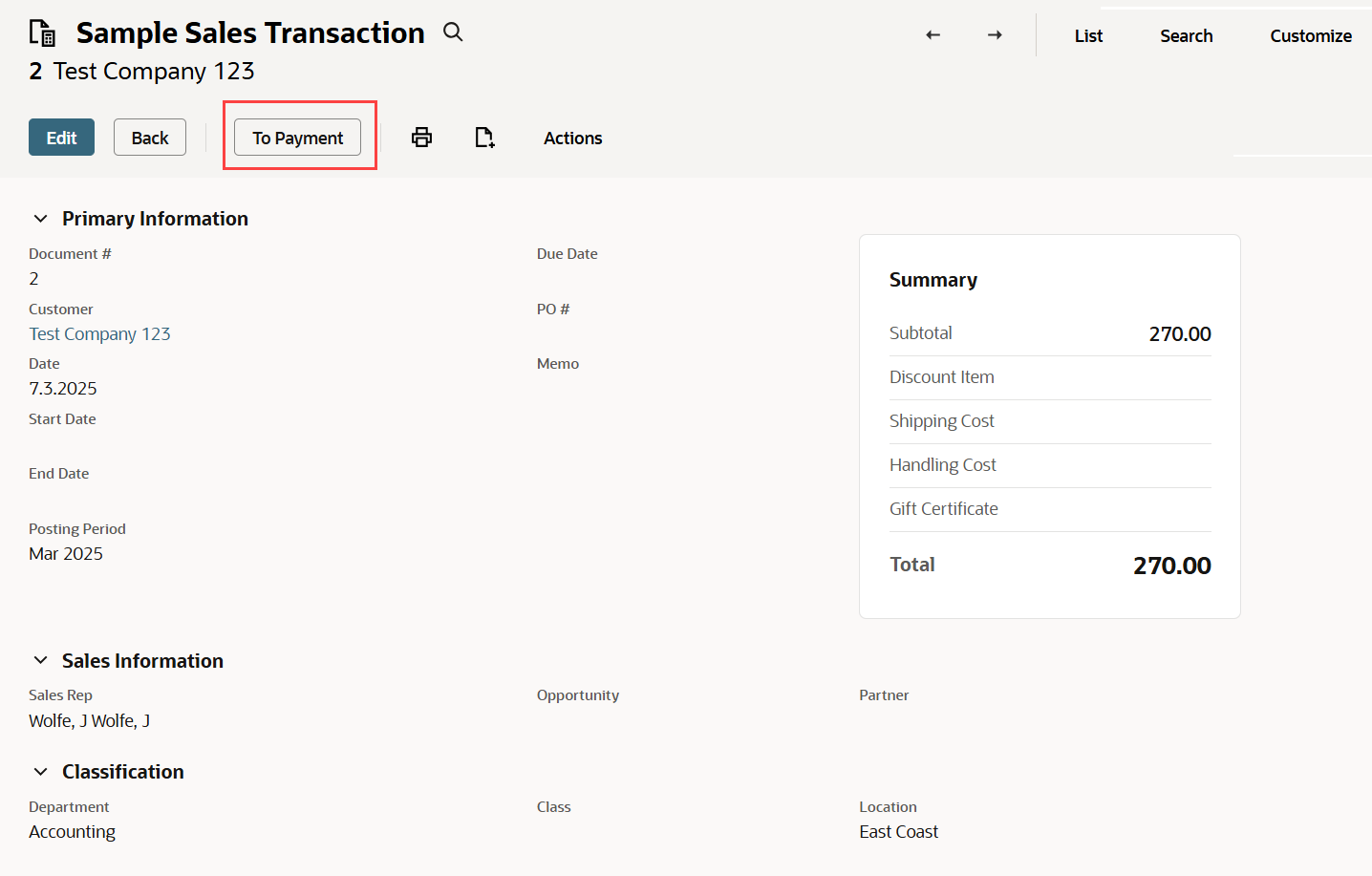
The following screenshot shows the button on the Sample Sales Transaction record.