Installing the FSM Mobile Application
The Field Service Management mobile app is a progressive web app (PWA).
If you have been granted access to the FSM mobile app, you can install it through your mobile browser, using the link provided in the invitation email. The mobile app can't be installed from the Google Play Store or the App Store. It behaves like a native app. To get updates, refresh the app when you're logged in.
Before installing, review these requirements:
-
Make sure your mobile device runs the latest Android, iOS, or iPadOS, and that you have Chrome or Microsoft Edge that is up to date
-
On Apple devices running iOS or iPadOS version 26 or later, you may use Safari, Chrome, or Edge.
For earlier iOS or iPadOS versions, use Safari.
To install the Field Service Management Mobile app on Android:
-
On your mobile device's email app, open the Field Service Mobile Login invitation.
Tap the button or link in the email to open FSM Mobile.
-
The Field Service Mobile login page opens on your device's default browser.
If the browser asks to use your location, tap Allow so your pin shows on the Scheduler and Mobile.
-
Depending on your default browser, do one of the following:
-
On Chrome, tap More (three dots) in the upper right and select Add to Home screen.
-
On Microsoft Edge, tap Menu (three lines) in the lower right and select Add to phone.
-
-
When Add to home screen appears, tap Install. The following screenshot shows the options when installing the app.
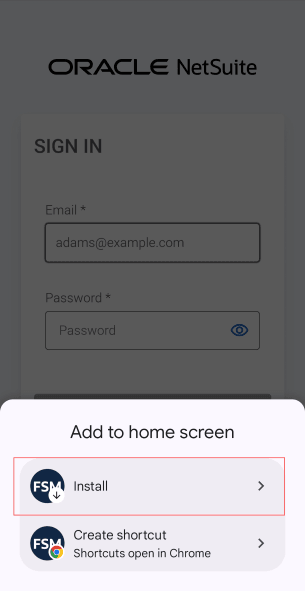
The FSM Mobile app is installed, and its icon should appear on your device's app list.
-
Tap the FSM Mobile icon to open the app and log in with your username and password.
To install the Field Service Management Mobile app on an Apple device:
-
On your mobile device's email app, open the Field Service Mobile Login invitation.
Tap the button or link in the email to access FSM.
-
The Field Service Mobile login page opens on your device's default browser.
If the browser asks to use your location, tap Allow so your pin shows on the Scheduler and Mobile.
-
Depending on your default browser, do one of the following:
-
On Safari, tap Share (box with an upward arrow) at the bottom, then select Add to Home Screen.
-
On Chrome, tap More (three dots) > Share Chrome (box with an upward arrow), then select Add to Home screen.
Make sure you enable Open as Web App, when prompted.
-
On Microsoft Edge, tap Menu (three lines) > Share (box with an upward arrow), then select Add to Home Screen.
-
-
Tap Add.
The FSM Mobile app is installed, and its icon should appear on your home screen.
-
Tap the FSM Mobile icon to open the app and log in with your username and password.
Field Service Management Mobile App on NetSuite Sandbox
You can also install the Field Service Mobile app through a sandbox link for testing. The sandbox mobile app icon is identical to the production icon. Delete the sandbox icon from your home screen before you install the Field Service Mobile app for the production account.