Removing Report Columns
Remove columns from your report as needed from the Report Builder.
To remove columns from your report :
-
Click Customize in the footer of the report.
-
On the Report Builder (or Financial Report Builder) page, click Edit Columns.
-
In the Report Preview pane, select the column you want to remove.
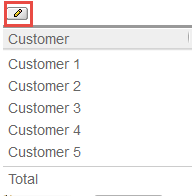
You can select the column by clicking anywhere within the column or by clicking the edit icon.
-
When the column is selected, click Remove Column.
-
Click Save.
The column is removed from your report. You can click Customize in the footer anytime to remove columns from your report.