Setting up Customer Records and Assets for Field Service Management
During initial setup of Field Service Management (FSM), the customer records and assets you create will typically be used for testing. In most scenarios, the operations manager creates and maintains the customer records and assets for FSM.
The following diagram represents the typical customer record and asset set hierarchy.
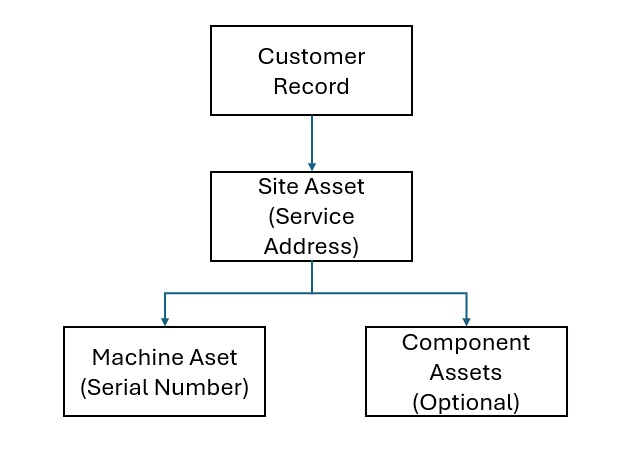
Use a real, complete address that can be geocoded. Don't use a warehouse or technician-van address as the customer service site unless that the service location being serviced.
Setting Up Customer Records
Before creating customer records, ensure the following:
-
The subsidiary, currency, tax setup, and accounting periods are available.
-
A Field Service region exists for the intended scenario.
-
Inventory and serialized items are available, including any item configured as Field Service Asset.
For testing purposes, ensure that:
-
The technician has a work calendar, mobile access, and the intended Field Service Employee Location.
-
Warehouse and van locations are available and contain the stock required for the test.
Consider the following when setting up customer records for FSM:
-
Create the customer record. For more information about creating customer records in NetSuite, see Creating a Customer Record
-
Select the subsidiary that will own the services and transactions with that customer.
-
Enter a recognizable name for the customer.
-
Add at least one contact. If you are use notifications and service reports, add an email address for the contact.
-
Add a complete service address to the customer's address book. The address needs to contain the following
-
address lines
-
city
-
state or province as required
-
postal code
-
country
The customer address book supplies the Address Select options on the Field Service Asset record. If the site address is missing or incomplete here, later asset, task, map, and tax-related tests can be misleading.
-
-
Save the customer.
Setting Up Field Service Assets
During initial setup of Field Service Management (FSM), the assets you create will typically be used for testing. In most scenarios, the operations manager creates and maintains the field service assets for FSM.
You can create the service site from the customer record by using the Field Service asset creation action or the Field Service subtab. Alternatively, you can also create the asset by going to Field Service > Assets > Assets > New, and then selecting the relevant customer.
To create a site asset:
-
Set the Customer.
-
Set Type to Site.
-
Add the address.
-
Click Address Select and select the service address.
Alternatively, you can use Address Search to find the address.
-
Verify that the address text, latitude, longitude, and time zone is correctly populated for the selected location
-
-
Save the asset.
When you create machine and component assets, you need to confirm that the Parent field is the site asset where you intend the component assets to be associated.
To create a machine asset:
-
Set the Customer.
-
Set Type to Machine.
-
Select the installed equipment Item.
-
Enter or select a unique Serial number.
-
If the configured inheritance rules apply, verify that the site values for customer, address, region, coordinates, and time zone are inherited.
-
Save the machine asset.
(Optional) To create a component asset:
-
Open the machine asset.
-
Create a child asset.
-
Set the Type to Component.
-
Select the relevant item and serial information when applicable.
-
Confirm that the child asset inherited the intended customer and service-locations values.
-
Save the component asset.