Manage Data Connections

You can connect to a variety of data sources and remote applications to provide the background information for reports. You can blend the additional data from the various data sources with the prebuilt datasets to enhance business analysis.

Oracle NetSuite Analytics Warehouse can connect to other pre-validated data sources such as Oracle Object Storage, cloud applications such as Google Analytics, and on-premises applications such as Oracle E-Business Suite.

You can view the usage of capacity for custom data that's loaded into Oracle NetSuite Analytics Warehouse through the connectors in the Custom Data Usage dashboard available in the Common folder. The dashboard shows data loaded daily and monthly from each of the activated external data sources.
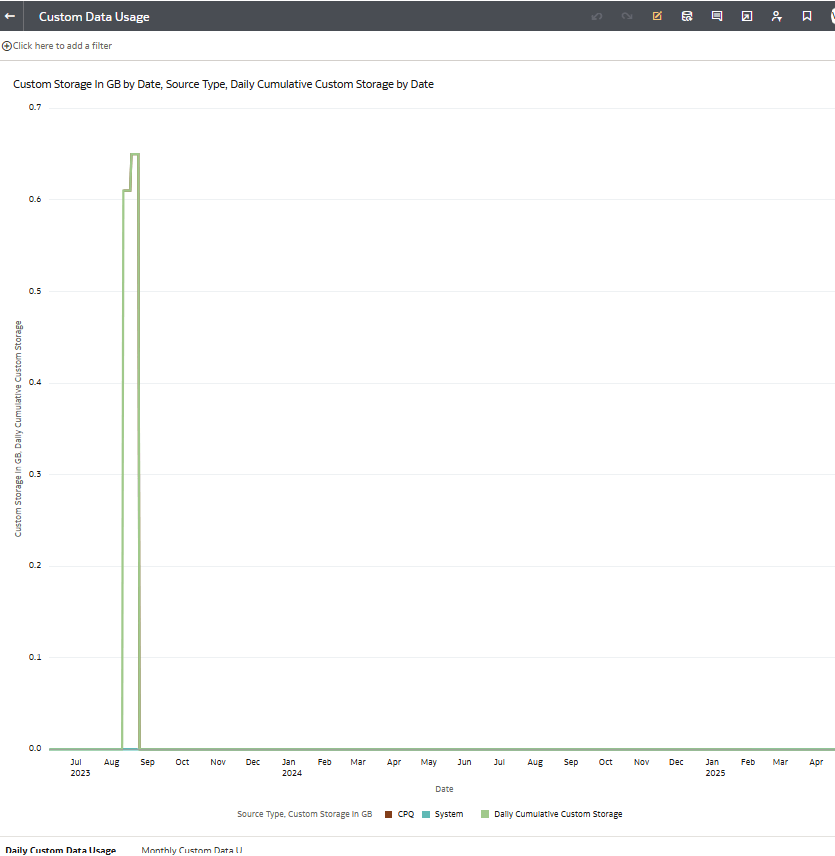
Custom Data Usage dashboard in the Common folder displaying the data loaded daily and monthly from each of the activated external data sources.

Connect With On-premises Sources

Connect with your on-premises applications to provide the background information for reports.

You can blend the additional data from these data sources with the prebuilt datasets to enhance business analysis.

Set up the Remote Agent to Load Data into NetSuite Analytics Warehouse (Preview)

As a service administrator, you can use an extract service remote agent to connect to your on-premises systems such as E-Business Suite, Peoplesoft, and JD Edwards, load data from these on-premises systems into Oracle NetSuite Analytics Warehouse, and then use the on-premises data to create data augmentations.

After connecting to your on-premises system, the remote agent extracts the data and loads it into the autonomous data warehouse associated with your Oracle NetSuite Analytics Warehouse instance. You can extract and load the on-premises data into Oracle NetSuite Analytics Warehouse only once in 24 hours.

Configuring an extract service remote agent to connect to your on-premises systems and load data from these on-premises systems into Oracle NetSuite Analytics Warehouse involves the following steps:

  1. Perform Remote Agent Connection Prerequisites.
  2. Configure TLS for Remote Agent Configuration (Optional).
  3. Run the Remote Agent docker container and use the Remote Agent command line interface tool.
    1. For Windows users, see Run the Remote Agent Docker on Windows and Configure the Remote Agent Using the Command Line Interface Tool on Windows.
    2. For Linux users, see Run the Remote Agent Docker on Linux and Configure the Remote Agent Using the Command Line Interface Tool on Linux.
  4. Create the Remote Agent Connection.
Perform Remote Agent Connection Prerequisites

As a service administrator, you must perform setup steps before configuring an extract service remote agent to connect to your on-premises systems and load data from these on-premises systems into Oracle NetSuite Analytics Warehouse.

  1. Ensure that Remote Agent is enabled on the Enable Features page prior to creating this connection. See Make Preview Features Available.
  2. Sign into Oracle Container Registry and accept the license agreement.
  3. Generate an Oracle Cloud Infrastructure authentication token. See Getting an Auth Token. The system uses this value in place of <Auth_Token> in the command used to sign in to the docker registry.
  4. Identify a host to deploy the remote agent.
    The host that you identify must meet these minimum system requirements for the basic configuration of a single source agent:
    • CPU: 4 (CORE/CPU)
    • Memory: 8 GB
    • Storage: 8 GB

    Note:

    Ensure that the host is able to make a JDBC connection to the applicable database.
Configure TLS for Remote Agent Configuration (Optional)

You can configure your remote agent to use your TLS certificate instead of the default.

You can either use the default TLS certificate provided in the keystore with the remote agent or provide your own keystore and TLS certificate.
  1. If you don’t have a keystore, then generate one using the keytool CLI command such as:
    keytool -genkeypair -alias springboot -keyalg RSA -keysize 4096 -storetype PKCS12 -keystore springboot.p12 -validity 3650 -storepass password -ext SAN=dns:test.example.com
    Instructions on how to use the keytool CLI command can be found here.
  2. To provide your own keystore and TLS certificate, complete these steps:
    1. After generating the keystore, place it in the /faw/software/remoteagent/config (C:\faw\software\remoteagent\config on Windows) directory of your local instance. Once in this directory, you must create a startup-config.properties file. This properties file contains the keystore information and credentials needed by the remote agent to connect to it and fetch the TLS certificate.
    2. In the startup-config.properties file, add the following key-value properties:
    server.ssl.enabled=true
    server.ssl.key-store=</PATH/TO/KEYSTORE_FILE>
    server.ssl.key-store-password=<KEYSTORE_PASSWORD>
    server.ssl.key-store-type=<KEYSTORE_TYPE>
    server.ssl.key-alias=<KEYSTORE_ALIAS>
    server.ssl.key-password=<KEY_PASSWORD>
    The values for each key pair are as follows:
    • </PATH/TO/KEYSTORE_FILE> - File location of the keystore file
    • <KEYSTORE_PASSWORD> - Password specified for the keystore
    • <KEYSTORE_TYPE> - Type specified for the keystore, should be either JKS or PKCS12
    • <KEYSTORE_ALIAS> - Alias specified for the keystore
    • <KEY_PASSWORD> - Certificate password, NOT the password for the keystore
  3. After specifying all the required properties in the startup-config.properties file, restart the remote agent docker. The remote agent uses your TLS certificate instead of the default.
Run the Remote Agent Docker on Windows

Run the Remote Agent docker container as part of the remote agent connection configuration for Oracle NetSuite Analytics Warehouse.

The docker image name for release 25.R3 is container-registry.oracle.com/fdi/remoteagent:23.8.0. Use this name in any commands that call for <docker_image>.
  1. Open a terminal on the host VM and run the following commands to create required directories and apply appropriate permissions.
    icacls "C:/faw/software/remoteagent/" /grant Everyone:F /t
             icacls "C:/faw/logs/RemoteAgent/" /grant Everyone:F /t

    Note:

    • icacls: This is a command-line tool used to manage file and directory access control lists (ACLs).
    • "C:/faw/software/remoteagent/": This specifies the target directory where ACL changes will be applied.
    • /grant Everyone:F: This grants the "Everyone" group Full Control (F) permissions to the specified directory and all subdirectories and files recursively due to the "/t" switch. The user needs write permissions, hence "F" (full control was given). To use user-specific permission, replace "Everyone" with username.
  2. Log in to the docker registry with the following command, replacing <username> with the email ID used to log into Oracle Container Registry, and <Auth_Token> with the value created earlier. See Perform Remote Agent Connection Prerequisites.
    docker login container-registry.oracle.com -u <username> -p <Auth_Token>
  3. Create and run the docker container with the appropriate docker image name in place of <docker_image>
    docker run -d -p 9091:9091 --name remoteagent -v /faw/software/remoteagent/config/:/faw/software/remoteagent/config/ -v /faw/logs/RemoteAgent/:/faw/logs/RemoteAgent <docker_image>

    For example:

    docker run -d -p 9091:9091 --name remoteagent -v /faw/software/remoteagent/config/:/faw/software/remoteagent/config/ -v /faw/logs/RemoteAgent/:/faw/logs/RemoteAgent container-registry.oracle.com/fdi/remoteagent:23.8.0
  4. Verify that the container has started successfully using this script:
    run '$ docker ps'
  5. If you need to upgrade the remote agent in the Windows host, then use the following script:
    docker run -d -p 9091:9091 --name remoteagent -v C:/faw/software/remoteagent/config/:/faw/software/remoteagent/config/:Z
          -v C:/faw/logs/RemoteAgent/:/faw/logs/RemoteAgent <docker_image>
Configure the Remote Agent Using the Command Line Interface Tool on Windows

Use the Remote Agent command line interface (CLI) tool to configure the remote agent.

  • Ensure that Windows Subsystem for Linux (WSL) is installed on your system.
  • Administrator access is required.
  1. Open WSL in Administrator Mode.
  2. Run the following command to check if the jq package is already installed:
    jq --version
    If the output displays a version number, that means jq is installed. If you see any other output or an error, run the following commands to install jq. Use your WSL Linux user password if you are prompted for credentials.
    sudo apt update
    sudo apt install jq -y
  3. Run the following command to verify that jq is now installed.
    jq --version
    You should see the version number of jq that you just installed.
  4. If you do not know your WSL Linux user password:
    1. Open PowerShell and run the following command to display the list of installed WSL distributions. Note the distribution name, such as "Ubuntu": wsl -l -v.
    2. Run the following command, replacing <distroName> with your actual distribution name:wsl -d <distroName> -u root. For example, wsl -d Ubuntu -u root
    3. In the root shell, reset your user password with the following command: passwd <username>, replacing username with your Linux username. You can find your Linux username with the following command: ls /home. Enter a new password when prompted.
    4. Exit the root shell with the command exit.
    5. Open your WSL terminal and use the newly created password.
  5. On the machine running docker, navigate to the remote agent setup directory:
    cd C:\faw\software\remoteagent\config\setup
    
  6. Run the Remote Agent CLI script.
    ./remoteAgentCLI.sh
  7. Type 1 in RemoteAgentCLI and press Enter.
    You can form the extract service URL based on your Oracle NetSuite Analytics Warehouse URL by replacing ui/oax/ with the extract service context path. For example, if your product URL is https://myinstance.example.com/ui/oax/ then the extract service URL would be https://myinstance.example.com:443/extractservice.

    The default save location for configuration details (config.json) is C:\faw\software\remoteagent\config\config_json\. You may also choose to specify a save location.

  8. Optional: Type 3 in RemoteAgentCLI to generate RemoteAgent logs (remote_agent_logs.zip), which are saved by default to C:\faw\logs\RemoteAgent. You may also choose to specify a save location.
  9. config.json needs to be on the same system as the one that will access the oax URL. Copy the full config.json file or copy the contents of the file (and save it in JSON format) from the VM to your local machine. You will use it to set up the connection on the Data Configuration page in Oracle NetSuite Analytics Warehouse.
Run the Remote Agent Docker on Linux

Run the Remote Agent docker container as part of the remote agent connection configuration for Oracle NetSuite Analytics Warehouse.

The docker image name for release 25.R3 is container-registry.oracle.com/fdi/remoteagent:23.8.0. Use this name in any commands that call for <docker_image>.
  1. Open a terminal on the host VM and run the following commands to create required directories and apply appropriate permissions.
    1. mkdir /faw/software/remoteagent/
    2. mkdir /faw/logs/RemoteAgent/config
    3. chmod -R 0777 /faw/software/remoteagent/
  2. Log in to the docker registry with the following command, replacing <username> with the email ID used to log into Oracle Container Registry, and <Auth_Token> with the value created earlier. See Perform Remote Agent Connection Prerequisites.
    docker login container-registry.oracle.com -u <username> -p <Auth_Token>
  3. Create and run the docker container with the appropriate docker image name in place of <docker_image>
    docker run -d -p 9091:9091 --name remoteagent -v /faw/software/remoteagent/config/:/faw/software/remoteagent/config/ -v /faw/logs/RemoteAgent/:/faw/logs/RemoteAgent <docker_image>

    For example:

    docker run -d -p 9091:9091 --name remoteagent -v /faw/software/remoteagent/config/:/faw/software/remoteagent/config/ -v /faw/logs/RemoteAgent/:/faw/logs/RemoteAgent container-registry.oracle.com/fdi/remoteagent:23.8.0
    If the remote agent isn't responding, execute the script again with the --network host parameter enabled.

    Note:

    Ensure that the logs directory in /faw/logs/RemoteAgent/ has write permissions and the config folder in /faw/software/remoteagent/config/ is present in case you need to add custom properties.
  4. Verify that the container has started successfully using this script:
    run '$ docker ps'
  5. If you need to upgrade the remote agent in the Linux host, then use the following script:
    
    Stop Remoteagent docker
    sudo docker stop remoteagent
    
    Remove Remoteagent docker
    sudo docker rm remoteagent
    
    Run the image:       
    sudo docker run -d -p 9091:9091 --name remoteagent -v /faw/software/remoteagent/config/:/faw/software/remoteagent/config/:Z -v /faw/logs/RemoteAgent/:/faw/logs/RemoteAgent:Z <docker_image>
Configure the Remote Agent Using the Command Line Interface Tool on Linux

Use the Remote Agent command line interface (CLI) tool to configure the remote agent.

  1. On the machine running docker, navigate to the remote agent setup directory:
    cd /faw/software/remoteagent/config/setup/
  2. Run the Remote Agent CLI script.
    ./remoteAgentCLI.sh
  3. Type 1 in RemoteAgentCLI and press Enter.
    You can form the extract service URL based on your Oracle NetSuite Analytics Warehouse URL by replacing ui/oax/ with the extract service context path. For example, if your product URL is https://myinstance.example.com/ui/oax/ then the extract service URL would be https://myinstance.example.com:443/extractservice.

    The default save location for configuration details (config.json) is /faw/software/remoteagent/config/config_json. You may also choose to specify a save location.

  4. Optional: Type 3 in RemoteAgentCLI to generate RemoteAgent logs (remote_agent_logs.zip), which are saved by default to /faw/logs/RemoteAgent/. You may also choose to specify a save location.
  5. config.json needs to be on the same system as the one that will access the oax URL. Copy the full config.json file or copy the contents of the file (and save it in JSON format) from the VM to your local machine. You will use it to set up the connection on the Data Configuration page in Oracle NetSuite Analytics Warehouse.
Create the Remote Agent Connection

Configure the remote agent connection on the Data Configuration page in Oracle NetSuite Analytics Warehouse using these instructions.

  1. On the Console, click Data Configuration under Application Administration.
  2. On the Data Configuration page, click Manage Connections.
  3. On the Manage Connections page, click Create and then click Connection.
  4. In Create Connection, select Configuration in Usage Type, and then select Remote Agent as the connection type.
    Remote Agent connection option

  5. In the Create Connection Remote Agent dialog, in Connection Name, you can modify the default name and verify that Remote is displayed in Connectivity Type.
    Create Connection Remote Agent dialog

  6. Populate the Create Connection page.
    1. Enter an email address to receive notifications in Notification Email.
    2. Click and drag config.json into the dialog, or click Upload File or Drop Above and navigate to select config.json.
    3. To manually populate this page, open config.json, and enter the appropriate values for Identifier, Host, and Public Key.
    4. Click Save

    Note:

    After configuring the remote agent on the Data Configuration page, wait for few minutes, refresh the remote agent page, and when you see the Agent Initialised message, you can proceed with other operations such as testing the connection to the remote agent, testing the connection to the remote source like EBusiness Suite, and refreshing the metadata. This enables you to run these jobs without timeout failures because data pipeline has a default timeout of 15 minutes.

Load Data from On-premises E-Business Suite into NetSuite Analytics Warehouse (Preview)

As a service administrator, you can use an extract service remote agent to connect to your on-premises Oracle E-Business Suite system.

After connecting to your on-premises system, the remote agent extracts the data and loads it into the autonomous data warehouse associated with your Oracle NetSuite Analytics Warehouse instance. The remote agent pulls the metadata through the public extract service REST API and pushes data into object storage using the object storage REST API. You can extract and load the on-premises data into Oracle NetSuite Analytics Warehouse only once a day. Ensure that the user credentials you provide have access to the specific tables they need to extract data from within the EBS schema, whose URL you provide while creating the connection.

Ensure that Oracle E-Business Suite On-Prem is enabled on the Enable Features page prior to creating this connection. See Make Preview Features Available.

  1. Set up the remote agent to load data from your on-premises Oracle E-Business Suite system into Oracle NetSuite Analytics Warehouse.
  2. Configure the remote agent and E-Business Suite data source on the Data Configuration page in Oracle NetSuite Analytics Warehouse using these instructions:
    1. On the Console, click Data Configuration under Application Administration.
    2. On the Data Configuration page, click Manage Connections.
    3. On the Manage Connections page, click Create and then click Connection.
    4. In Create Connection, select Data Extraction in Usage Type, and select Oracle E-Business Suite On-Prem as the connection type.
      E-Business Suite connection option

    5. In Create Connection for Oracle E-Business Suite On-Prem, select Remote as connectivity type.
      Create Connection for Oracle E-Business Suite On-Prem dialog

    6. In the Remote Agent field, select the remote agent connection that you created, for example, EBS-Remote Agent. Enter an email address to receive notifications in Notification Email, provide the credentials in User Name and Password, the E-Business Suite connection using the JDBC format such as jdbc:oracle:thin:@<HOST>:<PORT>/<DB_NAME/SID_NAME> in URL, and select Application Object Library and General Ledger offerings mandatorily, and any other E-Business Suite offerings that you want to load data from in Offerings.
    7. Verify that the Refresh Metadata toggle is enabled to ensure that the metadata is refreshed when you save the connection. You can later refresh the metadata from the Actions menu on the Manage Connections page, if required.

      Note:

      You can’t create augmentations for E-Business Suite On-Prem unless you perform a metadata extract.
    8. Confirm that you see the Remote Agent and E-Business Suite connections on the Manage Connections page.
    9. Test both the connections by selecting the Test Connection option in Actions. You can check the statuses of all these requests on the Data Configuration Request History page.
    10. To delete a connection, on the Manage Connections page, click Actions for the applicable connection and select Delete.

      Note:

      Ensure that you delete the functional areas, data augmentations, and custom data configurations related to the data connection before deleting it. You can't update or load data from deleted data connections to the warehouse.
  3. After the connections are successfully established, navigate to the Data Configuration page, select the connection in Data Source, then click the Data Augmentation tile, and create a data augmentation using the E-Business Suite data. Select the applicable E-Business Suite source tables. See Augment Your Data.

Load Data from On-premises JD Edwards into NetSuite Analytics Warehouse (Preview)

As a service administrator, you can use an extract service remote agent to connect to your on-premises JD Edwards system and use the JD Edwards data to create data augmentations.

After connecting to your on-premises system, the remote agent extracts the data and loads it into the autonomous data warehouse associated with your Oracle NetSuite Analytics Warehouse instance. The remote agent pulls the metadata through the public extract service REST API and pushes data into object storage using the object storage REST API. You can extract and load the on-premises data into Oracle NetSuite Analytics Warehouse only once in 24 hours.

Ensure that Remote Agent and Oracle JD Edwards On-Prem are enabled on the Enable Features page prior to creating this connection. See Make Preview Features Available.

  1. Set up the remote agent to load data from your on-premises Oracle JD Edwards system into Oracle NetSuite Analytics Warehouse.
  2. Configure the remote agent and JD Edwards data source on the Data Configuration page in Oracle NetSuite Analytics Warehouse using these instructions:
    1. On the Console, click Data Configuration under Application Administration.
    2. On the Data Configuration page, click Manage Connections.
    3. On the Manage Connections page, click Create and then click Connection.
    4. In Create Connection, select Data Extraction in Usage Type, and then select Oracle JD Edwards On-Prem as the connection type.
      Oracle JD Edwards On-Prem connection option

    5. In Create Connection for Oracle JD Edwards On-Prem, in Connectivity Type, verify that Remote is selected automatically.
      Create Connection for Oracle JD Edwards On-Prem

    6. In Remote Agent, select the remote agent connection that you created earlier, for example, Remote Agent.
    7. Enter an email address to receive notifications in Notification Email, provide credentials for your JD Edwards source in User Name and Password, and the URL of your JD Edwards source in URL.
    8. Verify that the Refresh Metadata toggle is enabled to ensure that the metadata is refreshed when you save the connection. You can later refresh the metadata from the Actions menu on the Manage Connections page, if required.

      Note:

      You can’t create augmentations for JD Edwards unless you perform a metadata extract.
    9. Confirm that you see the Remote Agent and JD Edwards connections on the Manage Connections page.
    10. Test both the connections by selecting the Test Connection option in Actions. You can check the statuses of all these requests on the Data Configuration Request History page.
    11. To delete a connection, on the Manage Connections page, click Actions for the applicable connection and select Delete.

      Note:

      Ensure that you delete the functional areas, data augmentations, and custom data configurations related to the data connection before deleting it. You can't update or load data from deleted data connections to the warehouse.
  3. After the connections are successfully established, navigate to the Data Configuration page, select the connection in Data Source, then click the Data Augmentation tile, and create a data augmentation using the JD Edwards data. Select the applicable JD Edwards source tables. Select the applicable JD Edwards source tables. See Augment Your Data.

Load Data from On-premises PeopleSoft into NetSuite Analytics Warehouse (Preview)

As a service administrator, you can use an extract service remote agent to connect to your on-premises Oracle PeopleSoft system.

After connecting to your on-premises system, the remote agent extracts the data and loads it into the autonomous data warehouse associated with your Oracle NetSuite Analytics Warehouse instance. The remote agent pulls the metadata through the public extract service REST API and pushes data into object storage using the object storage REST API. You can extract and load the on-premises data into Oracle NetSuite Analytics Warehouse only once in 24 hours.
Ensure that Remote Agent and depending on the functional module you want to connect to, the applicable feature is enabled on the Enable Features page prior to creating this connection:
  • Oracle PeopleSoft On-Prem - Campus Solutions
  • Oracle PeopleSoft On-Prem - Financials
  • Oracle PeopleSoft On-Prem - Human Resources
  • Oracle PeopleSoft On-Prem - Learning Management
See Make Preview Features Available.
  1. Set up the remote agent to load data from your on-premises Oracle E-Business Suite system into Oracle NetSuite Analytics Warehouse.
  2. Configure the remote agent and PeopleSoft data source on the Data Configuration page in Oracle NetSuite Analytics Warehouse using these instructions:
    1. On the Console, click Data Configuration under Application Administration.
    2. On the Data Configuration page, click Manage Connections.
    3. On the Manage Connections page, click Create and then click Connection.
    4. In Create Connection, select Data Extraction in Usage Type, and then select the connection type based on the functional module that you want to connect to. For example, to connect to the "Financials" module, select Oracle PeopleSoft On-Prem - Financials as the connection type.
      Oracle PeopleSoft On-Prem - Financials connection option

    5. In Create Connection for Oracle PeopleSoft On-Prem - Financials dialog, in Connectivity Type, verify that Remote is selected automatically.
      Create Connection for Oracle PeopleSoft On-Prem - Financials dialog

    6. In Remote Agent, select the remote agent connection that you created earlier, for example, Remote Agent.
    7. Enter an email address to receive notifications in Notification Email, provide credentials for your PeopleSoft source in User Name and Password, and the URL of your PeopleSoft source in URL.
    8. Verify that the Refresh Metadata toggle is enabled to ensure that the metadata is refreshed when you save the connection. You can later refresh the metadata from the Actions menu on the Manage Connections page, if required.

      Note:

      You can’t create augmentations for PeopleSoft unless you perform a metadata extract.
    9. Click Save.
    10. On the Manage Connections page, select Actions for the PeopleSoft connection and then select Test Connection. You can check the statuses of all these requests on the Data Configuration Request History page.
    11. To delete a connection, on the Manage Connections page, click Actions for the applicable connection and select Delete.

      Note:

      Ensure that you delete the functional areas, data augmentations, and custom data configurations related to the data connection before deleting it. You can't update or load data from deleted data connections to the warehouse.
  3. After the connections are successfully established, navigate to the Data Configuration page, select the connection in Data Source, then click the Data Augmentation tile, and create a data augmentation using the PeopleSoft data. Select the applicable PeopleSoft source tables. See Augment Your Data.

Load Data from On-premises MySQL Database into NetSuite Analytics Warehouse (Preview)

As a service administrator, you can use an extract service remote agent to connect to your on-premises MySQL database.

After connecting to your on-premises system, the remote agent extracts the data and loads it into the autonomous data warehouse associated with your Oracle NetSuite Analytics Warehouse instance. The remote agent pulls the metadata through the public extract service REST API and pushes data into object storage using the object storage REST API. You can extract and load the on-premises data into Oracle NetSuite Analytics Warehouse only once a day.

Ensure that MySQL On-Prem is enabled on the Enable Features page prior to creating this connection. See Make Preview Features Available.

  1. Set up the remote agent to load data from your on-premises MySQL database into Oracle NetSuite Analytics Warehouse.
  2. Check the port number for your on-premises MySQL database and create a service request with server host and port details to enable network connectivity to the on-premises MySQL server.
  3. Specify the remote agent and configure the on-premises MySQL database on the Data Configuration page in Oracle NetSuite Analytics Warehouse by following these steps:
    1. On the Console, click Data Configuration under Application Administration.
    2. On the Data Configuration page, click Manage Connections.
    3. On the Manage Connections page, click Create and then click Connection.
    4. In Create Connection, select Data Extraction in Usage Type, and then select MySQL On-Prem as the connection type.
      MySQL On-Prem connection option

    5. In Connectivity Type, select Remote.
    6. In the Remote Agent field, select the remote agent connection that you created, for example, MySQL-Remote Agent. Enter an email address to receive notifications in Notification Email, and provide these details:
      • Host Name: Enter the host name of MySQL server such as 100.111.252.64
      • Port Number: Enter the port number where the server is listening such as 3306
      • Database: Enter the database name you need to connect to such as airportdb
      • Credentials to access the database in User Name and Password
      • Last Update Date Column Pattern: Enter "%r%a%o%%"

        Note:

        If column name matches with pattern provided, then NetSuite Analytics Warehouse marks the column name with isLastUpdateDate = true and uses it for the incremental extract. For example, if pattern provided is “%mo%fie%te%“, then the column name modifiedDate is marked as isLastUpdateDate = true.
      • Initial Extract Date Column Pattern: Enter "%e%art%new"

        Note:

        If column name matches with pattern provided, then NetSuite Analytics Warehouse marks the column name with isCreationDate = true and uses it for the initial extract date extraction. For example, if pattern provided is: “%cr%ted%te%“, then the column name createdDate is marked as isCreationDate = true.

      Create Connection for MySQL On-Prem dialog

    7. Verify that the Refresh Metadata toggle is enabled to ensure that the metadata is refreshed when you save the connection. You can later refresh the metadata from the Actions menu on the Manage Connections page, if required.

      Note:

      You can’t create augmentations for on-premises MySQL database unless you perform a metadata extract.
    8. Confirm that you see the Remote Agent and on-premises MySQL database connections on the Manage Connections page.
    9. Test both the connections by selecting the Test Connection option in Actions. You can check the statuses of all these requests on the Data Configuration Request History page.
    10. To delete a connection, on the Manage Connections page, click Actions for the applicable connection and select Delete.

      Note:

      Ensure that you delete the functional areas, data augmentations, and custom data configurations related to the data connection before deleting it. You can't update or load data from deleted data connections to the warehouse.
  4. After the connections are successfully established, navigate to the Data Configuration page, select the connection in Data Source, then click the Data Augmentation tile, and create a data augmentation using the on-premises MySQL database data. Select the applicable on-premises MySQL database source tables. See Augment Your Data.

Load Data from SQL Server into Oracle NetSuite Analytics Warehouse (Preview)

As a service administrator, you can use the Oracle NetSuite Analytics Warehouse extract service to acquire data from SQL Server and use it to create data augmentations.

Ensure that SQL Server is enabled on the Enable Features page prior to creating this connection. See Make Preview Features Available.

  1. Set up the remote agent to load data from your SQL Server into Oracle NetSuite Analytics Warehouse.
  2. In Oracle NetSuite Analytics Warehouse, create the SQL Server data connection using these instructions:
    1. In Oracle NetSuite Analytics Warehouse Console, click Data Configuration under Application Administration.
    2. On the Data Configuration page, click Manage Connections.
    3. On the Manage Connections page, click Create and then click Connection.
    4. In Create Connection, select Data Extraction in Usage Type, and then select SQL Server as the connection type.

      SQL Server connection option

    5. In the dialog for the SQL Server connection, enter these details and click Save:
      • Connectivity Type: Select Remote.
      • Remote Agent: Select the remote agent that you had set up to load data from your SQL Server.
      • Notification Email: Enter an email address to receive notifications.
      • SQL Server Name: Enter the SQL server name.
      • Port Number: Enter the port number on which your SQL server is available.
      • Database Name: Enter the database name in your SQLServer instance.
      • Schema Name: Enter the name of the schema for the dataset you want to load to run analytics on.
      • User Name and Password: Enter the credentials for your SQL Server instance.
      • Initial Extract Date Column Pattern: MM/dd/yyyy is the date format in your initial extract column; sample date is 1/23/1998.
      • Last Update Date Column Pattern: Last update date shows when the last update was done in your SQL Server database.

      Create Connection for SQL Server dialog

    6. Verify that the Refresh Metadata toggle is enabled to ensure that the metadata is refreshed when you save the connection.
      You can later refresh the metadata from the Actions menu on the Manage Connections page, if required.

      Note:

      You can’t create augmentations for SQL Server unless you perform a metadata extract.
    7. Click Save.
  3. On the Manage Connections page, select Actions for the SQL Server connection and then select Test Connection.
  4. To delete a connection, on the Manage Connections page, click Actions for the applicable connection and select Delete.

    Note:

    Ensure that you delete the functional areas, data augmentations, and custom data configurations related to the data connection before deleting it. You can't update or load data from deleted data connections to the warehouse.
  5. After the connections are successfully established, navigate to the Data Configuration page, select the connection in Data Source, then click the Data Augmentation tile, and create a data augmentation using the SQL Server data. Select the applicable SQL Server source tables. See Augment Your Data.

Connect with Cloud File Storage Sources

Connect with your file storage-based cloud sources to provide the background information for reports.

You can blend the additional data from these data sources with the prebuilt datasets to enhance business analysis. The file-based connectors support only UTF-8 encoding for data files that you upload.

About OpenCSV Standards

The CSV parser in the extract service for file extractors uses Opencsv. The csv files that are processed by extractservice must be compliant with the Opencsv standards.

See Opencsv File Standards. In addition to the CSV parser, the extract service supports files that are compliant with RFC4180 specification. The RFC 4180 CSV parser enables you to ingest single-line and multi-line data within your .csv files. The RFC 4180 parser supports ingesting data records with up to 99 line breaks. For more information on the RFC 4180 specification, see Common Format and MIME Type for Comma-Separated Values (CSV) Files.

Keep in mind the following:
  • While using special characters:
    • For strings without special characters, quotes are optional.
    • For strings with special characters, quotes are mandatory. For example, if a string has a comma, then you must use quotes for the string such as "Abc, 123".
    • Escapes (backslash character) are optional.
    • Backslash characters must always be escaped. For example, if there is a backslash in your data, use the following format: "Double backslash ( \\ ) abc".
    • To manage quotes inside a quoted string, use a backslash inside the quotes: "Asd \" asd".
  • The Opencsv parser allows you to select one of these available characters as a delimiter:
  • Comma (,)
  • Semi-colon ( ; )
  • Pipe (|)
  • Tab ( )

About Date and Timestamp Formatting for CSV File-based Extractors

Extractors such as Secure FTP (SFTP), Amazon Simple Storage Service (AWS S3), and Oracle Object Storage Service use CSV data files that have date and timestamp fields.

For the CSV file-based extractors, use the format examples to provide the values in the CSV Date Format, and CSV Timestamp Format fields while entering the source connection details.

Note:

Ensure that the date and timestamp formats for the data files match the date and timestamp formats in your source; for example, if you've used MM/dd/yyyy and MM/dd/yyyy hh:mm:ss in your source, then you must specify the same formats while creating the applicable data connections.
Examples
Example Pattern
1/23/1998 MM/dd/yyyy
1/23/1998 12:00:20 MM/dd/yyyy hh:mm:ss
12:08 PM h:mm a
01-Jan-1998 dd-MMM-yyyy
2001-07-04T12:08:56.235-0700 yyyy-MM-dd'T'HH:mm:ss.SSSZ
The guidelines to define the format are:
Letter Meaning
M Month
d Day
y Year
h Hour (0-12)
H Hour (0-23)
m Minute
s Second
S Milli Second
a AM/PM
Z Timezone

Load Data from Amazon Simple Storage Service into Oracle NetSuite Analytics Warehouse (Preview)

As a service administrator, you can use the Oracle NetSuite Analytics Warehouse extract service to acquire data from Amazon Simple Storage Service (AWS S3) and use it to create data augmentations.

Ensure that AWS S3 is enabled on the Enable Features page prior to creating this connection. See Make Preview Features Available.

  1. In Oracle NetSuite Analytics Warehouse, create the AWS S3 data connection using these instructions:
    1. In Oracle NetSuite Analytics Warehouse Console, click Data Configuration under Application Administration.
    2. On the Data Configuration page, click Manage Connections.
    3. On the Manage Connections page, click Create and then click Connection.
    4. In Create Connection, select Data Extraction in Usage Type, and then select AWS S3 as the connection type.

      AWS S3 connection option

    5. In the dialog for the AWS S3 connection, select Standard in Connectivity Type, enter an email address to receive notifications in Notification Email, and provide applicable details of your AWS S3.

      Create Connection for AWS S3 dialog

    6. Verify that the Refresh Metadata toggle is enabled to ensure that the metadata is refreshed when you save the connection.
      You can later refresh the metadata from the Actions menu on the Manage Connections page, if required.

      Note:

      You can’t create augmentations for AWS S3 unless you perform a metadata extract.
    7. Click Save.
  2. In Oracle Object Storage Service:
    1. Create the folder structure in the Bucket using these guidelines:
      Base folder
      • The base folder in the bucket must match with the details provided in the connection.
      • Inside the base folder, ensure to place each file in its own folder.
      • Ensure that the Prefix of Data_Store_Name (same as Folder name) and Files in the target folder match exactly.

      See the "To create a folder or subfolder" section in Using the Console.

    2. Inside the base folder, create the metadata file for the Data Store List. This file lists the supported data stores. Each data store is a folder that has the actual file used in data augmentation, for example, ASSETS. Ensure that the file name and folder name match and there aren’t any special characters (including space) in the datastore, folder or file names.
      Base folder structure
    3. Create the metadata file for each data file under the data store folder using these guidelines:

      The META_DATASTORES.csv must have these columns:

      • DATA_STORE_NAME - A mandatory column to identify the data store name.
      • DATA_STORE_LABEL - A non-mandatory column that identifies the description of the data store.

      Note:

      If you add new datastores to an existing source connection, make sure that META_DATASTORES.csv contains the full list of datastores, including the older existing datastores.

      Each folder must have:

      • A data file that has the actual data that gets loaded into NetSuite Analytics Warehouse. This file must have a prefix with the DATA STORE NAME.
      • A metadata file for the list of columns contains all the column information on the data. This file must have a Prefix with META_DATASTORES_<DATA_STORE_NAME>_COL.
        • For the columns in this metadata, ensure the following:
        • If column name is ABC, then metadata can be ABC or “ABC” - the double quotes are ignored.
        • If column name is “ABC”, then metadata must be “”ABC”” – the first double quotes are ignored.

      Example

      In the image, the folder name is ACTIVITY_TYPES. Hence, the data store name is ACTIVITY_TYPES. You can confirm this from the META_DATASTORES.csv file. In this example, the file is named ACTIVITY_TYPES.xlsx or ACTIVITY_TYPES.csv. The metadata file must be META_DATASTORES_ACTIVITY_TYPES_COL.csv.Sample folder and metadata file

      The META_DATASTORES_ACTIVITY_TYPES_COL.csv has these columns:
      • DATA_STORE_NAME - This is a mandatory column.
      • COLUMN_NAME - This is a mandatory column.
      • COLUMN_LABEL - This is a non-mandatory column.
      • DATA_TYPE – This is a mandatory column.
      • WIDTH – This column identifies the string length.
      • PRECISION - This column value must be Numeric data type.
      • SCALE - This column value must be Numeric data type.
      • KEY_SEQUENCE - This is a mandatory column that identifies the Primary Key definition. If you’re using the composite primary key, then use column order numbers as values.
  3. On the Manage Connections page, select Actions for the AWS S3 connection and then select Test Connection.
  4. To delete a connection, on the Manage Connections page, click Actions for the applicable connection and select Delete.

    Note:

    Ensure that you delete the functional areas, data augmentations, and custom data configurations related to the data connection before deleting it. You can't update or load data from deleted data connections to the warehouse.
  5. After the connections are successfully established, navigate to the Data Configuration page, select the connection in Data Source, then click the Data Augmentation tile, and create a data augmentation using the AWS S3 data. Select the applicable AWS S3 source tables. See Augment Your Data.

Load Data from Oracle Object Storage Service into NetSuite Analytics Warehouse

As a service administrator, you can use the NetSuite Analytics Warehouse extract service to acquire data from Oracle Object Storage Service and use it to create data augmentations.

The recommended approach is to create one augmentation from one source table after acquiring data from Oracle Object Storage Service. After completion of augmentation, NetSuite Analytics Warehouse renames the source table in this case and if you create more than one augmentation from the same source, all other augmentations may fail with a message that the source file wasn't found.

  1. Store the following details in a text file to use while creating the connection to Oracle Object Storage Service in NetSuite Analytics Warehouse:
    1. In Oracle Object Storage Service, create the Remote Host Extract Files directory as the base folder in which you must place all your data files. Note down the name of this directory. See the "To create a folder or subfolder" section in Using the Console.
    2. Obtain the URL of the Oracle Object Storage Service by signing into the Oracle Cloud Infrastructure Console and navigating to the bucket to get the details of the region, namespace, and bucket name. For example, the URL must be in the https://objectstorage.<region>.oraclecloud.com/n/<namespace>/b/<name of the bucket> format. See the "To view bucket details" section in Using the Console.
    3. Obtain a user’s OCID by navigating in the Oracle Cloud Infrastructure Console to Identity & Security, and then Users. On the Users page, search for a user who has access to the bucket used in the connector and copy the OCID. Obtain the tenancy ID by clicking your profile icon and then Tenancy in the Oracle Cloud Infrastructure Console. Under Tenancy information, copy the OCID. See Where to Get the Tenancy's OCID and User's OCID.
    4. Obtain the fingerprint for a user from the Oracle Cloud Infrastructure Console. Navigate to API Keys under Resources on the user page, and then click Add API Keys. In the Add API Keys dialog, ensure that Generate API Key Pair is selected. Download the private and public keys using the Download Private Key and Download Public Key options. You must copy the entire text of the private key along with the comments before and after the actual key. These comments could be as simple as: “---------------Begin RSA Private Key --------” and “-----------End of RSA Private Key----------“. Don’t copy only the alphanumeric key without the header and footer comments. In the Add API Keys dialog, select Choose Public Key File to upload your file, or Paste Public Key, if you prefer to paste it into a text box and then click Add. Copy the fingerprint that you see after you upload the public key in the Console. It looks something like this:12:34:56:78:90:ab:cd:ef:12:34:56:78:90:ab:cd:ef.
  2. In NetSuite Analytics Warehouse, create the Oracle Object Storage connection using these instructions:
    1. In NetSuite Analytics Warehouse Console, click Data Configuration under Application Administration.
    2. On the Data Configuration page, click Manage Connections.
    3. On the Manage Connections page, click Create and then click Connection.
    4. In Create Connection, select Data Extraction in Usage Type, and then select Oracle Object Storage Service as the connection type.
      Oracle Object Storage Service connection option
    5. In the dialog for the Oracle Object Storage Service connection, select Standard in Connectivity Type and enter these details:
      • Connection Name: Object Storage
      • Connection Type: Standard
      • Notification Email: An email address to receive notifications
      • Remote Host Extract Files Directory: Name of the base folder in which you must place all your data files in Oracle Object Storage Service
      • URL: URL of the Oracle Object Storage Service that you noted down in a text file
      • User ID: OCID of a user that has access to the applicable bucket in Oracle Object Storage Service
      • Finger Print: The fingerprint that you saw and copied after you uploaded the public key in the Console. It looks something like this: 12:34:56:78:90:ab:cd:ef:12:34:56:78:90:ab:cd:ef
      • Tenant ID: Tenancy in the Oracle Infrastructure Cloud Console that you noted down in the text file
      • Private Key: Paste the private key contents that you previously downloaded
      • File Type: csv
      • CSV Delimiter: Delimiter for the data files
      • Date format for the data files must match the date format in your Oracle Object Storage Service source; for example, if you've used MM/dd/yyyy (01/23/1998) in your source, then you must specify the same format in CSV Date Format. See About Date and Timestamp Formatting for CSV File-based Extractors.
      • Timestamp format for the data files must match the timestamp format in your Oracle Object Storage Service source; for example, if you've used MM/dd/yyyy hh:mm:ss (01/23/1998 12:00:20) in your source, then you must specify the same format in CSV Timestamp Format
      Create Connection for Oracle Object Storage Service dialog
    6. Verify that the Refresh Metadata toggle is enabled to ensure that the metadata is refreshed when you save the connection.
      You can later refresh the metadata from the Actions menu on the Manage Connections page, if required.

      Note:

      You can’t create augmentations for the Oracle Object Storage Service unless you perform a metadata extract.
    7. Click Save.
  3. In Oracle Object Storage Service:
    1. Create the folder structure in the Bucket using these guidelines:
      Base folder
      • The base folder in the bucket must match with the details provided in the connection.
      • Inside the base folder, ensure to place each file in its own folder.
      • Ensure that the Prefix of Data_Store_Name (same as Folder name) and Files in the target folder match exactly.

      See the "To create a folder or subfolder" section in Using the Console.

    2. Inside the base folder, create the metadata file for the Data Store List. This file lists the supported data stores. Each data store is a folder that has the actual file used in data augmentation, for example, ASSETS. Ensure that the file name and folder name match and there aren’t any special characters (including space) in the datastore, folder or file names.
      Base folder structure
    3. Create the metadata file for each data file under the data store folder using these guidelines:

      The META_DATASTORES.csv must have these columns:

      • DATA_STORE_NAME - A mandatory column to identify the data store name.
      • DATA_STORE_LABEL - A non-mandatory column that identifies the description of the data store.

      Note:

      If you add new datastores to an existing source connection, make sure that META_DATASTORES.csv contains the full list of datastores, including the older existing datastores.

      Each folder must have:

      • A data file that has the actual data that gets loaded into NetSuite Analytics Warehouse. This file must have a prefix with the DATA STORE NAME.
      • A metadata file for the list of columns contains all the column information on the data. This file must have a Prefix with META_DATASTORES_<DATA_STORE_NAME>_COL.
        • For the columns in this metadata, ensure the following:
        • If column name is ABC, then metadata can be ABC or “ABC” - the double quotes are ignored.
        • If column name is “ABC”, then metadata must be “”ABC”” – the first double quotes are ignored.

      Example

      In the image, the folder name is ACTIVITY_TYPES. Hence, the data store name is ACTIVITY_TYPES. You can confirm this from the META_DATASTORES.csv file. In this example, the file is named ACTIVITY_TYPES.xlsx or ACTIVITY_TYPES.csv. The metadata file must be META_DATASTORES_ACTIVITY_TYPES_COL.csv.Sample folder and metadata file

      The META_DATASTORES_ACTIVITY_TYPES_COL.csv has these columns:
      • DATA_STORE_NAME - This is a mandatory column.
      • COLUMN_NAME - This is a mandatory column.
      • COLUMN_LABEL - This is a non-mandatory column.
      • DATA_TYPE – This is a mandatory column.
      • WIDTH – This column identifies the string length.
      • PRECISION - This column value must be Numeric data type.
      • SCALE - This column value must be Numeric data type.
      • KEY_SEQUENCE - This is a mandatory column that identifies the Primary Key definition. If you’re using the composite primary key, then use column order numbers as values.
  4. In NetSuite Analytics Warehouse, on the Manage Connections page, select Actions for the Oracle Object Storage Service connection and then select Test Connection.
  5. To delete a connection, on the Manage Connections page, click Actions for the applicable connection and select Delete.

    Note:

    Ensure that you delete the functional areas, data augmentations, and custom data configurations related to the data connection before deleting it. You can't update or load data from deleted data connections to the warehouse.
  6. After the connections are successfully established, navigate to the Data Configuration page, select the connection in Data Source, then click the Data Augmentation tile, and create a data augmentation using the data from the Oracle Object Storage Service. Select the applicable source tables from the Oracle Object Storage Service data. See Augment Your Data.

Load Data from an SFTP Source into NetSuite Analytics Warehouse (Preview)

As a service administrator, you can use the NetSuite Analytics Warehouse extract service to acquire data from a secure FTP source (SFTP) and use it to create data augmentations.

Ensure that SFTP is enabled on the Enable Features page prior to creating this connection. See Make Preview Features Available.

  1. Check the port number for your secure FTP database and create a service request to get the port opened.

    Note:

    You must provide the IP address of the SFTP server, which should be a public IP and can’t be hostname and a fully qualified domain name (FQDN) or a class A private IP.
  2. In NetSuite Analytics Warehouse, create the SFTP data connection using these instructions:
    1. In NetSuite Analytics Warehouse Console, click Data Configuration under Application Administration.
    2. On the Data Configuration page, click Manage Connections.
    3. On the Manage Connections page, click Create and then click Connection.
    4. In Create Connection, select Data Extraction in Usage Type, and then select SFTP as the connection type.

      SFTP connection option

    5. In the dialog for the SFTP connection, select Standard in Connectivity Type, enter an email address to receive notifications in Notification Email, and provide applicable values in Remote Host, User Name, Private Key, Remote Host Extract Files Directory, File Type, CSV Delimiter, CSV Date Format, and CSV Timestamp Format. In Lock Metadata, specify whether you want to turn off the metadata extracts after first refresh if metadata isn't going to change. This option is useful if the flag to derive metadata from data files using the metadata utility is turned on in your source. In Remote Host, ensure that you specify an SFTP Server that supports FIPS Compliant key exchange algorithms.
      Ensure the following:
      • The table name and file name in your SFTP source needs to be the same.
      • The private key you provide is in the valid OpenSSH format and the minimum number of bits in the key should be 2048.
      • Date format for the data files must match the date format in your SFTP source; for example, if you've used MM/dd/yyyy (01/23/1998) in your source, then you must specify the same format in CSV Date Format. See About Date and Timestamp Formatting for CSV File-based Extractors.
      • Timestamp format for the data files must match the timestamp format in your SFTP source; for example, if you've used MM/dd/yyyy hh:mm:ss (01/23/1998 12:00:20) in your source, then you must specify the same format in CSV Timestamp Format.

      Create Connection for SFTP dialog

    6. Verify that the Refresh Metadata toggle is enabled to ensure that the metadata is refreshed when you save the connection.
      You can later refresh the metadata from the Actions menu on the Manage Connections page, if required.

      Note:

      You can’t create augmentations for SFTP unless you perform a metadata extract.
    7. Click Save.
  3. In your SFTP source:
    1. Create the folder structure in the Bucket using these guidelines:
      Base folder
      • The base folder in the bucket must match with the details provided in the connection.
      • Inside the base folder, ensure to place each file in its own folder.
      • Ensure that the Prefix of Data_Store_Name (same as Folder name) and Files in the target folder match exactly.

      See the "To create a folder or subfolder" section in Using the Console.

    2. Inside the base folder, create the metadata file for the Data Store List. This file lists the supported data stores. Each data store is a folder that has the actual file used in data augmentation, for example, ASSETS. Ensure that the file name and folder name match and there aren’t any special characters (including space) in the datastore, folder or file names.
      Base folder structure
    3. Create the metadata file for each data file under the data store folder using these guidelines:

      The META_DATASTORES.csv must have these columns:

      • DATA_STORE_NAME - A mandatory column to identify the data store name.
      • DATA_STORE_LABEL - A non-mandatory column that identifies the description of the data store.

      Note:

      If you add new datastores to an existing source connection, make sure that META_DATASTORES.csv contains the full list of datastores, including the older existing datastores.

      Each folder must have:

      • A data file that has the actual data that gets loaded into NetSuite Analytics Warehouse. This file must have a prefix with the DATA STORE NAME.
      • A metadata file for the list of columns contains all the column information on the data. This file must have a Prefix with META_DATASTORES_<DATA_STORE_NAME>_COL.
        • For the columns in this metadata, ensure the following:
        • If column name is ABC, then metadata can be ABC or “ABC” - the double quotes are ignored.
        • If column name is “ABC”, then metadata must be “”ABC”” – the first double quotes are ignored.

      Example

      In the image, the folder name is ACTIVITY_TYPES. Hence, the data store name is ACTIVITY_TYPES. You can confirm this from the META_DATASTORES.csv file. In this example, the file is named ACTIVITY_TYPES.xlsx or ACTIVITY_TYPES.csv. The metadata file must be META_DATASTORES_ACTIVITY_TYPES_COL.csv.Sample folder and metadata file

      The META_DATASTORES_ACTIVITY_TYPES_COL.csv has these columns:
      • DATA_STORE_NAME - This is a mandatory column.
      • COLUMN_NAME - This is a mandatory column.
      • COLUMN_LABEL - This is a non-mandatory column.
      • DATA_TYPE – This is a mandatory column.
      • WIDTH – This column identifies the string length.
      • PRECISION - This column value must be Numeric data type.
      • SCALE - This column value must be Numeric data type.
      • KEY_SEQUENCE - This is a mandatory column that identifies the Primary Key definition. If you’re using the composite primary key, then use column order numbers as values.
  4. On the Manage Connections page, select Actions for the SFTP connection and then select Test Connection.
  5. To delete a connection, on the Manage Connections page, click Actions for the applicable connection and select Delete.

    Note:

    Ensure that you delete the functional areas, data augmentations, and custom data configurations related to the data connection before deleting it. You can't update or load data from deleted data connections to the warehouse.
  6. After the connections are successfully established, navigate to the Data Augmentation tile on the Data Configuration page, select the connection in Data Source, and create a data augmentation using the SFTP data. Select the applicable secure FTP source tables. See Augment Your Data.

Load Data from Azure Storage into Oracle NetSuite Analytics Warehouse (Preview)

As a service administrator, you can use the Oracle NetSuite Analytics Warehouse extract service to acquire data from Azure Storage and use it to create data augmentations.

Ensure that Azure Storage is enabled on the Enable Features page prior to creating this connection. See Make Preview Features Available.

  1. In Oracle NetSuite Analytics Warehouse, create the Azure Storage data connection using these instructions:
    1. In Oracle NetSuite Analytics Warehouse Console, click Data Configuration under Application Administration.
    2. On the Data Configuration page, click Manage Connections.
    3. On the Manage Connections page, click Create and then click Connection.
    4. In Create Connection, select Data Extraction in Usage Type, and then select Azure Storage as the connection type.
    5. In the dialog for the Azure Storage connection, select Standard in Connectivity Type, enter an email address to receive notifications in Notification Email, enter these Azure Storage instance details, and click Save:
      • Connectivity Type: Select Standard.
      • Notification Email: Enter an email address to receive notifications.
      • File Type: Select CSV.
      • Azure Blob Connection String: Enter your storage account's connection string.
      • Container: Specify the Azure container.
      • Remote Host Extract Files Directory: Name of the base folder in which you must place all your data files in Azure Storage.
      • CSV Delimiter: Delimiter for the data files.
      • CSV Date Format: Date format for the data files must match the date format in your Azure Storage source; for example, if you've used MM/dd/yyyy (01/23/1998) in your source, then you must specify the same format. See About Date and Timestamp Formatting for CSV File-based Extractors

      Azure Storage connection dialog

    6. Verify that the Refresh Metadata toggle is enabled to ensure that the metadata is refreshed when you save the connection.
      You can later refresh the metadata from the Actions menu on the Manage Connections page, if required.

      Note:

      You can’t create augmentations for Azure Storage unless you perform a metadata extract.
    7. Click Save.
  2. In Oracle Object Storage Service:
    1. Create the folder structure in the Bucket using these guidelines:
      Base folder
      • The base folder in the bucket must match with the details provided in the connection.
      • Inside the base folder, ensure to place each file in its own folder.
      • Ensure that the Prefix of Data_Store_Name (same as Folder name) and Files in the target folder match exactly.

      See the "To create a folder or subfolder" section in Using the Console.

    2. Inside the base folder, create the metadata file for the Data Store List. This file lists the supported data stores. Each data store is a folder that has the actual file used in data augmentation, for example, ASSETS. Ensure that the file name and folder name match and there aren’t any special characters (including space) in the datastore, folder or file names.
      Base folder structure
    3. Create the metadata file for each data file under the data store folder using these guidelines:

      The META_DATASTORES.csv must have these columns:

      • DATA_STORE_NAME - A mandatory column to identify the data store name.
      • DATA_STORE_LABEL - A non-mandatory column that identifies the description of the data store.

      Note:

      If you add new datastores to an existing source connection, make sure that META_DATASTORES.csv contains the full list of datastores, including the older existing datastores.

      Each folder must have:

      • A data file that has the actual data that gets loaded into NetSuite Analytics Warehouse. This file must have a prefix with the DATA STORE NAME.
      • A metadata file for the list of columns contains all the column information on the data. This file must have a Prefix with META_DATASTORES_<DATA_STORE_NAME>_COL.
        • For the columns in this metadata, ensure the following:
        • If column name is ABC, then metadata can be ABC or “ABC” - the double quotes are ignored.
        • If column name is “ABC”, then metadata must be “”ABC”” – the first double quotes are ignored.

      Example

      In the image, the folder name is ACTIVITY_TYPES. Hence, the data store name is ACTIVITY_TYPES. You can confirm this from the META_DATASTORES.csv file. In this example, the file is named ACTIVITY_TYPES.xlsx or ACTIVITY_TYPES.csv. The metadata file must be META_DATASTORES_ACTIVITY_TYPES_COL.csv.Sample folder and metadata file

      The META_DATASTORES_ACTIVITY_TYPES_COL.csv has these columns:
      • DATA_STORE_NAME - This is a mandatory column.
      • COLUMN_NAME - This is a mandatory column.
      • COLUMN_LABEL - This is a non-mandatory column.
      • DATA_TYPE – This is a mandatory column.
      • WIDTH – This column identifies the string length.
      • PRECISION - This column value must be Numeric data type.
      • SCALE - This column value must be Numeric data type.
      • KEY_SEQUENCE - This is a mandatory column that identifies the Primary Key definition. If you’re using the composite primary key, then use column order numbers as values.
  3. On the Manage Connections page, select Actions for the Azure Storage connection and then select Test Connection.
  4. To delete a connection, on the Manage Connections page, click Actions for the applicable connection and select Delete.

    Note:

    Ensure that you delete the functional areas, data augmentations, and custom data configurations related to the data connection before deleting it. You can't update or load data from deleted data connections to the warehouse.
  5. After the connections are successfully established, navigate to the Data Configuration page, select the connection in Data Source, then click the Data Augmentation tile, and create a data augmentation using the Azure Storage data. Select the applicable Azure Storage source tables. See Augment Your Data.

Connect With Cloud Sources

Connect with your cloud applications to provide the background information for reports.

You can blend the additional data from these data sources with the prebuilt datasets to enhance business analysis. To know about the date and timestamp formatting for the CSV file-based extractors, see About Date and Timestamp Formatting for CSV File-based Extractors.

Create Additional NetSuite Connections

You can create additional connections to the NetSuite source based on your customer tier. These additional connections enable you to bring in data from multiple NetSuite accounts.

You may want to connect to additional NetSuite accounts if you've:
  • One NetSuite primary account with live data and other NetSuite accounts having static data.
  • More than one NetSuite account with live data but no data mash-up required.
  • More than one NetSuite account with live data requiring data mash-up.

As a premium license tier Oracle NetSuite Analytics Warehouse customer, you can connect to two additional NetSuite accounts. If you're an enterprise license tier customer, then you can connect to ten additional NetSuite accounts. Based on your license tier, Oracle displays the additional NetSuite connections on the Create Connection dialog.

  1. In NetSuite, complete these tasks:
    • Enable the Multi-Instance Connector (MIC) feature.
    • Add an integration record.
    • Create a token-based authentication permission and add it to a user.
    • Create a token.

    See Merging Your NetSuite Accounts Data Into Your NetSuite Analytics Warehouse Instance

  2. In Oracle NetSuite Analytics Warehouse, Console, click Data Configuration under Application Administration.
  3. On the Data Configuration page, click Manage Connections.
  4. On the Manage Connections page, click Create and then click Connection.
  5. In Create Connection, select Data Extraction in Usage Type and then select NetSuite 2 or an applicable NetSuite option such as NetSuite 3 or NetSuite 4 as the connection type.
  6. In Create Connection, enter these details and then click Save:
    • Notification Email: Enter an email address to receive notifications.
    • User Name: Enter your user name.
    • JDBC URL: Enter the following URL: jdbc:ns://<NS Account ID>.connect.api.NetSuite.com:1708;ServerDataSource=NetSuiteDW;Encrypted=1;CustomProperties=(AccountID=<NS Account ID>;RoleID=57;Uppercase=1). Replace <NS Account ID> with your NetSuite Account ID.
    • Account ID: Enter your NetSuite Account ID.
    • Consumer Key: Paste the Consumer Key / Client ID string you noted down after creating the integration record.
    • Consumer Secret: Paste the Consumer Secret / Client Secret string you noted down after creating the integration record.
    • Token Key: Paste the Token ID string you noted down after creating the token.
    • Token Secret: Paste the Token Secret string you noted down after creating the token.
  7. Verify that the Refresh Metadata toggle is enabled to ensure that the metadata is refreshed when you save the connection.
    You can later refresh the metadata from the Actions menu on the Manage Connections page, if required.

    Note:

    You can’t create augmentations for NetSuite 2 unless you perform a metadata extract.
  8. On the Manage Connections page, select Actions for the NetSuite 2 connection and then select Test Connection.
  9. After the connections are successfully established, navigate to the Data Configuration page, select the connection in Data Source, then click the Data Augmentation tile, and create a data augmentation using the NetSuite 2 data. Select the applicable NetSuite 2 source tables. See Augment Your Data.

Load Data from Azure SQL into Oracle NetSuite Analytics Warehouse (Preview)

As a service administrator, you can use the Oracle NetSuite Analytics Warehouse extract service to acquire data from Azure SQL and use it to create data augmentations.

Ensure that Azure SQL is enabled on the Enable Features page prior to creating this connection. See Make Preview Features Available.

  1. In Oracle NetSuite Analytics Warehouse, create the Azure SQL data connection using these instructions:
    1. In Oracle NetSuite Analytics Warehouse Console, click Data Configuration under Application Administration.
    2. On the Data Configuration page, click Manage Connections.
    3. On the Manage Connections page, click Create and then click Connection.
    4. In Create Connection, select Data Extraction in Usage Type and then select Azure SQL as the connection type.

      Azure SQL connection option

    5. In the dialog for the Azure SQL connection, select Standard in Connectivity Type, enter an email address to receive notifications in Notification Email, enter your Azure SQL instance details, and click Save.

      Create Connection for Azure SQL dialog

    6. Verify that the Refresh Metadata toggle is enabled to ensure that the metadata is refreshed when you save the connection.
      You can later refresh the metadata from the Actions menu on the Manage Connections page, if required.

      Note:

      You can’t create augmentations for Azure SQL unless you perform a metadata extract.
  2. On the Manage Connections page, select Actions for the Azure SQL connection and then select Test Connection.
  3. To delete a connection, on the Manage Connections page, click Actions for the applicable connection and select Delete.

    Note:

    Ensure that you delete the functional areas, data augmentations, and custom data configurations related to the data connection before deleting it. You can't update or load data from deleted data connections to the warehouse.
  4. After the connections are successfully established, navigate to the Data Configuration page, select the connection in Data Source, then click the Data Augmentation tile, and create a data augmentation using the Azure SQL data. Select the applicable Azure SQL source tables. See Augment Your Data.

Load Data from Oracle Autonomous Database into Oracle NetSuite Analytics Warehouse (Preview)

As a service administrator, you can use the Oracle NetSuite Analytics Warehouse extract service to acquire data from Oracle Autonomous Database and use it to create data augmentations.

You can create connections to five autonomous databases. Depending on the number of connections, ensure that options such as Oracle Autonomous Database 1, Oracle Autonomous Database2 are enabled on the Enable Features page prior to creating this connection. See Make Preview Features Available.

Note:

Currently, you can't connect to a private autonomous transaction processing database (ATP database).
  1. In Oracle NetSuite Analytics Warehouse, create the autonomous database connection using these instructions:
    1. In Oracle NetSuite Analytics Warehouse Console, click Data Configuration under Application Administration.
    2. On the Data Configuration page, click Manage Connections.
    3. On the Manage Connections page, click Create and then click Connection.
    4. In Create Connection, select Data Extraction in Usage Type and depending on the number of connections, select options such as Oracle Autonomous Database 1, or Oracle Autonomous Database2 as the connection type.

      Oracle Autonomous Database connection option

    5. In the dialog for the Oracle Autonomous Database connection, provide these details in Source Connection and then click Save and Next:
      • Select Standard in Connectivity Type.
      • Enter an email address to receive notifications in Notification Email.
      • Enter the credentials to access the database in User Name and Password.
      • Enter the database service details in Service.
      • In Wallet, drag and drop the database wallet details.

      Create Connection for Oracle Autonomous Database dialog displaying the Source Connection tab

    6. In the dialog for the Oracle Autonomous Database connection, provide these details in Extract Configuration and click Save:
      • In Incremental Strategy, select the incremental strategy (Flashback, Golden Gate, or RowSCN) that is compatible with your database configuration.
      • In Initial Extract Date Column Pattern, provide the initial extract date pattern that matches the pattern in your source.
      • In Last Update Date Column Pattern, provide the last update date pattern that matches the pattern in your source.
      • In Inclusion List, select Yes or No to include the mentioned list of datastores in the incremental strategy or not.
      • In List of Incremental datastores to include/exclude, enter a comma separated list of datastores names.

        If you don't provide, then the connector uses the incremental strategy for all the datastores. If you provide and IS_INCLUSION_LIST=true, only the provided list use the specified incremental strategy. If provided and IS_INCLUSION_LIST=false, the provided list won’t use the incremental strategy. If INCREMENTAL_STRATEGY property is available, then the connector uses IS_INCLUSION_LIST and INCR_DATASTORES_LIST for all strategies. If not available, then for FLASHBACK the connector checks if ENABLE_FLASHBACK_INCREMENTAL and FBA_INCR_DATASTORES_EXCEPTION_LIST is provided and for ROWSCN, it checks if ENABLE_ORA_ROWSCN_INCREMENTAL and ROWSCN_INCR_DATASTORES_EXCEPTION_LIST is provided.

      • In Case sensitive Data Stores, select Yes or No.
      • In Schema Name, enter the schema name to extract data from.
      • In Data Store Name Pattern, specify the name pattern of the data stores that you want extracted. If you provide this value, then the connector extracts only data stores matching the pattern.
      • Verify that the Refresh Metadata toggle is enabled to ensure that the metadata is refreshed when you save the connection. You can later refresh the metadata from the Actions menu on the Manage Connections page, if required.

        Note:

        You can’t create augmentations for autonomous database unless you perform a metadata extract.

      Create Connection for Oracle Autonomous Database dialog displaying the Extract Configuration tab

  2. On the Manage Connections page, select Actions for the autonomous database connection and then select Test Connection.
  3. To delete a connection, on the Manage Connections page, click Actions for the applicable connection and select Delete.

    Note:

    Ensure that you delete the functional areas, data augmentations, and custom data configurations related to the data connection before deleting it. You can't update or load data from deleted data connections to the warehouse.
  4. After the connections are successfully established, navigate to the Data Configuration page, select the connection in Data Source, then click the Data Augmentation tile, and create a data augmentation using the autonomous database data. Select the applicable autonomous database source tables. See Augment Your Data.

Load Data from Enterprise Data Management Cloud into NetSuite Analytics Warehouse (Preview)

As a service administrator, you can use the NetSuite Analytics Warehouse extract service to acquire data from the Enterprise Data Management Cloud instance and use it to create data augmentations.

The extracts created in the Enterprise Data Management Cloud service need to be public, hence you must promote your private extracts to the public. Review the documentation and error messages for the metadata refresh failures for the private extract. This connector supports only the CSV data format.

Ensure that Oracle Enterprise Data Management Cloud is enabled on the Enable Features page prior to creating this connection. See Make Preview Features Available.

  1. In NetSuite Analytics Warehouse, create the Enterprise Data Management Cloud data connection using these instructions:
    1. In NetSuite Analytics Warehouse Console, click Data Configuration under Application Administration.
    2. On the Data Configuration page, click Manage Connections.
    3. On the Manage Connections page, click Create and then click Connection.
    4. In Create Connection, select Data Extraction in Usage Type and then select Oracle Enterprise Data Management Cloud as the connection type.

      Oracle Enterprise Data Management Cloud connection option

    5. In the dialog for the Enterprise Data Management Cloud connection, select Standard in Connectivity Type, enter an email address to receive notifications in Notification Email, host name of the Oracle Enterprise Data Management server in Host Name, credentials to access the Enterprise Data Management Cloud instance in User Name and Password. In Extract Configuration, enter the list of extracts using only “comma” as the delimiter. The configuration extract must be a single line JSON without formatting for the quotation marks (" instead of \"), for example:
      [{"applicationName": "Account Reconciliation", "dimensionName": "Profiles","extractName": "Profiles"}]

      Create Connection for Oracle Enterprise Data Management Cloud dialog

    6. Verify that the Refresh Metadata toggle is enabled to ensure that the metadata is refreshed when you save the connection.
      You can later refresh the metadata from the Actions menu on the Manage Connections page, if required.

      Note:

      You can’t create augmentations for Enterprise Data Management Cloud unless you perform a metadata extract.
    7. Click Save.
  2. On the Manage Connections page, select Actions for the Enterprise Data Management Cloud connection and then select Test Connection.
  3. To delete a connection, on the Manage Connections page, click Actions for the applicable connection and select Delete.

    Note:

    Ensure that you delete the functional areas, data augmentations, and custom data configurations related to the data connection before deleting it. You can't update or load data from deleted data connections to the warehouse.
  4. After the connections are successfully established, navigate to the Data Configuration page, select the connection in Data Source, then click the Data Augmentation tile, and create a data augmentation using the Enterprise Data Management Cloud data. Select the applicable Enterprise Data Management Cloud source tables. See Augment Your Data.

Load Data from Oracle Enterprise Performance Management into NetSuite Analytics Warehouse (Preview)

As a service administrator, you can use the NetSuite Analytics Warehouse extract service to acquire data from the Enterprise Performance Management (EPM) SaaS instance and use it to create data augmentations for various Enterprise Resource Planning and Supply Chain Management use cases.

You can connect to these functional modules of EPM:
  • Financial Close and Consolidation (FCCS)
  • Planning and Budgeting (PBCS)
  • Profitability and Cost Management (PCMCS)
If you've pivot table in your source, then the metadata extract supports pivot table metadata extraction for the EPM connectors. You can only manually extract the incremental data because, for incremental extraction, you must update the results file in EPM before starting the next extraction for the updated data. Update the results file by running the integration using Data Exchange and then access the new results file from the EPM connector in NetSuite Analytics Warehouse. Ensure that you enter all the fields in accordance with your EPM nomenclature and specifics. For example, if you have defined Period in your EPM job as {June-23}, then include exactly the same in the Create Connection for the EPM source dialog.

Note:

The EPM connectors display the default datatype and size; you must edit these values as applicable while creating data augmentations.
Depending on the functional module you want to connect to, ensure that the applicable feature is enabled on the Enable Features page prior to creating this connection:
  • Oracle EPM - Financial Close and Consolidation
  • Oracle EPM - Planning and Budgeting
  • Oracle EPM - Profitability and Cost Management
See Make Preview Features Available.
  1. In EPM, create an integration, write out the results into a file whose name you provide in Download File Name, and then specify that same file name in List of Data Files while creating the connection to EPM in NetSuite Analytics Warehouse to extract the data.
    Create an integration in EPM
  2. In EPM, when exporting data, use one of the following modes:
    • Standard mode: This built-in workflow process helps manage the data flow process in and out of EPM. For Standard mode, you specify the period when you run the integration.
    • Quick mode: This process by-passes most of the steps in the workflow and provides a significant improvement in the extract process. When using quick mode, you specify the period in the integration definition filter, and this may include a substitution variable.When using the API, the same rules apply, except that when you need to specify a period, you can’t use a substitution variable to pull from EssBase, but will need to include the period or year on extract.

    See Exporting Data.

  3. In NetSuite Analytics Warehouse, create the EPM data connection using these instructions:
    1. In NetSuite Analytics Warehouse Console, click Data Configuration under Application Administration.
    2. On the Data Configuration page, click Manage Connections.
    3. On the Manage Connections page, click Create and then click Connection.
    4. In Create Connection, select Data Extraction in Usage Type and then select the connection type based on the functional module that you want to connect to. For example, to connect to the "Financial Close and Consolidation (FCCS)" module, select Oracle EPM - Financial Close and Consolidation as the connection type.

      Oracle EPM - Financial Close and Consolidation connection option

    5. In the dialog for the Oracle EPM connection, provide these details in Source Connection and then click Save and Next:

      Note:

      Some properties are defined on the Extract Configuration tab. These properties are visible, but read-only on the Source Connection tab.
      • Connectivity Type: Select Standard.
      • Notification Email: Enter an email address to receive notifications.
      • User Name and Password: Enter the credentials for your EPM source. Prefix the user name with the domain of your EPM source, such as domain.username.
      • URL: Enter the specific URL of your EPM source using the https://<DOMAIN_NAME>region.ocs.oraclecloud.com format. For example, https://epm7-test-a123456.epm.us6.oraclecloud.com. Ensure to use the https:// protocol to avoid a timeout error.
    6. In the Extract Configuration page of the Oracle EPM connection dialog, provide these details and click Save:
      • Select Integration Job from the Job Mode dropdown, then provide the Job Name and Period Name details in the Extract Configuration section.
        • Job Name: Provide the EPM job name such as "Job 1" and period name such as "Quarter 1" corresponding to the given job name to extract data for specific periods. This enables you to run multiple EPM jobs. To ensure a healthy connection, you should first run the desired EPM integration jobs in the EPM user interface. Then enter the successfully-run and valid EPM integration job names in this field. If you’ve multiple job names, ensure that they are comma separated. For example, FAWEPMTestingV2, FAWEXPORT,FAW Job Testing.
        • Period Name: Provide the period names for the corresponding job names. Ensure that multiple period names are comma separated. You may leave this blank, in which case the connector uses the global point of view. Few examples of period names are:
          • {Jan-22},{Oct-22}
          • {Nov-22}{Dec-22},{Jan-23}{Feb-23}
          • {Jan#FY20}{Mar#FY20},{Apr#FY20}{May#FY20}
      • Alternatively, select Data Files from the Job Mode dropdown, then provide the
        • List of Data Files: Specify the file name that you had entered in Download File Name while creating an integration in EPM.

      Create Extract Configuration EPM Connection

    7. Verify that the Refresh Metadata toggle is enabled to ensure that the metadata is refreshed when you save the connection.
      You can later refresh the metadata from the Actions menu on the Manage Connections page, if required.

      Note:

      You can’t create augmentations for EPM unless you perform a metadata extract.
    8. Click Save.
  4. On the Manage Connections page, select Actions for the EPM connection and then select Test Connection.
  5. To delete a connection, on the Manage Connections page, click Actions for the applicable connection and select Delete.

    Note:

    Ensure that you delete the functional areas, data augmentations, and custom data configurations related to the data connection before deleting it. You can't update or load data from deleted data connections to the warehouse.
  6. After the connections are successfully established, navigate to the Data Configuration page, select the connection in Data Source, then click the Data Augmentation tile, and create a data augmentation using the EPM data. Select the applicable EPM source tables. See Augment Your Data.

Load Data from EPM Export Data Instance into NetSuite Analytics Warehouse (Preview)

As a service administrator, you can use the NetSuite Analytics Warehouse extract service to acquire data from EPM Export Data instance and use it to create data augmentations.

You can connect to these functional modules of EPM:
  • Financial Close and Consolidation (FCCS)
  • Planning and Budgeting (PBCS)
  • Profitability and Cost Management (PCMCS)
If you've pivot table in your source, then the metadata extract supports pivot table metadata extraction for the EPM connectors. You can only manually extract the incremental data because, for incremental extraction, you must update the results file in EPM before starting the next extraction for the updated data. Update the results file by running the integration using Data Exchange and then access the new results file from the EPM connector in NetSuite Analytics Warehouse. Ensure that you enter all the fields in accordance with your EPM nomenclature and specifics. For example, if you have defined Period in your EPM job as {June-23}, then include exactly the same in the Create Connection for the EPM source dialog.

Note:

The EPM connectors display the default datatype and size; you must edit these values as applicable while creating data augmentations.
Depending on the functional module you want to connect to, ensure that the applicable feature is enabled on the Enable Features page prior to creating this connection:
  • EPM Financial Close and Consolidation Data Export
  • EPM Planning and Budgeting Data Export
  • EPM Profitability and Cost Management Data Export
See Make Preview Features Available.
  1. From your EPM instance, collect the application name and job names to provide in the source connection configuration tab on the connection dialog in NetSuite Analytics Warehouse using these instructions:
    1. On the main dashboard page of the EPM instance, select Application and then Overview.
    2. On the Overview page, note down the Application Name to use in the connection properties.
    3. To fetch the job names, on the right side of the Overview page, select the Actions drop down and then select Export Data.
    4. In the Export Data dialog, the job names appear as a list. Each job name is a separate job with a unique job name. You may see one or no job name(s).
  2. In EPM, when exporting data, use one of the following modes:
    • Standard mode: This built-in workflow process helps manage the data flow process in and out of EPM. For Standard mode, you specify the period when you run the integration.
    • Quick mode: This process by-passes most of the steps in the workflow and provides a significant improvement in the extract process. When using quick mode, you specify the period in the integration definition filter, and this may include a substitution variable. When using the API, the same rules apply, except that when you need to specify a period, you can’t use a substitution variable to pull from EssBase, but will need to include the period or year on extract.

    See Exporting Data.

  3. In NetSuite Analytics Warehouse, create the data connection to the EPM Export Data instance using these instructions:
    1. In NetSuite Analytics Warehouse Console, click Data Configuration under Application Administration.
    2. On the Data Configuration page, click Manage Connections.
    3. On the Manage Connections page, click Create and then click Connection.
    4. In Create Connection, select Data Extraction in Usage Type and then select the connection type based on the functional module that you want to connect to. For example, to connect to the "Financial Close and Consolidation (FCCS)" module, select EPM Financial Close and Consolidation Data Export as the connection type.

      EPM Financial Close and Consolidation Data Export connection option

    5. In Create Connection for the EPM source, enter these details and click Save:
      • Connectivity Type: Select Standard.
      • Notification Email: Enter an email address to receive notifications.
      • URL: Enter the specific URL of your EPM source ensuring to use https. For example, https://epm7-test-a123456.epm.us6.oraclecloud.com. If you provide http://epm7-test-a123456.epm.us6.oraclecloud.com or epm7-test-a123456.epm.us6.oraclecloud.com, then the system rejects it.
      • User Name and Password: Enter the credentials for your EPM source. Prefix the user name with the domain of your EPM source, such as domain.username.
      • EPM Application Name: Specify the file name that you had entered in Download File Name while creating the EPM data exchange job in EPM.
      • Comma Separated Job Names: Provide the EPM data exchange job names. If you’ve multiple job names, then ensure that they are comma separated. For example, FAWEPMTestingV2, FAWEXPORT,FAW Job Testing.
      • Extract Configuration: Provide the EPM data exchange job name in Job Name and select Dimension Export if you want to extract the hierarchy (dimensional data) from your EPM Export Data instance.

      EPM Financial Close and Consolidation Data Export Create Connection dialog

    6. Verify that the Refresh Metadata toggle is enabled to ensure that the metadata is refreshed when you save the connection.
      You can later refresh the metadata from the Actions menu on the Manage Connections page, if required.

      Note:

      You can’t create augmentations for EPM unless you perform a metadata extract.
    7. Click Save.
  4. On the Manage Connections page, select Actions for the EPM connection and then select Test Connection.
  5. To delete a connection, on the Manage Connections page, click Actions for the applicable connection and select Delete.

    Note:

    Ensure that you delete the functional areas, data augmentations, and custom data configurations related to the data connection before deleting it. You can't update or load data from deleted data connections to the warehouse.
  6. After the connections are successfully established, navigate to the Data Configuration page, select the connection in Data Source, then click the Data Augmentation tile, and create a data augmentation using the EPM data. Select the applicable EPM source tables. See Augment Your Data.

Load Data from Fusion Supply Chain Planning into Oracle NetSuite Analytics Warehouse (Preview)

As a service administrator, you can use the Oracle NetSuite Analytics Warehouse extract service to acquire data from a Fusion Supply Chain Planning instance.

You can later use this data to create data augmentations for various Enterprise Resource Planning and Supply Chain Management use cases. Establish the connection from NetSuite Analytics Warehouse to your Fusion Supply Chain Planning instance to start data acquisition followed by augmentation.

Ensure that Fusion Supply Chain Planning is enabled on the Enable Features page prior to creating this connection. See Make Preview Features Available.

Note:

Oracle Fusion SCM Analytics is a prerequisite to use the Fusion Supply Chain Planning connector.
  1. In NetSuite Analytics Warehouse, create the Fusion Supply Chain Planning data connection:
    1. In NetSuite Analytics Warehouse Console, click Data Configuration under Application Administration.
    2. On the Data Configuration page, click Manage Connections.
    3. On the Manage Connections page, click Create and then click Connection.
    4. In Create Connection, select Data Extraction in Usage Type and then select Fusion Supply Chain Planning as the connection type.

      Fusion Supply Chain Planning connection option

    5. In the Create Connection dialog, enter these details and then click Save:
      • Connectivity Type: Standard.
      • Notification Email: An email address to receive notifications.
      • SCP Plan Names: The applicable plan names in your Fusion Supply Chain Planning instance.

      Note:

      If you have multiple Supply Chain Plan names, enter them in a comma-separated list with no spaces between plan names.

      Create Fusion Supply Chain Planning connection

    6. Verify that the Refresh Metadata toggle is enabled to ensure that the metadata is refreshed when you save the connection.
      You can later refresh the metadata from the Actions menu on the Manage Connections page, if required.

      Note:

      You can’t create augmentations for Fusion Supply Chain Planning unless you perform a metadata extract.
  2. On the Manage Connections page, select Actions for the Fusion Supply Chain Planning connection and then select Test Connection.
  3. To delete a connection, on the Manage Connections page, click Actions for the applicable connection and select Delete.

    Note:

    Ensure that you delete the functional areas, data augmentations, and custom data configurations related to the data connection before deleting it. You can't update or load data from deleted data connections to the warehouse.
  4. After the connections are successfully established, navigate to the Data Configuration page, select the connection in Data Source, then click the Data Augmentation tile, and create a data augmentation using the Fusion Supply Chain Planning data. Select the applicable Fusion Supply Chain Planning source tables. See Augment Your Data.

Load Data from Google Analytics into NetSuite Analytics Warehouse

As a service administrator, you can use the NetSuite Analytics Warehouse extract service to acquire data from the Google Analytics SaaS instance and use it to create data augmentations for various Enterprise Resource Planning and Supply Chain Management use cases.

Before connecting with the Google Analytics source, note these:
  • NetSuite Analytics Warehouse supports Google Analytics extractor for GA4 properties and doesn’t support the previous version – Google Universal Analytics (UA) properties.
  • DataStores are the list of GA4 properties.
  • DataStore columns are the list of Dimensions and Metrics for a GA4 property.
  • DataExtract runs the report based on user selection for a GA4 property as DataStore and Dimensions and Metrics as DataStore columns.
  • MetaExtract fetches metadata for all the available GA4 properties (DataStores) and its Dimensions and Metrics (DataStoreColumns).
  • This connector supports limited number of Google Analytics metrics. See Dimensions Metrics Explorer to know what is available.
  1. In Google Cloud (Analytics) Project, create a service account and download the credentials.json file.
  2. Add the service account to the Google Analytics 4 property.
  3. Enable Google Analytics APIs using these instructions:
    1. Using a text editor, open the credentials.json file that you had downloaded and search for the client_email field to obtain the service account email address.
    2. Use this email address to add a user to the Google Analytics 4 property you want to access through the Google Analytics Data API v1.
    Enable Google Analytics APIs
  4. Ensure that the Google Analytics Admin API, Google Analytics Data API are available for your Google Analytics instance.
    View Google Analytics APIs
  5. In NetSuite Analytics Warehouse, create the Google Analytics data connection using these instructions:
    1. In NetSuite Analytics Warehouse Console, click Data Configuration under Application Administration.
    2. On the Data Configuration page, click Manage Connections.
    3. On the Manage Connections page, click Create and then click Connection.
    4. In Create Connection, select Data Extraction in Usage Type and then select Google Analytics as the connection type.

      Google Analytics connection option

    5. In the dialog for the Google Analytics connection, select Standard as the connectivity type and enter these details:
      • Notification Email: An email address to receive notifications regarding this connection.
      • Service Account Credentials Json File: The Google Cloud Service Account credentials.json file that you had downloaded.
      • Account ID: Google Analytics account ID.
      • GA4 List of Property ID: The GA4 List of Property ID with commas to separate each ID.
      • Lookback Mode: Select either Full or Committed.
      • List of Lookback N days Ago: Comma separated list of days (integer) values such as 7,21.
      Create Connection dialog
      Note these:
      • For the Lookback mode, if you don't provide a value, then the Lookback mode isn't supported. The Full option requires one day value, if you provide multiple values, then the process uses the first value. You can provide multiple values for the Committed option.
      • For List Data Stores, the REST API returns a list of GA4 Property IDs either using the Account ID (if provided) or just the source configured or provided list of property.
      • For List columns, the REST API returns a list of column metadata for the given GA4 Property ID.
    6. Verify that the Refresh Metadata toggle is enabled to ensure that the metadata is refreshed when you save the connection.
      You can later refresh the metadata from the Actions menu on the Manage Connections page, if required.

      Note:

      You can’t create augmentations for Google Analytics unless you perform a metadata extract.
      Metadata extract:
      • Retrieves metadata columns for each GA4 Property ID provided in the source configuration.
      • Prefixes the GA property columns with Dimension_ orMetric_ that NetSuite Analytics Warehouse later uses while extracting data to differentiate Dimension and Metric column type.
      • Leaves the payload dataStores array empty.
    7. Click Save.
  6. On the Manage Connections page, select Actions for the Google Analytics connection and then select Test Connection.

    Note:

    REST API signature is same across sources. Test connection invokes GA Common Metadata API. This returns the default version values and no calls are made to the source.
  7. To delete a connection, on the Manage Connections page, click Actions for the applicable connection and select Delete.

    Note:

    Ensure that you delete the functional areas, data augmentations, and custom data configurations related to the data connection before deleting it. You can't update or load data from deleted data connections to the warehouse.
  8. After the connections are successfully established, navigate to the Data Configuration page, select the connection in Data Source, then click the Data Augmentation tile, and create a data augmentation using the Google Analytics data. Select the applicable Google Analytics source tables. Ensure that you specify “Dimension_transactionId” in the source tables as the primary key and use it to join each of the data augmentation tables. You can select a maximum number of nine dimensions for each data augmentation. See Augment Your Data.
    When you enable data extraction, you can schedule to run when you choose to do so. For data extraction, note these:
    1. Provide date ranges to run the report and fetch data.
    2. Regular data extract uses the initial or last ExtractDate as StartDate and job RunDate as EndDate.
    3. Lookback mode includes additional date ranges along with the regular extract date range which fetches additional data set but in a single runReport call.
      • The Full option has a single date range; StartDate=ExtractDate - NdaysAgo, EndDate=RunDate.
      • The Commited option can have multiple date ranges. For each configured GA_LIST_OF_N_DAYS_AGO, StartDate=ExtractDate - NdaysAgo, EndDate=RunDate - NdaysAgo.

Load Data from MongoDB into NetSuite Analytics Warehouse (Preview)

As a service administrator, you can use the NetSuite Analytics Warehouse extract service to acquire data from the Mongo database and use it to create data augmentations.

Ensure that MongoDB is enabled on the Enable Features page prior to creating this connection. See Make Preview Features Available.

  1. Check the port number for your Mongo database and create a service request with server host and port details to enable network connectivity to the Mongo database server.
  2. In NetSuite Analytics Warehouse, create the Mongo database connection using these instructions:
    1. In NetSuite Analytics Warehouse Console, click Data Configuration under Application Administration.
    2. On the Data Configuration page, click Manage Connections.
    3. On the Manage Connections page, click Create and then click Connection.
    4. In Create Connection, select Data Extraction in Usage Type and then select MongoDB as the connection type.

      MongoDB connection option

    5. In the dialog for the Mongo database connection, select Standard in Connectivity Type, enter an email address to receive notifications in Notification Email, and provide these details:
      • Connection Protocol: Enter the connection protocol such as mongodb+srv or mongodb
      • Credentials to access the database in User Name and Password
      • Host Name: Enter the host name of the Mongo database such as cluster0.example4.mongodb.net
      • Host Port: Enter the port number where Mobgo database is listening such as 27017
      • Database Name: Enter a name such as Analytics
      • Last Update Date Column Pattern: Enter pattern such as "%mo%fie%te%"

        Note:

        If column name matches with pattern provided, then NetSuite Analytics Warehouse marks the column name with isLastUpdateDate = true and uses it for the incremental extract. For example, if pattern provided is “%mo%fie%te%“, then the column name modifiedDate is marked as isLastUpdateDate = true.
      • Initial Extract Date Column Pattern: Enter pattern such as "%cr%ted%te%"

        Note:

        If column name matches with pattern provided, then NetSuite Analytics Warehouse marks the column name with isCreationDate = true and uses it for the initial extract date extraction. For example, if pattern provided is: “%cr%ted%te%“, then the column name createdDate is marked as isCreationDate = true.

      Create Connection for Mongo database dialog

    6. Verify that the Refresh Metadata toggle is enabled to ensure that the metadata is refreshed when you save the connection.
      You can later refresh the metadata from the Actions menu on the Manage Connections page, if required.

      Note:

      You can’t create augmentations for Mongo database unless you perform a metadata extract.
    7. Click Save.
  3. On the Manage Connections page, select Actions for the Mongo database connection and then select Test Connection.
  4. To delete a connection, on the Manage Connections page, click Actions for the applicable connection and select Delete.

    Note:

    Ensure that you delete the functional areas, data augmentations, and custom data configurations related to the data connection before deleting it. You can't update or load data from deleted data connections to the warehouse.
  5. After the connections are successfully established, navigate to the Data Configuration page, select the connection in Data Source, then click the Data Augmentation tile, and create a data augmentation using the Mongo database data. Select the applicable Mongo database source tables. See Augment Your Data.

Load Data from MySQL Cloud Database into NetSuite Analytics Warehouse (Preview)

As a service administrator, you can use the NetSuite Analytics Warehouse extract service to acquire data from the MySQL Cloud database and use it to create data augmentations.

Ensure that MySQL Cloud is enabled on the Enable Features page prior to creating this connection. See Make Preview Features Available.

  1. Check the port number for your MySQL Cloud database and create a service request with server host and port details to enable network connectivity to the MySQL server.
  2. In NetSuite Analytics Warehouse, create the MySQL Cloud database connection using these instructions:
    1. In NetSuite Analytics Warehouse Console, click Data Configuration under Application Administration.
    2. On the Data Configuration page, click Manage Connections.
    3. On the Manage Connections page, click Create and then click Connection.
    4. In Create Connection, select Data Extraction in Usage Type and then select MySQL Cloud as the connection type.

      MySQL Cloud database connection option

    5. In the dialog for the MySQL Cloud database connection, select Standard in Connectivity Type, enter an email address to receive notifications in Notification Email, and provide these details:
      • Host Name: Enter the host name of MySQL server such as 100.111.252.64
      • Port Number: Enter the port number where the server is listening such as 3306
      • Database: Enter the database name you need to connect to such as airportdb
      • Credentials to access the database in User Name and Password
      • Last Update Date Column Pattern: Enter format such as "%mo%fie%te%"

        Note:

        If column name matches with pattern provided, then NetSuite Analytics Warehouse marks the column name with isLastUpdateDate = true and uses it for the incremental extract. For example, if pattern provided is “%mo%fie%te%“, then the column name modifiedDate is marked as isLastUpdateDate = true.
      • Initial Extract Date Column Pattern: Enter format such as "%cr%ted%te%"

        Note:

        If column name matches with pattern provided, then NetSuite Analytics Warehouse marks the column name with isCreationDate = true and uses it for the initial extract date extraction. For example, if pattern provided is: “%cr%ted%te%“, then the column name createdDate is marked as isCreationDate = true.

      Create Connection for MySQL Cloud database dialog

    6. Verify that the Refresh Metadata toggle is enabled to ensure that the metadata is refreshed when you save the connection.
      You can later refresh the metadata from the Actions menu on the Manage Connections page, if required.

      Note:

      You can’t create augmentations for MySQL Cloud database unless you perform a metadata extract.
    7. Click Save.
  3. On the Manage Connections page, select Actions for the MySQL Cloud database connection and then select Test Connection.
  4. To delete a connection, on the Manage Connections page, click Actions for the applicable connection and select Delete.

    Note:

    Ensure that you delete the functional areas, data augmentations, and custom data configurations related to the data connection before deleting it. You can't update or load data from deleted data connections to the warehouse.
  5. After the connections are successfully established, navigate to the Data Configuration page, select the connection in Data Source, then click the Data Augmentation tile, and create a data augmentation using the MySQL Cloud database data. Select the applicable MySQL Cloud database source tables. See Augment Your Data.

Load Data from Oracle Analytics Publisher into NetSuite Analytics Warehouse

As a service administrator, you can use the NetSuite Analytics Warehouse extract service to acquire data from the Analytics Publisher reports and use it to create data augmentations for various use cases.

Currently, the Oracle BI Publisher connector only supports:
  • The Analytics Publisher in Oracle Fusion Cloud Applications for data augmentation.
  • Only those reports that complete within the Analytics Publisher report execution timeout limit that's typically 300 seconds.
  • The connector only supports CSV file formats with a comma-separated delimiter. Other delimiters are not currently supported.

The Oracle BI Publisher connector workflow must observe the security rules of Oracle Fusion Cloud Applications. You must ensure that the password rotation and update are done on time before executing the Oracle BI Publisher connector pipeline. Otherwise, those pipeline refreshes hang and eventually get deleted, and the data source is disabled until you update the password and resubmit the refresh request.

Ensure that Oracle BI Publisher is enabled on the Enable Features page prior to creating this connection. See Enable Generally Available Features.

  1. In Analytics Publisher, build a comma separated values (CSV) report for the targeted tables. See Create Reports and Generate CSV Output.
  2. In NetSuite Analytics Warehouse, create the data connection to the Analytics Publisher reports using these instructions:
    1. In NetSuite Analytics Warehouse Console, click Data Configuration under Application Administration.
    2. On the Data Configuration page, click Manage Connections.
    3. On the Manage Connections page, click Create and then click Connection.
    4. In Create Connection, select Data Extraction in Usage Type and then select BI Publisher as the connection type.

      BI Publisher connection option

    5. In the dialog for the BI Publisher connection, provide these details in Source Connection and then click Save and Next:
      • Enter an email address to receive notifications in Notification Email.
      • Host name of the BI Publisher in Host Name.
      • Credentials to access your BI Publisher in User Name and Password

      Source Connection for BI Publisher dialog

    6. In the dialog for the BI Publisher connection, provide these details in Extract Configuration and then click Save:
      • In Reports Configuration, provide the path of the report in Oracle Analytics Publisher, select Run Asynchronously if the report takes a long time to execute, else select Run Synchronously In Chunk if the report has a large volume of data (more than 7 MB in size) because this enables you to download the report in chunks of data.

        Note:

        • If the report execution is completed before the timeout limit and generates large volume of data then set runInChunkMode: true. The recommendation is to set runInChunkMode to true if the report output file is over 7MB.
        • If the report has parameters defined, then provide the values in the "params" section of the report configuration array. If the value in the params array is set with placeholder __lastUpdateDate__, then the connector applies the initial extract date or last successful extract date to the param.
      • For CSV Date Format and CSV Timestamp Format, see About Date and Timestamp Formatting for CSV File-based Extractors.

        Note:

        Ensure that the date format used in Oracle Analytics Publisher and NetSuite Analytics Warehouse match.

      Extract Configuration for BI Publisher dialog

    7. Verify that the Refresh Metadata toggle is enabled to ensure that the metadata is refreshed when you save the connection.
      You can later refresh the metadata from the Actions menu on the Manage Connections page, if required.

      Note:

      You can’t create augmentations for the BI Publisher reports unless you perform a metadata extract.
    8. Click Save.
  3. On the Manage Connections page, select Actions for the BI Publisher reports connection and then select Test Connection.
  4. To delete a connection, on the Manage Connections page, click Actions for the applicable connection and select Delete.

    Note:

    Ensure that you delete the data augmentations and custom data configurations related to the data connection before deleting it. You can't update or load data from deleted data connections to the warehouse.
  5. After the connections are successfully established, navigate to the Data Configuration page, select the connection in Data Source, then click the Data Augmentation tile, and create a data augmentation using the BI Publisher reports data. Select the applicable BI Publisher source tables. See Augment Your Data.

Load Data from Oracle Database Using JDBC into NetSuite Analytics Warehouse (Preview)

As a service administrator, you can use an extract service remote agent to connect to an Oracle database using JDBC and use the data to create data augmentations.

After connecting to an Oracle database using JDBC, the remote agent extracts the data and loads it into the autonomous data warehouse associated with your Oracle NetSuite Analytics Warehouse instance. The remote agent pulls the metadata through the public extract service REST API and pushes data into object storage using the object storage REST API. You can extract and load the data from an Oracle database into Oracle NetSuite Analytics Warehouse only once every 24 hours.

Ensure that Remote Agent and Oracle JDBC are enabled on the Enable Features page prior to creating this connection. See Make Preview Features Available.

  1. Set up the remote agent to load data from your SQL Server into Oracle NetSuite Analytics Warehouse.
  2. Configure the remote agent and Oracle database data source on the Data Configuration page in Oracle NetSuite Analytics Warehouse using these instructions:
    1. On the Console, click Data Configuration under Application Administration.
    2. On the Data Configuration page, click Manage Connections.
    3. On the Manage Connections page, click Create and then click Connection.
    4. In Create Connection, select Data Extraction in Usage Type, and then select Oracle JDBC as the connection type.
      Oracle JDBC connection option

    5. In Create Connection for Oracle JDBC, in Connectivity Type, verify that Remote is selected automatically.
      Create Connection for Oracle JDBC

    6. In Remote Agent, select the remote agent connection that you created earlier, for example, Remote Agent.
    7. Enter an email address to receive notifications in Notification Email, provide credentials for the Oracle database source in User Name and Password, and the URL of the Oracle database source in URL.
    8. In Initial Extract Date Column Pattern, provide the initial extract date pattern that matches the pattern in your source.
    9. In Last Update Date Column Pattern, provide the last update date pattern that matches the pattern in your source.
    10. If your source has flashback support, then select Yes in Enable flashback incremental.
    11. In List of Flashback Incremental Exempt datastores, provide a comma separated list of datastores that you want to exempt from the flashback incremental queries.
    12. If your source has ROWSCN support, then select Yes in Enable ROWSCN incremental.
    13. In List of ROWSCN Incremental Exempt datastores, specify a comma-separated list of datastores that you want to exclude from the automatic tracking of row changes based on system change numbers.
    14. In Case Sensitive Data Stores, select Yes or No to specify whether the datastores have case sensitive data.
    15. In Schema Name, enter the schema name to extract data from.
    16. In Data Store Name Pattern, specify the name pattern of the datastores that you want extracted. If you provide this value, then the connector extracts only datastores matching the pattern.
    17. Verify that the Refresh Metadata toggle is enabled to ensure that the metadata is refreshed when you save the connection. You can later refresh the metadata from the Actions menu on the Manage Connections page, if required.

      Note:

      You can’t create augmentations for Oracle database unless you perform a metadata extract.
    18. Click Save.
  3. To delete a connection, on the Manage Connections page, click Actions for the applicable connection and select Delete.

    Note:

    Ensure that you delete the functional areas, data augmentations, and custom data configurations related to the data connection before deleting it. You can't update or load data from deleted data connections to the warehouse.
  4. After the connections are successfully established, navigate to the Data Configuration page, select the connection in Data Source, then click the Data Augmentation tile, and create a data augmentation using the Oracle database data. Select the applicable Oracle database source tables. See Augment Your Data.

Load Data from Salesforce into NetSuite Analytics Warehouse

As a service administrator, you can use the NetSuite Analytics Warehouse extract service to acquire data from the Salesforce SaaS instance and use it to create data augmentations.

  1. Run the following command in your terminal to generate a keystore file:
    openssl pkcs12 -export -inkey server.key -in server.crt -name YOUR_KEY_NAME -passout pass:YOUR_PASSWORD -out keystorefile.p12

    Replace YOUR_KEY_NAME and YOUR_PASSWORD with your desired values, and save the generated keystorefile.p12 file to later upload it while creating the connection to your Salesforce source.

  2. In NetSuite Analytics Warehouse, create the Salesforce data connection using these instructions:
    1. In NetSuite Analytics Warehouse Console, click Data Configuration under Application Administration.
    2. On the Data Configuration page, click Manage Connections.
    3. On the Manage Connections page, click Create and then click Connection.
    4. In Create Connection, select Data Extraction in Usage Type and then select Salesforce as the connection type.

      Salesforce connection option

    5. In the dialog box for the Salesforce connection, select Standard in Connectivity Type and enter an email address to receive notifications in Notification Email.

      Create Connection for Salesforce dialog

    6. In Authorization Type, you can select Basic Authentication or OAuth as the type of authorization.
      If you select Basic Authentication, then:
      • Enter the credentials for your Salesforce source in User Name and Password. The user stated here must have access to all the data in the Salesforce system to extract it to the warehouse.
      • Copy and paste the security token from your Salesforce account in Security Token. This is an alpha-numeric code and may contain special characters, however, it isn't visible. It's encrypted and shown as ….
      • In Is Sandbox Environment, select Yes if your Salesforce source is a test or sandbox environment; else select No.
      If you select OAuth, then enter these additional values:
      • In Client ID, enter the unique identifier that represents the Salesforce application within the Salesforce instance and is visible when you sign into your Salesforce account.
      • In KeyStore File, provide the file that is in a PKCS#12 file format (denoted by .p12 extension), which can contain both private keys and certificates (such as the public key of the server or the signing certificate).
      • In KeyStore Password, enter the password for accessing the specified keystore file.
      • In Keystore Key name, provide the unique name (identifier or alias) of the specified keystore file.
    7. Verify that the Refresh Metadata toggle is enabled to ensure that the metadata is refreshed when you save the connection.
      You can later refresh the metadata from the Actions menu on the Manage Connections page, if required.

      Note:

      You can’t create augmentations for Salesforce unless you perform a metadata extract.
    8. Click Save.
  3. On the Manage Connections page, select Actions for the Salesforce connection and then select Test Connection.
  4. To delete a connection, on the Manage Connections page, click Actions for the applicable connection and select Delete.

    Note:

    Ensure that you delete the functional areas, data augmentations, and custom data configurations related to the data connection before deleting it. You can't update or load data from deleted data connections to the warehouse.
  5. After the connections are successfully established, navigate to the Data Configuration page, select the connection in Data Source, then click the Data Augmentation tile, and create a data augmentation using the Salesforce data. Select the applicable Salesforce source tables. See Augment Your Data.

Load Data from Shopify into NetSuite Analytics Warehouse

As a service administrator, you can use the NetSuite Analytics Warehouse extract service to acquire data from the Shopify SaaS instance and use it to create data augmentations for various Enterprise Resource Planning and Supply Chain Management use cases.

  1. In NetSuite Analytics Warehouse, create the Shopify data connection using these instructions:
    1. In NetSuite Analytics Warehouse Console, click Data Configuration under Application Administration.
    2. On the Data Configuration page, click Manage Connections.
    3. On the Manage Connections page, click Create and then click Connection.
    4. In Create Connection, select Data Extraction in Usage Type and then select Shopify as the connection type.

      Shopify connection option

    5. In the dialog for the Shopify connection, enter an email address to receive notifications in Notification Email, applicable token value in Access Token, Store Name such as myfawteststore.myshopify.com, and True in Bulk Extract.

      Create Connection for Shopify dialog

    6. Verify that the Refresh Metadata toggle is enabled to ensure that the metadata is refreshed when you save the connection.
      You can later refresh the metadata from the Actions menu on the Manage Connections page, if required.

      Note:

      You can’t create augmentations for Shopify unless you perform a metadata extract.
    7. Click Save.
  2. On the Manage Connections page, select Actions for the Shopify connection and then select Test Connection.
  3. To delete a connection, on the Manage Connections page, click Actions for the applicable connection and select Delete.

    Note:

    Ensure that you delete the functional areas, data augmentations, and custom data configurations related to the data connection before deleting it. You can't update or load data from deleted data connections to the warehouse.
  4. After the connections are successfully established, navigate to the Data Configuration page, select the connection in Data Source, then click the Data Augmentation tile, and create a data augmentation using the Shopify data. Select the applicable Shopify source tables. See Augment Your Data.

Connect with Your Oracle Eloqua Data Source (Preview)

If you’ve subscribed for Oracle Fusion CX Analytics and want to load data from your Oracle Eloqua source into NetSuite Analytics Warehouse, then create a connection using the Eloqua connection type.

The Oracle Eloqua data that you load into NetSuite Analytics Warehouse enables you to augment the data in your warehouse and create varied customer experience-related analytics. Ensure that Oracle Eloqua is enabled on the Enable Features page prior to creating this connection. See Make Preview Features Available.

  1. In Oracle NetSuite Analytics Warehouse Console, click Data Configuration under Application Administration.
  2. On the Data Configuration page, click Manage Connections under Global Configurations.
  3. On the Manage Connections page, click Create and then click Connection.
  4. In Create Connection, select Data Extraction in Usage Type, and then select Oracle Eloqua as the connection type.

    Oracle Eloqua connection type

  5. In the dialog for the Eloqua connection, select Standard in Connectivity Type, enter an email address to receive notifications in Notification Email, and the credentials to connect with the Eloqua source in User Name and Password.
  6. In URL, enter the URL for your Eloqua server in this sample format: https://<your eloqua server>/api/odata.Description of fawag-eloqua-create-connection.png follows
    Description of the illustration fawag-eloqua-create-connection.png
  7. Verify that the Refresh Metadata toggle is enabled to ensure that the metadata is refreshed when you save the connection.
    You can later refresh the metadata from the Actions menu on the Manage Connections page, if required.

    Note:

    You can’t create augmentations for Eloqua unless you perform a metadata extract.
  8. Click Save.
  9. On the Manage Connections page, select Actions for the Eloqua connection and then select Test Connection.
  10. To delete a connection, on the Manage Connections page, click Actions for the applicable connection and select Delete.

    Note:

    Ensure that you delete the functional areas, data augmentations, and custom data configurations related to the data connection before deleting it. You can't update or load data from deleted data connections to the warehouse.
  11. After the connections are successfully established, navigate to the Data Configuration page, select the connection in Data Source, then click the Data Augmentation tile, and create a data augmentation using the Eloqua data. Select the applicable Eloqua source tables. See Augment Your Data.

Load Data from QuickBooks Online into Oracle NetSuite Analytics Warehouse (Preview)

As a service administrator, you can use the Oracle NetSuite Analytics Warehouse extract service to acquire data from QuickBooks Online and use it to create data augmentations.

Ensure that QuickBooks Online is enabled on the Enable Features page prior to creating this connection. See Make Preview Features Available.

  1. In Oracle NetSuite Analytics Warehouse, create the QuickBooks Online data connection using these instructions:
    1. In Oracle NetSuite Analytics Warehouse Console, click Data Configuration under Application Administration.
    2. On the Data Configuration page, click Manage Connections.
    3. On the Manage Connections page, click Create and then click Connection.
    4. In Create Connection, select Data Extraction in Usage Type and then select QuickBooks Online as the connection type.

      QuickBooks Online connection option

    5. In the dialog for the QuickBooks Online connection, enter these details and click Save:
      • Connectivity Type: Select Standard.
      • Notification Email: Enter an email address to receive notifications.
      • URL: Enter the complete URL of your Quickbooks Online instance.
      • Client ID: This is the unique ID on your Quickbooks Online instance.
      • Client Secret: Copy and paste the entire "client secret" from your authentication.
      • Refresh Token: This token is changed by Quickbooks everyday; enter your refresh token for the day you want to execute this pipeline.
      • Company ID: This is your company ID for the Quickbooks Online instance.

      Create Connection for QuickBooks Online dialog

    6. Verify that the Refresh Metadata toggle is enabled to ensure that the metadata is refreshed when you save the connection.
      You can later refresh the metadata from the Actions menu on the Manage Connections page, if required.

      Note:

      You can’t create augmentations for QuickBooks Online unless you perform a metadata extract.
    7. Click Save.
  2. On the Manage Connections page, select Actions for the QuickBooks Online connection and then select Test Connection.
  3. To delete a connection, on the Manage Connections page, click Actions for the applicable connection and select Delete.

    Note:

    Ensure that you delete the functional areas, data augmentations, and custom data configurations related to the data connection before deleting it. You can't update or load data from deleted data connections to the warehouse.
  4. After the connections are successfully established, navigate to the Data Configuration page, select the connection in Data Source, then click the Data Augmentation tile, and create a data augmentation using the QuickBooks Online data. Select the applicable QuickBooks Online source tables. See Augment Your Data.

Load Data from Snowflake into Oracle NetSuite Analytics Warehouse (Preview)

As a service administrator, you can use the Oracle NetSuite Analytics Warehouse extract service to acquire data from a Snowflake instance.

You can later use this data to create data augmentations for various Enterprise Resource Planning and Supply Chain Management use cases. Establish the connection from NetSuite Analytics Warehouse to your Snowflake instance to start data acquisition followed by augmentation.

Note:

Snowflake some times requires API calls to originate from a known IP address. If you're experiencing connection issues due to an unauthorized IP, then submit an Oracle Support ticket to obtain the necessary Oracle IP address for your Snowflake allowlist.

Ensure that Snowflake is enabled on the Enable Features page prior to creating this connection. See Make Preview Features Available.

  1. In NetSuite Analytics Warehouse, create the Snowflake data connection:
    1. In NetSuite Analytics Warehouse Console, click Data Configuration under Application Administration.
    2. On the Data Configuration page, click Manage Connections.
    3. On the Manage Connections page, click Create and then click Connection.
    4. In Create Connection, select Data Extraction in Usage Type and then select Snowflake as the connection type.
      Snowflake connection option
    5. In Create Connection, enter these details and then click Save:
      • Notification Email: An email address to receive notifications.
      • Auth Schema: Select the applicable option:
        • Basic Authentication to establish the connection and provide the username and password.
          Create Snowflake connection with basic authentication

        • Private Key if you’re using token-based authentication.
          Create Snowflake connection with Private key authentication

      • Host Name: Complete host name of your Snowflake instance.
      • Table Schema: Your Snowflake table schema such as TPCH_SF1.
      • Database: Mentioned in your Snowflake account under Data.
      • Warehouse: The compute resources in your Snowflake instance that you can find by running SHOW WAREHOUSES [ LIKE '<pattern>' ]. See SHOW WAREHOUSES.
      • Private Key: Generate the Private Key in Snowflake, if you don’t have one already, and paste it here. See Generate the Private Key.
    6. Verify that the Refresh Metadata toggle is enabled to ensure that the metadata is refreshed when you save the connection.
      You can later refresh the metadata from the Actions menu on the Manage Connections page, if required.

      Note:

      You can’t create augmentations for Snowflake unless you perform a metadata extract.
    7. Click Save.
  2. On the Manage Connections page, select Actions for the Snowflake connection and then select Test Connection.
  3. To delete a connection, on the Manage Connections page, click Actions for the applicable connection and select Delete.

    Note:

    Ensure that you delete the data augmentations and custom data configurations related to the data connection before deleting it. You can't update or load data from deleted data connections to the warehouse.
  4. After the connections are successfully established, navigate to the Data Configuration page, select the connection in Data Source, then click the Data Augmentation tile, and create a data augmentation using the Snowflake data. Select the applicable Snowflake source tables. See Augment Your Data.

Load Data from Taleo into NetSuite Analytics Warehouse (Preview)

As a service administrator, you can use the NetSuite Analytics Warehouse extract service to acquire data from the Taleo instance and use it to create data augmentations for various Enterprise Resource Planning and Supply Chain Management use cases.

Ensure that Taleo is enabled on the Enable Features page prior to creating this connection. See Make Preview Features Available.

  1. In NetSuite Analytics Warehouse, create the Taleo data connection using these instructions:
    1. In NetSuite Analytics Warehouse Console, click Data Configuration under Application Administration.
    2. On the Data Configuration page, click Manage Connections.
    3. On the Manage Connections page, click Create and then click Connection.
    4. In Create Connection, select Data Extraction in Usage Type and then select Taleo as the connection type.

      Taleo connection option

    5. In Connectivity Type, select Standard, enter an email address to receive notifications in Notification Email, host name of your Taleo instance in Host Name, and credentials for your Taleo source in User Name and Password.

      Create Taleo Connection dialog

    6. Verify that the Refresh Metadata toggle is enabled to ensure that the metadata is refreshed when you save the connection.
      You can later refresh the metadata from the Actions menu on the Manage Connections page, if required.

      Note:

      You can’t create augmentations for Taleo unless you perform a metadata extract.
    7. Click Save.
  2. On the Manage Connections page, select Actions for the Taleo connection and then select Test Connection.
  3. To delete a connection, on the Manage Connections page, click Actions for the applicable connection and select Delete.

    Note:

    Ensure that you delete the functional areas, data augmentations, and custom data configurations related to the data connection before deleting it. You can't update or load data from deleted data connections to the warehouse.
  4. After the connections are successfully established, navigate to the Data Configuration page, select the connection in Data Source, then click the Data Augmentation tile, and create a data augmentation using the Taleo data. Select the applicable Taleo source tables. See Augment Your Data. See Augment Your Data.

Load Data from Oracle Transportation Management Cloud Service into Oracle NetSuite Analytics Warehouse (Preview)

As a service administrator, you can use the Oracle NetSuite Analytics Warehouse extract service to acquire data from an Oracle Transportation Management Cloud Service SaaS instance.

You can later use this data to create data augmentations for various Enterprise Resource Planning and Supply Chain Management use cases. Establish the connection from NetSuite Analytics Warehouse to your Oracle Transportation Management Cloud Service instance to start data acquisition followed by augmentation.

Note:

Oracle Fusion SCM Analytics is a prerequisite to use the "Oracle Transportation Management" connector.
  1. Create a confidential application in Oracle Identity Cloud Service. See IDCS Configuration.
  2. In Oracle Transportation Management Cloud Service, create a user and assign the "Integration" role using these instructions:
    1. Navigate to the User Manager with DBA.Admin privileges and click New in User Finder.
    2. In User Name, enter a name of your choice.
    3. Enter the client ID from the Oracle Identity Cloud Service confidential application in Nickname.
    4. In Domain Name, enter the name of the target domain.
    5. Enter a compliant Password and the password confirmation.
    6. In User Role ID, select INTEGRATION.
    7. In Access Control List add the list named Data Replication Service - Rest with the Granted option selected.
    8. Select Finished.
  3. Obtain the OAuth 2 client credentials from your Oracle Transportation Management Cloud Service instance to provide while creating the data connection. See OAuth 2.
  4. In NetSuite Analytics Warehouse, enable Oracle Transportation Management on the Enable Features page. See Make Preview Features Available.
  5. In NetSuite Analytics Warehouse, create the Oracle Transportation Management Cloud Service data connection:
    1. In NetSuite Analytics Warehouse Console, click Data Configuration under Application Administration.
    2. On the Data Configuration page, click Manage Connections.
    3. On the Manage Connections page, click Create and then click Connection.
    4. In Create Connection, select Data Extraction in Usage Type and then select Oracle Transportation Management as the connection type.

      Oracle Transportation Management Cloud Service connection option

    5. In the dialog for the Oracle Transportation Management Cloud Service connection, enter these details and then click Save:
      • Connectivity Type: Standard.
      • Notification Email: An email address to receive notifications.
      • Scope: The scope name defined in your Oracle Transportation Management Cloud Service's Oracle Identity Cloud Service application’s configuration.
      • Token URL: The URL from which to obtain the access token. See Runtime Configuration.
      • URL: Source application URL (hostname and protocol of the Oracle Transportation Management Cloud Service instance).
      • Client ID: The unique client identifier generated during OAuth registration process.
      • Client Secret: The client secret generated during the OAuth registration process (a private key similar to a password that is generated when registering your Oracle Transportation Management Cloud Service's Oracle Identity Cloud Service application).
      • Verify that the Refresh Metadata toggle is enabled to ensure that the metadata is refreshed when you save the connection. You can later refresh the metadata from the Actions menu on the Manage Connections page, if required.

        Note:

        You can’t create augmentations for Oracle Transportation Management Cloud Service unless you perform a metadata extract.

      Create Oracle Transportation Management Cloud Service connection

  6. On the Manage Connections page, select Actions for the Oracle Transportation Management Cloud Service connection and then select Test Connection.
  7. To delete a connection, on the Manage Connections page, click Actions for the applicable connection and select Delete.

    Note:

    Ensure that you delete the functional areas, data augmentations, and custom data configurations related to the data connection before deleting it. You can't update or load data from deleted data connections to the warehouse.
  8. After the connections are successfully established, navigate to the Data Configuration page, select the connection in Data Source, then click the Data Augmentation tile, and create a data augmentation using the Oracle Transportation Management Cloud Service data. Select the applicable Oracle Transportation Management Cloud Service source tables. See Augment Your Data.