Managing Models
As you manage your models, you can complete these tasks:
Searching for a Model
If you have several models, you can search for a model by name.
To search for a model:
-
Click the Name tile or drag it into Search.
The drop-down displays a list of existing models. You can either select a model from the drop-down, or type the model name.
-
Select or enter the desired model, and then click back on the main Models page to display the selected model.
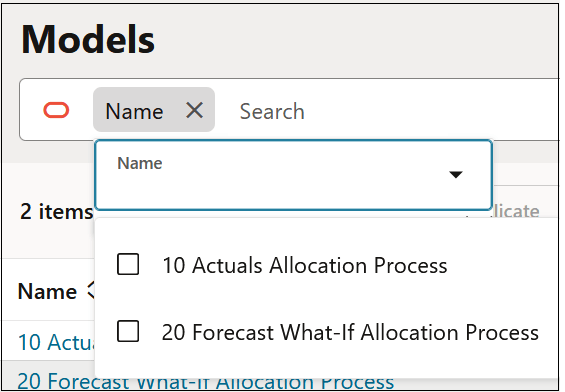
The Models page displays only the selected model.
Tip:
Click the X to remove the model from Search and once again display all the models on the page.
Editing a Model
You can edit the name and description of an existing model and modify the members selected for the model context by removing the existing dimensions and member selection, or by adding new dimensions and members.
To edit a model:
-
On the Models page, select a model, and then click Edit.
-
With the model information displayed, edit the dimensions and members defined for the model context, or click
 (Open Configuration) to view or edit the model name and
description.
(Open Configuration) to view or edit the model name and
description.
-
Click Save and Close to return to the Models page.
Inspecting a Model
Inspecting a model lets you view all the information associated with the model.
To inspect a model:
-
On the Models page, select a model, and then click Inspect.
-
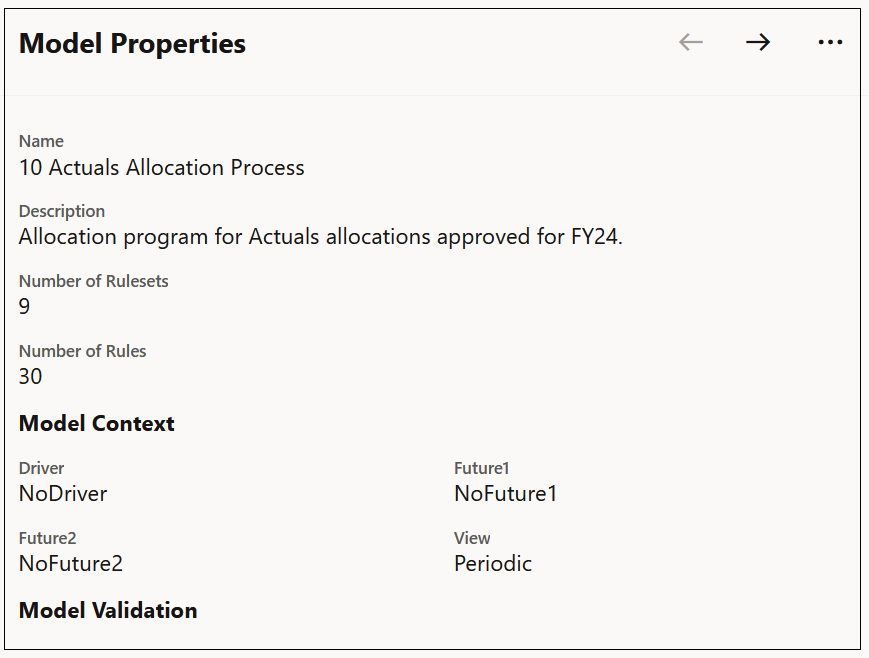
In Model Properties, review the information for the model.
-
Click
 (Next) to view information about subsequent models, or click
  (More Actions), and then select Close to
return to the Models page.
(More Actions), and then select Close to
return to the Models page.
Duplicating a Model
You can create a duplicate of a model that preserves the existing rules, and then revise the duplicated model with new rules. For example, you can preserve the rules of a particular year's model in the duplicated model, but revise it with new rules for another year.
To duplicate a model:
-
On the Models page, select a model, and then click Duplicate.
-
In the Duplicate Model dialog box, enter a name for the duplicated model, and then click Duplicate.
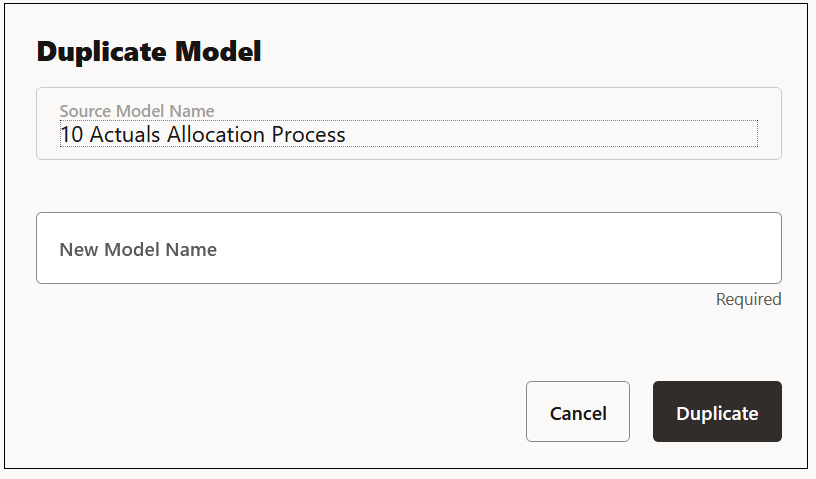
The duplicated model is now displayed in the models list.
Note:
When you duplicate a model, all the rules in the model are also duplicated.
Deleting a Model
If you no longer need the models you created, you can delete the models one by one.
To delete a model:
-
On the Models page, select the model you want to delete.
You can select only one model at a time.
-
Click
 (Delete).
-
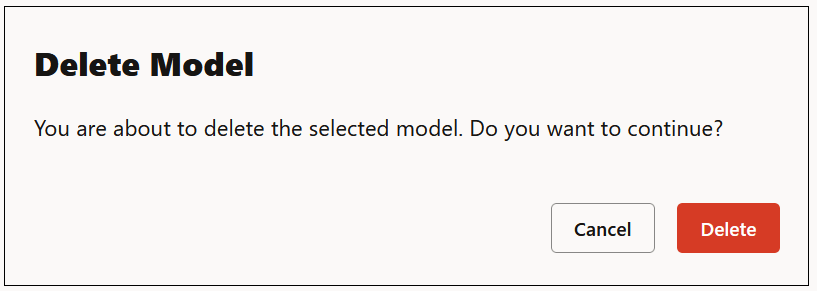
Click Delete to confirm the deletion.
Note:
When you delete a model, the rules in the model are also deleted.
Refreshing the Models List
You can refresh the models listed on the Models page by clicking the Refresh button on the top right of the page. The refresh action fetches an updated list of models.

Running Reports
To run a report for a model:
-
On the Models page, select a model or models.
To select all the models that you have defined, click the checkbox next to Name.
-
Click the Reports drop-down and select a report.
See Generating a Model Documentation Report and Generating a Model Comparison Report.