Defining the Columns that Display on the Models Page
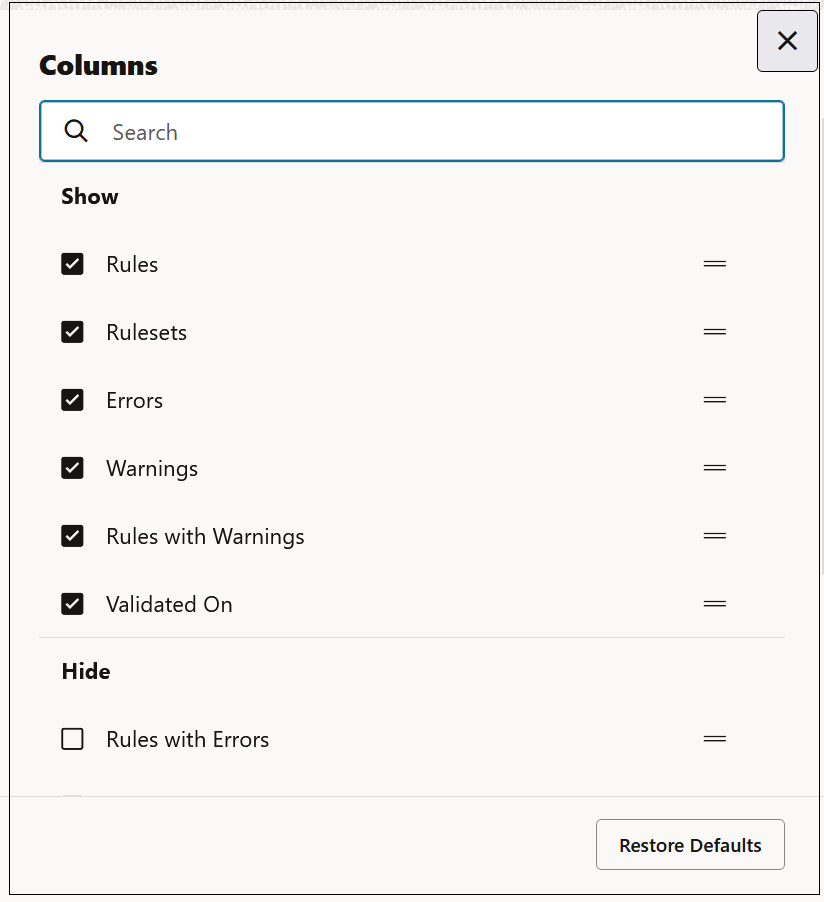
In addition to the default columns of Rule Sets and Rules, you can select additional columns to display on the Models page, and you can define the order in which the columns display.
To define the column display:
-
From the Models page, click the
 (Columns button).

-
Select or de-select the desired columns to show or hide the columns.
-
To change the order in which the columns will display, click and drag
 to the right of a column to move the column up or down. To restore the
columns to their default values, click Restore
Defaults.
to the right of a column to move the column up or down. To restore the
columns to their default values, click Restore
Defaults.
-
When you have finished defining the columns that will display and the order in which they will display, click
 (Close) to close the Columns dialog box.