Responding to and Editing Prompts
If reports in the book contain runtime prompts, you will be prompted to enter member selections when executing the book.
About Prompts
If runtime prompts are enabled, then when importing a book, or clicking the Edit Prompts button in an existing workbook, the Edit Prompts dialog is launched.
Once launched, you can display the Edit Prompts dialog in either of two ways, Full mode or Compact mode. For example:
-
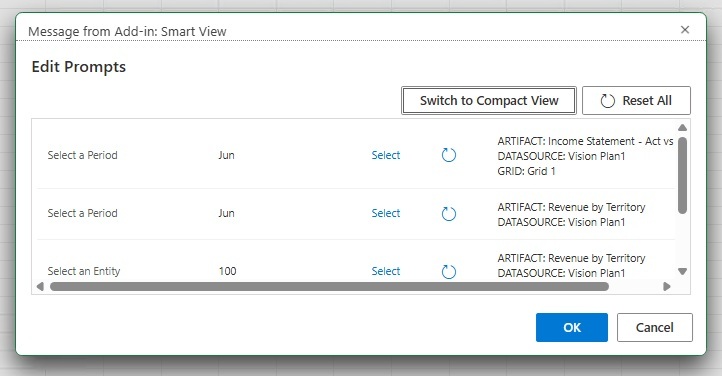
Full mode—Displays all prompts in all reports and inserted books separately
In the following illustration, two prompts are defined for the Period dimension, and they are shown on separate rows:
-
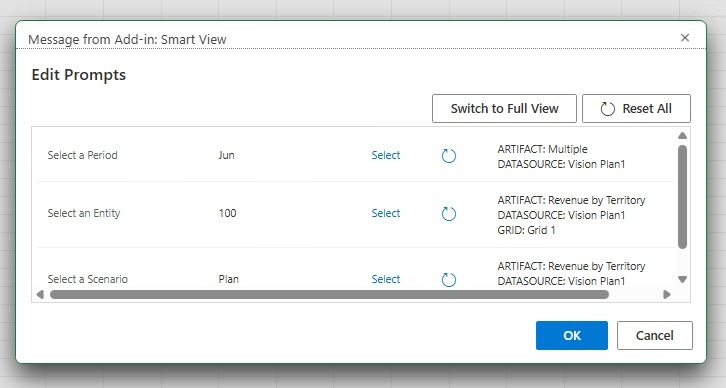
Compact mode—Consolidates duplicate prompts across reports, including the same dimension, prompt label, choice list, default selection, and "Allow Multiple Selections" setting for the same data source. In the following illustration, the two prompts for the Period dimension are consolidated into one row:
In the Edit Prompts dialog, you can:
-
Use the button to switch between Compact mode and Full mode.
-
Click the Select link next to a prompt to launch the Member Selection dialog or the choice list, and make your prompt selection.
-
Click the Reset button,
 , to reset any changes you've made to the default prompt selection
for an individual prompt.
, to reset any changes you've made to the default prompt selection
for an individual prompt.
-
Click the Reset All button,
 , at the top right of the dialog, to reset all prompts selections
back to the default selection.
, at the top right of the dialog, to reset all prompts selections
back to the default selection.
Note:
This behavior is slightly different when editing prompts in an existing workbook, described in Editing Prompts .
-
Select values for prompts from a pre-selected choice list, if it is defined for the prompt.
-
Select values for prompts using the Member Selection dialog, if there is no choice list defined.
-
Select multiple values for the prompts, if this is defined for the prompt.
Responding to Prompts
To respond to prompts when importing a book into Smart View:
-
In the Edit Prompts dialog, choose a display mode, Compact or Full.
-
Click the Select link for a dimension, then select a member from the left pane and use the arrows to move it to the right pane.
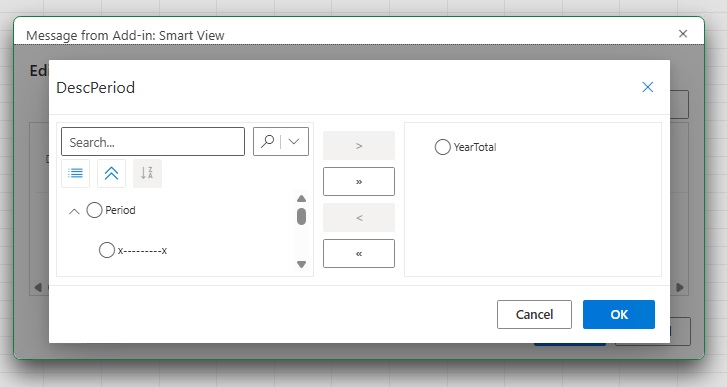
If a predefined choice list that uses the Descendants() or Descendants(Inclusive) function is defined for the dimension, then the choice list is displayed in hierarchical format in the left pane of the Select dialog, as shown in xFigure 10-8. Selected members are shown in a flat list in the right side of the dialog.
Figure 10-8 Predefined Choice List Displayed in Hierarchical Format
Manage the members in the left pane using the buttons shown in Table 10-1.
Table 10-1 Member List Management Buttons for Hierarchical Format
Button Description 
Collapse button—Collapses all hierarchies in hierarchical display mode. 
Expand button—Expands all hierarchies in hierarchical display mode. 
Display as List button—Displays all members of all hierarchies as a flat list. 
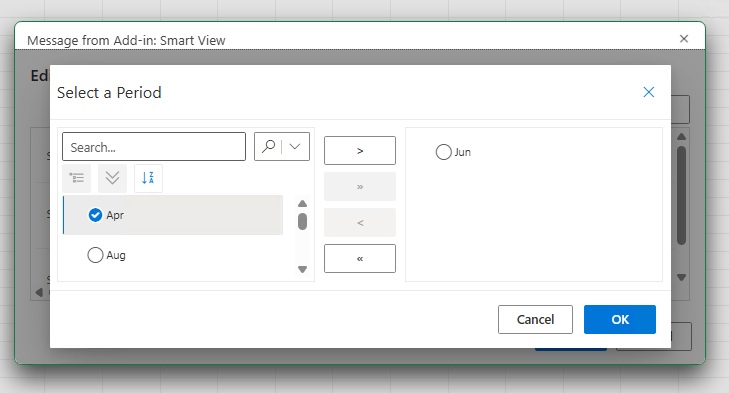
Display as Hierarchy button—Rolls up the flat list display of members into their respective hierarchies. For any other predefined choice list for the dimension, members are displayed in a flat list in the Member Select dialog, as shown in Figure 10-9.
Figure 10-9 Predefined Choice List Displayed in Flat List Format
Manage the members in the left pane using the buttons shown in Table 10-2.
Table 10-2 Member List Management Buttons for Flat List Format
Button Description 
Sort in ascending order—Sorts members in ascending order; for example, alphabetically. 
Sort in descending order—Sorts members in descending order; for example, highest to lowest. -
When finished responding to prompts, click OK.
Continue with step 3 in Importing Books.
Editing Prompts
To change the prompt values for the current book:
-
Click the Edit Prompts button in the Books ribbon to launch the Edit Prompts dialog.
The Edit Prompts dialog is displayed with the selections made at the time the book was imported and downloaded.
-
Optional: In the Edit Prompts dialog, switch between Compact or Full display mode.
-
Make new selections by clicking the Select link next to a prompt to display the Member Selection dialog or the choice list, and make your prompt selection.
-
Optional: Click Reset,
, or Reset All, , to reset the prompt selections to the default selections from the
prompt definition.
-
When finished responding to prompts, click OK.
The book is refreshed according to the updated prompt selections.