Configure Network Access with Private Endpoints
You can specify that Autonomous AI Database uses a private endpoint inside your Virtual Cloud Network (VCN) in your tenancy. You can configure a private endpoint during provisioning or cloning your Autonomous AI Database, or you can switch to using a private endpoint in an existing database that uses a public endpoint. This allows you to keep all traffic to and from your database off of the public internet.
Specifying the virtual cloud network configuration allows traffic only from the virtual cloud network you specify and blocks access to the database from all public IPs or VCNs. This allows you to define security rules with Security Lists or at the Network Security Group (NSG) level to specify ingress/egress for your Autonomous AI Database instance. Using a private endpoint and defining Security Lists or NSGs allows you to control traffic to and from your Autonomous AI Database instance.
Note: If you configure your Autonomous AI Database instance to use a private endpoint and you also want to allow connections from specific public IP addresses or from specific VCNs if those VCNs are configured to privately connect to Autonomous AI Database using a Service Gateway, select the Allow public access option. This adds a public endpoint for a database that is configured with a private endpoint. See Use a Private Endpoint with Public Access Allowed for more information. The Allow public access option is available only when the database uses the ECPU compute model.
Configure Private Endpoints
You can specify that Autonomous AI Database uses a private endpoint and configure a Virtual Cloud Network (VCN) in your tenancy to use with the private endpoint.
Prerequisite Steps to Configure Private Endpoints
Describes the prerequisite steps you need to perform before you configure a private endpoint for an Autonomous AI Database instance.
Perform the following prerequisite steps before configuring a private endpoint:
-
Set required policies for the resources you are working with. See IAM Policies Required to Manage Private Endpoints for more information.
-
Create a VCN within the region that will contain your Autonomous AI Database. See VCNs and Subnets for more information.
-
Configure a subnet within your VCN configured with default DHCP options. See DNS in Your Virtual Cloud Network for more information.
-
(Optional) Perform the following optional step before configuring a private endpoint:
Specify a Network Security Group (NSG) within your VCN. The NSG specifies rules for connections to your Autonomous AI Database. See Network Security Groups for more information.
IAM Policies Required to Manage Private Endpoints
In addition to the policies required to provision and manage an Autonomous AI Database, some network policies are needed to use private endpoints.
The following table lists the IAM policies required for a cloud user to add a private endpoint. The listed policies are the minimum requirements to add a private endpoint. You can also use a policy rule that is broader. For example, if you set the policy rule:
Allow group MyGroupName to manage virtual-network-family in tenancyThis rule also works because it is a superset that contains all the required policies.
| Operation | Required IAM Policies |
|---|---|
| Configure a private endpoint |
|
Autonomous AI Database relies on the IAM (Identity and Access Management) service to authenticate and authorize cloud users to perform operations that use any of the Oracle Cloud Infrastructure interfaces (the Console, REST API, CLI, SDK, or others).
The IAM service uses groups, compartments and policies to control which cloud users can access which resources. In particular, a policy defines what kind of access a group of users has to a particular kind of resource in a particular compartment. For more information, see Getting Started with Policies.
Configure Private Endpoints When You Provision or Clone an Instance
You can configure a private endpoint when you provision or clone an Autonomous AI Database instance.
These steps assume you are provisioning or cloning an instance and you have completed the prerequisite steps, and you are at the Choose network access step of the provisioning or cloning steps:
-
Select Private endpoint access only.
This expands the Virtual cloud network private access configuration area.
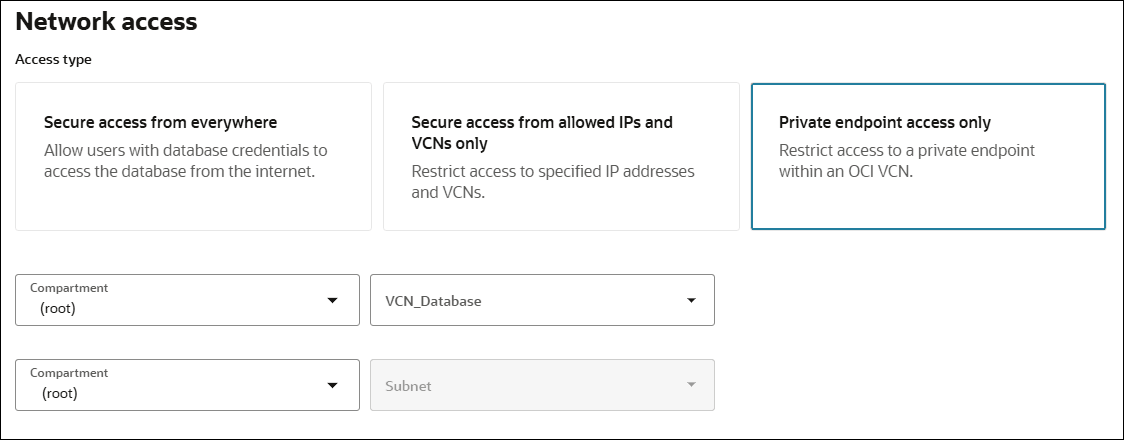
Description of the illustration adb_private_vcn.png
If you select Private endpoint access only, this only allows connections from the specified private network (VCN), from peered VCNs, and from on-prem networks connected to your VCN. You can configure an Autonomous AI Database instance on a private endpoint to allow connections from on-prem networks. See Example: Connecting from Your Data Center to Autonomous AI Database for an example.
-
Select a Virtual cloud network in your compartment or if the VCN is in a different compartment click Change Compartment and select the compartment that contains the VCN and then select a virtual cloud network.
See VCNs and Subnets for more information.
-
Select the Subnet in your compartment to attach the Autonomous AI Database to or if the Subnet is in a different compartment click Change Compartment and select the compartment that contains the Subnet and then select a subnet.
See VCNs and Subnets for more information.
-
(Optional) Click Show advanced options to show additional private endpoint options.
See Configure Private Endpoint Advanced Options for details on the advanced options.
-
Require mutual TLS (mTLS) authentication.
The Require mutual TLS (mTLS) authentication options are:
-
When Require mutual TLS (mTLS) authentication is deselected, TLS and mTLS connections are allowed. This is the default configuration.
-
When Require mutual TLS (mTLS) authentication is selected, only mTLS connections are allowed (TLS authentication is not allowed).
See Update Network Options to Allow TLS or Require Only Mutual TLS (mTLS) Authentication on Autonomous AI Database for more information.
-
-
Complete the remaining provisioning or cloning steps, as specified in Provision an Autonomous AI Database Instance, Clone an Autonomous AI Database Instance, or Clone an Autonomous AI Database from a Backup.
See Private Endpoints Notes for more information.
Change from Public to Private Endpoints with Autonomous AI Database
If your Autonomous AI Database instance is configured to use a public endpoint you can change the configuration to a private endpoint.
-
On the Details page, from the More actions drop-down list, select Update network access.
To change an instance from a public to a private endpoint, the Autonomous AI Database instance must be in the Available state (Lifecycle state: Available).
-
In the Update network access dialog, select Private endpoint access only.
This expands the Virtual cloud network private access configuration area.
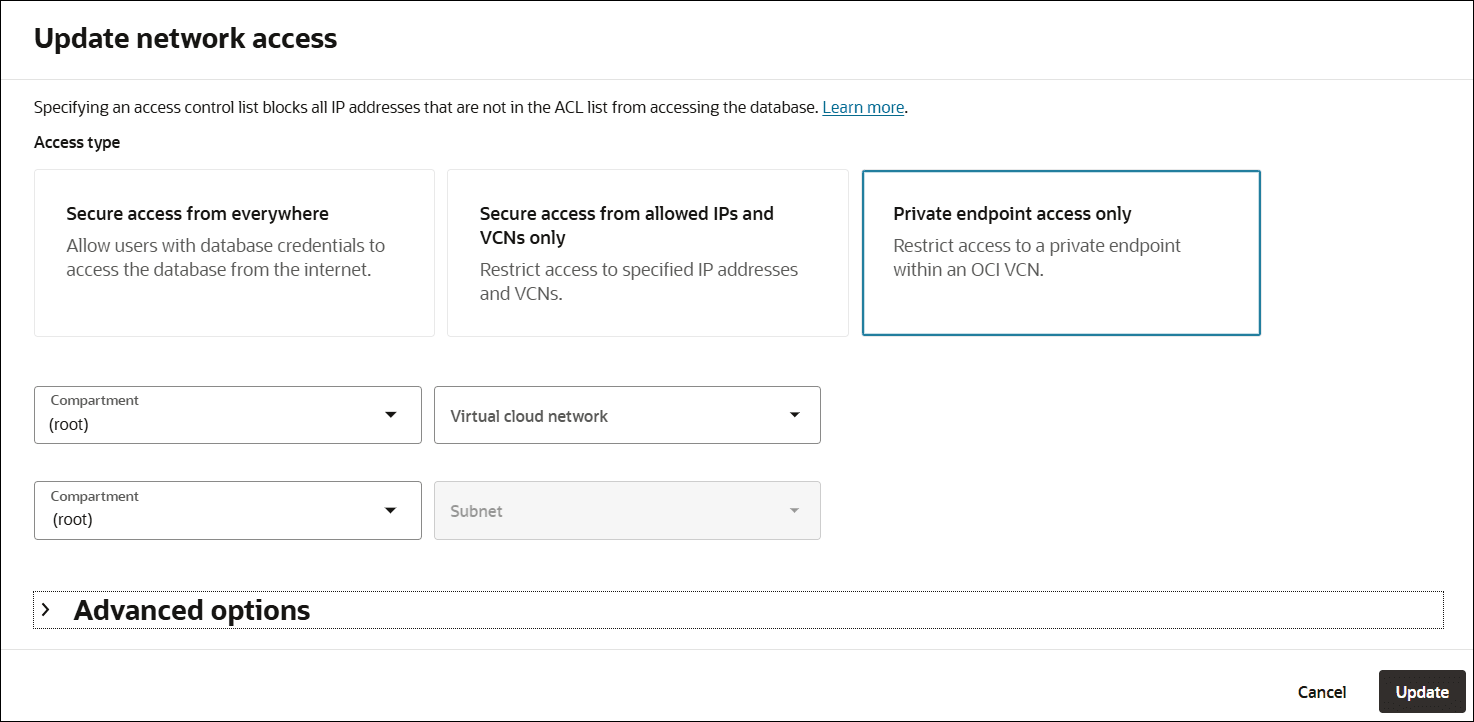
Description of the illustration adb_network_private_update.png
If you select Private endpoint access only, this only allows connections from the specified private network (VCN), from peered VCNs, and from on-prem networks connected to your VCN. You can configure an Autonomous AI Database instance on a private endpoint to allow connections from on-prem networks. See Example: Connecting from Your Data Center to Autonomous AI Database for an example.
-
Select a Virtual cloud network in your compartment or if the VCN is in a different compartment click Change Compartment and select the compartment that contains the VCN and then select a virtual cloud network.
See VCNs and Subnets for more information.
-
Select the Subnet in your compartment to attach the Autonomous AI Database to or if the Subnet is in a different compartment click Change Compartment and select the compartment that contains the Subnet and then select a subnet.
See VCNs and Subnets for more information.
-
(Optional) Click Show advanced options to see additional options.
See Configure Private Endpoint Advanced Options for details on the advanced options.
-
Click Update.
-
In the Confirm dialog, type the Autonomous AI Database name to confirm the change.
-
In the Confirm dialog, click Update.
The Lifecycle state changes to Updating until the operation completes.
Notes for changing from public to private network access:
-
After updating the network access type all database users must obtain a new wallet and use the new wallet to access the database. See Download Client Credentials (Wallets) for more information.
-
If you had ACLs defined for the public endpoint, the ACLs do not apply for the private endpoint.
-
After you update the network access to use a private endpoint, the URL for the Database Tools is different compared to using a public endpoint. You can find the updated URLs on the console, after changing from a public endpoint to a private endpoint.
Update the Configuration for a Private Endpoint
You can change some options in the configuration of a private endpoint on an existing Autonomous AI Database instance.
-
On the Details page, from the More actions drop-down list, select Update network access.
This shows the Update network access panel.
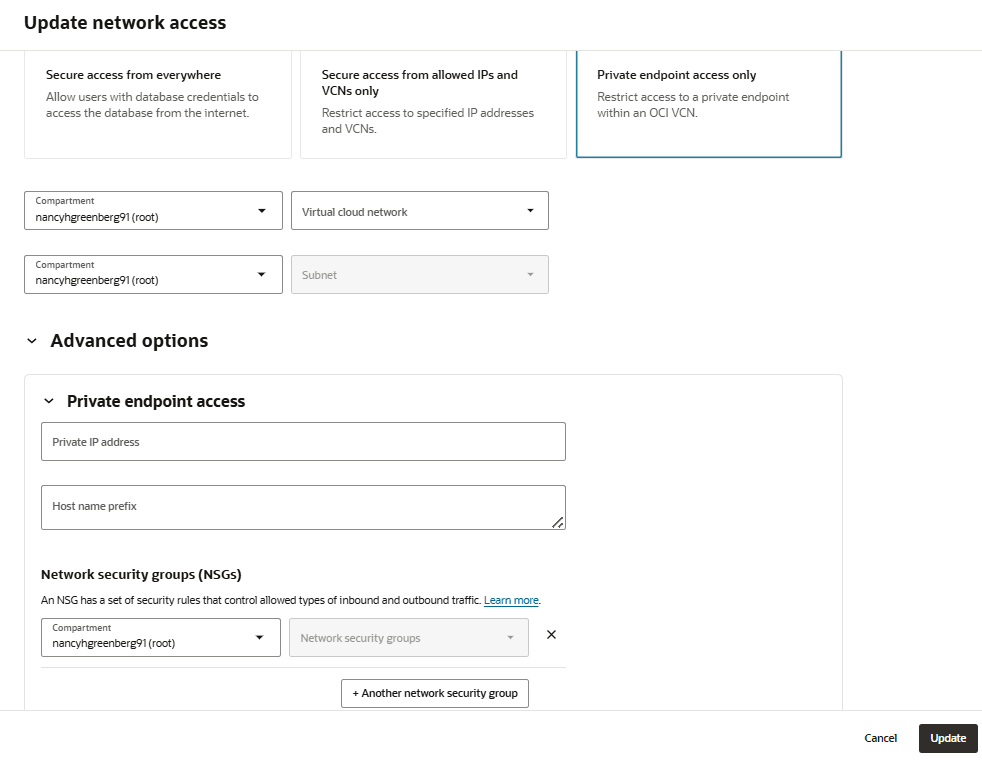
Description of the illustration adb_network_access_private_update.png
-
Select Private endpoint access only.
-
Optionally add Network security groups (NSGs).
Optionally, to allow connections to the Autonomous AI Database instance define security rules in an NSG; this creates a virtual firewall for your Autonomous AI Database.
-
Select a Network Security Group in your compartment to attach the Autonomous AI Database to, or if the Network Security Group is in a different compartment, click Change Compartment and select a different compartment and then select a Network Security Group in that compartment.
-
Click + Another Network Security Group to add another Network Security Group.
-
Click x to remove a Network Security Group entry.
For the NSG you select for the private endpoint define a security rule as follows:
-
For mutual TLS (mTLS) authentication, add a stateful ingress rule with the source set to the address range you want to allow to connect to your database, the IP Protocol set to TCP, and the Destination Port Range set to 1522.
-
For TLS authentication, add a stateful ingress rule with the source set to the address range you want to allow to connect to your database, the IP Protocol set to TCP, and the Destination Port Range set to either 1521 or 1522.
-
To use Oracle APEX, Database Actions, and Oracle REST Data Services, add port 443 to the NSG rule.
Note: Incoming and outgoing connections are limited by the combination of ingress and egress rules defined in NSGs and the Security Lists defined with the VCN. When there are no NSGs, ingress and egress rules defined in the Security Lists for the VCN still apply. See Security Lists for more information on working with Security Lists.
See Secure Connections to Autonomous AI Database with mTLS or with TLS for more information.
See Private Endpoints Configuration Examples on Autonomous AI Database for examples.
See Network Security Groups for more information.
-
-
-
Optionally, select Allow public access or if this is already selected, you can configure access control rules to the public endpoint that is configured with the private endpoint database.
The Allow public access option is available only when the database uses the ECPU compute model.
When you select Allow public access, this shows the Configure access control options to enter the allowed IP addresses, CIDR blocks, or Virtual cloud networks that can connect to the database.
Select one of:
-
IP address:
In Values field enter values for the IP address. An IP address specified in a network ACL entry is the public IP address of the client that is visible on the public internet that you want to grant access. For example, for an Oracle Cloud Infrastructure VM, this is the IP address shown in the Public IP field on the Oracle Cloud Infrastructure console for that VM.
Optionally select Add my IP address to add your current IP address to the ACL entry.
-
CIDR block:
In Values field enter values for the CIDR block. The CIDR block specified is the public CIDR block of the clients that are visible on the public internet that you want to grant access.
-
Virtual cloud network:
Use this option when the network route from the client to the database is going through an Oracle Cloud Infrastructure Service Gateway. See Access to Oracle Services: Service Gateway for more information.
Use this option to specify the VCN for use with an Oracle Cloud Infrastructure Service Gateway:
-
In Virtual cloud network field select the VCN that you want to grant access from. If you do not have the privileges to see the VCNs in your tenancy this list is empty. In this case use the selection Virtual cloud network (OCID) to specify the OCID of the VCN.
-
Optionally, in the IP addresses or CIDRs field enter private IP addresses or private CIDR blocks as a comma separated list to allow specific clients in the VCN.
-
Virtual cloud network (OCID): Use this option when the network route from the client to the database is going through an Oracle Cloud Infrastructure Service Gateway. See Access to Oracle Services: Service Gateway for more information.
-
In the Values field enter the OCID of the VCN you want to grant access from.
-
Optionally, in the IP addresses or CIDRs field enter private IP addresses or private CIDR blocks as a comma separated list to allow specific clients in the VCN.
If you want to specify multiple IP addresses or CIDR ranges within the same VCN, do not create multiple ACL entries. Use one ACL entry with the values for the multiple IP addresses or CIDR ranges separated by commas.
-
-
-
Click Update.
If the Lifecycle state is Available when you click Update, the Lifecycle state changes to Updating until the changes are applied. The database is still up and accessible, there is no downtime. When the update is complete the Lifecycle state returns to Available.
See Private Endpoints Notes for more information.
Configure Private Endpoint Advanced Options
The private endpoint access advanced options allow you to enter a user specified private IP address and host name, select one or more network security groups, or specify details to allow public access to a private endpoint database.
These steps assume you are provisioning or cloning an Autonomous AI Database instance or changing from public access to private access for an existing Autonomous AI Database instance and you are at the Choose network access step.
-
Select Private endpoint access only.
This shows the Virtual cloud network private access configuration area.
-
(Optional) Click Show advanced options to show additional private endpoint options.
This displays the advanced options.
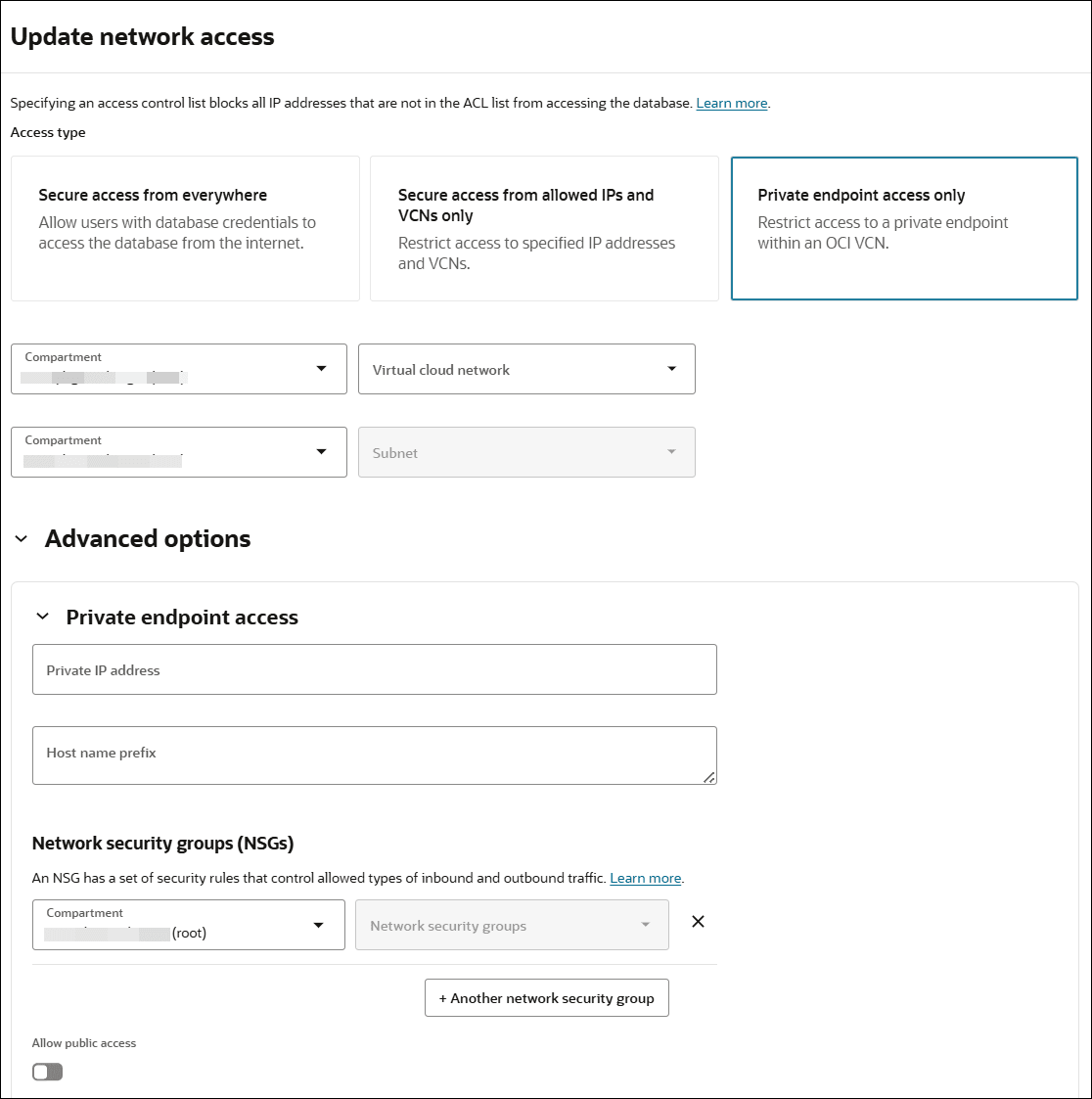
Description of the illustration adb_network_access_private_advanced.png
-
Optionally enter a Private IP address.
Use this field to enter a custom private IP address. The private IP address you enter must be within the selected subnet's CIDR range.
If you do not provide a custom private IP address the IP address is automatically assigned.
-
Optionally enter a Hostname prefix.
This specifies a hostname prefix for the Autonomous AI Database and associates a DNS name with the database instance, in the following form:
*hostname_prefix*.adb.region.oraclecloud.comIf you do not specify a hostname prefix, a system generated hostname prefix is supplied.
-
Optionally add Network security groups (NSGs).
Optionally, to allow connections to the Autonomous AI Database instance define security rules in an NSG; this creates a virtual firewall for your Autonomous AI Database.
-
Select a Network Security Group in your compartment to attach the Autonomous AI Database to, or if the Network Security Group is in a different compartment, click Change Compartment and select a different compartment and then select a Network Security Group in that compartment.
-
Click + Another Network Security Group to add another Network Security Group.
-
Click x to remove a Network Security Group entry.
For the NSG you select for the private endpoint define a security rule as follows:
-
For mutual TLS (mTLS) authentication, add a stateful ingress rule with the source set to the address range you want to allow to connect to your database, the IP Protocol set to TCP, and the Destination Port Range set to 1522.
-
For TLS authentication, add a stateful ingress rule with the source set to the address range you want to allow to connect to your database, the IP Protocol set to TCP, and the Destination Port Range set to either 1521 or 1522.
-
To use Oracle APEX, Database Actions, and Oracle REST Data Services, add port 443 to the NSG rule.
Note: Incoming and outgoing connections are limited by the combination of ingress and egress rules defined in NSGs and the Security Lists defined with the VCN. When there are no NSGs, ingress and egress rules defined in the Security Lists for the VCN still apply. See Security Lists for more information on working with Security Lists.
See Secure Connections to Autonomous AI Database with mTLS or with TLS for more information.
See Private Endpoints Configuration Examples on Autonomous AI Database for examples.
See Network Security Groups for more information.
-
-
Optionally, select Allow public access and configure access control rules to add a public endpoint for the private endpoint database.
The Allow public access option is available only when the database uses the ECPU compute model.
When you select Allow public access, this shows the Configure access control options to enter the allowed IP addresses, CIDR blocks, or Virtual cloud networks that can connect to the database.
Select one of:
-
IP address:
In Values field enter values for the IP address. An IP address specified in a network ACL entry is the public IP address of the client that is visible on the public internet that you want to grant access. For example, for an Oracle Cloud Infrastructure VM, this is the IP address shown in the Public IP field on the Oracle Cloud Infrastructure console for that VM.
Optionally select Add my IP address to add your current IP address to the ACL entry.
Optionally select Add my IP address to add your current IP address to the ACL entry.
-
CIDR block:
In Values field enter values for the CIDR block. The CIDR block specified is the public CIDR block of the clients that are visible on the public internet that you want to grant access.
-
Virtual cloud network:
Use this option when the network route from the client to the database is going through an Oracle Cloud Infrastructure Service Gateway. See Access to Oracle Services: Service Gateway for more information.
Use this option to specify the VCN for use with an Oracle Cloud Infrastructure Service Gateway:
-
In Virtual cloud network field select the VCN that you want to grant access from. If you do not have the privileges to see the VCNs in your tenancy this list is empty. In this case use the selection Virtual cloud network (OCID) to specify the OCID of the VCN.
-
Optionally, in the IP addresses or CIDRs field enter private IP addresses or private CIDR blocks as a comma separated list to allow specific clients in the VCN.
-
-
Virtual cloud network (OCID):
Use this option when the network route from the client to the database is going through an Oracle Cloud Infrastructure Service Gateway. See Access to Oracle Services: Service Gateway for more information.
-
In the Values field enter the OCID of the VCN you want to grant access from.
-
Optionally, in the IP addresses or CIDRs field enter private IP addresses or private CIDR blocks as a comma separated list to allow specific clients in the VCN.
-
If you want to specify multiple IP addresses or CIDR ranges within the same VCN, do not create multiple ACL entries. Use one ACL entry with the values for the multiple IP addresses or CIDR ranges separated by commas.
-
-
-
Complete the remaining private endpoint configuration steps.
Use a Private Endpoint with Public Access Allowed
Select the Allow public access option when you want to configure an Autonomous AI Database to use a private endpoint and you also want to allow connections from specific public IP addresses or from specific VCNs (if the VCNs are configured to privately connect to Autonomous AI Database using a Service Gateway).
This option adds a public endpoint for a database that is configured on a private endpoint. You configure a private endpoint for your Autonomous AI Database instance when you provision or clone the instance, or when you update the network configuration for an existing Autonomous AI Database. See the following for details on the steps to configure an Autonomous AI Database instance with a private endpoint:
-
Configure Private Endpoints When You Provision or Clone an Instance
-
Change from Public to Private Endpoints with Autonomous AI Database
When public access is enabled with Allow public access on a private endpoint database, the instance has both a private endpoint and a public endpoint:
-
The private hostname, endpoint URL, and private IP address allow you to connect to the database from the VCN where the database resides.
-
The public hostname allows you to connect to the database from specific public IP addresses or from specific VCNs if those VCNs are configured to privately connect to Autonomous AI Database using a Service Gateway.
Autonomous AI Database Connection String Additions for a Private Endpoint Database with Allow Public Access Enabled
When Allow public access is enabled for a private endpoint database, there are additional connection strings that allow you to connect to the database from the public endpoint:
-
The connection strings in
tnsnames.orain the Autonomous AI Database wallet zip include the public connection strings to use with connections coming from the public internet. The connection strings for the public endpoint use the following naming convention:dbname_public_consumerGroupFor example:
adbfinance_public_lowSee Download Client Credentials (Wallets) for more information.
-
You can view the connection strings for both the public endpoint and the private endpoint from the Oracle Cloud Infrastructure Console (or using the API).
See View TNS Names and Connection Strings for an Autonomous AI Database Instance for more information.
Autonomous AI Database Tools Additions for a Private Endpoint Database with Allow Public Access Enabled
When Allow public access is enabled for a private endpoint database, the database tools allow you to connect from specific public IP addresses or from specific VCNs if those VCNs are configured to privately connect to Autonomous AI Database using a Service Gateway:
-
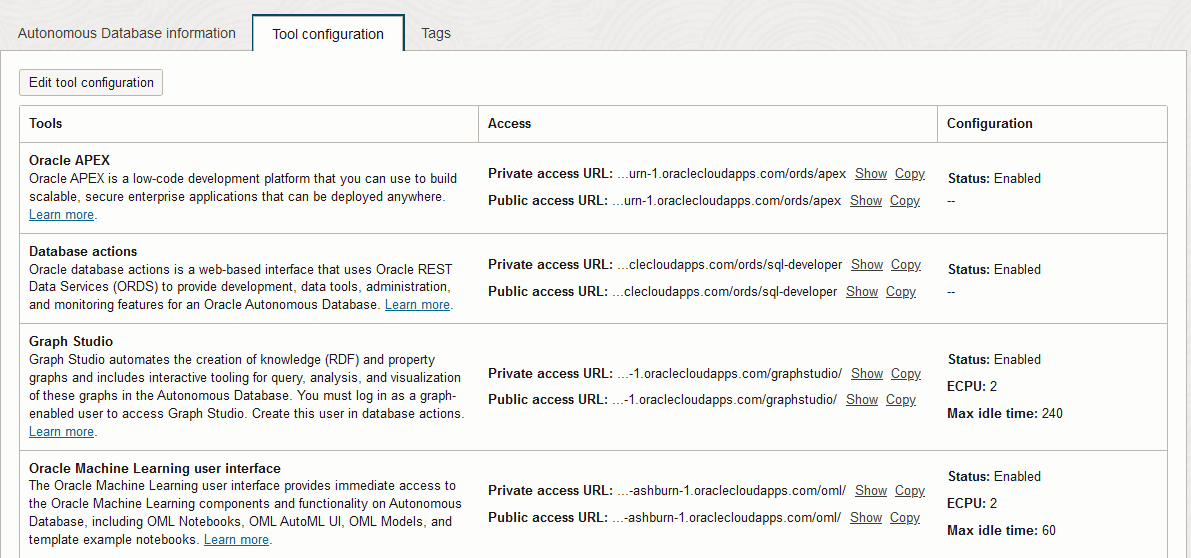
Each tool has a private access URL and a public access URL displayed in the Tool configuration table. Use the public access URL to access the tool from specific public IP addresses or from specific VCNs if those VCNs are configured to privately connect to Autonomous AI Database using a Service Gateway.
For example:
Description of the illustration adb_tools_status_private_public.png
See View Autonomous AI Database Built-in Tools Status for more information.
-
The
READMEfile in the wallet zip file provides both an Access Link for the private endpoint for each database tool and a Public Access Link.See Wallet README File for more information.
Enhanced Security for Outbound Connections with Private Endpoints
When you use a private endpoint with your Autonomous AI Database instance you can provide enhanced security by setting the ROUTE_OUTBOUND_CONNECTIONS database property.
You can set the ROUTE_OUTBOUND_CONNECTIONS database property to one of the following:
-
ENFORCE_PRIVATE_ENDPOINT -
PRIVATE_ENDPOINT
When this property is set, all outgoing connections to target hosts are subject to and limited by the private endpoint’s egress rules. You define these egress rules in the Virtual Cloud Network (VCN) security list or the Network Security Group (NSG) associated with the private endpoint for your Autonomous AI Database instance.
Before you set the ROUTE_OUTBOUND_CONNECTIONS database property, configure your Autonomous AI Database instance to use a private endpoint. See Configure Private Endpoints for more information.
The following table summarizes the handling of outbound connections and DNS resolution based on the value of the ROUTE_OUTBOUND_CONNECTIONS database property:
| Procedure or Database Tool | ENFORCE_PRIVATE_ENDPOINT | PRIVATE_ENDPOINT |
|---|---|---|
| APEX_LDAP, APEX_MAIL, and APEX_WEB_SERVICE | Yes | Yes |
| CMU with Microsoft Active Directory | Yes | Yes |
| Database links | Yes | Yes |
| DBMS_LDAP | Yes | Yes |
| UTL_HTTP, UTL_SMTP, and UTL_TCP | Yes | Yes |
| All External Tables | Yes | No |
| Datapump imports and export | Yes | No |
| DBMS_CLOUD family of packages (such as DBMS_CLOUD, DBMS_CLOUD_PIPELINE, DBMS_CLOUD_NOTIFICATION, DBMS_CLOUD_FUNCTION, DBMS_CLOUD_AI, DBMS_CLOUD_AI_AGENT, DBMS_CLOUD_REPO, DBMS_PIPE with Object Storage messages) | Yes | No |
Oracle recommends setting the ROUTE_OUTBOUND_CONNECTIONS property to ENFORCE_PRIVATE_ENDPOINT, as it includes all the restrictions of PRIVATE_ENDPOINT and additionally applies them to outbound connections from DBMS_CLOUD family of packages and external tables.
Note: If the ROUTE_OUTBOUND_CONNECTIONS property is not set, all outgoing connections to the public internet are routed through the Network Address Translation (NAT) Gateway of the service VCN. In this case, if the target host is a public endpoint, these outgoing connections are not subject to the egress rules defined for the Autonomous AI Database instance’s private endpoint VCN or Network Security Group (NSG).
When you configure a private endpoint for your Autonomous AI Database instance and set ROUTE_OUTBOUND_CONNECTIONS to PRIVATE_ENDPOINT, this setting does not change the handling of outbound connections and DNS resolution for the following:
-
Oracle REST Data Services (ORDS)
-
Database Actions
To set ROUTE_OUTBOUND_CONNECTIONS:
-
Connect to your database.
-
Set the database property
ROUTE_OUTBOUND_CONNECTIONS. For example, set theROUTE_OUTBOUND_CONNECTIONSdatabase property to valueENFORCE_PRIVATE_ENDPOINTorPRIVATE_ENDPOINT(see table above for details of the values).ALTER DATABASE PROPERTY SET ROUTE_OUTBOUND_CONNECTIONS = 'PRIVATE_ENDPOINT';ALTER DATABASE PROPERTY SET ROUTE_OUTBOUND_CONNECTIONS = 'ENFORCE_PRIVATE_ENDPOINT';
Notes for setting ROUTE_OUTBOUND_CONNECTIONS:
-
Use the following command to restore the default parameter value:
ALTER DATABASE PROPERTY SET ROUTE_OUTBOUND_CONNECTIONS = ''; -
Use the following command to query the current parameter value:
SELECT * FROM DATABASE_PROPERTIES
        WHERE PROPERTY_NAME = 'ROUTE_OUTBOUND_CONNECTIONS';
If the property is not set the query does not return results.
-
This property only applies for database links that you create after you set the property to the value
PRIVATE_ENDPOINT. Thus, database links that you created prior to setting the property continue to use the NAT Gateway of the service VCN and are not subject to the Autonomous AI Database instance private endpoint's egress rules. -
Only set
ROUTE_OUTBOUND_CONNECTIONSto the valuePRIVATE_ENDPOINTwhen you are using Autonomous AI Database with a private endpoint. -
When your database is on a private endpoint and you want your outbound connections to be resolved by your VCN, you need to set the
ROUTE_OUTBOUND_CONNECTIONSparameter toPRIVATE_ENDPOINT. -
With the
ROUTE_OUTBOUND_CONNECTIONSproperty set toENFORCE_PRIVATE_ENDPOINT, allDBMS_CLOUDURI are supported for private endpoint routing. See DBMS_CLOUD URI Formats for more information.
See NAT Gateway for more information on Network Address Translation (NAT) gateway.
Private Endpoints Notes
Describes restrictions and notes for private endpoints on Autonomous AI Database.
-
After you update the network access to use a private endpoint, or after the provisioning or cloning completes where you configure a private endpoint, you can view the network configuration on the Autonomous AI Database Details page under the Network section.
The Network section shows the following information for a private endpoint:
-
Access type: Specifies the access type for the Autonomous AI Database configuration. Private endpoint configurations show the access type: Virtual cloud network.
-
Availability domain: Specifies the availability domain of your Autonomous AI Database instance.
-
Virtual cloud network: This includes a link for the VCN associated with the private endpoint.
-
Subnet: This includes a link for the subnet associated with the private endpoint.
-
Private endpoint IP: Shows the private endpoint IP for the private endpoint configuration.
-
Private endpoint URL: Shows the private endpoint URL for the private endpoint configuration.
-
Network security groups: This field includes links to the NSG(s) configured with the private endpoint.
-
Public access: This field indicates whether public access is enabled for the private endpoint. Click the
Editlink to view or change the allowed ACLs or VCNs. -
Public endpoint URL: This shows when Allow public access is enabled on the private endpoint. This is the public endpoint URL that you can use to connect from allowed IPs or VCNs on the public internet.
For more details on the network information on the Oracle Cloud Infrastructure Console, See View Network Information on the OCI Console.
-
-
After provisioning or cloning completes, you can change the Autonomous AI Database configuration to use a public endpoint.
See Change from Private to Public Endpoints with Autonomous AI Database for information on changing to a public endpoint.
-
You can specify up to five NSGs to control access to your Autonomous AI Database.
-
You can change the private endpoint Network Security Group (NSG) for the Autonomous AI Database.
To change the NSG for a private endpoint, do the following:
-
On the Autonomous AI Databases page select an Autonomous AI Database from the links under the Display name column.
-
On the Autonomous AI Database Details page, under Network in the Network Security Groups field, click Edit.
-
-
You can connect your Oracle Analytics Cloud instance to your Autonomous AI Database that has a private endpoint using the Data Gateway like you do for an on-premises database. See Configure and Register Data Gateway for Data Visualization for more information.
-
The following Autonomous AI Database tools are supported in databases configured with a private endpoint:
-
Database Actions
-
Oracle APEX
-
Oracle Graph Studio
-
Oracle Machine Learning Notebooks
-
Oracle REST Data Services
-
Oracle AI Database API for MongoDB
Additional configuration is required to access these Autonomous AI Database tools from on-premises environments. See Example: Connecting from Your Data Center to Autonomous AI Database to learn more.
Accessing Oracle APEX, Database Actions, Oracle Graph Studio, or Oracle REST Data Services using a private endpoint from on-premises environments without completing the additional private endpoint configuration shows the error:
404 Not Found -
-
After you update the network access to use a private endpoint, the URL for the Database Tools is different compared to using a public endpoint. You can find the updated URLs on the console, after changing from a public endpoint to a private endpoint.
-
In addition to the default Oracle REST Data Services (ORDS) preconfigured with Autonomous AI Database, you can configure an alternative ORDS deployment that provides more configuration options and that can be used with private endpoints. See About Customer Managed Oracle REST Data Services on Autonomous AI Database to learn about an alternative ORDS deployment that can be used with private endpoints.
-
Modifying a private IP address is not allowed after you provision or clone an instance, whether the IP address is automatically assigned when you enter a value in the Private IP address field.
-
The SSL_SERVER_DN_MATCH parameter controls whether the client validates that the server's hostname matches the Common Name (CN) or Subject Alternative Name (SAN) in the server's SSL certificate. Setting SSL_SERVER_DN_MATCH=NO disables this validation.
Note the following potential risks when SSL_SERVER_DN_MATCH=NO
-
Increased Exposure to Man-in-the-Middle (MITM) Attacks:
- Without hostname verification, attackers can potentially intercept or modify communication by presenting any certificate signed by a trusted authority, facilitating MITM attacks.
-
Accidental Misconfigurations:
- This setting can allow misconfigured or rogue servers to masquerade as trusted endpoints, bypassing expected certificate verification controls and leading to unintended security gaps.
The best practice is to set SSL_SERVER_DN_MATCH=YES which enables hostname verification unless you have a compelling, well-understood business case that requires disabling it.
If hostname matching must be disabled, ensure that robust alternative controls are in place:
-
Strict certificate validation and regular certificate management.
-
Restrict connections to known, trusted IP addresses using firewall rules or allowlists.
-
Monitor SSL/TLS configurations and connection attempts for unexpected behavior.
-
Private Endpoints Configuration Examples on Autonomous AI Database
Shows several Private Endpoint (VCN) configuration samples for Autonomous AI Database.
Example: Connecting from Inside Oracle Cloud Infrastructure VCN
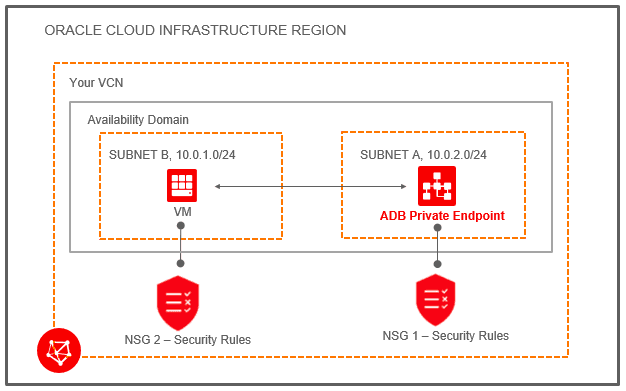
Demonstrates an application running inside Oracle Cloud Infrastructure on a virtual machine (VM) in the same VCN which is configured with your Autonomous AI Database.
Description of the illustration adb_private_endpoint1.png
There is an Autonomous AI Database instance which has a private endpoint in the VCN named “Your VCN”. The VCN includes two subnets: “SUBNET B” (CIDR 10.0.1.0/24) and “SUBNET A” (CIDR 10.0.2.0/24).
The Network Security Group (NSG) associated with the Autonomous AI Database instance is shown as “NSG 1 - Security Rules”. This Network Security Group defines security rules that allow incoming and outgoing traffic to and from the Autonomous AI Database instance. Define a rule for the Autonomous AI Database instance as follows:
-
For Mutual TLS authentication, add a stateful ingress rule to allow connections from the source to the Autonomous AI Database instance; the source is set to the address range you want to allow to connect to your database, IP Protocol is set to TCP, and the Destination Port Range is set to 1522.
-
For TLS authentication, add a stateful ingress rule to allow connections from the source to the Autonomous AI Database instance; the source is set to the address range you want to allow to connect to your database, IP Protocol is set to TCP, and the Destination Port Range is set to either 1521 or 1522.
-
To use Oracle APEX, Database Actions, and Oracle REST Data Services, add port 443 to the NSG rule.
The following figure shows a sample stateful security rule to control traffic for the Autonomous AI Database instance:

Description of the illustration adb_private_vcn_nsg_stateful1.png
The application connecting to the Autonomous AI Database is running on a VM in SUBNET B. You also add a security rule to allow traffic to and from the VM (as shown, with label “NSG 2 Security Rules”). You can use a stateful security rule for the VM, so simply add a rule for egress to NSG 2 Security Rules (this allows access to the destination subnet A).
The following figure shows sample security rules that control traffic for the VM:

Description of the illustration adb_private_vcn_rules2.png
After you configure the security rules, your application can connect to the Autonomous AI Database instance using the client credentials wallet. See Download Client Credentials (Wallets) for more information.
See Network Security Groups for information on configuring Network Security Groups.
Example: Connecting from Your Data Center to Autonomous AI Database
Demonstrates how to connect privately to an Autonomous AI Database from your on-premise data center. In this scenario, traffic never goes over the public internet.
Description of the illustration adb_private_endpoint2.png
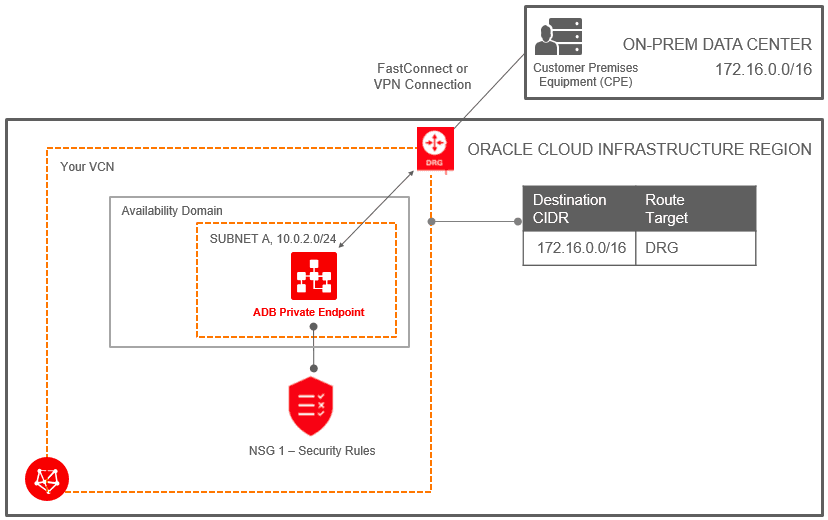
To connect from your data center, you connect the on-premise network to the VCN with FastConnect and then set up a Dynamic Routing Gateway (DRG). To resolve the Autonomous AI Database private endpoint, a Fully Qualified Domain Name (FQDN), requires that you add an entry in your on-premise client’s hosts file. For example, /etc/hosts file for Linux machines. For example:
/etc/hosts entry -> 10.0.2.7 example.adb.ca-toronto-1.oraclecloud.comTo use Oracle APEX, Database Actions, and Oracle REST Data Services, add another entry with the same IP. For example:
/etc/hosts entry -> 10.0.2.7 example.adb.ca-toronto-1.oraclecloudapps.comYou find the private endpoint IP and the FQDN as follows:
-
The Private IP is shown on the Oracle Cloud Infrastructure console Autonomous AI Database details page for the instance.
-
The FQDN is shown in the
tnsnames.orafile in the Autonomous AI Database client credential wallet.
Alternatively you can use Oracle Cloud Infrastructure private DNS to provide DNS name resolution. See Private DNS for more information.
In this example there is a Dynamic Routing Gateway (DRG) between the on-premise data center and “Your VCN”. The VCN contains the Autonomous AI Database. This also shows a route table for the VCN associated with the Autonomous AI Database, for outgoing traffic to CIDR 172.16.0.0/16 through the DRG.
In addition to setting up the DRG, define a Network Security Group (NSG) rule to allow traffic to and from the Autonomous AI Database, by adding a rule for the data center CIDR range (172.16.0.0/16). In this example, define a security rule in “NSG 1” as follows:
-
For Mutual TLS authentication, create a stateful rule to allow ingress traffic from the data center. This is a stateful ingress rule with the source set to the address range you want to allow to connect to your database, protocol set to TCP, source port range set to CIDR range (172.16.0.0/16), and destination port set to 1522.
-
For TLS authentication, create a stateful rule to allow ingress traffic from the data center. This is a stateful ingress rule with the source set to the address range you want to allow to connect to your database, protocol set to TCP, source port range set to CIDR range (172.16.0.0/16), and destination port set to either 1521 or 1522.
-
To use Oracle APEX, Database Actions, and Oracle REST Data Services, add port 443 to the NSG rule.
The following figure shows the security rule that controls traffic for the Autonomous AI Database instance:

Description of the illustration adb_private_vcn_nsg_stateful2.png
After you configure the security rule, your on-premise database application can connect to the Autonomous AI Database instance using the client credentials wallet. See Download Client Credentials (Wallets) for more information.
Troubleshooting Private Endpoint Connectivity
Provides steps to diagnose and resolve common private endpoint connectivity issues when connecting from an Oracle on-premises database.
When connecting to a private endpoint Autonomous AI Database from an Oracle on-premises database, you might encounter errors such as:
ORA-17868: Unknown host specifiedThis error indicates an issue with hostname resolution or network connectivity. To diagnose the problem, follow these steps:
-
Verify hostname resolution.
First, confirm that the private endpoint hostname resolves to the correct private IP address. Run the following command from your on-premises host:
nslookup <PE_Hostname>The hostname should resolve to the private endpoint IP address of your Autonomous AI Database. If the hostname does not resolve or returns an incorrect IP, the issue is likely related to DNS configuration.
To troubleshoot, work with your network administrator to configure DNS conditional forwarding for:
*.adb.<region>.oraclecloud.comThis should point to the
OCI VCN DNSresolver (<IP_Address>), so that private endpoint hostnames can be resolved correctly from your on-premises network. -
Verify port reachability.
After confirming that the hostname resolves correctly, run the following commands based on your on-premises environment to verify that the required database connection port is reachable. This helps identify firewall or network routing issues between your on-premises environment and Oracle Cloud Infrastructure.
From Windows PowerShell:
Test-NetConnection -computername <private endpoint ip> -Port <connection port>
Test-NetConnection -computername <private endpoint url> -Port <connection port>
From Linux or macOS:
openssl s_client -connect <hostname>:<connection port> -prexit -state -nbio -crlfor
curl -v telnet://<hostname>:<connection port>