Configure Network Access with Access Control Rules (ACLs)
Specifying an access control list blocks all IP addresses that are not in the ACL list from accessing the database. After you specify an access control list, the Autonomous AI Database only accepts connections from addresses on the access control list and the database rejects all other client connections.
Configure Access Control Lists When You Provision or Clone an Instance
When you provision or clone Autonomous AI Database with the Secure access from allowed IPs and VCNs only option, you can restrict network access by defining Access Control Lists (ACLs).
See Provision an Autonomous AI Database Instance for information on provisioning your Autonomous AI Database.
Configure ACLs as follows:
-
In the Choose network access area, select Secure access from allowed IPs and VCNs only.
With Secure access from allowed IPs and VCNs only selected, the console shows the fields and options to specify ACLs:
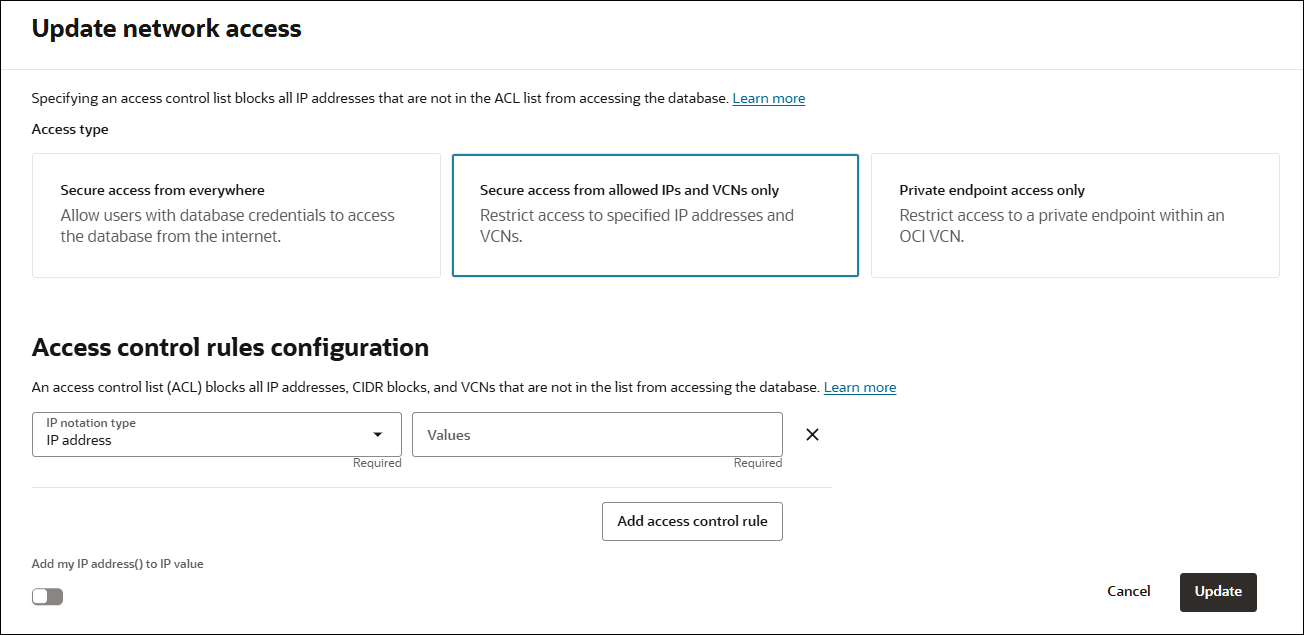
Description of the illustration adb_network_access_acl_provision.png
-
In the Choose network access area, specify access control rules by selecting an IP notation type and entering Values appropriate for the type you select:
a. IP address:
In Values field enter values for the IP address. An IP address specified in a network ACL entry is the public IP address of the client that is visible on the public internet that you want to grant access. For example, for an Oracle Cloud Infrastructure VM, this is the IP address shown in the Public IP field on the Oracle Cloud Infrastructure console for that VM.
Note: Optionally select Add my IP address to add your current IP address to the ACL entry.
b. CIDR block:
In Values field enter values for the CIDR block. The CIDR block specified is the public CIDR block of the clients that are visible on the public internet that you want to grant access.
c. Virtual cloud network:
Use this option when the network route from the client to the database is going through an Oracle Cloud Infrastructure Service Gateway. See Access to Oracle Services: Service Gateway for more information.
Use this option to specify the VCN for use with an Oracle Cloud Infrastructure Service Gateway:
-
In Virtual cloud network field select the VCN that you want to grant access from. If you do not have the privileges to see the VCNs in your tenancy this list is empty. In this case use the selection Virtual cloud network (OCID) to specify the OCID of the VCN.
-
Optionally, in the IP addresses or CIDRs field enter private IP addresses or private CIDR blocks as a comma separated list to allow specific clients in the VCN.
-
Virtual cloud network (OCID):
Use this option when the network route from the client to the database is going through an Oracle Cloud Infrastructure Service Gateway. See Access to Oracle Services: Service Gateway for more information.
-
In the Values field enter the OCID of the VCN you want to grant access from.
-
Optionally, in the IP addresses or CIDRs field enter private IP addresses or private CIDR blocks as a comma separated list to allow specific clients in the VCN.
If you want to specify multiple IP addresses or CIDR ranges within the same VCN, do not create multiple ACL entries. Use one ACL entry with the values for the multiple IP addresses or CIDR ranges separated by commas.
-
-
Click Add access control rule to add a new value to the access control list.
-
Click x to remove an entry.
You can also clear the value in the IP addresses or CIDR blocks field to remove an entry.
-
Require mutual TLS (mTLS) authentication.
After you enter an IP notation type and a value, you have the option to select this option. The options are:
-
When Require mutual TLS (mTLS) authentication is selected, only mTLS connections are allowed (TLS authentication is not allowed).
-
When Require mutual TLS (mTLS) authentication is deselected, TLS and mTLS connections are allowed. This is the default configuration.
See Update Network Options to Allow TLS or Require Only Mutual TLS (mTLS) Authentication on Autonomous AI Database for more information.
-
-
Complete the remaining provisioning or cloning steps, as specified in Provision an Autonomous AI Database Instance, Clone an Autonomous AI Database Instance, or Clone an Autonomous AI Database from a Backup.
After provisioning completes, you can update public endpoint ACLs or you can change the Autonomous AI Database configuration to use a private endpoint.
See Configure Access Control Lists for an Existing Autonomous AI Database Instance for information on updating ACLs.
See Change from Public to Private Endpoints with Autonomous AI Database for information on changing to a private endpoint.
Configure Access Control Lists for an Existing Autonomous AI Database Instance
You can control and restrict access to your Autonomous AI Database by specifying network access control lists (ACLs). On an existing Autonomous AI Database instance with a public endpoint you can add, change, or remove ACLs.
Configure ACLs, or add, remove, or update existing ACLs for an Autonomous AI Database instance as follows:
-
On the Details page, in the Network area, next to the Access control list field, click Edit.
This shows the Update network access pane.
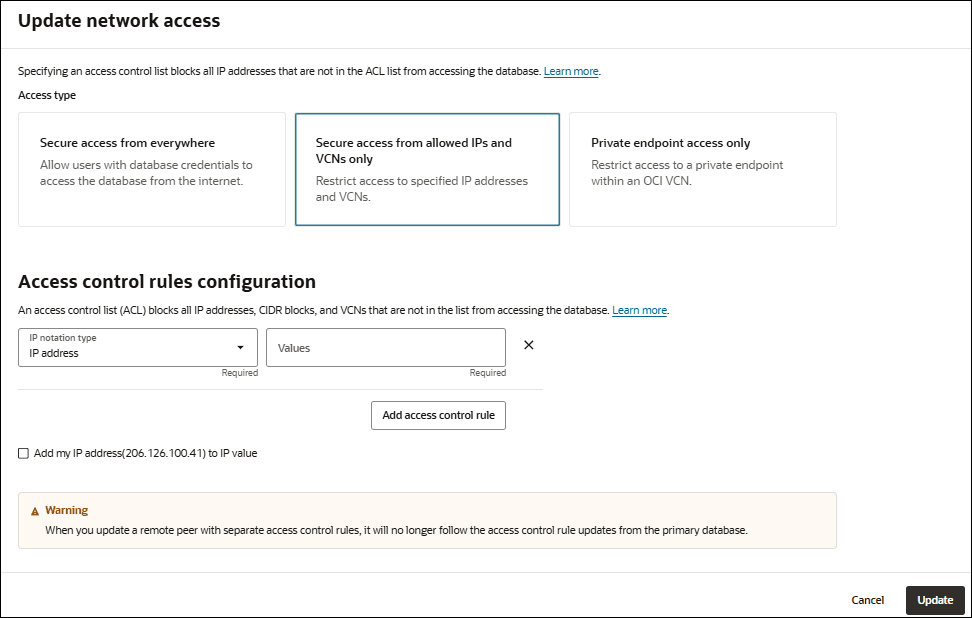
Description of the illustration adb_network_access_update.png
As an alternative you can click More actions and select select Update network access, and in the pane, under Access type, select Secure access from allowed IPs and VCNs only.
-
Specify the access control rules by selecting an IP notation type and values:
Select one of:
a. IP address:
In Values field enter values for the IP address. An IP address specified in a network ACL entry is the public IP address of the client that is visible on the public internet that you want to grant access. For example, for an Oracle Cloud Infrastructure VM, this is the IP address shown in the Public IP field on the Oracle Cloud Infrastructure console for that VM.
Note: Optionally select Add my IP address to add your current IP address to the ACL entry.
b. CIDR block:
In Values field enter values for the CIDR block. The CIDR block specified is the public CIDR block of the clients that are visible on the public internet that you want to grant access.
c. Virtual cloud network:
Use this option when the network route from the client to the database is going through an Oracle Cloud Infrastructure Service Gateway. See Access to Oracle Services: Service Gateway for more information.
Use this option to specify the VCN for use with an Oracle Cloud Infrastructure Service Gateway:
-
In Virtual cloud network field select the VCN that you want to grant access from. If you do not have the privileges to see the VCNs in your tenancy this list is empty. In this case use the selection Virtual cloud network (OCID) to specify the OCID of the VCN.
-
Optionally, in the IP addresses or CIDRs field enter private IP addresses or private CIDR blocks as a comma separated list to allow specific clients in the VCN.
-
Virtual cloud network (OCID):
Use this option when the network route from the client to the database is going through an Oracle Cloud Infrastructure Service Gateway. See Access to Oracle Services: Service Gateway for more information.
-
In the Values field enter the OCID of the VCN you want to grant access from.
-
Optionally, in the IP addresses or CIDRs field enter private IP addresses or private CIDR blocks as a comma separated list to allow specific clients in the VCN.
If you want to specify multiple IP addresses or CIDR ranges within the same VCN, do not create multiple ACL entries. Use one ACL entry with the values for the multiple IP addresses or CIDR ranges separated by commas.
-
-
Click Add access control to add a new value to the access control list.
-
Click x to remove an entry.
You can also clear the value in the IP addresses or CIDR blocks field to remove an entry.
-
Click Update.
If the Lifecycle state is Available when you click Update the Lifecycle state changes to Updating until the ACL is set. The database is still up and accessible, there is no downtime. When the update is complete the Lifecycle state returns to Available and the network ACLs from the access control list are in effect.
Change from Private to Public Endpoints with Autonomous AI Database
If your Autonomous AI Database instance is configured to use a private endpoint you can change the configuration to use a public endpoint.
There are several prerequisites to change an instance from a private to a public endpoint, as follows:
-
The Autonomous AI Database instance must be in the available state (Lifecycle state: Available).
-
Before changing the network configuration from a private endpoint to a public endpoint, you must change the configuration to not allow TLS connections. This closes any existing TLS connections. See Update your Autonomous AI Database Instance to Require mTLS and Disallow TLS Authentication for more information.
To specify a public endpoint for your Autonomous AI Database do the following:
-
On the Details page, from the More actions drop-down list, select Update network access.
-
In the Update network access dialog, select one of Secure access from everywhere or Secure access from allowed IPs and VCNs only.
For example, if you select Secure access from allowed IPs and VCNs only the dialog shows fields to configure access control rules:
Description of the illustration adb_network_access_update.png
-
In the dialog, under Configure access control rules specify rules by selecting an IP notation type and values:
a. IP address:
In Values field enter values for the IP address. An IP address specified in a network ACL entry is the public IP address of the client that is visible on the public internet that you want to grant access. For example, for an Oracle Cloud Infrastructure VM, this is the IP address shown in the Public IP field on the Oracle Cloud Infrastructure console for that VM.
Note: Optionally select Add my IP address to add your current IP address to the ACL entry.
b. CIDR block:
In Values field enter values for the CIDR block. The CIDR block specified is the public CIDR block of the clients that are visible on the public internet that you want to grant access.
-
Virtual cloud network:
Use this option when the network route from the client to the database is going through an Oracle Cloud Infrastructure Service Gateway. See Access to Oracle Services: Service Gateway for more information.
-
In Virtual cloud network field select the VCN that you want to grant access from. If you do not have the privileges to see the VCNs in your tenancy this list is empty. In this case use the selection Virtual cloud network (OCID) to specify the OCID of the VCN.
-
Optionally, in the IP addresses or CIDRs field enter private IP addresses or private CIDR blocks as a comma separated list to allow specific clients in the VCN.
-
c. Virtual cloud network (OCID):
Use this option when the network route from the client to the database is going through an Oracle Cloud Infrastructure Service Gateway. See Access to Oracle Services: Service Gateway for more information.
-
In the Values field enter the OCID of the VCN you want to grant access from.
-
Optionally, in the IP addresses or CIDRs field enter private IP addresses or private CIDR blocks as a comma separated list to allow specific clients in the VCN.
If you want to specify multiple IP addresses or CIDR ranges within the same VCN, do not create multiple ACL entries. Use one ACL entry with the values for the multiple IP addresses or CIDR ranges separated by commas.
-
-
Click Add access control rule to add a new value to the access control list.
-
Click x to remove an entry.
You can also clear the value in the IP addresses or CIDR blocks field to remove an entry.
-
Click Update.
-
In the Confirm dialog, type the Autonomous AI Database name to confirm the change.
-
In the Confirm dialog, click Update.
The Lifecycle state changes to Updating until the operation completes.
Notes for changing from private endpoint to public endpoint network access:
-
After updating the network access type all database users must obtain a new wallet and use the new wallet to access the database. See Download Client Credentials (Wallets) for more information.
-
After the update completes, you can change or define new access control rules ACLs for the public endpoint. See Configure Access Control Lists for an Existing Autonomous AI Database Instance for more information.
-
The URL for Database Actions and for the Database Tools are different when a database uses a private endpoint compared to using a public endpoint. Click Database Actions on the Oracle Cloud Infrastructure Console to find the updated Database Actions URL and in Database Actions click the appropriate cards to find the updated Database Tools URLs, after changing from a private endpoint to a public endpoint.
Access Control List Restrictions and Notes
Describes restrictions and notes for access control rules on Autonomous AI Database.
-
See IP Address Ranges for information about the public IP address ranges in Oracle Cloud Infrastructure. You must allow traffic to these CIDR blocks to ensure access to an Autonomous AI Database instance on a public endpoint.
-
If you want to only allow connections coming through a service gateway you need to use the IP address of the service gateway in your ACL definition. To do this you need to add an ACL definition with the CIDR source type with the value
240.0.0.0/4. Note that this is not recommended, instead of this you can specify individual VCNs in your ACL definition for the VCNs you want to allow access from.See Access to Oracle Services: Service Gateway for more information.
-
When you restore a database the existing ACLs are not overwritten by the restore.
-
The network ACLs apply to the database connections and Oracle Machine Learning (OML) notebooks. If an ACL is defined, if you try to login to OML Notebooks from a client whose IP is not specified on the ACL this shows the “login rejected based on access control list set by the administrator” error.
-
The following Autonomous AI Database tools are subject to ACLs. You can use Virtual Cloud Network, Virtual Cloud Network (OCID), IP address, or CIDR block ACLs to control access to these tools:
-
Database Actions
-
Oracle APEX
-
Oracle Spatial Studio
-
Oracle Graph Studio
-
OML Notebooks
-
Oracle REST Data Services
-
-
If you have a private subnet in your VCN that is configured to access the public internet through a NAT Gateway, you need to enter the public IP address of the NAT Gateway in your ACL definition. Clients in the private subnet do not have public IP addresses. See NAT Gateway for more information.
-
If you are using ACLs and TLS connections are allowed, you must change your network configuration to not allow TLS connections before removing all ACLs. See Update your Autonomous AI Database Instance to Require mTLS and Disallow TLS Authentication for more information.
-
To view the network information for your instance, See View Network Information on the OCI Console.