View and Download Log Files for a Dataset Reload Job
You can review log files for dataset reloads to help you troubleshoot dataset reload issues.
For example, if you have an issue reloading data, the logs can help you determine if it's a problem with your configuration, such as an invalid or outdated password or an issue with too much data. In such cases, the log files contain time stamps for key operations and information on the number of records processed. You can review logs at the job level and at the table level.
Oracle Analytics generates log files when you reload datasets that use connections. Log files aren't generated if a dataset uses one or more files, or uses an Oracle EPM Cloud or Oracle Essbase connection.
- On your home page, click Navigator , and then click Data.
- On the Datasets tab, hover over a dataset, click Actions, and then click Inspect.
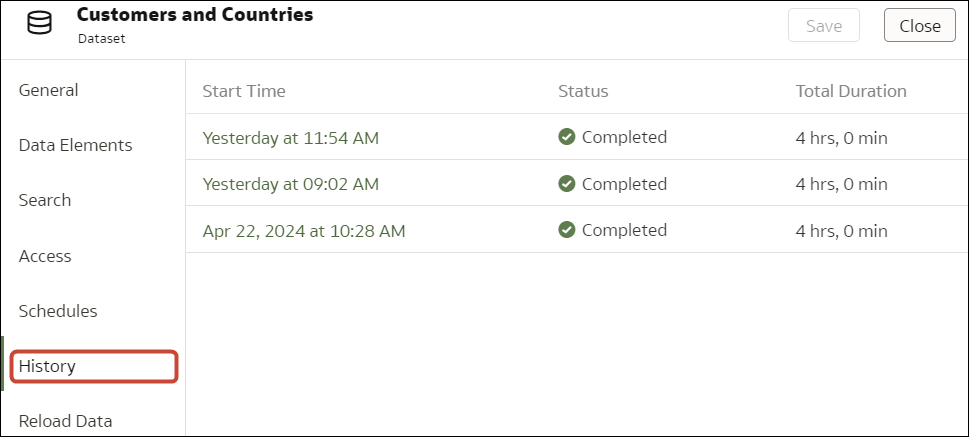
- Click the History tab, then click the job that you want to look at.
- In the General tab, click Job details menu
 in the top right-hand corner and select View Log to view the log, or select Download Logs to save the logs to a local file area.
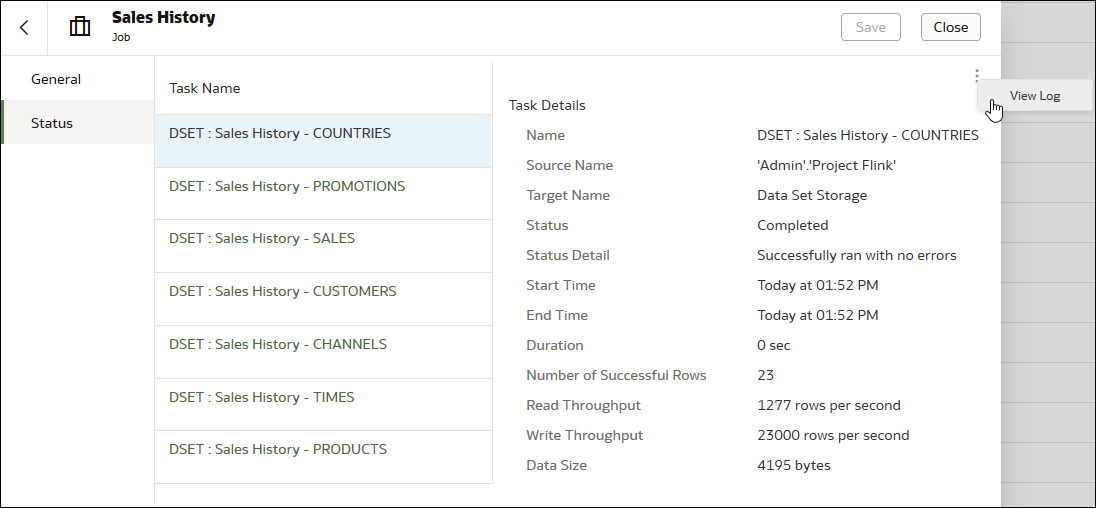
 - If the job reloaded more than one table and you want to view log information for a specific table, then click Status, then the table's reload task name, then click Job Task Menu in the top right-hand corner, then click View Log.