Reload a Dataset's Files
Reload data in a dataset based on a XLSX, XLS, CSV, or TXT file to make sure that you have the most up-to-date workbook content.
Before you start, make sure that the file you upload contains the same columns as the existing dataset.
Reloading a dataset's files ensures that workbooks and visualizations contain current data. The most current data is displayed in workbooks and visualizations after the file reload is complete and you refresh the workbooks.
Reload a dataset's files from your home page
- On your home page, click Navigator , and then click Data.
- Click the Datasets tab.
- Hover over the dataset that you want to reload, click Actions, and then click Reload Data.
- In the Upload File dialog, drag and drop the file onto the dialog or click Select File to browse for the file.
- Click OK.

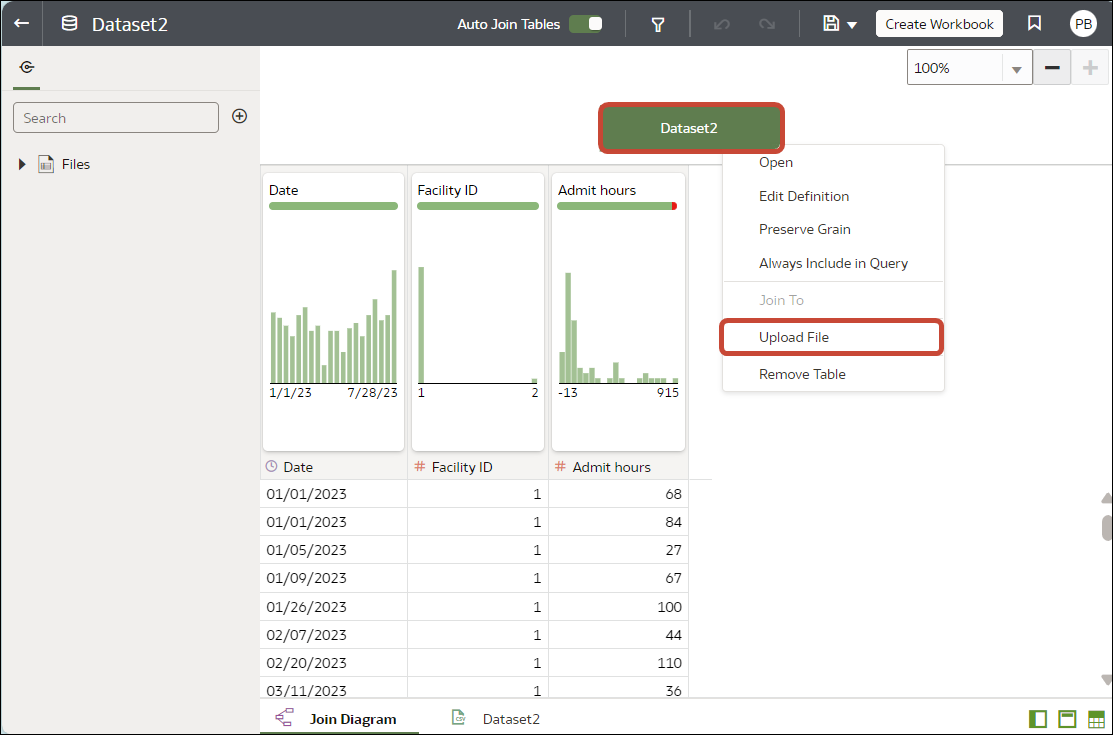
If you're working in the dataset editor, you can reload data by right-clicking the dataset in the Join Diagram and then selecting Upload File.