Configure a Dataset to Load Incrementally

Keep your datasets up-to-date by configuring them to load incrementally. For example, if a source system has new records, load just the new records to your dataset to minimize system traffic and reduce processing time.

If you don't specify a new data indicator column, Oracle Analytics uses the file-modified timestamp to determine when new data is available. After completing this configuring, you can reload the dataset incrementally.
Before you start, make sure that you have a dataset based on a database type that supports incremental loading. See Data Sources that Support Incremental Reload for Datasets.
  1. On your home page, click Navigator , then click Data and hover over the dataset you'd like to refresh.
  2. Click Actions Actions option to list things you can do, then click Open.
  3. In the Join Diagram, double-click the table you want to refresh.
  4. Click Edit Definition.
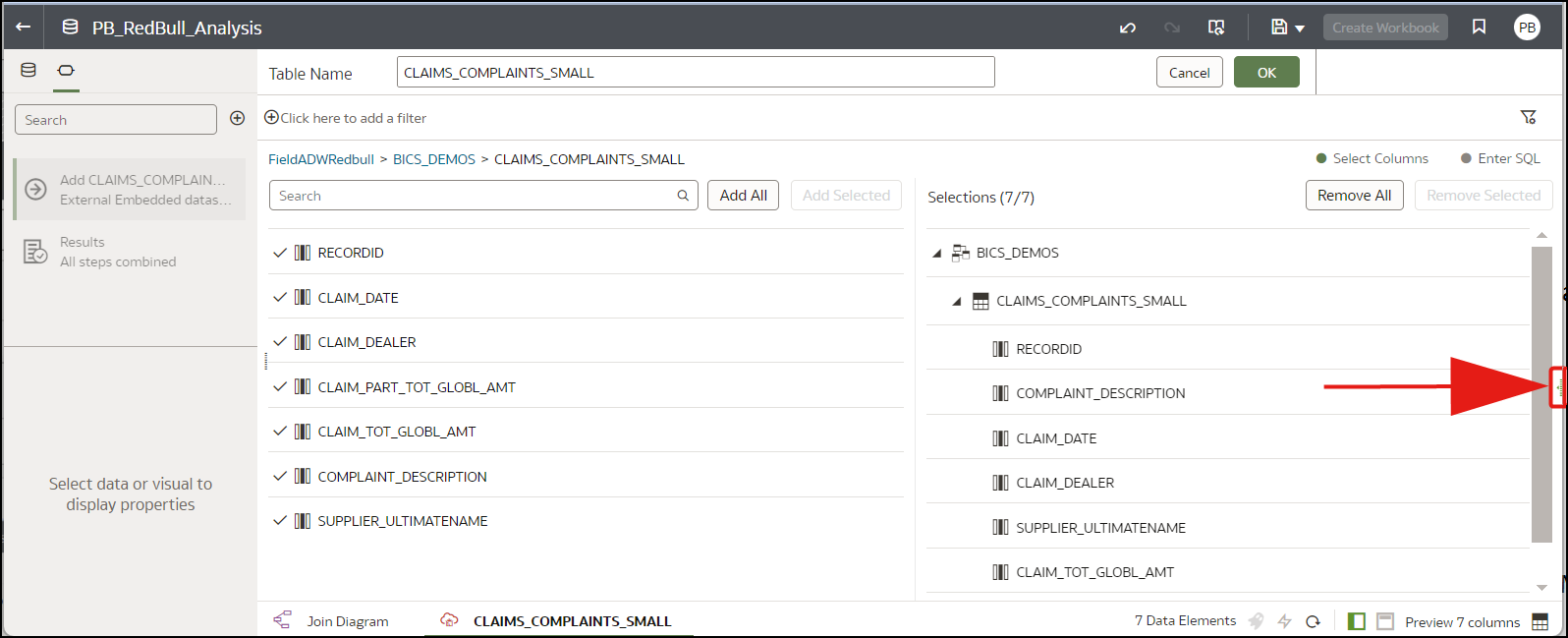
  5. Make sure that the data access options are displayed at the right-hand side.
    If the data access options aren't displayed, hover over the center of the right edge of the window to locate the Expand option, then click Expand.
    Use the Cache Reload Type options on the data access panel to configure the refresh.
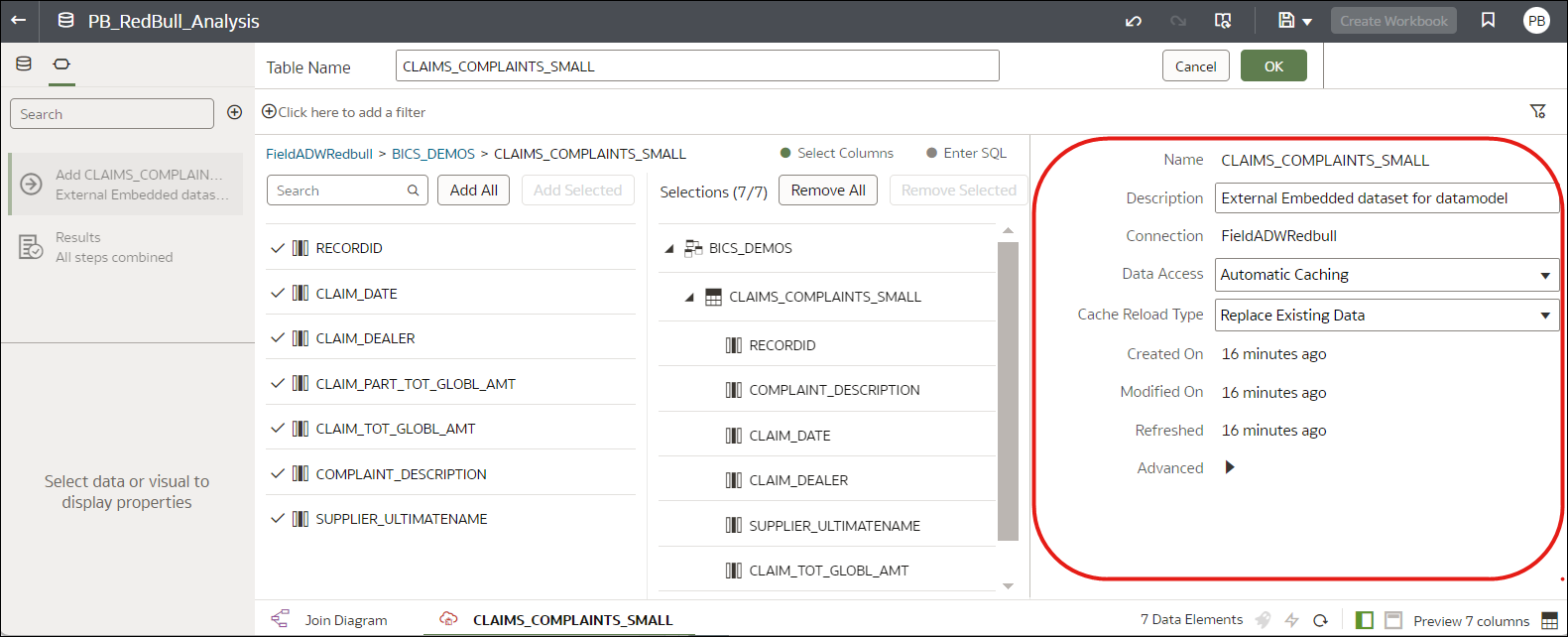
  6. In Data Access, select Automatic Caching.
  7. In Cache Reload Type, specify the type of incremental refresh.
    • Select Load New and Updated Data (also known as upsert) to load new data when a new record is available or an existing record is updated. For example, you might want to load new transactions as well as changes to existing transactions.
    • Select Add New Data to Existing Data (also known as insert) to load new data when a new record is available. For example, you might want to load new transactions only.
    The Replace Existing Data option does a full reload of the data.
  8. In User Key Column(s), specify the user key columns that identify unique records. Click the field to display available columns and select one or more columns.
  9. In New Data Indicator Column(s), specify the column or columns used to detect new or updated data. For example, you might specify a unique transaction ID column to identify new transactions in the data source.
    If you're loading data data from files in Oracle Cloud Infrastructure Object Storage, the New Data Indicator Column field isn't displayed because Oracle Analytics uses the file-modified timestamp.
  10. Click OK.