Overview
This section describes the basic functions in the Simphony EMC.
EMC Configuration Hierarchy
The EMC provides three levels where definitions and records can be configured within the hierarchy tree. Modules can be configured at the enterprise, property, or revenue center level, in descending order from the highest to the lowest level of the hierarchy. See Enterprise for more information on EMC hierarchy levels.
An employee’s assigned role determines whether the user has full or limited access to specific modules and hierarchy levels within the EMC. See People and Privileges for more information on employee roles.
EMC Home Page
When you sign in, the EMC opens to the Home Page by default. The Home Page displays a navigation tree in the Locations pane that reflects the EMC hierarchy levels. Modules appear to the right of the Locations pane and are filtered based on the location selected in the navigation tree.
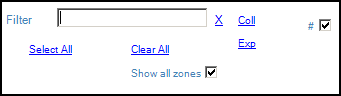
Figure 2-1 EMC Home Page Filters
-
Filter: Enter the name of a property, revenue center, or zone to filter the navigation tree.
-
Coll: Click to collapse the navigation tree. If the navigation tree is collapsed when you apply a filter, the search returns the highest-level location that contains the matching result. For example, when you search for a revenue center, the navigation tree displays the property to which that revenue center belongs.
-
Exp: Click to expand the navigation tree.
-
Show all zones: Select this option to display zones in the navigation tree and include them in search results.
-
#: Select this option to display object numbers before properties, revenue centers, and zones in the navigation tree.
The EMC saves each user’s state when they exit the application. The next time you sign in, the Home Page opens to the location that was last viewed before the EMC was closed.
Table View and Form View
Table view and form view are the two primary views used to display information within EMC modules.
Most modules open in table view, which displays records in a grid sorted by object number. The first two columns typically show the record's object number and name. Table view is generally used for making bulk changes. When a record is modified, the row is highlighted in yellow to indicate that changes have been made.
Form view displays the same information available in table view, but for a single record. Depending on the module, form view may provide additional details that are not available in table view. For example, the Roles module displays only the object number and name in table view, but includes several configurable tabs in form view.
Form view also includes a navigation bar that displays the object number and name of available records, making it easy to move between records. To view a specific record, select it from the navigation bar. The form view tabs then populate with the information for the selected record.
-
Click the Toggle Table/Form View icon on the EMC toolbar.
-
While in table view, double-click the Object Number column to open form view.
-
While in form view, double-click the object number/name in the navigation bar to open table view.
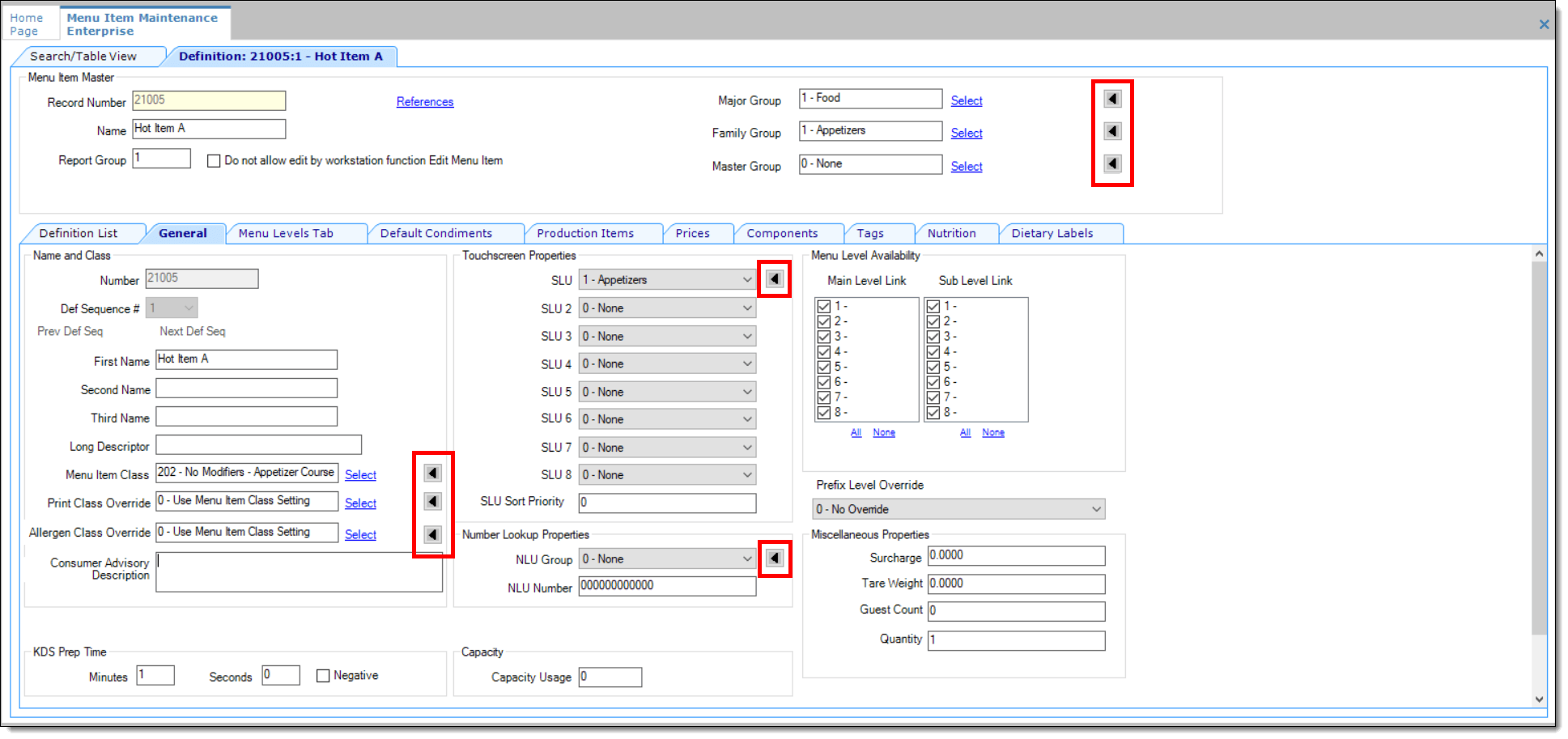
While configuring Simphony (in either table or form view),
certain files have a Go To Previous navigational
icon. This icon  links to the location in the current file (or
a different file) where the selected information is stored. You may
want to use this icon to change an entry, add an entry, or view its
configured characteristics.
links to the location in the current file (or
a different file) where the selected information is stored. You may
want to use this icon to change an entry, add an entry, or view its
configured characteristics.
For example, you are adding a group of menu items and you do not see the Screen Lookup (SLU) group you want to assign them to.
-
Click the
icon next to the SLU field.
The Menu Item file opens, which is located
in the SLU Names section of the Descriptors tab.
-
From here you can view the existing groups or add new a SLU group name. Click Save if you make changes.
-
Navigate back to the Menu Item Definition file, and then select the new (or different) SLU group for the menu item from the SLU drop-down list.
Figure 2-2 EMC Go To Previous Navigational Icons
Module Record Filters
By default, most modules in the EMC display all available records when opened. You can remove unwanted records from view using the filters available in table view. The filters appear above the table and are set to Show All Records.
Figure 2-3 EMC Filter Section in Table View

-
Form view displays only the records shown in table view. While in form view, the navigation buttons (Next, Previous, First, and Last) cycle only through the filtered records displayed in table view.
-
The Option Comparison Dialog displays only the records that appear in table view.
The Menu Item Maintenance module provides additional filters for streamlining the records. See Searching and Filtering Menu Items for more information.
Sorting Records
In the EMC, you can sort records displayed in tables by any available column. By default, records are sorted by object number. To sort by a different column, click the column header.
EMC Toolbar
The EMC uses common controls that are familiar to most users. For example, the top of the screen includes a menu bar with standard options such as File, Edit, and View. The toolbar also provides several navigation icons for quick access to common functions.
The following table describes the icons on the EMC toolbar. You can also access the functions performed by these icons within the menu bar.
Table 2-1 EMC Toolbar Icons
| Toolbar Icon | Name | Function | Available in Table View? | Available in Form View? |
|---|---|---|---|---|
|
|
Refresh |
Refreshes the data in the current module. |
Yes |
Yes |
|
|
Close |
Closes the currently active module. |
Yes |
Yes |
|
|
Close All |
Closes all open modules. |
Yes |
Yes |
|
|
Location Selector |
Opens the current module in another property or revenue center. This icon is enabled only if you open a module from the property or revenue center level. |
Yes |
Yes |
|
|
Language Translation |
Opens the EMC Record Translation dialog. This icon is enabled only when the current GUI control is a translatable text field. |
Yes |
Yes |
|
|
|
Opens a dialog that allows you to print records from table view. |
Yes |
No |
|
|
Save |
Saves changes to records in the currently active module. This icon is enabled only when changes are made to the current module. When you insert a new record for a module, Simphony automatically saves that record. To invoke this icon, you must make initial entries or modify an existing record entry. |
Yes |
Yes |
|
|
Save All |
Saves changes to records in all open modules. This icon is enabled only when an open module has its records changed. |
Yes |
Yes |
|
|
Insert |
Adds a new record to the module. This icon is enabled only when the current module supports the Insert functionality and only when the signed-in user has Employee Role permissions to add new records to the module. |
Yes |
Yes |
|
|
Delete |
Deletes records. This icon is enabled only when the current module supports the Delete functionality, and only when the signed-in user has Role permissions to delete records from the module. |
Yes |
Yes |
|
|
Distribute |
Distributes records. This icon is enabled only when the EMC user is associated with an Enterprise Role with the option Distribute enabled, and only when the current module supports distribution. |
Yes |
Yes |
|
|
Copy Record(s) |
Copies records while in table view. |
Yes |
No |
|
|
Undo/Redo |
Performs the undo/reload function. You cannot undo the addition or deletion of a record. The EMC uses a record-level undo, where all changes to a single record are undone. You cannot undo a previous change because the flow and layout of the EMC make this an impractical option. The standard Ctrl+Z functionality does exist to undo changes to a text field. In Employee Maintenance and Menu Item Maintenance, undo is available through the right-click menu only. |
Yes |
Yes |
|
|
Paste Record(s) |
Pastes records while in table view. |
Yes |
No |
|
|
Toggle Table/Form View |
Switches the current module between table view and form view. |
Yes |
Yes |
|
|
First Record |
Navigates to the first record in the module. |
No |
Yes |
|
|
Previous Record |
Navigates to the previous visible record in the module. |
No |
Yes |
|
|
Next Record |
Navigates to the next record. |
No |
Yes |
|
|
Last Record |
Navigates to the last record in the module. |
No |
Yes |
|
|
Go To |
Opens a dialog that allows you to type an object number and navigate to the specified record. |
Yes |
Yes |
|
|
Find |
Opens a dialog that allows you to find a record based on text comparison in any column. |
Yes |
No |
|
|
Go To Previous |
In some modules, go to links are provided to quickly open other modules. When clicked, it closes the module that you were navigated to and returns you to the module from which the link was pressed. |
N/A |
N/A |
|
|
Navigation Bar |
Switches the visibility of the navigation bar in form view. |
No |
Yes |


Parent topic: Enterprise Management Console