Enabling Consumer-Facing Content
The use of Simphony Transaction Services (STS) Gen 2 with consumer-facing content is supported with Simphony Standard Cloud Service hosted on the Oracle Hosting Center.
To enable consumer-facing content in Menu Item Definition records, Family Groups, and Condiment Group Names modules, first enable STS Gen 2 for a revenue center.
- Select the revenue center, click Setup, and then click RVC Parameters.
- Click the Options tab, and then enable option 74 - Enable Simphony Transaction Services Gen 2.
- Click Save.
- Select the enterprise, property, or revenue center, click Configuration, and then click Menu Item Maintenance.
- From the Record Type drop-down list, select Menu Item Definition, and then click Search.
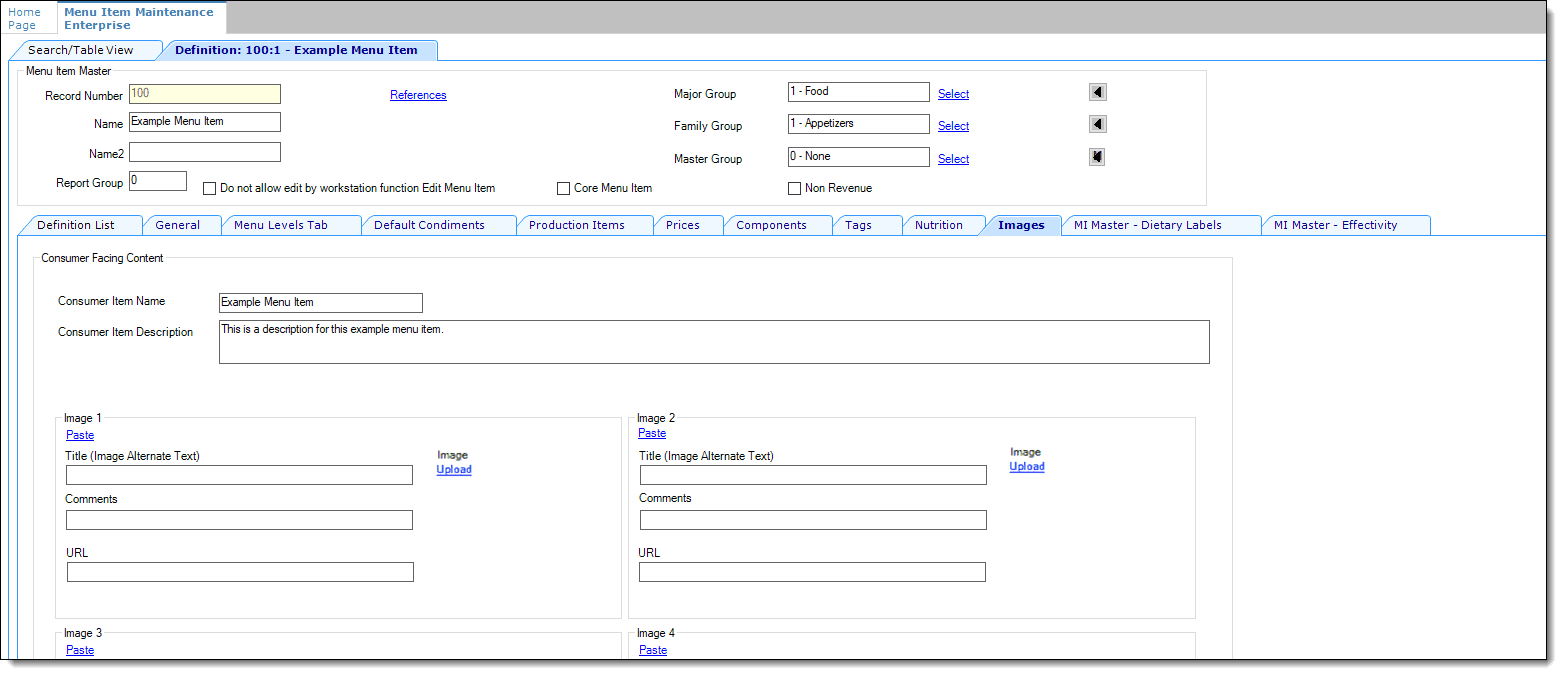
- Double-click the menu item record to assign images, and then click the Images subtab.
- In the Consumer Item Name field, enter the menu item name visible to guests on the POS API device.
- In the Consumer Item Description field, enter the menu item description visible to guests on the POS API device.
- Click Save.
After enabling option 74 in a single revenue center, an Images subtab appears in the Menu Item Definition record for all revenue centers assigned to the property. You can only add images where the menu item records used by the revenue centers are located.
Figure - Figure 6-1 Menu Item Definition Images Subtab