Status Tab Overview
Use the Status tab on the Dashboard page to monitor the operational status of your Oracle Enterprise Communications Platform (Oracle ECP). It offers access to visualizations for incidents, warnings, connectivity status, and activation state information.
Note:
The information displayed on the Status tab depends on your administrative role and the context selected on the Dashboard page.Status tab views
The Status tab view is determined by the dashboard context. The selected context controls the scope of the data displayed in the charts and the filtered detail pages opened from the dashboard.
- Monitor incidents and warnings associated with the customer environment.
- Review connectivity status for in-use devices and edge nodes.
- Open issue and inventory pages with filters automatically applied based on the selected chart segment and dashboard context.
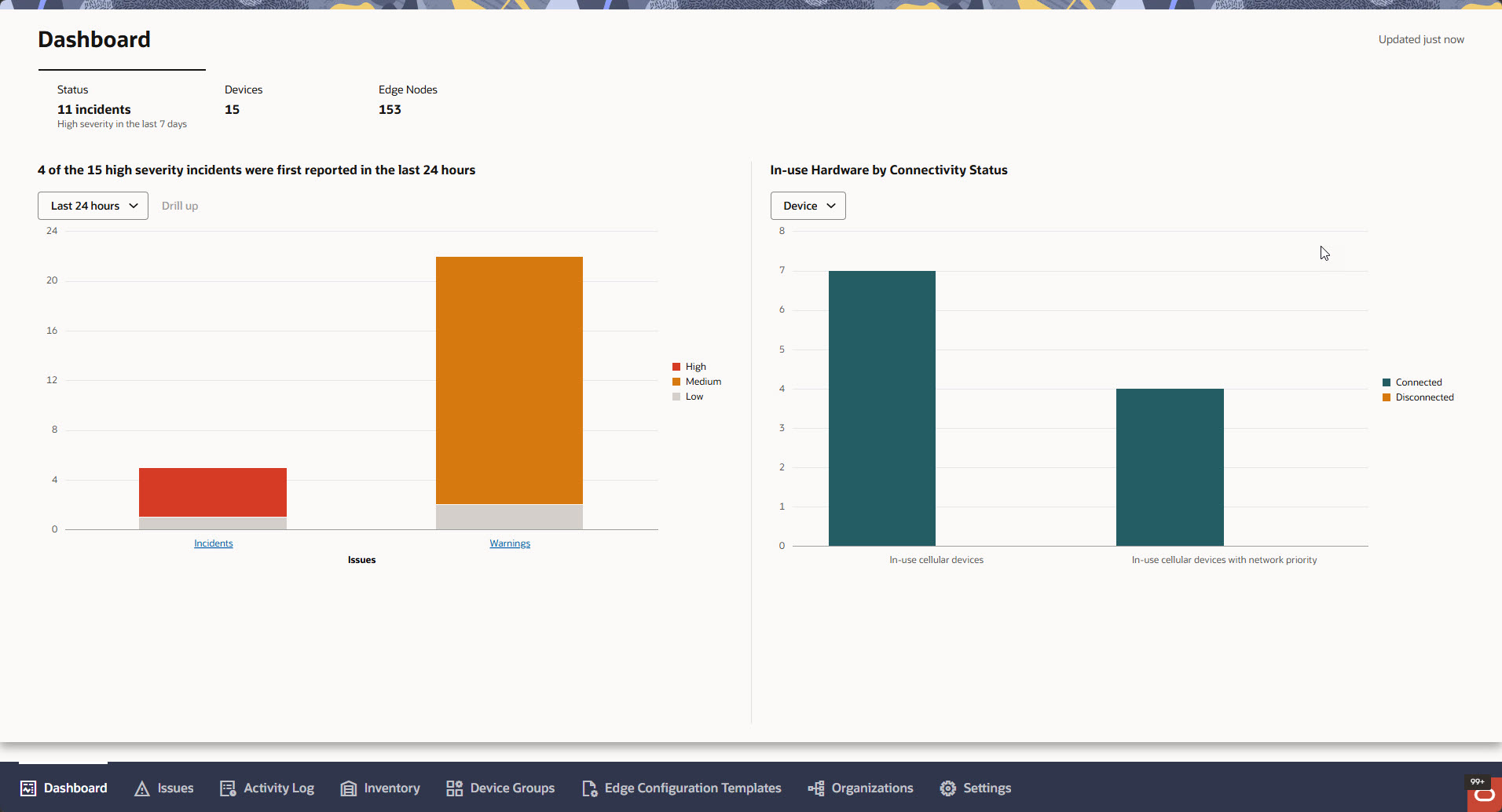
Status tab visualizations
The Status tab contains visualizations for issues, in-use hardware connectivity, activation state, and connectivity state. The visualizations available to you depend on your administrative role. For more information about each visualization, refer to Status Tab Visualizations
Status Tab Visualizations
The Status tab displays operational health information for devices, edge nodes, SIMs, customers, and GBUs. You can use the Status tab visualizations to identify issues that require attention, review the status of in-use hardware, and open filtered detail pages for further troubleshooting.
Note:
The visualizations that appear on the Status tab depend on your administrative role and the context selected on the Dashboard page.Issues chart
The Issues chart displays incidents and warnings by severity. Use this chart to identify high-priority issues and review whether the issues are incidents or warnings. The chart displays incidents and warnings as stacked bars. Each bar can include high, medium, and low severity counts. The initial Issues chart view displays issue counts for all available severity levels. When you drill down into a specific issue type, the chart displays high severity issues. The chart title summarizes how many open high severity incidents were first reported in the last 24 hours compared to the total number of open high severity incidents. Open incidents are incidents that are in the Active, New, or In Progress state. Issue counts and chart results are based on the First Reported timestamp. You can filter the Issues chart by Last 24 hours, Last 7 days, Last 30 days, or More than 30 days. The Status tab displays a count of high severity incidents first reported in the Last 7 days. This count is calculated from the issue data used by the Issues chart.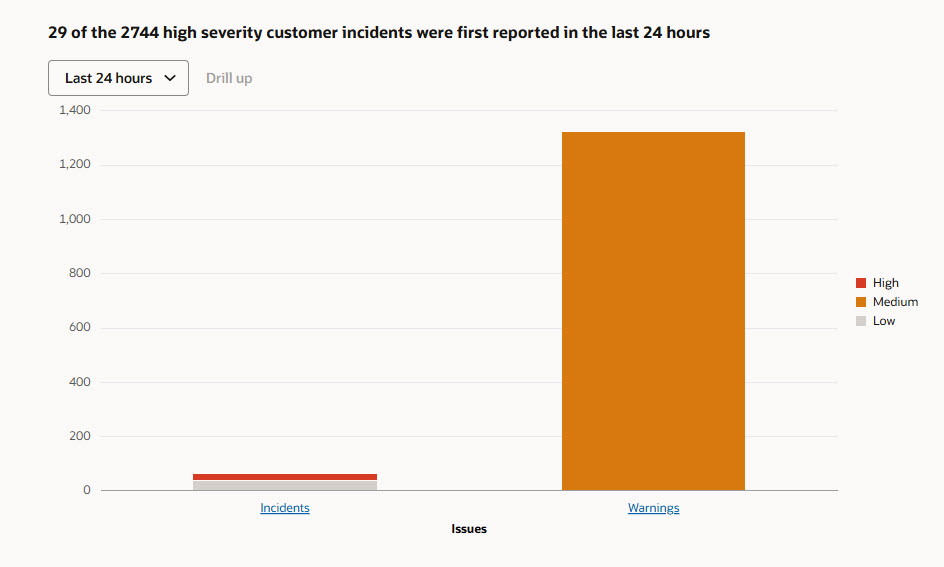
- Issue Drill Down—The Issues chart supports Drill Down by Issue type. Drill Down helps you review whether the selected incidents or warnings are related to Devices, Edge Nodes, System, or Data Usage. After you drill down into a topic view, use Drill Up to return to the Issues overview.
- Issue Detail Actions—You can right-click an Issues chart segment to view additional issue information. The available action depends on the selected dashboard context.
The Issue detail actions open the Issues page with filters applied for the selected issue type, severity, status, topic, and time period.
- Issue Visibility and Counting—
The Issues chart displays issues associated with your tenant.
In-Use Hardware by Connectivity Status chart
The In-Use Hardware by Connectivity Status chart displays connected and disconnected counts for in-use hardware. Use this chart to monitor whether in-use devices and edge nodes are connected or disconnected and to compare hardware with and without network priority. The chart supports Devices and Edge Nodes views. Network priority applies only to Oracle Enterprise Communications Platform (Oracle ECP) managed cellular connectivity.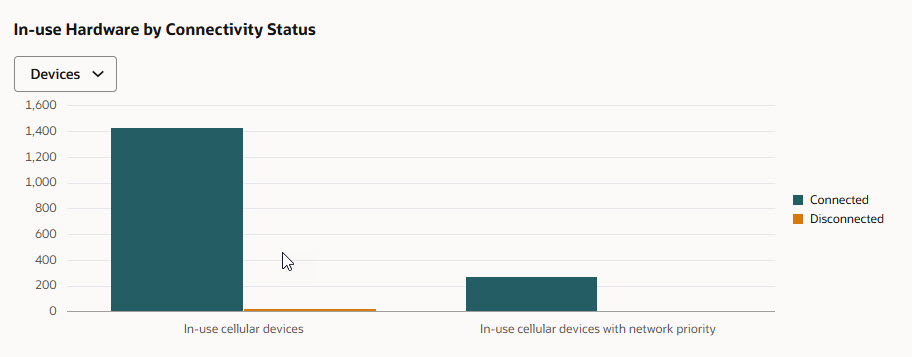
When Devices is selected, the chart displays in-use cellular devices and in-use cellular devices with network priority. Only cellular devices are counted in the device connectivity chart.
Note:
The In-Use Edge Nodes category can include cellular, ethernet, and satellite edge nodes. The label does not include the word cellular because this category is not limited to cellular edge nodes.Monitor Issues on the Status Tab
Use the Issues chart on the Status tab to monitor incidents and warnings by severity and time period. You can use the chart to identify high severity issues and determine whether the issues are incidents or warnings.
For Customer Admin users, the Issues chart displays issue information associated with the customer environment assigned to the administrator.
- Active
- New
- In Progress
Drill Down into Issues on the Status Tab
Use the drill down functionality on the Issues chart to review incidents and warnings by topic. You can drill down into a selected issue type and severity, review issue counts by topic, and navigate to filtered issue details.
The Issues chart must contain incident or warning data for the selected time period and dashboard context.
View Issue Details from the Status Tab
Use the Issues chart on the Status tab to open issue details for the selected issue type, severity, time period, and dashboard context.
The Issues chart must contain issue data for the selected time period and dashboard context.
View In-Use Hardware by Connectivity Status
Use the In-Use Hardware by Connectivity Status chart to review connected and disconnected counts for in-use Devices and Edge Nodes. You can switch between Devices and Edge Nodes views and compare counts for hardware with and without network priority.
An In-Use device is a cellular-connected device or edge node that is actively being utilized by the customer and is expected to be operational on the network. A device is classified as Not In-Use when it is not expected to be operational.
To ensure accurate In-Use and Not In-Use reporting, customers must integrate their application with Oracle ECP's In-Use APIs. These APIs allow the customer application to explicitly report whether a device is actively being used by an end user. If the In-Use APIs are not implemented, devices will default to an In-Use state.