The Edge Node Details Page
Oracle Enterprise Communications Platform (Oracle ECP) displays the names of Cloud Connectors on the Inventory page table as links. When you click the link, Oracle ECP displays the Edge Nodes Details page with tabs where you can see detailed information about the selected Cloud Connector and perform more actions.
Left Panel
The left panel shows identifying information that includes the Serial Number, Make, and Model for the Cloud Connector, along with the customer name and registration address (bottom). The left panel also displays the network interface that is providing the active Internet connection, the current bandwidth consumption for that network interface, and the uptime to show the time elapsed since the Cloud Connector was last rebooted. At the bottom of the left panel, you will find a More Information link. When you click on it, a More Information drawer opens that provides additional details about the selected Cloud Connector including status, platform, cellular, satellite, and authentication information. Also at the bottom of the left panel, an Activity Log link opens the Activity Log and applies a filter for user actions associated with the selected Edge node.
Note:
The actions shown on the menu depend on your Edge Nodes and settings. For example, the menu does not display actions related to cellular connectivity for non-cellular devices.Right Panel
The right panel displays tabs for reviewing and managing your Cloud Connector.
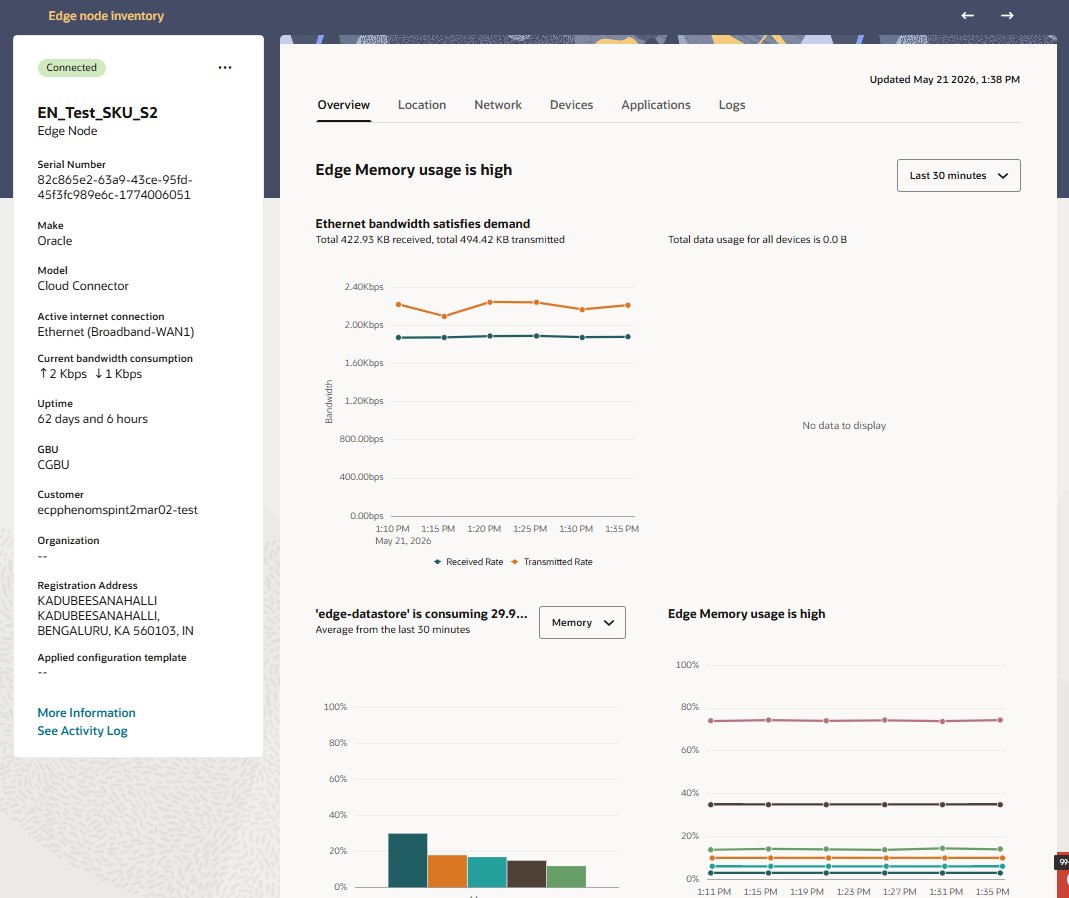
Edge Nodes Details Page - Overview Tab
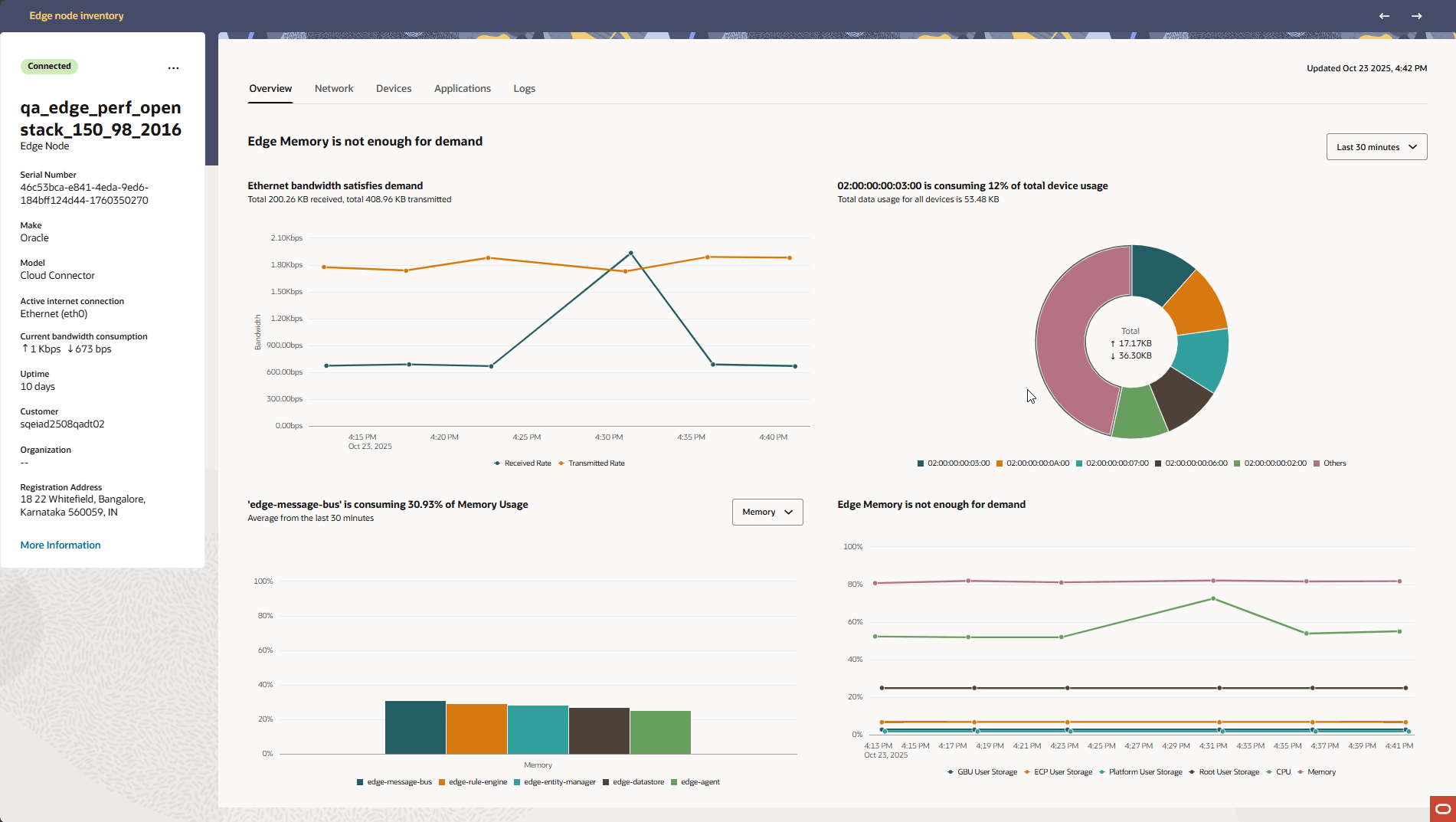
The Overview tab displays a consolidated view of the resource and bandwidth utilization for the selected Cloud Connector. This information aids field operators and IT administrators in monitoring system health and identifying resource constraints. The pane includes four primary graphs, each summarized by an interpretation headline.
The Overview Tab includes four graphs as follows:
WAN Bandwidth Usage
- Received Rate (Rx) and Transmitted Rate (Tx) are plotted to help determine current network load and identify periods of high activity.
- The chart title contextualizes the current state. This is useful for assessing if external network connectivity is a limiting factor for the Cloud Connector’s operations.
Top 5 Attached Devices by Bandwidth Usage
- Devices are labeled by their onboarded Device name, hostname, or MAC address in that order of preference as available.
- The chart segments show each device’s proportional data usage, and the center totals provide overall received and transmitted traffic for this group.
- The graph title summarizes the key finding (e.g., which device is consuming the most bandwidth).
Top 5 Local Applications by Resource Usage
- Use the drop-down menu to switch between Memory, CPU Usage, or Network Usage.
- The graph displays the 5 applications with the highest usage in the selected category, alongside percentages for clarity.
- The chart title identifies the most demanding application.
Resource Demand Trend (Storage, CPU, Memory)
- Root User Storage
- Platform User Storage
- GBU User Storage
- ECP User Storage
- CPU Usage
- Memory Usage
- The interpretation headline reflects the system’s overall state, such as whether memory or storage is nearing capacity.
Interpreting the Graph Titles
Each graph headline briefly interprets the data, highlighting any notable loads, constraints, or points of interest for rapid awareness. These tools offer an at-a-glance dashboard for users managing Cloud Connectors in the field, providing actionable insight into system and network performance.
Choosing a time scale for graphs
- Last 30 Minutes
- Last 1 Hour
- Last 24 Hours
- Last 7 Days
- Last 30 Days
Edge Nodes Details Page - Location Tab
The Location tab shows deployment coordinates and a map centered on the deployment location for the selected Cloud Connector.
Deployment location identifies where the Cloud Connector is physically installed and is the location Oracle ECP uses for inventory mapping. Use the Edit icon to open the Update location drawer when location updates are available for the selected Cloud Connector. For satellite-connected Cloud Connectors, the deployment location and registration address can differ. For more information about deployment location, registration address, map tools, and updating location details, see Location-Based Services.
Edge Nodes Details Page - Network Tab
The Network Tab on the Oracle ECP Edge Node Details Page displays information about each active network interface on your Cloud Connector. It is important that you start using the page by selecting the target interface with the Interface Chooser. The page then updates to show the context and relevant information for your selected interface.
The left panel displays standard identifying information about this Cloud Connector. This pane lists which WAN interface is in use, and carrier information about the WAN link if applicable. You can view an additional grouping of information about this Cloud Connector by selecting the More Information link in the left pane which opens the More Information drawer for review.
On the Network tab, use the network interface chooser to select the interface that you want to review or update. When you select an interface, Oracle ECP displays graphs, configuration buttons, and details for that interface.
Configuration controls on the Network tab are organized into two groups. The always-visible controls provide quick access to configuration tasks that are relevant to the selected interface, such as network settings, bandwidth distribution, or internet preferences. Additional global actions that apply broadly to the edge node, rather than only to the selected interface, are available from the More Actions menu.
Table 7-1 Graphs displayed on the Network Tab
| Interface Type | Graphs shown |
|---|---|
| Cellular Network Interface - WAN |
|
| Satellite Network Interface - WAN |
Available views:
|
| Broadband Network Interface - WAN |
|
| Ethernet Network Interface - LAN |
|
| WiFi Network Interface (LAN) |
|
- The bandwidth demand graph's title is a health description of the currently chosen interface, and is located to the left of the interface drop-down list.
- The bandwidth demand graph displays the currently chosen interface's throughput measured in packets per second and bits per second throughput for both inbound and outbound traffic. The time scale of this graph is selectable with the period drop-down list, located under the right pane action menu, ....
- Usage charts use drop-down selectors to choose the displayed metric or usage period.
- Daily charts aggregate usage across both SIMs where applicable.
- Monthly charts display usage history across the last 11 months and indicate allowance thresholds and over-utilization states.
- Dual-SIM devices display separate monthly usage charts for each SIM.
- Chart subtitles display subscribed data allowance values and actual usage totals.
- Hovering over graph legends highlights the corresponding trend line.
- Clicking a graph legend shows or hides the selected data on the graph.
- Hovering over a graph point displays detailed data for that point.
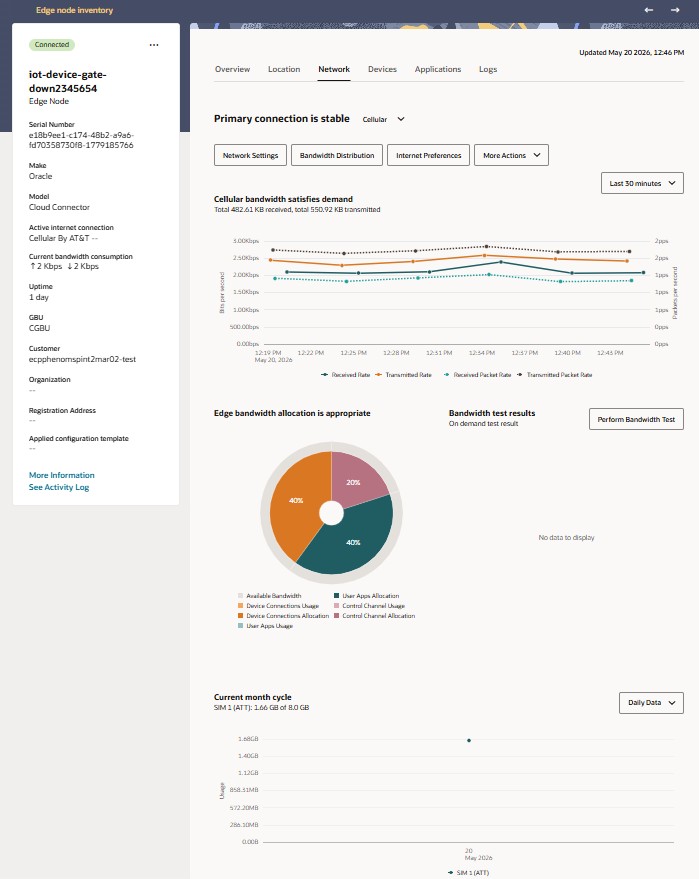
Review a Cellular Network Interface (WAN)
You can review the settings for a cellular network interface on an Oracle Enterprise Communications Platform (Oracle ECP) Cloud Connector Network tab. You can edit some values, while others are read-only.
- Cellular interface bandwidth rate - This graph displays transmitted and received bandwidth over time, in both bits per second and packets per second. The default display is the last 30 minutes, which can be changed with the period drop-down located above the graph.
- Data and SMS Usage - This switchable graph displays data or SMS usage in the last 30 days or less. You must select the Data or SMS option button.
- Bandwidth Performance Test Graph - This displays the download and upload rates over time, with time on the x-axis and speed on the y-axis, for the selected time period if a bandwidth performance test was run during that period.
- Bandwidth Distribution Chart - This displays the bandwidth allocation for the Cellular network interface in terms of User Apps, Control Channel, and Devices.
From the Network tab on the Edge Node Details page, choose the option that let you check or update network settings for a cellular network interface on a Cloud Connector.
Review a Satellite Network Interface
You can review settings for a satellite network interface on a Cloud Connector's Network tab. Some values may be editable.
When you choose a satellite interface on the network tab, Oracle ECP shows several scorecards on the screen. When you click each scorecard, Oracle ECP shows a trend graph below the scorecard row that corresponds to that scorecard's historical information.
In addition to the graphs representing scorecard data, the Network tab for the Satellite Interface also contains the following graphs:
- Data Usage - This switchable graph displays data usage for a day and a month . You can toggle between daily or monthly option in the button above the graph.
- Bandwidth Performance Test Graph - This displays the download and upload rates over time, with time on the x-axis and speed on the y-axis, for the selected time period if a bandwidth performance test was run during that period.
- Bandwidth Distribution Chart - This displays the bandwidth allocation for the Satellite network interface in terms of User Apps, Control Channel, and Devices.
From the Network tab, choose an option that lets you check or update satellite network interface.
Data Consumed Scorecard
The Oracle Enterprise Communications Platform (Oracle ECP) Data Consumed scorecard displays information about the amount of data received and transmitted by way of satellite. The information can help you monitor and troubleshoot Starlink connectivity.
The Data Consumed tab label displays the aggregated number of bytes transmitted and received at the time you clicked the tab or when you click Refresh. Below the tab label, Oracle ECP displays line graphs showing the Received Rate, Transmitted Rate, Received Packet Rate, and Transmitted Packet Rate in terms of bits per second (bps) and packets per second (pps) incrementally for the time period you select. Depending on the data reflected, the scaling and units will change between bytes, KB, MB, GB for optimal visualization.
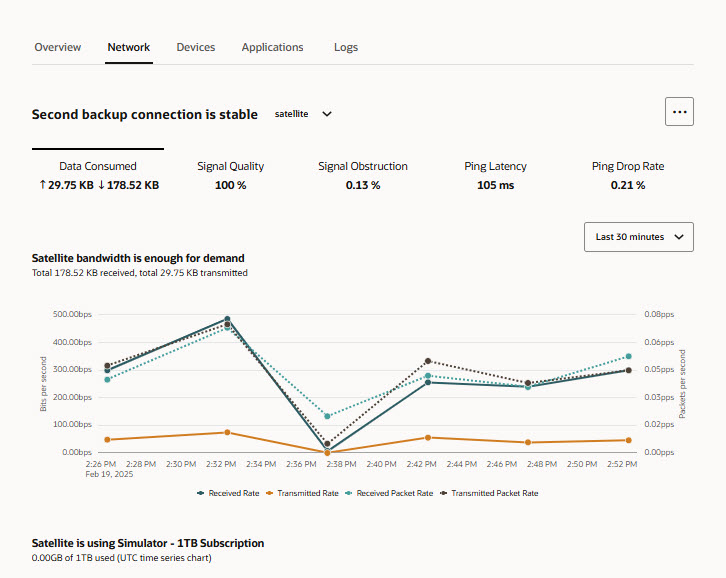
Signal Quality Scorecard
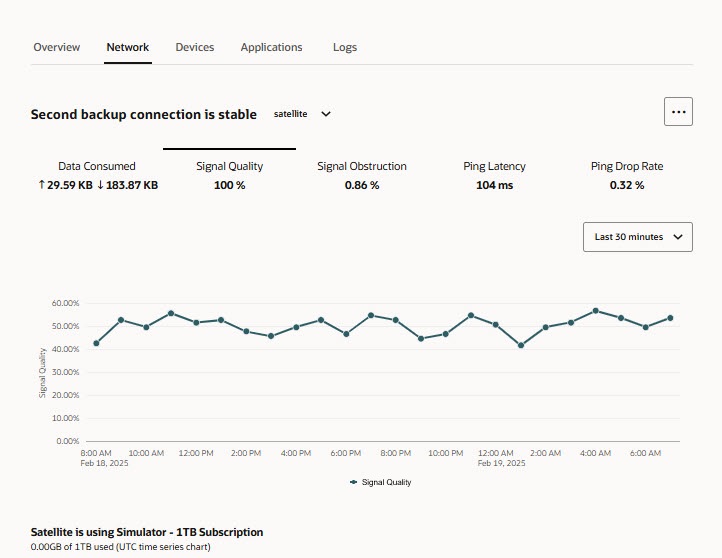
The Oracle Enterprise Communications Platform (Oracle ECP) Signal Quality Scorecard displays information about the signal quality as a percentage during the time period you select for this scorecard.
In satellite communications, signal quality is about the reliability and clarity of the signal from the satellite to the satellite terminal. Signal strength meters on the satellite terminal assess the signal level and aggregate the data as a percentage.
Oracle ECP displays the aggregated percentage on the Signal Quality tab at the time you clicked the tab or when you click Refresh. Below the tab, Oracle ECP displays a line graph showing the percentage of signal quality in increments according to the time period you select.
Signal Obstruction Scorecard
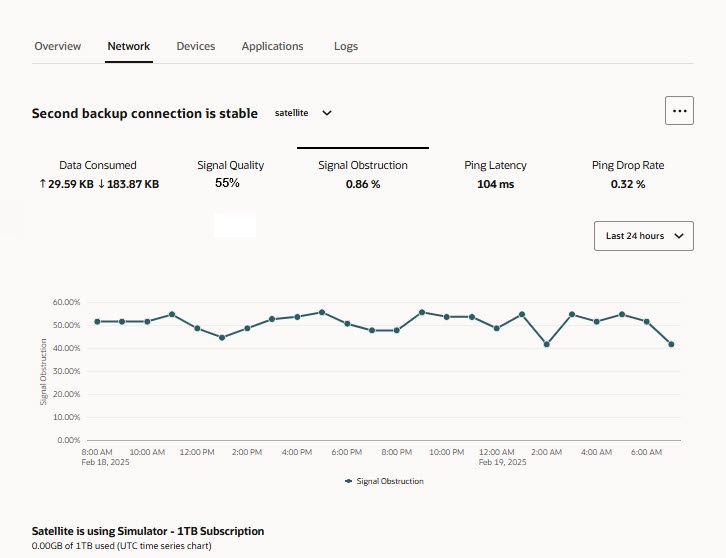
The Oracle Enterprise Communications Platform (Oracle ECP) Signal Obstruction Scorecard displays information about the percentage of time the signal from the satellite was obstructed during the time period you select for this scorecard. The information can help you monitor and troubleshoot Starlink connectivity.
In satellite communications, signal obstruction can occur when an object such as a tree, a building, or a bridge blocks the communication path between the satellite and the satellite terminal. Certain kinds of weather, equipment malfunctions, terminal misalignment, damaged cables, and other electronic devices nearby can also interfere with the signal causing a blockage. The result is communication loss because the signal is obstructed.
Oracle ECP monitors signal obstruction and reports the aggregated percentage on the Signal Obstruction tab at the time you clicked the tab or when you click Refresh. Below the tab, Oracle ECP displays a line graph showing the percentage of obstruction in increments according to the time period you select.
Ping Latency Scorecard
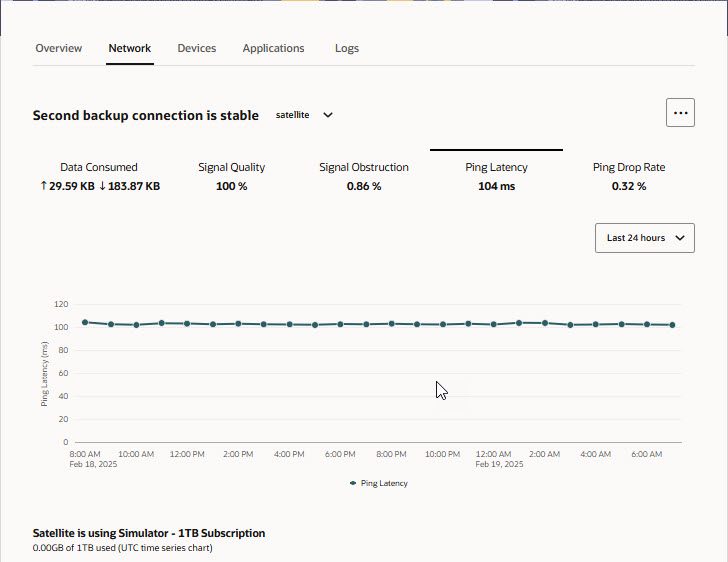
The Oracle Enterprise Communications Platform (Oracle ECP) Ping Latency scorecard shows the amount of time needed for a data packet to travel from an Cloud Connector using Starlink connectivity to your server. The information can help you monitor and troubleshoot Starlink connectivity.
- Location of the server
- Number of devices on the network
- Connection speed
- ISP throttling
- Number of applications running at the same time
Below the tab label, Oracle ECP displays a line graph showing the ping latency incrementally in milliseconds (ms) for the time period you select.
Ping Drop Rate Scorecard
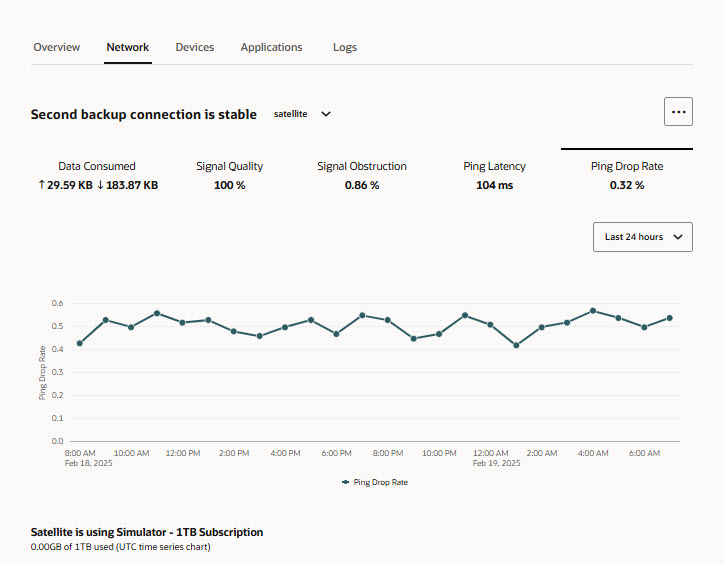
The Oracle Enterprise Communications Platform (Oracle ECP) Ping Drop Rate scorecard shows percent of packet loss during the time period you select. The information can help you monitor and troubleshoot Starlink connectivity.
- Infrastructure and network problems
- Devices running beyond capacity
- Outdated hardware
- Wireless networks
- Security threats
Below the tab label, Oracle ECP displays a line graph showing the ping drop rate percentage incrementally for the time period you select.
Review a Broadband Network Interface
You can review settings for a broadband network interface on a Cloud Connector's Network tab. Some values may be editable.
When you choose a broadband interface on the network tab, Oracle ECP shows the following graphs:
- Broadband interface bandwidth rate - This graph displays transmitted and received bandwidth over time, in both bits per second and packets per second. The default display is the last 30 minutes, which can be changed with the period drop-down located above the graph.
- Bandwidth Performance Test Graph - This displays the download and upload rates over time, with time on the x-axis and speed on the y-axis, for the selected time period if a bandwidth performance test was run during that period.
- Bandwidth Distribution Chart - This displays the bandwidth allocation for the Broadband network interface in terms of User Apps, Control Channel, and Devices.
From the Network tab, choose an option that lets you check or update a broadband network interface.
Update a Wi-Fi Network Interface
You can review and update settings for a Wi-Fi interface on a Cloud Connector's Network tab. Some common values for the interface are editable.
- Wi-Fi interface bandwidth rate - This graph displays transmitted and received bandwidth over time, in both bits per second and packets per second.
From the Network tab you can choose an option that lets you check or update Wi-Fi network interface.
Review a LAN-facing Ethernet Interface
Oracle Enterprise Communications Platform (Oracle ECP) lets you check or edit network settings for a LAN-facing Ethernet network interface on the Network tab on the Edge Node Details page.
- Ethernet (LAN) interface bandwidth rate - This graph displays transmitted and received bandwidth over time, in both bits per second and packets per second.
From the Network tab on the Edge Node Details page, choose an option that let you check or update network settings for an Ethernet network interface on a Cloud Connector. The two interface options for Ethernet connectivity are LAN1 and LAN2.
Block traffic per interface
You can block network traffic to or from specific IP addresses or Classless Inter-Domain Routing (CIDR) ranges across all Cloud Connector network interfaces.
Note:
The block traffic feature does not block traffic within the same subnet (intra-subnet). Use MAC address blocking for that use case.Procedure
Bandwidth Classification and Allocation
The Bandwidth Classification and Allocation feature provides visibility into the inbound and outbound WAN traffic on your Cloud Connector including how it is allocated and utilized by different traffic types. This allows administrators to monitor network demand in real time, identify bandwidth bottlenecks, and adjust allocations to ensure high-priority traffic is always served.
- Control Channel: Traffic generated by the platform itself (e.g., services, agent, logger, system processes). This is critical for system health and connectivity. By default, the control channel allocation is fixed at 20% of available bandwidth.
- User Apps: Traffic for user-deployed applications on the Cloud Connector. This class is adjustable and usually allotted a significant share.
- Device Connections: All other LAN forwarded device-to-device traffic moving through the Cloud Connector.
Understanding the Bandwidth Distribution Graph
- Outer Ring: Shows real-time usage of bandwidth within each class.
- Inner Ring: Illustrates the allocated bandwidth for each class as a segment of the total.
- The traffic class type
- The current data usage
- The configured or default allocation as a percentage of total bandwidth
- The percentage of allocation used in real time
- The transmit (Tx) packet drop counts
- The receive (Rx) packet drop counts
Note:
If a class exceeds its allocation noted as reaching 100%, traffic from this class may experience packet drops. These drops are shown in the chart’s tooltip (Tx or Rx drop fields).Configure WAN Bandwidth Allocation
You can configure the allocation of certain traffic classes on the Cloud Connector.
Bandwidth allocation is configured on WAN interfaces only.
Configuring Transmission Rates for WAN Interfaces
You can configure the transmission rate limits for a WAN interface on the Cloud Connector. This configuration allows you to control bandwidth allocation and quality of service (QoS) for the selected WAN interface, as opposed to the bandwidth performance test, which measures the actual WAN capacity.
Performing Bandwidth Tests for WAN Interfaces
You can run a bandwidth test on a WAN interface and view the results in a graphical chart on the Network tab. The chart displays upload and download speeds (Mbps) on the y-axis and dates on the x-axis, helping you monitor network performance and verify bandwidth availability.
Note:
The bandwidth performance test measures the actual available WAN capacity and may return values that differ from the configured transmission rates.Dual SIM Charts
When a Cloud Connector starts up with both SIMs inserted in the system and the active (in-use) SIM changes, the Network tab's graphs display these changeover events for clear tracking.
Cellular Bandwidth Usage
Figure 7-1 SIM Change in the Cellular Bandwidth Usage chart
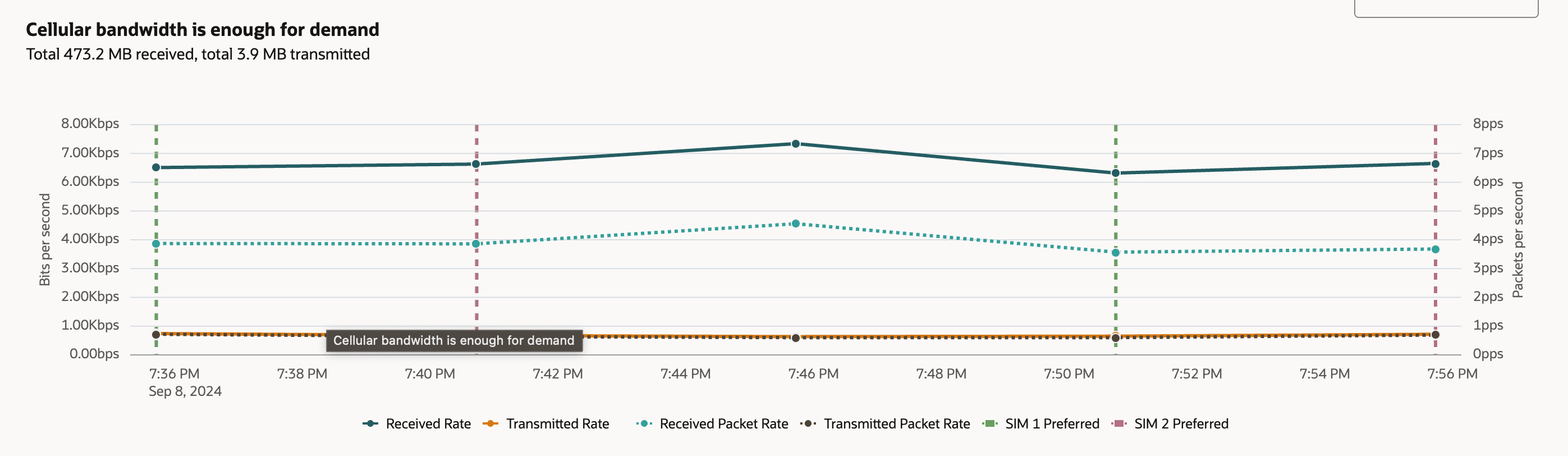
These SIM switching indicators provide valuable context for troubleshooting and analyzing connectivity. For example, if users observe performance issues or connectivity drops, the SIM switch markers help pinpoint whether these issues coincide with changes in the active SIM. In this particular chart, there is no noticeable impact on bandwidth or packet rates at the moments of SIM card changeover, demonstrating that the device handles the transitions smoothly without interrupting ongoing network activity.
SIM Tracking in the Cellular MNO Usage Chart
Figure 7-2 SIM Change in the MNO Usage Chart
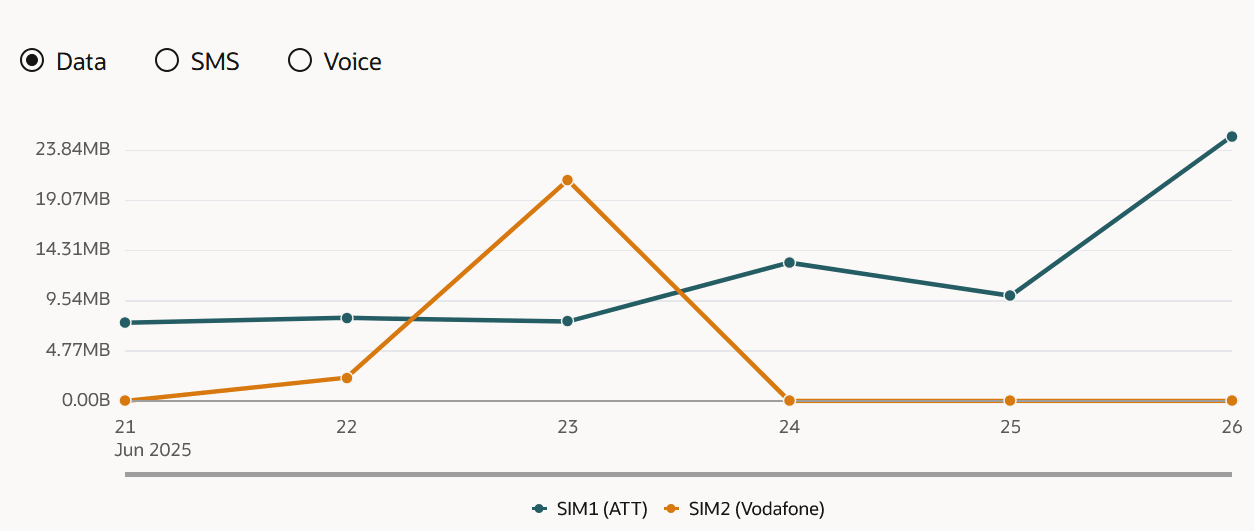
This type of visualization helps users better understand and track data consumption patterns across multiple providers. By reviewing these trends, users can identify which SIM is responsible for higher usage, evaluate the effectiveness of network switching strategies, and troubleshoot issues related to data consumption. This information can also assist with managing data plan allocations and keeping track of carrier-specific network performance.
Network Interface Architecture
The system's internal network is designed with a simplified architecture to ensure seamless connectivity for users. Here are the key components:
- Bridged LAN and WiFi—All LAN-facing Ethernet ports and WiFi ports are configured in a bridge, creating a unified network. This means they share the same IP address, typically 192.168.0.1, forming a single LAN network. Users have the flexibility to change this IP address if needed.
- DHCP Server—The Dynamic Host Configuration Protocol (DHCP) server is set up to assign IP addresses to devices connected within the bridge. It manages IP addresses for the entire bridged network.
- Firewall—The firewall is configured for inbound traffic filtering, securing both the LAN and WAN sides of the network. It ensures that incoming traffic adheres to defined security rules.
- Proxy Settings—Proxy configurations are applied at the system level, meaning they are system-wide and not specific to individual interfaces. This ensures consistent network behavior.
Network Interface Actions
The Oracle Cloud Connector can provides multiple network interfaces to support business applications. The variety of network interfaces have unique attributes and settings tailored to their role in LAN or WAN environments and to the specific media layer they operate on. Therefore, depending on the interface you choose to review statistics on or make changes to, the Oracle ECP will reveal only the contextually relevant values and options.
The following is a collection of all actions you can perform for network interfaces. They appear as configuration drawers on the cloud UI. Not every following procedure is applicable to every network interface type. Refer to each interface type's Review and Configuration page to learn which drawer is an option.
Depending on the Cloud Connector models in your network, you will have different numbers of identical interfaces to support different loads from a single Cloud Connector. Refer to the hardware guide for more information.
Edit LAN DHCP or Static IP Values
You can configure the Dynamic Host Control Protocol (DHCP) server settings on a Cloud Connector's LAN interfaces. These are generally the Wi-Fi interfaces and properly assigned Ethernet ports.
- Determine the LAN interface you want to configure DHCP on. name of a Cloud Connector with a configured Wi-Fi interface so that you can access the Edge Node Details page to edit the DHCP server settings.
- All interfaces share the same DHCP server, so you only need to set it once per Cloud Connector.
Prioritize Internet (WAN) Interfaces
You can set the preference for which of the available Internet-facing Wide Area Network (WAN) interfaces a Cloud Connector uses for its outbound connectivity.
The Oracle Cloud Connector provides 3 distinct connection types for communicating with the internet and ultimately back to the Oracle ECP cloud service. These types are the terrestrial mobile/cellular network, satellite connectivity, or fixed wireline/broadband. You can set the order which a cloud connector will choose to connect with. If the highest priority source of Internet access is disabled or becomes unavailable, the Internet preference level indicates the order in which the platform uses each WAN-facing interface connection for Internet access.
- Primary
- Secondary
- Tertiary
Update Firewall Settings
You can configure firewall settings on appropriate Cloud Connector interfaces by working in the Edit Firewall option available on the Action menu.
- Identify the Cloud Connector that requires firewall setting updates by name so you can select the appropriate hardware on the Edge Nodes Inventory page.
- Inspect the firewall configuration items currently set to determine whether you need to remove or add firewall configuration rows.
To choose the appropriate protocol and the port to open using firewall settings, you must understand the nature of the traffic that the firewall needs block or admit. For example, DNS lookup traffic could require the speed benefits of using a User Datagram Protocol (UDP) connection to support faster transmission for a time-sensitive DNS server.
- Start from a selected Edge Node details page, and click the Network tab.
- Choose the interface from the drop-down where you will configure the firewall.
- Select the More Action drop-down and select Edit Firewall.
- Delete or Edit a firewall entry to address your use case.
- Remove any previously specified firewall setting rows that should no longer be applied to the firewall configuration by clicking the trash can icon on the associated row.
- Add a new firewall setting row by clicking Add setting, then click the Protocol drop-down to choose Transmission Control Protocol (TCP) or User Datagram Protocol (UDP) as the protocol.
- Click Open Port to specify a port number between 1 and 65,535 to open to support the desired firewall operation.
- Repeat the preceding three steps if you need to remove and add multiple firewall setting rows to address firewall configuration for multiple types of traffic on the network interface.
- Click the check mark to process the protocol and port changes. The new row displays at the bottom of the drawer.
- Click Update to save the firewall settings for the selected network interface.
Check Cloud Connector Interface Proxy and No Proxy
The Cloud Connector has a provision to include and/or exclude traffic destined for certain hosts by using standard proxy/noproxy provisions.
If your local network requires a destination proxy as an intermediary between networks, you can specify the details in the Cloud Connector UI. Likewise, you can configure a noproxy address (or address pattern) to specify exceptions for proxy usage.
Note:
You cannot change Proxy settings on an onboarded Cloud Connector. You must deboard the Cloud Connector and edit the proxy values from the local UI.Check a Cloud Connector's proxy settings
- From the Network tab, choose the interface whose proxy you want to check.
- From the More Actions drop-down, choose View Proxy.
- The Proxy Settings drawer expands revealing the proxy information.
Edge Nodes Details Page - Devices Tab
The Devices tab provides information about LAN and USB devices that are connected to an edge node. Use this tab to view device activity, search and filter the device inventory, manage LAN devices, and block or unblock USB devices.
The following controls and actions are unique to the Devices tab.
Device type switcher
Use the device type switcher to select the type of devices to display:
-
LAN devices: Displays devices connected to the edge node through Wi-Fi or wired Ethernet LAN interfaces.
-
USB devices: Displays devices connected to the edge node through USB ports.
The selected device type determines the graphs, filters, table columns, and available actions shown on the page.
Data usage graphs
The Devices tab includes data usage graphs that show traffic for the selected device type on the Cloud Connector's LAN. The graphs are displayed side by side:
-
Transmitted data: Shows the amount of data sent by connected devices.
-
Received data: Shows the amount of data received by connected devices.
Use the time span menu to change the period of collected and displayed data.
Devices inventory
On an Edge Node details page, the Devices tab lists the devices detected by the edge node. The table contents depend on the selected device type. For LAN devices, the inventory includes devices connected through Wi-Fi or wired Ethernet LAN interfaces. For USB devices, the inventory includes devices connected through USB ports. Use the Columns button to show or hide available columns in the table.
Table 7-2 LAN device columns
| Column | Description |
|---|---|
| Type | The type of LAN device. |
| Status | The current status of the device, such as connected, disconnected, auto-blocked, unblocked, or blocked. |
| Connection | The LAN connection used by the device, such as a Wi-Fi radio or wired Ethernet LAN interface. |
| MAC Address | The MAC address of the device. |
| IP Address | The IP address assigned to the device. |
| Latest Bandwidth Usage | The most recent bandwidth usage reported for the device. |
| Last Activity | The most recent time that activity was detected for the device. |
Table 7-3 USB device columns
| Column | Description |
|---|---|
| Type | The type of USB device. |
| Status | The current status of the device, such as blocked, auto-blocked, system-blocked, connected, or disconnected. |
| Serial Number | The serial number reported by the USB device. |
| Device Class | The USB device class. |
| Make Model | The make and model reported by the USB device. |
| USB Port | The USB port used by the device. |
| Last Connected | The most recent time the device connected to the edge node. |
| Last Disconnected | The most recent time the device disconnected from the edge node. |
Device search field and Filter Chips
Use the search field to search the devices inventory table. The search applies to the currently selected device type.
Use filter chips to narrow the devices shown in the inventory table.
For LAN devices, the available filters include:
-
Connection type: Filters devices by LAN connection, such as either Wi-Fi radio or either wired Ethernet LAN interface.
-
Status: Filters devices by status, such as connected, disconnected, auto-blocked, unblocked, or blocked.
For USB devices, the available filter is:
-
Status: Filters devices by status, such as blocked, auto-blocked, system-blocked, connected, or disconnected.
Actions
The actions available on the Devices tab depend on the selected device type.
For LAN devices, use Manage Devices to manage devices detected by the edge node. From the Manage Devices drawer, you can block a device by MAC address or assign a static IP address to an onboarded device when the device MAC address is included during onboarding. You can also unblock a LAN device by removing the row from the table or by unchecking the checkbox.
For USB devices, use the available block or unblock actions for the visible USB devices.
LAN-connected Device Management
LAN-connected device management includes the functions used to manage devices detected by an edge node on a LAN interface. You can assign static IP addresses to LAN-connected devices and block devices by MAC address.
Assigning a static IP address reserves an IP address for a LAN-connected device. To assign a static IP address, the device must be onboarded into Oracle ECP with a matching MAC address, and the selected address must come from the configured static IP range (configured in a LAN-Facing Ethernet Interface or Wi-Fi Interface).
Blocking a device by MAC address prevents a LAN-connected device from using the edge node for connectivity. You can block a device that is already detected by the edge node, or you can manually add a MAC address to block a device.
Both functions are available from the same Manage Devices drawer. Open the drawer from the Network tab when a LAN interface is selected, or from the Devices tab when LAN device is selected.
Assign a Static IP Address to a LAN-Connected Device
Assign a static IP address to a LAN-connected device from the Manage Devices drawer.
You can assign a static IP address only to a device detected on the edge node LAN. The device can be either onboarded in Oracle ECP or unmanaged.
- Access to the device's MAC address.
- A static IP range must be configured on this Cloud Connector before you can assign a static IP address to a device. (See Edit LAN DHCP or Static IP Values)
Procedure
Block a LAN-Connected Device by MAC Address
Block LAN-connected devices from using an edge node by selecting Block MAC Address in the Manage Devices drawer.
Procedure
Edge Nodes Details Page - Applications Tab
Cloud Connectors rely on applications to perform their operations. The Oracle Enterprise Communications Platform (Oracle ECP) Edge Nodes Applications tab displays information about the health and status of the applications.
Applications Tab
- Click the legends below each pie chart to show and hide data types.
- Hover over the sections of the pie chart to see counts for the data type.
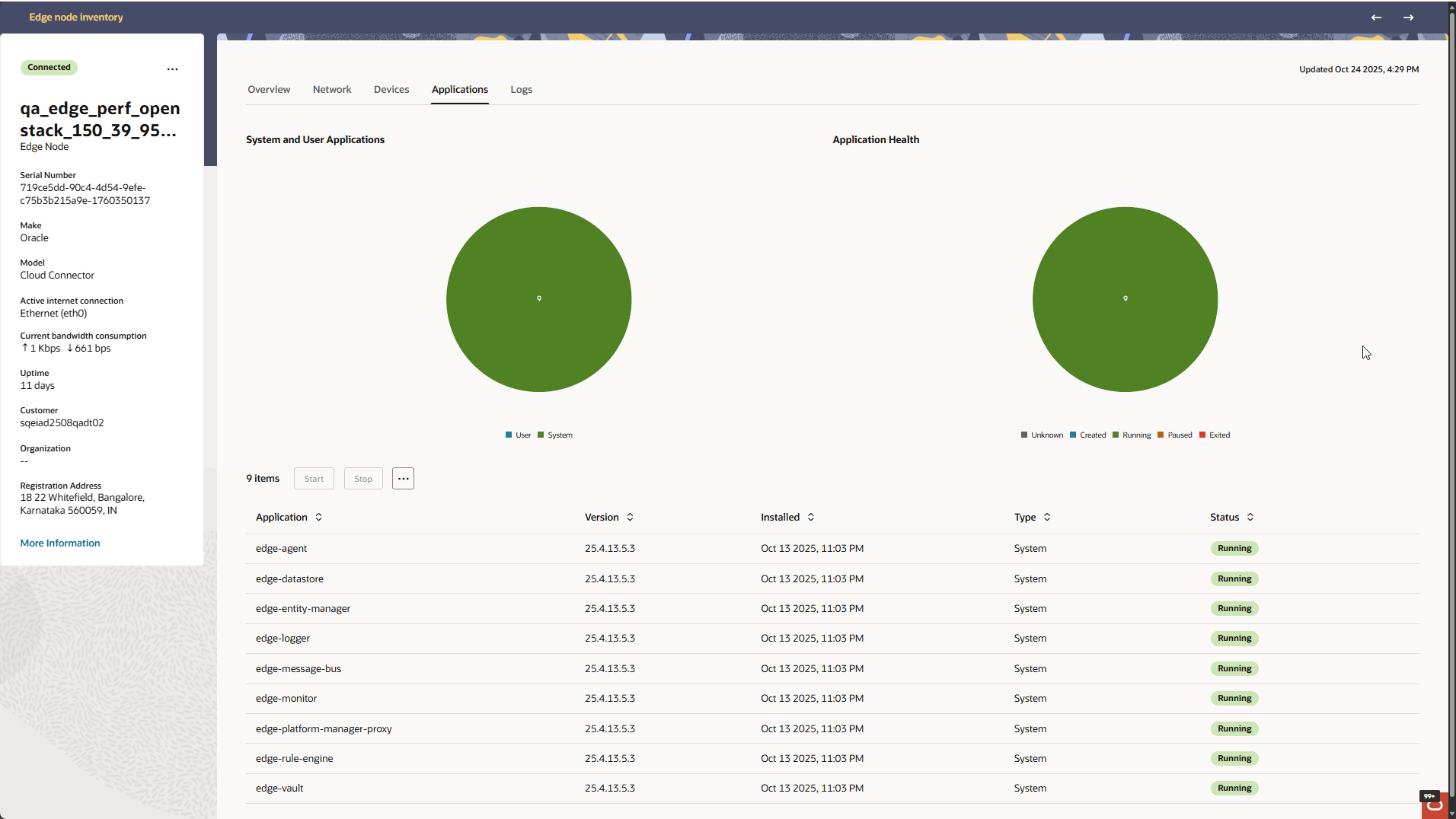
Below the pie charts, the Applications tab displays a table of applications and corresponding details along with the Start and Stop buttons. Click the three dots in the box to the right of "Stop" to display more Actions.
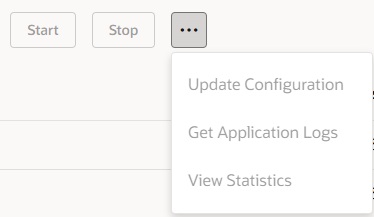
Start—Start the application.
Stop—Stop the application.
- The name, version, installed date, and status of the application.
- A drop-down list of configurations you can choose to use.
- Date pickers for searching for application logs and the Get Logs button.
- The Name, Version, date Installed, and Status of the application.
- The data refresh interval drop-down list.
- Memory Usage, CPU Usage, and Net Input.
Actions on the Edge Node Applications Tab
You can click the more dots in the Actions column for each application running on an Cloud Connector to perform application-level actions, generate logs, update the configuration, and view statistics in the Application Statistics drawer.
You can start an application, update an application configuration, retrieve log files from the application, and view statistics about the application.
View Cloud Connector Application Statistics
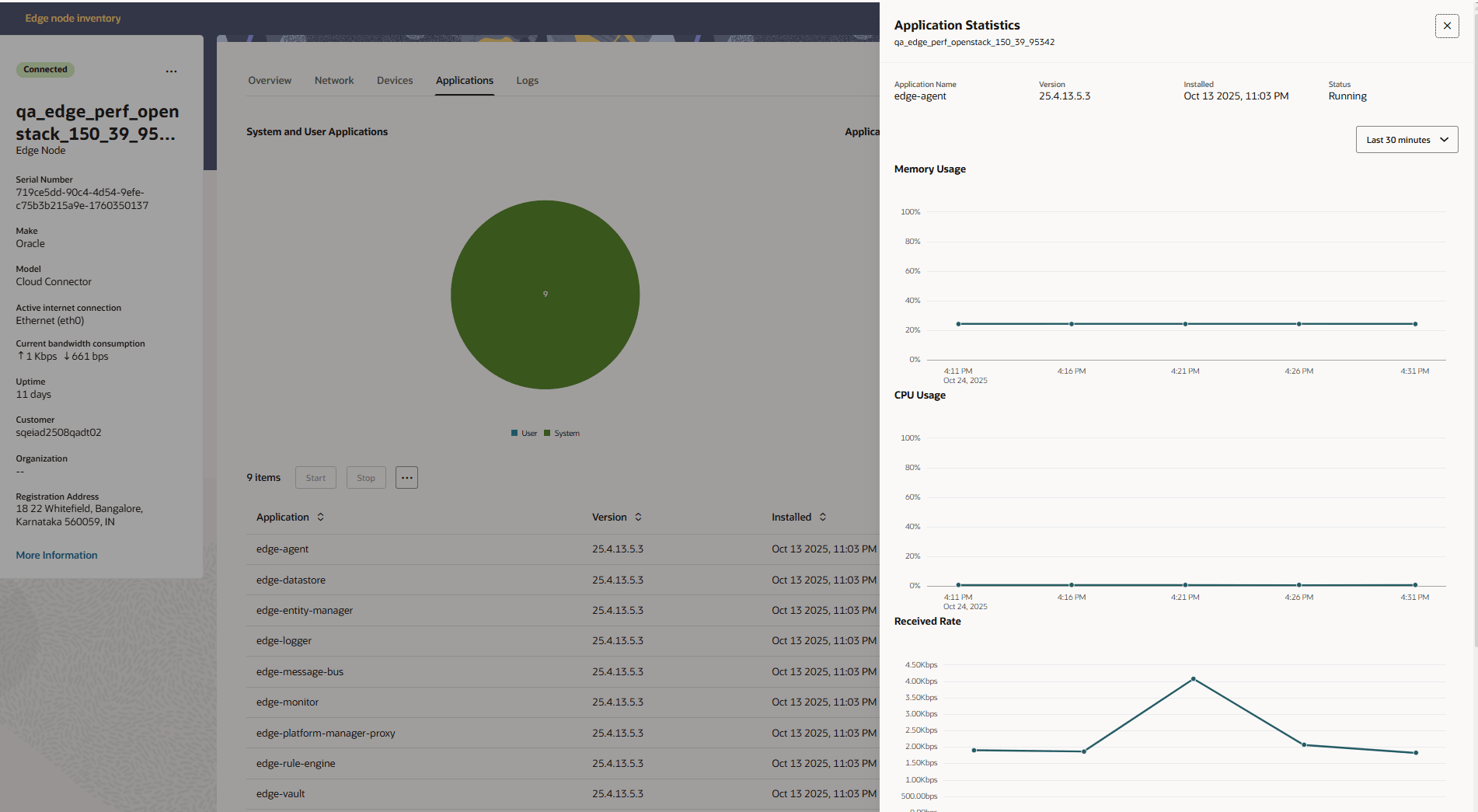
- Memory Usage—Percent over time
- CPU Usage—Percent over time
- Received Data
- Transmitted Data
- Last 30 Minutes (default)
- Last 1 Hour
- Last 24 Hours
- Last 7 Days
- Last 30 Days
Edge Nodes Details Page - Logs Tab
The Oracle Enterprise Communications Platform (Oracle ECP) Edge Nodes Details page Logs tab displays lists of Platform Logs and Application Logs that you can download. You populate the lists when you click either Get Platform Logs or Get Application Logs from the Actions menu on the Edge Nodes Details page. At the top of the Logs tab, a context chooser lets you select between viewing Platform Logs and Application Logs. Use this chooser to specify the type of logs you want to view. After selecting the desired context, the corresponding logs are displayed below. The log list updates automatically based on your selection, showing available log files along with details such as file name, expiration time, and download options.
The following screen capture shows an example of the Edge Nodes Log tab with a context chooser to choose between on-demand Platform log files and Application log files with timestamps. You generate the On Demand Logs by clicking either Get Platform Logs or Get Application Logs on the Actions menu on the Edge Nodes Details page.
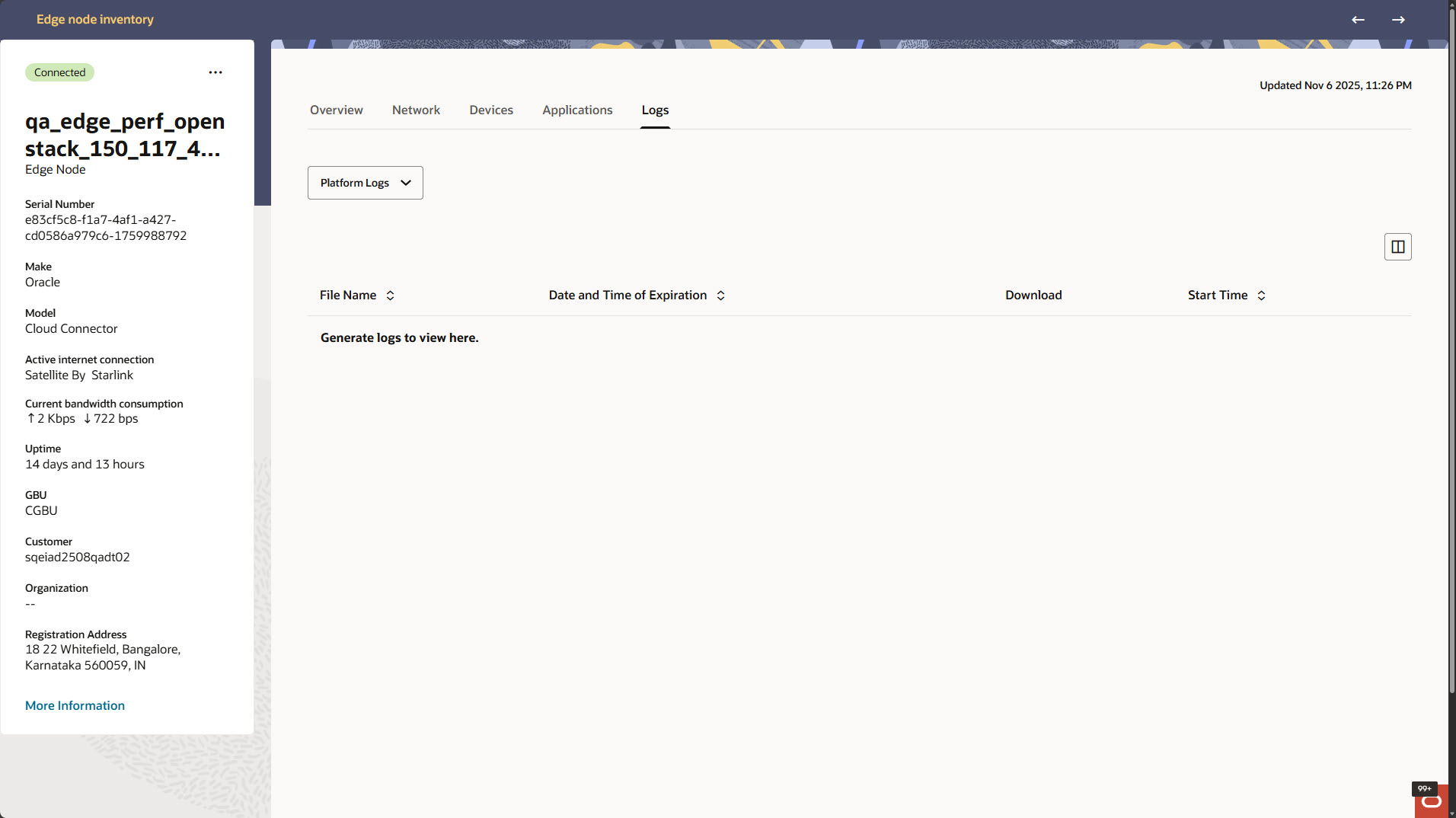
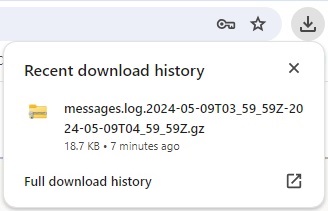
When you click the download icon, Oracle ECP downloads the file to your browser where you can open it in an application you choose. The following screen capture shows an example from the Chrome browser with a log file download.
Edge Node Details Page - More Information Drawer
The Cloud Connector Details page includes a More Information link that opens the More Information drawer. When clicked, the More information drawer expands from the right side of the screen and includes the following tabs when relevant for the selected Cloud Connector:
Status Tab
Use to review the Status.
| Lifecycle State | Active | Inactive |
| Lifecycle State Detail | A descriptive phrase that provides additional monitoring- or troubleshooting-related information for a Lifecycle State. For example, a directly connected Device in the Active Lifecycle State may have the Lifecycle State Detail of In Service after connecting to the cloud and authenticating. |
| Connectivity Type | The specified connection type: Cellular, Ethernet, Wi-Fi. |
| Usage Status | Displays either In Use or Not in Use. |
| Description | A description entered when adding the device to inventory displays. |
| Location GPS Coordinates | The latitude and longitude of the device location. |
| Last Updated from Edge Node | The month, date, year, and time the Cloud Connector was last updated from the Edge Node. |
Details Tab
Use to review the Cloud Connector's details.
| Platform OS | The name of the installed operating system. |
| Platform OS Version | The version of the installed operating system. |
| Platform Manager | The name of the installed Platform Manager tool. |
| Platform Manager Version | The version of the installed Platform Manager tool. |
| MAC Address | The Media Access Control address that the manufacturer assigned to identify the Cloud Connector on the network. |
| Onboarding Date and Time | The date and time when the Cloud Connector onboarding process completed. |
| Onboarding User | The user name of the person who added the Cloud Connector to inventory. |
Cellular Tab
Use to review the following details for Cloud Connectors that use one or more SIM cards for connectivity. The tab displays a section for each SIM card.
Note:
Oracle ECP does not display the Cellular tab for a Cloud Connector with no SIM card.| IMEI | International Mobile Equipment Identifier is the digit string that uniquely identifies the Cloud Connector. |
| ICCID | The unique Integrated Circuit Card Identification number assigned to the SIM card. |
| MNO | The Mobile Network Operator that is providing connectivity services via the SIM card in the Cloud Connector. |
| MNO Account | The name of the MNO account that defines the connectivity service and accessible APNs. |
| APN | The Access Point Name used to establish a connection between the gateway and the mobile network. |
| SIM Activation State | Displays either Active or Inactive. |
| SIM Connectivity | Indicates whether the SIM card is currently connected to the cellular network (Connected) or not (Disconnected). |
| Monthly Data Plan | An agreement between a Mobile Network Operator (MNO) with support for account rate tier changes and a customer. The data plan specifies how much mobile data can be accessed for a set price, usually per month. At this time, Oracle ECP displays values only for Cloud Connectors with AT&T SIM cards. |
| Network Priority | Use to switch the data traffic for a Cloud Connector with an AT&T SIM card between standard and prioritized networks. When enabled, the Cloud Connector moves to AT&T's prioritized network when there is congestion on the standard network. |
| IP Address | A numeric label assigned to Cloud Connectors that use the internet to communicate. |
| Latest Data Session Start | The time stamp when the last data session started. |
| Latest Data Session End | The time stamp when the last data session ended. |
Satellite Tab
Use the Satellite tab to see the following details about the selected Cloud Connector:
| Terminal Serial Number | The serial number on the terminal. |
| Kit Serial Number | The serial number on the terminal kit box. |
| Starlink Account ID | The Starlink account identification number. |
| Starlink Account Name | The Starlink account name. |
| Service Plan Name | The name of the Starlink plan owned. |
| Additional Priority | Yes|No |
| Lifecycle State (from Starlink) | Active|Inactive |
| Last Downlink Throughput | Downlink throughput in Mbps. |
| Last Uplink Throughput | Uplink throughput in Mbps. |
| Signal Quality | The extrapolated signal-to-noise ratio. The ratio is from 0–10dB, which is represented as a percentage from 0–100%. |
| Signal Obstruction | The moving average of amount of time the Starlink terminal has been obstructed. |
| Location | The latitude and longitude reported by the Starlink terminal. |
Authentication Tab
Use to review the authentication details about the Cloud Connector displayed:
| Authentication Method | No Authentication | Client Secret. |
| Client Secret | A text string specified as the Client Secret during onboarding when Client Secret is the selected authentication method. You can click the eye icon to display the Secret instead of the string of asterisks that masks the string. |