9 Configuring the BRM Client Services
Learn how to configure Billing Care, Billing Care REST API, Collections Configuration Center, and Business Operations Center to run in your Oracle Communications Billing and Revenue Management (BRM) cloud native environment.
Topics in this document:
About Configuring Your BRM Client Services
Business Operations Center, Billing Care, and Billing Care REST API share a similar image stack.
Figure 9-1 shows the process for deploying Billing Care using WebLogic Operator. The same process is used for the Billing Care REST API. The only difference is the name of the deployer: bcws-domain-deployer.
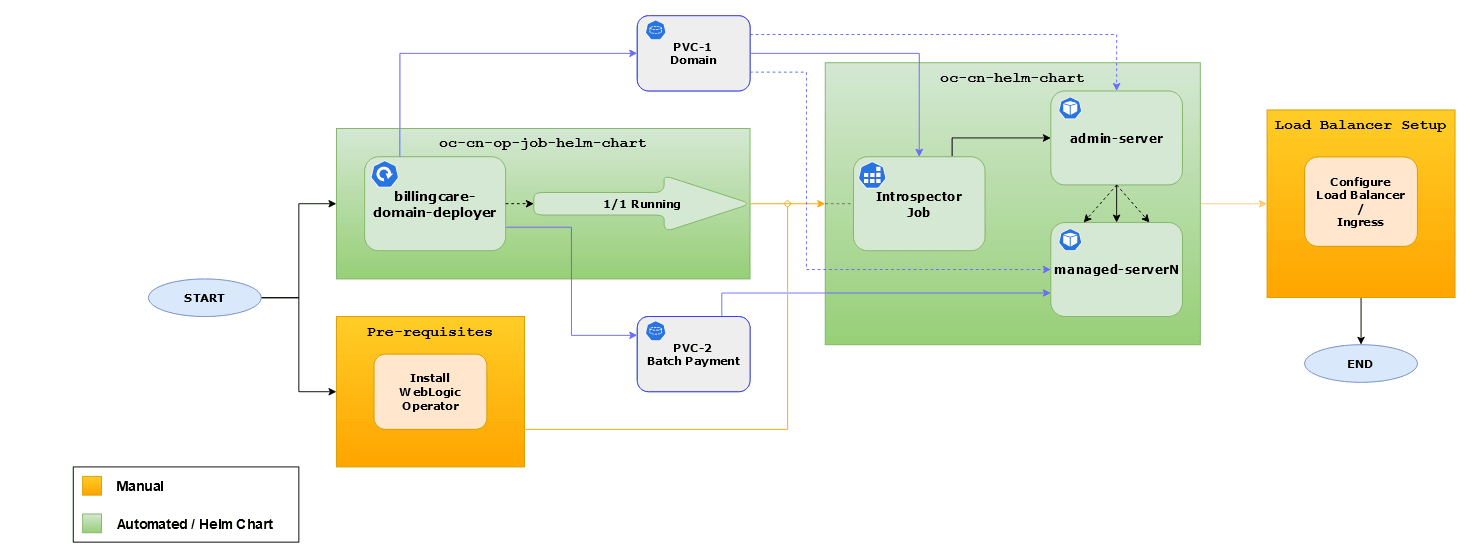
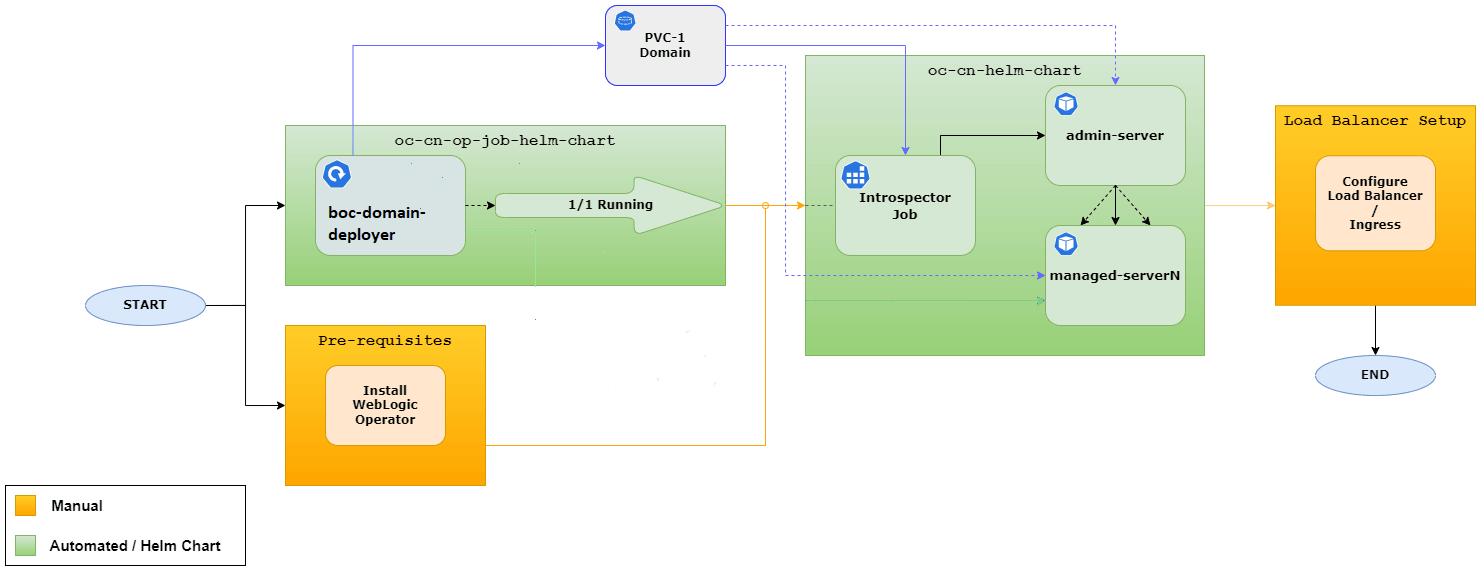
Figure 9-2 shows the process for deploying Business Operations Center using WebLogic Operator. It is similar to the Billing Care process.
Figure 9-2 Business Operations Center Deployment Flow
Note:
It is important to wait until the component-domain-deployer process is in the 1/1 Running status before running oc-cn-helm-chart.You deploy these services by using the following Helm charts:
-
oc-cn-op-job-helm-chart: This chart creates and configures the WebLogic domain, deploys the application, deploys and links the SDK (for Billing Care and Billing Care REST API), and loads the authorization policies.
-
oc-cn-helm-chart: This chart starts the rolling restart of the WebLogic servers and the application update.
-
WebLogic Operator chart: This chart manages the application domain, controlling the service availability when managed server pods are scaled up or down.
Configuring Business Operations Center
Business Operations Center is a web-based client application that you use to run business operations such as billing, invoicing, and payment collections. For more information, see "Using Business Operations Center" in BRM System Administrator's Guide.
To configure Business Operations Center to run in your BRM cloud native environment:
-
Override the Business Operations Center-specific keys in the values.yaml file for oc-cn-op-job-helm-chart. See "Adding Business Operations Center Keys for oc-cn-op-job-helm-chart".
-
Override the Business Operations Center-specific keys in the values.yaml file for oc-cn-helm-chart. See "Adding Business Operations Center Keys for oc-cn-helm-chart".
-
Set up volume mounts. See "About Business Operations Center Volume Mounts".
-
Create a WebLogic domain and install the Business Operations Center application. See "Creating a WebLogic Domain and Installing the Business Operations Center Application".
-
Set up SAML for SSO in Business Operations Center. See "Setting Up SSO for Business Operations Center".
-
Set up local users and groups for Business Operations Center. See "Setting Up Local Users and Groups for Business Operations Center".
-
Start and stop your WebLogic servers. See "Starting and Stopping WebLogic Servers".
Note:
To set up Business Operations Center, ensure that you successfully complete the installation of oc-cn-op-job-helm-chart before you install or upgrade oc-cn-helm-chart.
Adding Business Operations Center Keys for oc-cn-op-job-helm-chart
Table 9-1 lists the keys that directly impact Business Operations Center. Add these keys to your override-values.yaml file for oc-cn-op-job-helm-chart with the same path hierarchy.
For a complete set of keys to personalize Business Operations Center deployment, see the keys with the path ocboc.boc in the oc-cn-op-job-helm-chart/values.yaml file.
Caution:
Keys with the path ocboc.boc.secretVal hold sensitive data. Handle them carefully with controlled access to the file containing their values. Encode all of these values in Base64 format. See "Secrets" in Kubernetes Concepts.
Table 9-1 Keys for oc-cn-op-job-helm-chart
| Key | Path in Values.yaml file | Description |
|---|---|---|
|
isEnabled |
ocboc.boc |
Whether to deploy, configure, and start Business Operation Center services.
|
|
deployment.* |
ocboc.boc |
The details for deploying the Business Operations Center pod. |
|
configEnv.* |
ocboc.boc |
|
|
secretVal.* |
ocboc.boc |
|
|
secret.* |
ocboc.boc |
The details about the Business Operations Center external Kubernetes Secrets.
See "About Using External Kubernetes Secrets" in BRM Cloud Native System Administrator’s Guide. |
|
wop.* |
ocboc.boc |
The details for configuration the WebLogic Server.
|
|
resources.* |
ocboc.boc |
The minimum and maximum CPU and memory resources for the cm pod. See "Setting Minimum and Maximum CPU and Memory Values" in BRM Cloud Native System Administrator's Guide. |
|
volume.domain.* |
ocbc.boc |
Details about the PVC for the domain file system:
|
|
wlsUserGroups.* |
ocboc.boc |
The details for setting up the users and groups to the domain's DefaultAuthenticator. |
|
scriptsConfigName |
ocboc.boc.extensions |
The name of the ConfigMap containing the scripts for running additional steps to configure the domain or application. |
|
nodeSelector |
ocboc.boc |
The rules for scheduling pods on particular nodes using simple selectors using Node Selector rules. |
|
affinity |
ocboc.boc |
The rules for scheduling pods on particular nodes using more powerful selectors using affinity rules. |
|
addOnPodSpec |
ocboc.boc |
The details for extending pod specifications or overriding features. By default, this key is empty. See "About Customizing and Extending Pods" in BRM Cloud Native System Administrator's Guide. |
Adding Business Operations Center Keys for oc-cn-helm-chart
Table 9-2 lists the keys that directly impact Business Operations Center. Add these keys to your override-values.yaml file for oc-cn-helm-chart with the same path hierarchy.
For a complete set of keys to personalize Business Operations Center deployment, see the keys with the path ocboc.boc in the oc-cn-helm-chart/values.yaml file.
Caution:
Keys with the path ocboc.boc.secretVal hold sensitive data. Handle them carefully with controlled access to the file containing their values. Encode all of these values in Base64 format. See "Secrets" in Kubernetes Concepts.
Table 9-2 Keys for oc-cn-helm-chart
| Key | Path in Values.yaml file | Description |
|---|---|---|
|
isEnabled |
ocboc.boc |
Whether to deploy, configure, and start Business Operation Center services.
|
|
deployment.* |
ocboc.boc |
The details for deploying the Business Operations Center pod. |
|
configEnv.* |
ocboc.boc |
The details for configuring Business Operations Center.
|
|
infranet.* |
ocboc.boc |
The details for configuring Business Operations Center.
|
|
secretVal.* |
ocboc.boc |
The password details.
|
|
secret.* |
ocboc.boc |
The details about the Business Operations Center external Kubernetes Secrets.
See "About Using External Kubernetes Secrets" in BRM Cloud Native System Administrator’s Guide. |
|
wop.* |
ocboc.boc |
The details for configuration the WebLogic Server.
|
|
monitoring.* |
ocboc.boc |
The details for monitoring and autoscaling Business Operations Center. By default, monitoring is disabled. See "Monitoring and Autoscaling Business Operations Center Cloud Native" in BRM Cloud Native System Administrator's Guide. |
|
scriptsConfigName |
ocboc.boc.extensions |
The name of the ConfigMap containing the scripts for running additional steps to configure the domain or application. |
|
resources.* |
ocboc.boc |
The minimum and maximum CPU and memory resources for the cm pod. See "Setting Minimum and Maximum CPU and Memory Values" in BRM Cloud Native System Administrator's Guide. |
|
nodeSelector |
ocboc.boc |
The rules for scheduling pods on particular nodes using simple selectors using Node Selector rules. |
|
affinity |
ocboc.boc |
The rules for scheduling pods on particular nodes using more powerful selectors using affinity rules. |
|
addOnPodSpec |
ocboc.boc |
The details for extending pod specifications or overriding features. By default, this key is empty. See "About Customizing and Extending Pods" in BRM Cloud Native System Administrator's Guide. |
Updating Infranet.properties for Business Operations Center
The Infranet.properties file entries are located in the values.yaml file. This makes it easier to update them.
Following is a sample configuration block (located in the ocboc.boc path in oc-cn-helm-chart) for the Infranet.properties entries:
infranet:
    user:
        login: 'boc_client.0.0.0.1'
        serviceType: '/service/admin_client'
        serviceId: 2
    connectionpool:
        minSize: 25
        maxSize: 50
    logLevel: 3
    addOnProperties: ""
If you have custom properties, they should be defined here using the addOnProperties key. For example:
addOnProperties: |-
    infranet.connectionpool.timeout=90000
    infranet.pcp.debug.flags=0x3FFF
    infranet.pcp.debug.enabled=true
To update these properties, update the values in oc-cn-helm-chart and change the value of ocboc.boc.wop.restartVersion in oc-cn-helm-chart to any new value. This will force a pod restart and the new values will be used.
Adding Custom Configuration to Deployment Workflow for Business Operations Center
You can provide additional configuration to be applied at particular checkpoints in the Business Operations Center deployment workflow. These checkpoints are:
- ext_deployer_pre_exit: Called after the standard configuration in deployer.sh in oc-cn-op-job-helm-chart
- ext_init_app_pre_exit: Called after the standard configuration in the init-app initContainer container in both oc-cn-op-job-helm-chart and oc-cn-helm-chart
- ext_init_config_pre_exit: Called after the standard configuration in the init-config initContainer container in both oc-cn-op-job-helm-chart and oc-cn-helm-chart
- ext_init_upgrade_pre_exit: Called after the standard configuration in the upgrade container
Create a ConfigMap with your configuration scripts, including a shell script named run_hooks.sh that calls your other scripts. For example:
apiVersion: v1
kind: ConfigMap
metadata:
  name: ext-scripts
data:
  run_hooks.sh: |+
    #!/bin/bash
    echo "executing extension for: $@"
    CURRENT_CHECKPOINT=$1
    if [ "$CURRENT_CHECKPOINT" == "ext_deployer_pre_exit" ] ; then
      sh my_deployer_extension.sh
    fi
  my_deployer_extension.sh: |+
    #!/bin/bash
    echo "executing my_deployer_extension"
...
Specify the name of your ConfigMap in the ocboc.boc.extensions.scriptsConfigName key in the override-values.yaml file for oc-cn-op-job-helm-chart.
About Business Operations Center Volume Mounts
The Business Operations Center container requires Kubernetes volume mounts for sharing the domain and application file system between the WebLogic Cluster servers. Business Operations Center requires a volume for the domain. By default, this is created dynamically, using the provisioner defined in BRM, in the storage-class key in oc-cn-op-job-helm-chart.
To change the volume type or provider, modify the ocboc.boc.volume.domain.createOption key in the override-values.yaml file for oc-cn-op-job-helm-chart.
Creating a WebLogic Domain and Installing the Business Operations Center Application
The WebLogic domain is created by a Kubernetes Deployment when oc-cn-op-job-helm-chart is installed. The same job also installs the Business Operations Center application and deploys the application WAR file onto the WebLogic Cluster.
The oc-cn-op-job-helm-chart chart also:
-
Creates a Kubernetes ConfigMap and Secrets, which are used throughout the life-cycle of the WebLogic domain.
-
Initializes the PersistentVolumeClaim for the domain and application file system as well as third-party libraries.
Note:
The override-values.yaml file that you use for this chart must include BRM override values.
After you install oc-cn-op-job-helm-chart, wait until the Kubernetes deployment has reached the 1/1 Running status. Then, you can install or upgrade oc-cn-helm-chart for Business Operations Center services.
After the deployment is running, don't delete the chart. Its resources will be used for starting and stopping the servers through oc-cn-helm-chart.
Setting Up SSO for Business Operations Center
SSO allows users to log in to applications using a single user name and password combination. You set up SSO for Business Operations Center cloud native services by using SAML 2.0.
To set up SSO for Business Operations Center:
-
Export the SAML 2.0 metadata XML file from your identity and access management (IAM) system.
For example, if you are using Oracle Access Management, you can export the file by following the instructions in "Exporting Metadata" in Oracle Fusion Middleware Administering Oracle Access Management.
-
Add the metadata XML file to your BRM cloud native deployment by doing one of the following:
-
Rename the metadata XML file to metadata.xml, and then move metadata.xml to the oc-cn-op-job-helm-chart/boc/idp directory. In this case, you must leave the ocboc.boc.configEnv.extMetadataCM key for oc-cn-op-job-helm-chart empty.
-
Pre-create the IDP metadata ConfigMap for Business Operations Center and set the ocboc.boc.configEnv.extMetadataCM key in your override-values.yaml file for oc-cn-op-job-helm-chart.
For more information, see "Managing Wallet and KeyStore Certificates" in BRM Cloud Native System Administrator's Guide.
-
-
Configure the KeyStores needed by SAML by doing one of the following:
-
Generate the Identity and Trust KeyStores and then move your files, such as identity.p12 and trust.p12, under the oc-cn-op-job-helm-chart/boc/keystore directory. In this case, you must leave the ocboc.boc.configEnv.extKeystoreSecret key for oc-cn-op-job-helm-chart empty.
-
Pre-create the Kubernetes Secret for the Identity and Trust KeyStore files and set the ocboc.boc.configEnv.extKeystoreSecret key in your override-values.yaml file for both oc-cn-op-job-helm-chart and oc-cn-helm-chart.
For more information, see "Managing Wallet and KeyStore Certificates" in BRM Cloud Native System Administrator's Guide.
-
-
In your override-values.yaml file for oc-cn-op-job-helm-chart, set the following keys:
-
ocboc.boc.configEnv.isSSOEnabled: Set this to true.
-
ocboc.boc.configEnv.keystoreAlias: Set this to the private key alias of the KeyStore.
-
ocboc.boc.configEnv.keystoreType: Set this to the file type of the SSL Identity and Trust store, which is either PKCS12 or JKS. The default is PKCS12.
-
ocboc.boc.configEnv.keystoreIdentityFileName: Set this to the name of the Identity KeyStore file.
-
ocboc.boc.configEnv.keystoreTrustFileName: Set this to the name of the Trust KeyStore file.
-
ocboc.boc.configEnv.samlAsserterName: Set this to the name of the SAML Asserter. The default is samlBOCAsserter.
-
ocboc.boc.configEnv.ssoPublishedSiteURL: Set this to the base URL that is used to construct endpoint URLs. This is typically the load balancer host and port at which the server is visible externally. It must be appended with /saml2. For example: https://LoadBalancerHost:LoadBalancerPort/saml2.
-
ocboc.boc.configEnv.ssoDefaultURL: Set this to the URL where unsolicited authentication responses are sent if they do not contain an accompanying target URL.
-
ocboc.boc.secretVal.keystoreIdentityPassword: Set this to the StorePass for the Identity KeyStore.
-
ocboc.boc.secretVal.keystoreKeyPassword: Set this to the KeyPass for the Identity KeyStore.
-
ocboc.boc.secretVal.keystoreTrustPassword: Set this to the StorePass for the Trust KeyStore.
-
-
Configure your load balancer's rules to send responses to the Business Operations Center WebLogic domain with /saml2 appended to the URL path.
Note:
Add this rule to your existing load balancer rules for routing responses to Business Operations Center (/opsdashboard), the host name, and so on.
-
Deploy your Business Operations Center cloud native services by following the instructions in "Deploying BRM Cloud Native Services".
-
After Business Operations Center is deployed, retrieve the sp-metadata-admin-server.xml file from the /shared/domains/domainUID directory in your container, where domainUID is the name of your Business Operations Center domain specified in the ocboc.boc.wop.domainUID key.
The XML file configures the Web SSO Provider Partner. It contains the partner's KeyStore certificates, SAML assertion details, and the URLs where the SAML Identity Provider redirects to provide access to Business Operations Center.
-
Create a profile for your identity provider partner by loading the sp-metadata-admin-server.xml file into your IAM system.
For example, if you are using Oracle Access Management, you can load the file by following the instructions in "Creating Remote Identity Provider Partners" in Oracle Fusion Middleware Administering Oracle Access Management.
Setting Up Local Users and Groups for Business Operations Center
You have the option to customize the values for oc-cn-op-job-helm-chart to create users and groups locally in Oracle WebLogic Server. This would be especially useful for test environments where you might not have Identity Providers or LDAPs available. The groups for the admin user for WebLogic Server cannot be modified using this procedure.
Any passwords must be encoded using Base64. You can leave the password blank, but then the user will not be able to log in to the application directly.
To set up local users and groups for Billing Care, define the keys under ocboc.boc.wlsUserGroups in the override-values.yaml file for oc-cn-op-job-helm-chart. For example:
ocboc:
    boc:
        wlsUserGroups:
            groups:
            -   name: "GroupA"
                description: "GroupA Description"
            -   name: "GroupB"
                description: "GroupB Description"
            users:
            -   name: csr1
                description: "csr1 description"
                password: "Base64_password"
                groups:
                -   "GroupA"
                -   "GroupB"
            -   name: csr2
                description: "csr2 description"
                password: "Base64_password"
                groups:
                -   "GroupB"
Starting and Stopping WebLogic Servers
When you install oc-cn-op-job-helm-chart, the default configuration sets up a WebLogic Cluster with five Managed Servers. When you install or upgrade oc-cn-helm-chart for the Business Operations Center service, two of the managed servers and one Admin Server are started.
By modifying the override-values.yaml file for oc-cn-helm-chart, you can control:
-
The total number of Managed Servers and the initial server start up by using the totalManagedServers and initialServerCount keys.
-
Whether the servers are started or stopped by using the serverStartPolicy key. To start the Admin Servers and the Managed Servers in a Cluster, set the key to IF_NEEDED. To stop all servers, set the key to NEVER.
Note:
The keys in the override-values.yaml file should be the same as the ones used in oc-cn-op-job-helm-chart for keys that are common in both charts.
Before installing or upgrading oc-cn-helm-chart for Business Operations Center, ensure that the brm_apps values are configured correctly. If there is a change in any brm_apps values, use serverStartPolicy to restart and have the changes take effect.
After you modify the override-values.yaml file, update the Helm release for the changes to take effect:
helm upgrade BrmReleaseName oc-cn-helm-chart --values OverrideValuesFile --namespace BrmNameSpace
where:
-
BrmReleaseName is the release name for oc-cn-helm-chart and is used to track this installation instance.
-
BrmNameSpace is the namespace in which to create BRM Kubernetes objects for the BRM Helm chart.
-
OverrideValuesFile is the path to a YAML file that overrides the default configurations in the values.yaml file for oc-cn-helm-chart.
Adding Authorization for a Custom Job Resource
To grant user access to a custom job resource in Business Operations Center:
-
Add the following entry in oc-cn-op-job-helm-chart/templates/configmap_boc_domain_properties.yaml:
bocauth-config.properties: |
                            JOB_BOC_ADMIN_HAS_ACCESS_TO_RESOURCE = category_customName_resource
                            ACTIONS_GRANTED_FOR_category_customName_resource = View,Create,Modify,Delete,Timeline,History
where customName is the name of the custom category that has been created or is yet to be created, displayed in Business Operations Center.
Configuring Collections Configuration Center
Collections Configuration Center is a web-based client application that collections agents use to manage overdue balances from your customers. For more information about using Collections Configuration Center, see Collections Configuration Center Online Help.
To configure Collections Configuration Center to run in your BRM cloud native environment, override the Collections Configuration Center-specific keys from the values.yaml file for oc-cn-helm-chart. See "Adding Billing Care Keys for oc-cn-helm-chart".
Adding Collections Configuration Center Keys for oc-cn-helm-chart
Table 9-3 lists a few important keys that directly impact Collections Configuration Center. Add these keys to your override-values.yaml file for oc-cn-helm-chart with the same path hierarchy.
For the complete set of keys to personalize your Collections Configuration Center deployment, see the keys with the path occcc.ccc in the oc-cn-helm-chart/values.yaml file.
Caution:
Keys with the path occcc.ccc.secretVal hold sensitive data. Handle them carefully with controlled access to the override file containing their values. Encode all of these values in Base64 format. See "Secrets" in Kubernetes Concepts.
Table 9-3 Keys for oc-cn-helm-chart
| Key | Path in values.yaml File | Description |
|---|---|---|
|
isEnabled |
occcc.ccc |
Whether to deploy, configure, and start Collections Configuration Center services (true) or not (false). The default is true. |
|
deployment.* |
occcc.ccc |
The details about the Collections Configuration Center application image.
|
|
probe.ready.* |
occcc.ccc.deployment |
The configuration for the readiness probe.
|
|
configEnv.* |
occcc.ccc |
The configuration details for the Collections Configuration Center.
|
|
configEnv.oidc |
occcc.ccc |
The Identity Provider (IdP) authentication details.
|
|
secretKeyStore.extKeystoreSecret |
occcc.ccc |
The names of the pre-created Kubernetes Secrets for the Collections Configuration Center KeyStore certificates and wallets. See "About Using External Kubernetes Secrets" in BRM Cloud Native System Administrator’s Guide. |
|
secretVal.* |
occcc.ccc |
The credentials for accessing the system.
|
|
hpa.* |
occcc.ccc |
The details for scaling up or down the number of pod replicas in your deployment based on a pod's CPU or memory utilization. By default, the Horizontal Pod Autoscaler is disabled. See "Setting Up Autoscaling of BRM Pods" in BRM Cloud Native System Administrator's Guide. |
|
service.* |
occcc.ccc |
The brm-collections-configuration-center-service service's details.
|
Configuring Billing Care
Billing Care is a web-based client application that CSRs use to manage billing, payments, and accounts receivable for your customers. For more information about using Billing Care, see Billing Care Online Help.
To configure Billing Care to run in your BRM cloud native environment:
-
Override the Billing Care-specific keys from the values.yaml file for oc-cn-op-job-helm-chart. See "Adding Billing Care Keys for oc-cn-op-job-helm-chart".
-
Override the Billing Care-specific keys from the values.yaml file for oc-cn-helm-chart. See "Adding Billing Care Keys for oc-cn-helm-chart".
-
Set up volume mounts for Billing Care. See "About Billing Care Volume Mounts".
-
Create a WebLogic domain and install Billing Care. See "Creating a WebLogic Domain and Installing the Billing Care Application".
-
Set up SAML for SSO in Billing Care. See "Setting Up SSO for Billing Care".
-
Set up local users and groups for Billing Care. See "Setting Up Local Users and Groups for Billing Care".
-
Start and stop your WebLogic servers. See "Starting and Stopping WebLogic Servers".
Note:
To set up Billing Care, ensure that you successfully complete the installation of oc-cn-op-job-helm-chart before you install or upgrade oc-cn-helm-chart.
Adding Billing Care Keys for oc-cn-op-job-helm-chart
Table 9-4 lists a few important keys that directly impact Billing Care. Add these keys to your override-values.yaml file for oc-cn-op-job-helm-chart with the same path hierarchy.
For the complete set of keys to personalize your Billing Care deployment, see the keys with the path ocbc.bc in the oc-cn-op-job-helm-chart/values.yaml file.
Caution:
Keys with the path ocbc.bc.secretVal hold sensitive data. Handle them carefully with controlled access to the override file containing their values. Encode all of these values in Base64 format. See "Secrets" in Kubernetes Concepts.
Table 9-4 Keys for oc-cn-op-job-helm-chart
| Key | Path in values.yaml File | Description |
|---|---|---|
|
isEnabled |
ocbc.bc |
Whether to deploy, configure, and start Billing Care services (true) or not (false). The default is true. |
|
deployment.app.* |
ocbc.bc |
The details about the Billing Care application image.
|
|
deployment.fmw.* |
ocbc.bc |
The details about the Fusion Middleware Infrastructure image.
|
|
deployment.sdk.* |
ocbc.bc |
The details about the Billing Care SDK image.
|
|
sdk.* |
ocbc.bc |
The details for deploying the Billing Care SDK.
|
|
configEnv.* |
odbc.bc |
The details about the Managed Server.
|
|
RCU Schema |
ocbc.bc.configEnv |
The details about the RCU schema.
|
|
LDAP Server |
ocbc.bc.configEnv |
The details about the LDAP Server.
|
|
KeyStore Certificates |
ocbc.bc.configEnv |
The details about the KeyStore certificates for Billing Care.
|
|
Secure Connections |
ocbc.bc.configEnv |
The details for secure connections.
|
|
secretValue.* |
ocbc.bc |
The credentials for accessing the system.
|
|
wop.* |
ocbc.bc |
The details about the WebLogic Domain.
|
|
domain.* |
ocbc.bc.volume |
Details about the PVC for the domain file system.
|
|
batchPayment.* |
ocbc.bc.volume |
Details about the PVC for the batch payment files.
|
|
wlsUserGroups.* |
ocbc.bc |
The details for adding users and groups to the domain's default authenticator. |
|
extensions.* |
ocbc.bc |
The name of the ConfigMap containing scripts to execute additional steps to configure the domain and application. |
|
resources.* |
ocbc.bc |
The minimum and maximum CPU and memory resources that containers can use. See "Setting Minimum and Maximum CPU and Memory Values" in BRM Cloud Native System Administrator's Guide. |
|
nodeSelector |
ocbc.bc |
The node selector rules for scheduling WebLogic Server pods on particular nodes using simple selectors. |
|
affinity |
ocbc.bc |
The affinity rules for scheduling WebLogic Server pods on particular nodes using more powerful selectors. |
|
addOnPodSpec |
ocbc.bc.pod |
The details for extending pod specifications or overriding features. By default, this key is empty. See "About Customizing and Extending Pods" in BRM Cloud Native System Administrator's Guide. |
Adding Billing Care Keys for oc-cn-helm-chart
Table 9-5 lists a few important keys that directly impact Billing Care. Add these keys to your override-values.yaml file for oc-cn-helm-chart with the same path hierarchy.
For the complete set of keys to personalize your Billing Care deployment, see the keys with the path ocbc.bc in the oc-cn-helm-chart/values.yaml file.
Caution:
Keys with the path ocbc.bc.secretVal hold sensitive data. Handle them carefully with controlled access to the override file containing their values. Encode all of these values in Base64 format. See "Secrets" in Kubernetes Concepts.
Table 9-5 Keys for oc-cn-helm-chart
| Key | Path in values.yaml File | Description |
|---|---|---|
|
appLogLevel |
ocbc |
The logging level at which application logs must be captured in log files: SEVERE, WARNING, INFO, CONFIG, FINE, FINER, FINEST, and ALL. |
|
isEnabled |
ocbc.bc |
Whether to deploy, configure, and start Billing Care services (true) or not (false). The default is true. |
|
deployment.app.* |
ocbc.bc |
The details about the Billing Care application image.
|
|
deployment.fmw.* |
ocbc.bc |
The details about the Fusion Middleware Infrastructure image.
|
|
deployment.sdk.* |
ocbc.bc |
The details about the Billing Care SDK image.
|
|
sdk.* |
ocbc.bc |
The details for deploying the Billing Care SDK.
|
|
configEnv.* |
odbc.bc |
The details about the Managed Server.
|
|
infranet.* |
ocbc.bc |
The details for connecting to BRM.
|
|
secretVal.* |
ocbc.bc |
The credentials for accessing the system.
|
|
wop.* |
ocbc.bc |
The details about the WebLogic Domain.
|
|
monitoring.* |
ocbc.bc.volume |
Details about monitoring Billing Care.
|
|
extensions.* |
ocbc.bc |
The name of the ConfigMap containing scripts to execute additional steps to configure the domain and application. |
|
resources.* |
ocbc.bc |
The minimum and maximum CPU and memory resources that containers can use. See "Setting Minimum and Maximum CPU and Memory Values" in BRM Cloud Native System Administrator's Guide. |
|
nodeSelector |
ocbc.bc |
The node selector rules for scheduling WebLogic Server pods on particular nodes using simple selectors. |
|
affinity |
ocbc.bc |
The affinity rules for scheduling WebLogic Server pods on particular nodes using more powerful selectors. |
|
addOnPodSpec |
ocbc.bc |
The details for extending pod specifications or overriding features. By default, this key is empty. See "About Customizing and Extending Pods" in BRM Cloud Native System Administrator's Guide. |
Updating Infranet.properties for Billing Care
The Infranet.properties file entries are located in the values.yaml file. This makes it easier to update them.
Following is a sample configuration block (located in the ocbc.bc path in oc-cn-helm-chart) for the Infranet.properties entries:
infranet:
    user:
        login: 'boc_client.0.0.0.1'
        serviceType: '/service/admin_client'
        serviceId: 2
    connectionpool:
        minSize: 25
        maxSize: 50
    logLevel: 3
    ssoLogoutURL:
    addOnProperties: ""
If you have custom field classes, they should be provided through the SDK .war file and defined here using the addOnProperties key. For example:
addOnProperties:|-
    infranet.custom.field.package=com.portal.custom
    infranet.custom.field.100011=PIN_FLD_ABC
To update these properties, update the values in override-values.yaml file for oc-cn-helm-chart. If this is an upgrade, also update the ocbc.bc.wop.restartVersion key in the same file. This will force a pod restart and the new values will be used.
Adding Custom Configuration to Deployment Workflow for Billing Care
You can provide additional configuration to be applied at particular checkpoints in the Billing Care deployment workflow. These checkpoints are:
- ext_deployer_pre_exit: Called after the standard configuration in deployer.sh in oc-cn-op-job-helm-chart
- ext_init_app_pre_exit: Called after the standard configuration in the init-app initContainer container in both oc-cn-op-job-helm-chart and oc-cn-helm-chart
- ext_init_config_pre_exit: Called after the standard configuration in the init-config initContainer container in both oc-cn-op-job-helm-chart and oc-cn-helm-chart
Create a ConfigMap with your configuration scripts, including a shell script named run_hooks.sh that calls your other scripts. For example:
apiVersion: v1
kind: ConfigMap
metadata:
  name: ext-scripts
data:
  run_hooks.sh: |+
    #!/bin/bash
    echo "executing extension for: $@"
    CURRENT_CHECKPOINT=$1
    if [ "$CURRENT_CHECKPOINT" == "ext_deployer_pre_exit" ] ; then
      sh my_deployer_extension.sh
    fi
  my_deployer_extension.sh: |+
    #!/bin/bash
    echo "executing my_deployer_extension"
...
Specify the name of your ConfigMap in the ocbc.bc.extensions.scriptsConfigName key in the override-values.yaml file for oc-cn-op-job-helm-chart.
Since Billing Care is a web application that is deployed on WebLogic Server, refer to the WebLogic Server documentation for information about overriding timeouts, cookie attributes, and so on. See "web.xml Deployment Descriptor Elements" and "weblogic.xml Deployment Descriptor Elements" in Developing Web Applications, Servlets, and JSPs for Oracle WebLogic Server for more information about these configurations. You can find files to help you with this configuration in the oc-cn-op-job-helm-chart/templates directory.
About Billing Care Volume Mounts
The Billing Care container requires Kubernetes volume mounts for sharing the domain and application file system between the WebLogic Cluster servers. There is one volume for the domain and one for batch payments. By default, these are created dynamically, using the provisioner defined in BRM, in the storage-class key in oc-cn-op-job-helm-chart.
To change the volume type or provider, modify the following keys in the override-values.yaml file for oc-cn-op-job-helm-chart.
-
ocbc.bc.volume.domain.createOption for the domain file system for Billing Care.
-
ocbc.bc.volume.batchPayment.createOption for the batch payments file system.
Creating a WebLogic Domain and Installing the Billing Care Application
The WebLogic domain is created by a Kubernetes Deployment when oc-cn-op-job-helm-chart is installed. The same job also installs the Billing Care application and deploys the application WAR file onto the WebLogic Cluster.
The oc-cn-op-job-helm-chart chart also:
-
Creates a Kubernetes ConfigMap and Secrets, which are used throughout the life-cycle of the WebLogic domain.
-
Initializes the PersistentVolumeClaim for the domain and application file system as well as third-party libraries.
Note:
The override-values.yaml file that you use for this chart must include BRM override values.
After you install oc-cn-op-job-helm-chart, wait until the Kubernetes deployment has reached the 1/1 Running status. Then, you can install or upgrade oc-cn-helm-chart for Billing Care services.
After the deployment is running, don't delete the chart. Its resources will be used for starting and stopping the servers through oc-cn-helm-chart.
Setting Up SSO for Billing Care
SSO allows users to log in to applications using a single user name and password combination. You set up SSO for Billing Care cloud native services by using SAML 2.0.
To set up SSO for Billing Care:
-
Export the SAML 2.0 metadata XML file from your identity and access management (IAM) system.
For example, if you are using Oracle Access Management, you can export the file by following the instructions in "Exporting Metadata" in Oracle Fusion Middleware Administering Oracle Access Management.
-
Add the metadata XML file to your BRM cloud native deployment by doing one of the following:
-
Rename the metadata XML file to metadata.xml, and then move metadata.xml to the oc-cn-op-job-helm-chart/billingcare/idp directory.
-
Pre-create the IDP metadata ConfigMap for Billing Care and set the ocbc.bc.configEnv.extMetadataCM key in your override-values.yaml file for oc-cn-op-job-helm-chart.
For more information, see "Managing Wallet and KeyStore Certificates" in BRM Cloud Native System Administrator's Guide.
-
-
Configure the KeyStores needed by SAML by doing one of the following:
-
Generate the Identity and Trust KeyStores and then move your files, such as identity.p12 and trust.p12, under the oc-cn-op-job-helm-chart/billingcare/keystore directory.
-
Pre-create the Kubernetes Secret for the Identity and Trust KeyStore files and set the ocbc.bc.configEnv.extKeystoreSecret key in your override-values.yaml file for both oc-cn-op-job-helm-chart and oc-cn-helm-chart.
For more information, see "Managing Wallet and KeyStore Certificates" in BRM Cloud Native System Administrator's Guide.
-
-
In your override-values.yaml file for oc-cn-op-job-helm-chart, set the following keys:
-
ocbc.bc.configEnv.isSSOEnabled: Set this to true.
-
ocbc.bc.configEnv.keystoreAlias: Set this to the private key alias of the KeyStore.
-
ocbc.bc.configEnv.keystoreType: Set this to the file type of the SSL Identity and Trust store, which is either PKCS12 or JKS. The default is PKCS12.
-
ocbc.bc.configEnv.keystoreIdentityFileName: Set this to the name of the Identity KeyStore file.
-
ocbc.bc.configEnv.keystoreTrustFileName: Set this to the name of the Trust KeyStore file.
-
ocbc.bc.configEnv.samlAsserterName: Set this to the name of the SAML Asserter. The default is samlBCAsserter.
-
ocbc.bc.configEnv.ssoPublishedSiteURL: Set this to the base URL that is used to construct endpoint URLs. This is typically the load balancer host and port at which the server is visible externally. It must be appended with /saml2. For example: https://LoadBalancerHost:LoadBalancerPort/saml2.
-
ocbc.bc.configEnv.ssoDefaultURL: Set this to the URL where unsolicited authentication responses are sent if they do not contain an accompanying target URL.
-
ocbc.bc.secretVal.keystoreIdentityPassword: Set this to the StorePass for the Identity KeyStore.
-
ocbc.bc.secretVal.keystoreKeyPassword: Set this to the KeyPass for the Identity KeyStore.
-
ocbc.bc.secretVal.keystoreTrustPassword: Set this to the StorePass for the Trust KeyStore.
-
-
Configure your load balancer's rules to send responses to the Billing Care WebLogic domain with /saml2 appended to the URL path.
Note:
Add this rule to your existing load balancer rules for routing responses to Billing Care (/bc), the load balancer host name, and so on.
-
Deploy your Billing Care cloud native services by following the instructions in "Deploying BRM Cloud Native Services".
-
After Billing Care is deployed, retrieve the sp-metadata-admin-server.xml file from the /shared/domains/domainUID directory in your container, where domainUID is the name of your Billing Care domain specified in the ocbc.bc.wop.domainUID key.
The XML file configures the Web SSO Provider Partner. It contains the partner's KeyStore certificates, SAML assertion details, and the URLs where the SAML Identity Provider redirects to provide access to Billing Care.
-
Create a profile for your identity provider partner by loading the sp-metadata-admin-server.xml file into your IAM system.
For example, if you are using Oracle Access Management, you can load the file by following the instructions in "Creating Remote Identity Provider Partners" in Oracle Fusion Middleware Administering Oracle Access Management.
Setting Up Local Users and Groups for Billing Care
You have the option to customize the values for oc-cn-op-job-helm-chart to create users and groups locally in Oracle WebLogic Server. This would be especially useful for test environments where you might not have Identity Providers or LDAPs available. The groups for the admin user for WebLogic Server cannot be modified using this procedure.
Any passwords must be encoded using Base64. You can leave the password blank, but then the user will not be able to log in to the application directly.
To set up local users and groups for Billing Care, define the keys under ocbc.bc.wlsUserGroups in the override-values.yaml file for oc-cn-op-job-helm-chart. For example:
ocbc:
    bc:
        wlsUserGroups:
            groups:
            -   name: "GroupA"
                description: "GroupA Description"
            -   name: "GroupB"
                description: "GroupB Description"
            users:
            -   name: csr1
                description: "csr1 description"
                password: "Base64_password"
                groups:
                -   "GroupA"
                -   "GroupB"
            -   name: csr2
                description: "csr2 description"
                password: "Base64_password"
                groups:
                -   "GroupB"
Starting and Stopping WebLogic Servers
When you install oc-cn-op-job-helm-chart, the default configuration sets up a WebLogic Cluster with five Managed Servers. When you install or upgrade oc-cn-helm-chart for the Billing Care service, two of the Managed Servers and one Admin Server are started.
By modifying the override-values.yaml file for oc-cn-helm-chart, you can control:
-
The total number of Managed Servers and the initial server start up by using the totalManagedServers and initialServerCount keys.
-
Whether the servers are started or stopped by using the serverStartPolicy key. To start the Admin Servers and the Managed Servers in a Cluster, set the key to IF_NEEDED. To stop all servers, set the key to NEVER.
Note:
The keys in the override-values.yaml file should be the same as the ones used in oc-cn-op-job-helm-chart for keys that are common in both charts.
After you modify the override-values.yaml file, update the Helm release for the changes to take effect:
helm upgrade BrmReleaseName oc-cn-helm-chart --values OverrideValuesFile --namespace BrmNameSpace
where:
-
BrmReleaseName is the release name for oc-cn-helm-chart and is used to track this installation instance.
-
BrmNameSpace is the namespace in which to create BRM Kubernetes objects for the BRM Helm chart.
-
OverrideValuesFile is the path to a YAML file that overrides the default configurations in the values.yaml file for oc-cn-helm-chart.
Configuring the Billing Care REST API
You use the Billing Care REST API to integrate an external customer management application with BRM. This allows you to manage billing and rating in BRM and then manage your customers' accounts and bills in your external application. For more information, see REST API Reference for Billing Care.
To configure the Billing Care REST API to work with BRM cloud native:
-
Override the Billing Care REST API-specific keys from the values.yaml file for oc-cn-op-job-helm-chart. See "Adding Billing Care REST API Keys for oc-cn-op-job-helm-chart".
-
Override the Billing Care REST API-specific keys from the values.yaml file for oc-cn-helm-chart. See "Adding Billing Care REST API Keys for oc-cn-helm-chart".
-
Set up volume mounts for the Billing Care REST API. See "About Billing Care REST API Volume Mounts".
-
Create a WebLogic domain and install the Billing Care REST API. See "Creating a WebLogic Domain and Installing the Billing Care REST API".
-
Set up local users and groups for Billing Care REST API. See "Setting Up Local Users and Groups for Billing Care REST API".
-
Start and stop your WebLogic servers. See "Starting and Stopping WebLogic Servers".
Note:
To set up the Billing Care REST API, ensure that you successfully complete the installation of oc-cn-op-job-helm-chart before you install or upgrade oc-cn-helm-chart.
Adding Billing Care REST API Keys for oc-cn-op-job-helm-chart
Table 9-6 lists a few important keys that directly impact the Billing Care REST API. Add these keys to your override-values.yaml file for oc-cn-op-job-helm-chart.
For the complete set of keys to personalize your Billing Care REST API deployment, see the keys with the path ocbc.bcws in the oc-cn-op-job-helm-chart/values.yaml file.
Caution:
Keys with the path ocbc.bcws.secretVal hold sensitive data. Handle them carefully with controlled access to the override file containing their values. Encode all of these values in Base64 format. See "Secrets" in Kubernetes Concepts.
Table 9-6 Billing Care REST API Keys for oc-cn-op-job-helm-chart
| Key | Path in values.yaml File | Description |
|---|---|---|
|
isEnabled |
ocbc.bcws |
Whether to deploy, configure, and start Billing Care REST API services:
|
|
imageName |
ocbc.bcws.deployment.app |
The name of the Billing Care REST API image, such as oracle/bcws. |
|
imageTag |
ocbc.bcws.deployment.app |
The tag associated with the image. This is generally the release number. Prefix the value with a colon (:). For example, :15.2.0.0.0. |
|
dbSSLMode |
ocbc.bcws.configEnv |
The type of connection required to connect to the database:
|
|
dbWalletType |
ocbc.bcws.configEnv |
The type of TrustStore and KeyStore file that is used for the SSL connection: SSO or PKCS12. |
|
extDBSSLWalletSecret extKeystoreSecret |
ocbc.bcws.configEnv |
The names of the pre-created Kubernetes Secrets for the Billing Care REST API KeyStore certificates and wallets. See "About Using External Kubernetes Secrets" in BRM Cloud Native System Administrator's Guide. |
|
dbWalletPassword |
ocbc.bcws.configEnv |
The password for accessing the certificates from the TrustStore and KeyStore. |
|
rcuJdbcURL |
ocbc.bcws.configEnv |
The connection string for connecting to the database where schemas needed by Oracle Fusion Middleware products will be created, especially OPSS. |
|
rcuDBARole |
ocbc.bcws.configEnv |
The role of the database administrator user. |
|
rcuArgs |
ocbc.bcws.configEnv |
The additional arguments for creating the RCU. |
|
ldapHost |
ocbc.bcws.configEnv |
The host name or IP address of the LDAP Server (for example, OUD) where users and groups will be configured for access to the Billing Care REST API. |
|
ldapPort |
ocbc.bcws.configEnv |
The port number on which the LDAP server is listening. |
|
ldapGroupBase |
ocbc.bcws.configEnv |
The LDAP base DN that contains groups. |
|
ldapUserBase |
ocbc.bcws.configEnv |
The LDAP base DN that contains users. |
|
keystoreAlias |
ocbc.bcws.configEnv |
The private key alias of the KeyStore. |
|
keystoreType |
ocbc.bcws.configEnv |
The file type of SSL Identity and Trust store, either PKCS12 or JKS. |
|
keystoreIdentityFileName |
ocbc.bcws.configEnv |
The file name of the Identity KeyStore. |
|
keystoreTrustFileName |
ocbc.bcws.configEnv |
The file name of the Trust KeyStore. |
|
tlsVersions |
ocbc.bcws.configEnv |
The list of TLS versions to support for connection with the WebLogic domain. List the version numbers in order, from lowest to highest, separated by a comma. For example: TLSv1.2, TLSv1.3. |
|
reloadVersion |
ocbc.bcws.configEnv |
Update this value with any value different from the current value to force a restart of the deployer. |
|
adminPassword |
ocbc.bcws.secretVal |
The password of the WebLogic domain's administrative user, which is used for accessing the WebLogic Console for administrative operations. |
|
ldapPassword |
ocbc.bcws.secretVal |
The password of the LDAP Server admin user. |
|
rcuSysDBAPassword |
ocbc.bcws.secretVal |
The password for the rcuJdbcURL database administrator. |
|
rcuSchemaPassword |
ocbc.bcws.secretVal |
The passwords for the schemas of Oracle Fusion Middleware products that will be created by RCU, which is used by OPSS. |
|
dbWalletPassword |
ocbc.bcws.secretVal |
The password for accessing the certificates from the TrustStore and KeyStore. |
|
keystoreIdentityPassword |
ocbc.bcws.secretVal |
The storepass of the Identity KeyStore. |
|
keystoreKeyPassword |
ocbc.bcws.secretVal |
The KeyPass of the Identity KeyStore. |
|
keystoreTrustPassword |
ocbc.bcws.secretVal |
The storepass of Trust KeyStore. |
|
domainUID |
ocbc.bcws.wop |
The name of the domain. The default is bcws-domain. |
|
adminChannelPort |
ocbc.bcws.wop |
The NodePort where the admin-server's HTTP service is accessible. The default is 30711. |
|
serverStartPolicy |
ocbc.bcws.wop |
The WebLogic servers that the Operator starts when it discovers the domain:
|
|
domain.* |
ocbc.bcws.volume |
Details about the PVC for the domain file system:
|
|
batchPayment.* |
ocbc.bcws.volume |
Details about the PVC for the batch payment files:
|
|
resources.* |
ocbc.bcws |
The minimum and maximum CPU and memory resources for the cm pod. See "Setting Minimum and Maximum CPU and Memory Values" in BRM Cloud Native System Administrator's Guide. |
|
nodeSelector |
ocbc.bcws |
The node selector rules for scheduling WebLogic Server pods on particular nodes using simple selectors. |
|
affinity |
ocbc.bcws |
The affinity rules for scheduling WebLogic Server pods on particular nodes using more powerful selectors. |
|
addOnPodSpec |
ocbc.bcws |
The details for extending pod specifications or overriding features. By default, this key is empty. See "About Customizing and Extending Pods" in BRM Cloud Native System Administrator's Guide. |
Adding Billing Care REST API Keys for oc-cn-helm-chart
Table 9-7 lists a few important keys that directly impact the Billing Care REST API. Add these keys to your override-values.yaml file for oc-cn-helm-chart.
For the complete set of keys to personalize your Billing Care REST API deployment, see the keys with the path ocbc.bcws in the oc-cn-helm-chart/values.yaml file.
Caution:
Keys with the path ocbc.bcws.secretVal hold sensitive data. Handle them carefully with controlled access to the override file containing their values. Encode all of these values in Base64 format. See "Secrets" in Kubernetes Concepts.
Table 9-7 Billing Care REST API Keys for oc-cn-helm-chart
| Key | Path in values.yaml File | Description |
|---|---|---|
|
appLogLevel |
ocbc |
The logging level at which application logs must be captured in log files: SEVERE, WARNING, INFO, CONFIG, FINE, FINER, FINEST, and ALL. |
|
isEnabled |
ocbc.bcws |
Whether to deploy, configure, and start Billing Care REST API services:
|
|
imageName |
ocbc.bcws.deployment.app |
The name of the Billing Care REST API image, such as oracle/bcws. |
|
imageTag |
ocbc.bcws.deployment.app |
The tag associated with the image. This is generally the release number. Prefix the value with a colon (:). For example, :15.2.0.0.0. |
|
keystoreAlias |
ocbc.bcws.configEnv |
The private key alias of the KeyStore. |
|
extDBSSLWalletSecret extKeystoreSecret |
ocbc.bcws.configEnv |
The names of the pre-created Kubernetes Secrets for the Billing Care REST API KeyStore certificates and wallets. See "About Using External Kubernetes Secrets" in BRM Cloud Native System Administrator's Guide. |
|
dbSSLMode |
ocbc.bcws.configEnv |
The type of connection required to connect to the database:
|
|
dbWalletType |
ocbc.bcws.configEnv |
The type of TrustStore and KeyStore file that is used for the SSL connection: SSO or PKCS12. |
|
user.* |
ocbc.bcws.infranet |
The permissions for accessing BRM:
|
|
connectionpool.* |
ocbc.bcws.infranet |
The size of the connection pool
|
|
loglevel |
ocbc.bcws.infranet |
The log level for the Infranet.properties file. |
|
idp.* |
ocbc.bcws.infranet |
The details for the Identity Provider (IdP) for authenticating clients to access Billing Care REST API:
|
|
addOnProperties |
ocbc.bcws.infranet |
This key is empty by default. You can use this key to specify custom Infranet.properties values. |
|
secretVal.* |
ocbc.bcws |
The passwords:
|
|
domainUID |
ocbc.bcws.wop |
The name of the domain. The default is bcws-domain. |
|
adminChannelPort |
ocbc.bcws.wop |
The NodePort where the admin-server's HTTP service is accessible. By default, this key is blank. Note: Set this key only if you want the bcws-domain-admin-server-ext service to deploy as NodePort. |
|
serverStartPolicy |
ocbc.bcws.wop |
The WebLogic servers that the Operator starts when it discovers the domain:
|
|
isEnabled |
ocbc.bcws.monitoring |
Whether to enable monitoring of Billing Care REST API. See "Monitoring and Autoscaling Billing Care Cloud Native" in BRM Cloud Native System Administrator's Guide. |
|
resources.* |
ocbc.bcws |
The minimum and maximum CPU and memory resources for the cm pod. See "Setting Minimum and Maximum CPU and Memory Values" in BRM Cloud Native System Administrator's Guide. |
|
nodeSelector |
ocbc.bcws |
The node selector rules for scheduling WebLogic Server pods on particular nodes using simple selectors. |
|
affinity |
ocbc.bcws |
The affinity rules for scheduling WebLogic Server pods on particular nodes using more powerful selectors. |
|
addOnPodSpec |
ocbc.bcws |
The details for extending pod specifications or overriding features. By default, this key is empty. See "About Customizing and Extending Pods" in BRM Cloud Native System Administrator's Guide. |
Updating Infranet Properties for the Billing Care REST API
The Infranet.properties file entries are located in the values.yaml file. This makes it easier to update them.
Following is a sample configuration block (located in the ocbc.bcws path in oc-cn-helm-chart) for the Infranet.properties entries:
infranet:
    user:
        login: 'bc_client.0.0.0.1'
        serviceType: '/service/admin_client'
        serviceId: 416
    connectionpool:
        minSize: 25
        maxSize: 50
    logLevel: 3
    idp:
        vendor: IDCS
        url: https://host:port
        resourceServerAndScope:
        identityDomain:
        clientId:
    addOnProperties: ""
If you have custom field classes, they should be provided through the SDK .war file and defined here using the addOnProperties key. For example:
addOnProperties:|-
    infranet.custom.field.package=com.portal.custom
    infranet.custom.field.100011=PIN_FLD_ABC
To update any of these properties after an install or upgrade, update the values in override-values.yaml file for oc-cn-helm-chart. If this is an upgrade, also update the ocbc.bcws.wop.restartVersion key in the same file. This will force a pod restart and the new values will be used.
Adding Custom Configuration to Deployment Workflow for Billing Care REST API
You can provide additional configuration to be applied at particular checkpoints in the Billing Care REST API deployment workflow. These checkpoints are:
- ext_deployer_pre_exit: Called after the standard configuration in deployer.sh in oc-cn-op-job-helm-chart
- ext_init_app_pre_exit: Called after the standard configuration in the init-app initContainer container in both oc-cn-op-job-helm-chart and oc-cn-helm-chart
- ext_init_config_pre_exit: Called after the standard configuration in the init-config initContainer container in both oc-cn-op-job-helm-chart and oc-cn-helm-chart
Create a ConfigMap with your configuration scripts, including a shell script named run_hooks.sh that calls your other scripts. For example:
apiVersion: v1
kind: ConfigMap
metadata:
  name: ext-scripts
data:
  run_hooks.sh: |+
    #!/bin/bash
    echo "executing extension for: $@"
    CURRENT_CHECKPOINT=$1
    if [ "$CURRENT_CHECKPOINT" == "ext_deployer_pre_exit" ] ; then
      sh my_deployer_extension.sh
    fi
  my_deployer_extension.sh: |+
    #!/bin/bash
    echo "executing my_deployer_extension"
...
Specify the name of your ConfigMap in the ocbc.bcws.extensions.scriptsConfigName key in the override-values.yaml file for oc-cn-op-job-helm-chart.
About Billing Care REST API Volume Mounts
The Billing Care REST API container requires Kubernetes volume mounts for sharing the domain and application file system between the WebLogic Cluster servers. There is one volume for the domain and one for batch payments. By default, these are created dynamically, using the provisioner defined in BRM, in the storage-class key in oc-cn-op-job-helm-chart.
Note:
The selected location must be accessible on all worker nodes across which WebLogic Servers will be distributed based on defined nodeSelector or affinity rules.
To change the volume type or provider, modify the following keys in the override-values.yaml file for oc-cn-op-job-helm-chart.
-
ocbc.bcws.volume.domain.createOption for the domain file system for Billing Care.
-
ocbc.bcws.volume.batchPayment.createOption for the batch payments file system.
Creating a WebLogic Domain and Installing the Billing Care REST API
The WebLogic domain is created by a Kubernetes Deployment when oc-cn-op-job-helm-chart is installed. The same job also installs the Billing Care REST API and deploys the application WAR file onto the WebLogic Cluster.
The oc-cn-op-job-helm-chart chart also:
-
Creates a Kubernetes ConfigMap and Secrets, which are used throughout the life-cycle of the WebLogic domain.
-
Initializes the PersistentVolumeClaim for the domain and application file system as well as third-party libraries.
Note:
The override-values.yaml file that you use for this chart must include BRM override values.
After you install oc-cn-op-job-helm-chart, wait until the Kubernetes deployment has reached the 1/1 Running status. Then, you can install or upgrade oc-cn-helm-chart for Billing Care REST API services.
After the deployment is running, don't delete the chart. Its resources will be used for starting and stopping the servers through oc-cn-helm-chart.
Setting Up Local Users and Groups for Billing Care REST API
You have the option to customize the values for oc-cn-op-job-helm-chart to create users and groups locally in Oracle WebLogic Server. This would be especially useful for test environments where you might not have Identity Providers or LDAPs available. The groups for the admin user for WebLogic Server cannot be modified using this procedure.
Any passwords must be encoded using Base64. You can leave the password blank, but then the user will not be able to log in to the application directly.
To set up local users and groups for Billing Care, define the keys under ocbc.bcws.wlsUserGroups in the override-values.yaml file for oc-cn-op-job-helm-chart. For example:
ocbc:
    bcws:
        wlsUserGroups:
            groups:
            -   name: "GroupA"
                description: "GroupA Description"
            -   name: "GroupB"
                description: "GroupB Description"
            users:
            -   name: csr1
                description: "csr1 description"
                password: "Base64_password"
                groups:
                -   "GroupA"
                -   "GroupB"
            -   name: csr2
                description: "csr2 description"
                password: "Base64_password"
                groups:
                -   "GroupB"
Starting and Stopping WebLogic Servers
When you install oc-cn-op-job-helm-chart, the default configuration sets up a WebLogic Cluster with five Managed Servers. When you install or upgrade oc-cn-helm-chart for the Billing Care REST API service, two of the Managed Servers and one Admin Server are started.
By modifying the override-values.yaml file for oc-cn-helm-chart, you can control:
-
The total number of Managed Servers and the initial server start up by using the totalManagedServers and initialServerCount keys.
-
Whether the servers are started or stopped by using the serverStartPolicy key. To start the Admin Servers and the Managed Servers in a Cluster, set the key to IF_NEEDED. To stop all servers, set the key to NEVER.
Note:
The keys in the override-values.yaml file should be the same as the ones used in oc-cn-op-job-helm-chart for keys that are common in both charts.
After you modify the override-values.yaml file, update the Helm release for the changes to take effect:
helm upgrade BrmReleaseName oc-cn-helm-chart --values OverrideValuesFile --namespace BrmNameSpace
where:
-
BrmReleaseName is the release name for oc-cn-helm-chart and is used to track this installation instance.
-
BrmNameSpace is the namespace in which to create BRM Kubernetes objects for the BRM Helm chart.
-
OverrideValuesFile is the path to a YAML file that overrides the default configurations in the values.yaml file for oc-cn-helm-chart.