Accessing Recovery Appliance Reports
The pre-created Oracle Business Intelligence (BI) Publisher reports specific to the Recovery Appliance have been migrated from Oracle Enterprise Manager Cloud Control to Oracle Analytics Publisher and consolidated with other analytic reports.
Oracle Analytics Publisher is available as component of the Complete Suite of Oracle Analytics Server (OAS), or as an independently-installed Oracle Analytics Publisher Component. When the OAS suite is used, the catalog used by OAS is also used as the Oracle Analytics Publisher repository.
Oracle Analytics Publisher is accessed using an environment-specific version of the following generic URL.
http(s)://<host>:<port>/xmlpserverWith Oracle Analytics, you can now perform collaborative analytics for users and their enterprises, built on a high-performance platform with flexible data storage.
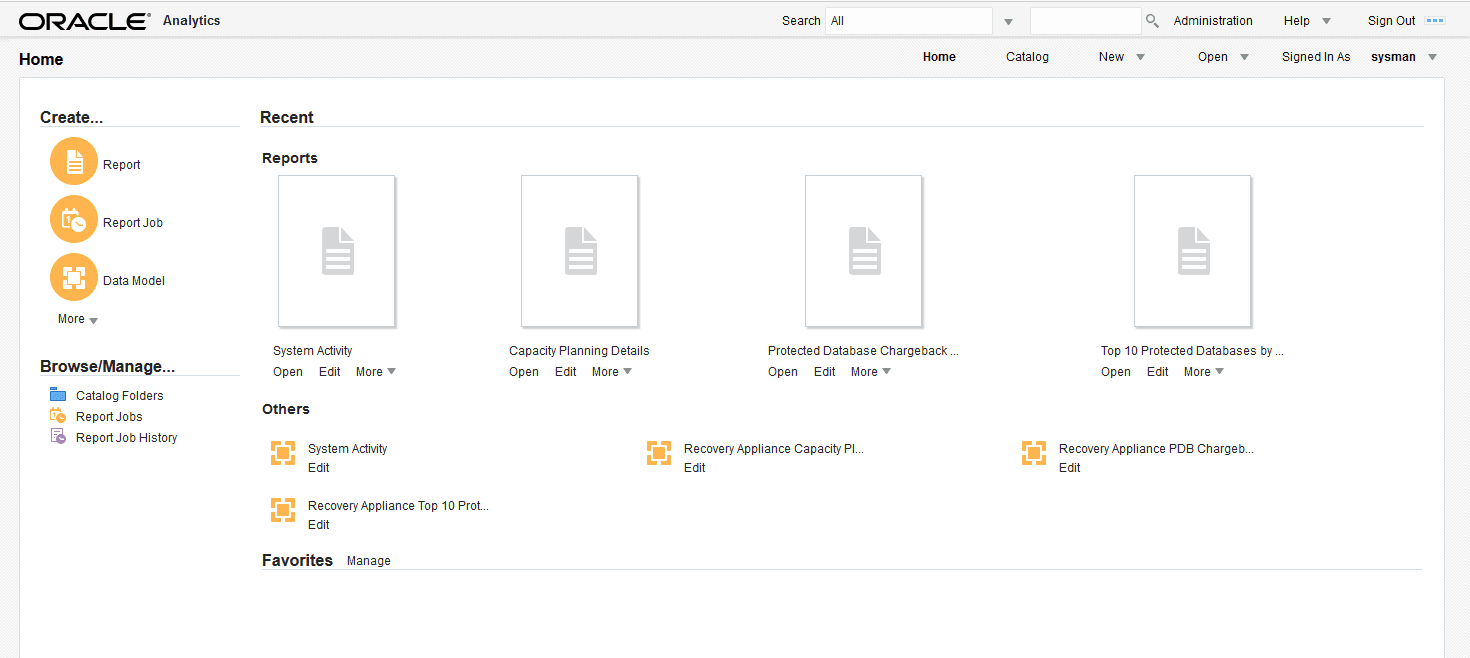
Figure 1: Oracle Analytics Publisher Home Screen
Purpose of Recovery Appliance Reports
A principal task for a Recovery Appliance administrator is storage capacity planning. Through Oracle Analytics Publisher (OAP), Recovery Appliance provides pre-created OAP reports that enable you to meet the following goals:
-
Ensure that the Recovery Appliance has sufficient storage space for its needs
By using the capacity reports, you can plan for additional storage, reduce the number of new protected databases added to the Recovery Appliance, or adjust protection policies so that the aggregate recovery window space decreases.
-
Ensure that the network is not overloaded
The capacity reports also indicate whether the Recovery Appliance has maximized network capacity. In some cases, you can reduce network load by redistributing network traffic more evenly throughout the day. If network traffic is not distributed, and if network peaks are close to maximizing network bandwidth, then you may need to adjust the backup window times of some protected databases.
-
Provide a good view of system performance and activity for service requests
-
Obtain a brief or highly detailed status report for any protected database, which can sometimes be useful for troubleshooting databases that are not meeting recovery window goals
Pre-Created Oracle Analytics Publisher Reports
Recovery Appliance provides the following pre-created Oracle Analytics Publisher (OAP) reports. Enterprise Manager 13.4 and earlier, these reports were available within Cloud Control as BI Publisher reports.
-
Capacity Planning Details: This report provides a finer granularity of information about capacity planning. It provides information on storage capacity, network throughput, CPU utilization for each protected database host, and disk and flash storage I/O throughput over time. Unlike the capacity planning summary, the detailed report also has memory and IOPS summary information, and detailed daily data. -
Capacity Planning Summary: This report provides an overview of storage utilization and aggregated network traffic for the Recovery Appliance so that you can forecast when it will run out of capacity. Of special usefulness is the summary table, which provides a quick view of the number of days until capacity is exceeded. The network capacity planning summary provides a view of the aggregated network traffic over various time periods. This view shows both average and maximum rates, which are based on network samples. -
Protected Database Chargeback Greatest: This report is used for chargeback of protected databases enrolled with the Reovery Appliance. With this model, the consumer pays for the entire recovery window space needed upfront. -
Protected Database Chargeback Least: This report is used for chargeback of protected databases enrolled with the Recovery Appliance. With this model, the consumer pays only for the utilized space. -
Protected Database Details: This report provides extensive information about a protected database including summaries of the following:-
The reserved space, which is the minimum amount of disk space in the Recovery Appliance reserved for the database to meet its disk recovery window goal
-
The status of real-time redo transport, which eliminates data loss
-
Data sent and received over time for backup, copy-to-tape, and Recovery Appliance replication operations, which gives a good overview of the traffic coming to and from the protected database to the Recovery Appliance
-
Recovery Window Summary: This report provides a list of protected databases that are not meeting their recovery window goal or are exceeding their exceeding their unprotected window threshold (seeunprotected_windowin “CREATE_PROTECTION_POLICY”). You can use this report as a quick view of recovery window and unprotected data window issues for a Recovery Appliance, and then follow up on individual protected databases using the Protected Database Details report. -
System Activity: This report is a diagnostic aid for problems with the Recovery Appliance system and provides an organized visual report of all activity on the system. This includes general state, storage usage, running tasks, incidents encountered, and API commands executed.There are seven (7) metrics which the system activity uses. These metrics are disabled out of the box.
The metrics can be enable inside of Enterprise Manager from the ZLDRA homepage.
-
Select the menu Recovery Appliance->Monitoring->Metric and Collection Settings
-
Click on the Other Collected Items tab.
-
Click on the Disabled link in the Collection Schedule for the Systems Activity: Active Session row.
-
Click the Enable button and then continue.
Note that Systems Activity: Active Session, Systems Activity: Protected Database Datafile Details and Systems Activity: Replication Servers are each enabled.
-
Click on the Disabled link in the Collection Schedule for the Systems Activity: API History row.
-
Click the Enable button and then continue.
Note that the rest of the Systems Activity metrics are now enabled.
-
-
Top 10 Protected Databases by Data Transfer: This report ranks the top 10 protected databases according to the amount of backup data transferred to or from the Recovery Appliance. The report aggregates data by hour or by day. Specifically, the report measures the following amounts:-
Backup data sent to the Recovery Appliance
-
Replication data sent by the Recovery Appliance
-
Copy-to-tape data sent by the Recovery Appliance
This report does not correlate directly to how much space is being used by backups of the ranked databases.
-
Note: Although performance data is accessible through SQL queries of V$ and recovery catalog views, Oracle highly recommends that you use the OAP reports instead. Recovery Appliance has finite CPU and other resources, so if users run frequent or expensive SQL queries, then overall Recovery Appliance performance can suffer.
See Also:
-
Summary of Recovery Appliance Views for a complete list of all the Recovery Appliance views
-
Oracle Enterprise Manager Licensing Information
Accessing the Recovery Appliance Reports Page in Cloud Control
This section explains how to access the Recovery Appliance Reports page, which links to all pre-created reports.
To access the OAP reports for the Recovery Appliance:
-
Start Oracle Analytics Publisher in your environment using specific version of the following generic URL.
http(s)://<host>:<port>/xmlpserver -
Select
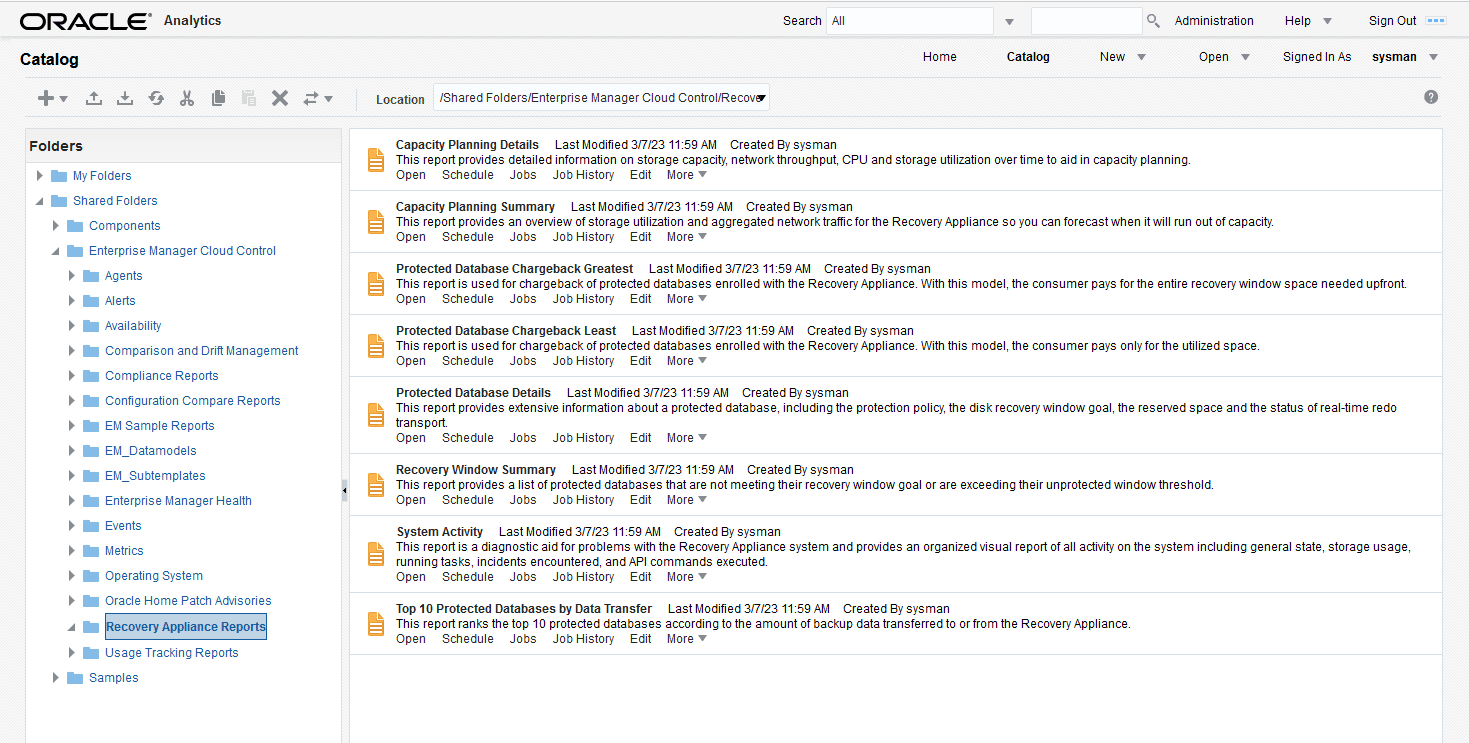
Catalogfrom the navigation items in the upper right of OAP. -
In the
Folderstree, navigate into the tree.Shared Folders -> Enterprise Manager Cloud Control -> Recovery Appliance ReportsFigure 2: Oracle Analytics Catalog
EM 13.4: To access the Recovery Appliance Reports page:
-
Access the Recovery Appliance Home page, as described in “Accessing the Recovery Appliance Home Page”.
-
From the Enterprise menu, select Reports, and then BI Publisher Enterprise Reports.
The BI Publisher Enterprise Reports page appears.
-
Expand the Enterprise Manager Cloud Control folder, and then expand the Recovery Appliance Reports subfolder.
Links to the pre-created reports are shown.
Oracle Analytics Publisher Report Scheduling
Recovery Appliance provides the following pre-created Oracle Analytics Publisher (OAP) reports, formerly BI Publisher:
Oracle recommends that you configure OAP to generate reports automatically on a regular schedule (for example, every week), and to send the reports by email to the backup management team. You can also generate reports as needed using the techniques described in this chapter.
To schedule a report for the Recovery Appliance in OLP:
-
In OLP catalog, navigate to where the Recovery Appliance reports are:
Shared Folders -> Enterprise Manager Cloud Control -> Recovery Appliance Reports. -
Of the reports listed, each has actions listed under their descriptions:
Open,Schedule,Jobs,Job History, and more. -
For a given report underneath its description, select the
Scheduleaction. -
The
Schedule Report Jobpage has several screens of information.-
General: This tab provides the path to the report and a drop down to select the Recovery Appliance that the report is run against. -
Output: This tab provides checkboxes forMake Output Public,Save Data for Republishing, andCompress output prior to delivery. TheOutputarea defines the name, format (HTML, PDF, Excel .xlsx), locale, time zone, etc. for a given output product. TheDestinationsarea defines where the reports are sent. -
Schedule: This tab provides controls for determining the job frequency, if it should be run now or at some future time. TheUse Triggerallows you to conditionally run an occurrence of the job. When the scheduled time occurs, the trigger is checked. If the trigger returns data, the job proceeds; if not data is returned, the job is skipped. Additional controls are can be established for the trigger, such as retry limit, pause time, etc. -
Notification: This tab shows the email or HTTP servers to receive the generated report. -
Diagnostic: This tab displays checkbox items several diagnostic tools:Enable SQL Explain Plan,Enable Data Engine Diagnostic,Enable Report Processor Diagnostic,Enable Consolidated Job Diagnostic
-
See Also: Configure the Scheduler to learn how to schedule reports with Oracle Analytics Publisher in Oracle Analytics Server.
Basic Tasks for Accessing Recovery Appliance Reports
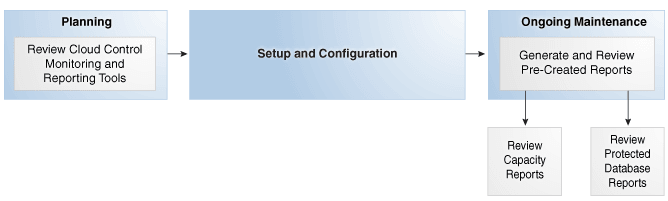
This section explains the basic tasks involved in managing reports. Figure 3 shows the overall workflow described in Recovery Appliance Workflow, with the reporting tasks highlighted.
Figure 3: Reporting Tasks in the Recovery Appliance Workflow
Description of the illustration amagd_vm_049.png
Typically, you perform reporting tasks in the following sequence:
-
During the planning phase, familiarize yourself with the monitoring and reporting tools available through Cloud Control.
“Planning for Recovery Appliance” describes these tasks.
-
During the ongoing maintenance phase (see “Maintenance Tasks for Recovery Appliance”), review the reports as needed. Typical tasks include:
-
Review the Storage Capacity Planning Summary every week, using the Capacity Planning Details to get more detailed information.
-
Review the protected database reports as needed:
-