Set up Credentials for Federated Cubes
Before you can use federated partitions, you need to set up cloud credentials. To do this, you must integrate Essbase with OCI object storage, and configure DBMS_CLOUD credentials using the configure-dbms-writeback script.
This script creates the required Oracle Cloud credentials for the Autonomous AI Database schema that Essbase uses for your federated cube. The stored cloud credential is used by DBMS_CLOUD procedures to access OCI for the purpose of loading data.
Integrate Essbase with OCI Object Storage
To push data and metadata from a federated cube to your fact table in Autonomous AI Lakehouse, Essbase uses the DBMS_CLOUD package.
In order to access the DBMS_CLOUD package, you must have selected to integrate Essbase with OCI Object Storage when you deployed the Oracle Essbase stack from Oracle Cloud Marketplace.
For full details, see Deploy Essbase from Marketplace for Federated Cubes.
User Types in Credentials Workflow
Users with following types of access are or may be involved in the required workflow for setting up a federated cube. In your organization, these roles may be separate (so that the setup is a collaborative workflow), or the roles may combined (one person has all the required access).
| User Type | Role within Workflow |
|---|---|
| SSH User |
Can use the operating system command line to access, as opc user, the Essbase instance deployed on Oracle Cloud Infrastructure. (May be the same person who deployed Essbase as a stack on OCI). |
| DB User |
Knows the Autonomous AI Lakehouse schema name and password -- the same schema and password that is used to create the Essbase connection to Oracle Database (a required prerequisite before creating the federated partition). |
| OCI User |
Can access the OCI Console, including the object storage bucket for the Essbase catalog. |
| DB Admin |
Knows the Oracle Database administrator schema name and password. |
| Essbase Admin |
The Essbase system administrator. Can be the initial Essbase administrator created by the identity domain administrator (who may also be the OCI User), or it can be another Essbase system administrator created after completion of Essbase deployment. |
| Essbase Application Manager |
The manager/owner of an Essbase application, created after completion of Essbase deployment. |
Credentials Workflow
The following workflow of steps must be completed per each database schema that you are using for a federated cube.
-
OCI User: Follow instructions in Deploy Essbase from Marketplace for Federated Cubes to deploy Essbase to the OCI tenancy with the appropriate selections for federated cubes.
-
DB User, Essbase Admin, or Essbase Application Manager: Log in to Essbase web interface, and create a connection to Autonomous AI Lakehouse, as described in Create a Connection for Federated Cubes.
-
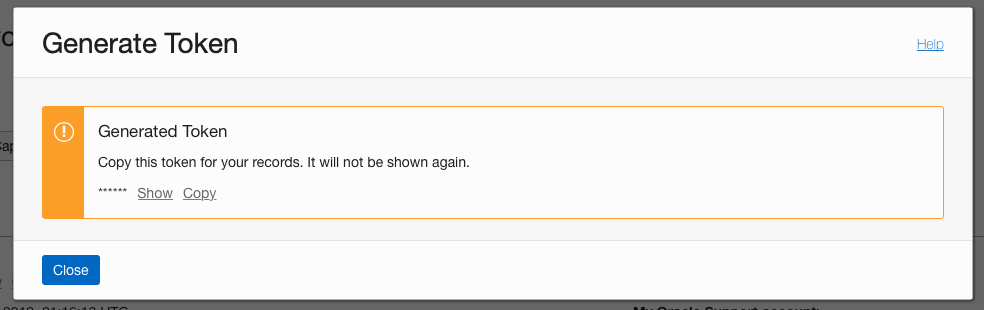
OCI User: From your user profile in OCI Console, generate and copy an authentication token. Provide this, and your user name, to the SSH User.
-
DB User, Essbase Admin, or Essbase Application Manager: Create the federated partition, as described in Create a Federated Partition.
-
SSH User: Run the
./configure-dbms-writeback.shscript, available on the Essbase instance on OCI. You only need to run the script once per database schema in Autonomous AI Lakehouse.Example:
-
Switch to the oracle user.
sudo su oracle -
Navigate to the script location.
cd /u01/vmtools/config/adwwb_dbms -
Run the script.
./configure-dbms-writeback.shNote:
To see script options, run the script with the-hor--helpargument. Syntax:./configure-dbms-writeback.sh [--help | -h]Note:
Optionally run the script with the vault option. This option sets the script to take the DB admin credentials stored in the vault, accessed using the OCID, instead of prompting you for the password. Syntax:./configure-dbms-writeback.sh [--vault | -V] -
When prompted, enter the required information:
- DB Admin password, if you did not run the script with vault option. Because the password is protected information, you will not see the text as you type at the command prompt.
- DB User username and password. Because the password is protected information, you will not see the text as you type at the command prompt.
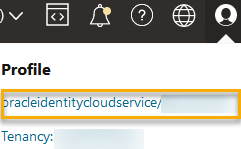
- OCI User username and auth token. Enter the full user identification string. To find this string, in the OCI Console, click the profile icon in the top-right corner to display an overview of the user profile. Copy the complete string displayed beneath Profile and above Tenancy.
The script creates the necessary cloud credential and stores it in the database schema. There is no need to rerun the script when you restart OCI, Essbase, or Essbase applications.
-
Note:
To SSH User– If the OCI user's auth token used in the data load preparation script no longer has access to the object storage bucket for the Essbase catalog, you will need to find another OCI user meeting the requirements listed in User Types in Data Load Preparation Workflow, and repeat the steps in the workflow.