Create a Connection for Federated Cubes
Define a connection between Essbase and Autonomous AI Lakehouse Serverless, to work with federated cubes.
Federated partitions are supported only for Essbase deployment on Oracle Cloud Infrastructure.
Before you start defining the required connection, review the Federated Cube Deployment Workflow to ensure you have completed all required preliminary tasks.
Considerations for Implementing Federated Cube Connections
Review how you created the necessary schema(s) for federated cubes. If you have one Autonomous AI Lakehouse schema designated for multiple federated cubes, it makes sense to create one global connection that all the applications can share. If you have one or more schemas but only one Essbase application per schema, an application-level connection to each schema is a good approach.
- To create a global connection, you need to have the service administrator role.
- To create an application level connection, you need to have user role, and at least application manager permission on the application.
To create the required connection for federated cubes,
-
In the Essbase web interface, click Sources, then Connections.
To define the connection and Datasource at application level instead of globally, start on the Applications page instead of the Sources page. Click an application name, and then click Sources.
-
Click Create Connection, and for the connection type, select Oracle Database.
-
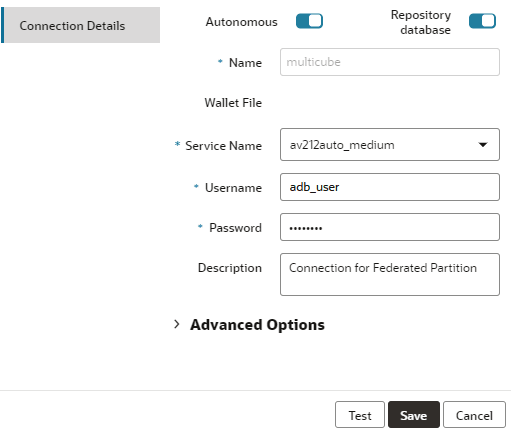
Enable the Autonomous switch.
-
Enter a connection name.
If you are recreating an Autonomous AI Lakehouse connection after migrating the application using the Lcmimport CLI command (or an Import LCM job), it is recommended to use a new connection name, to avoid encountering errors.
-
Select a service name.
Use connection type Medium when you need your application to run many Essbase calculations. Use connection type Low if your application is used mostly for queries. Consider using Medium connection type if your queries involve large calculations and you don't have a large number of concurrent users.
-
Enable the Repository Database switch. This is required for federated cube connections.
You do not need to upload a wallet, because Essbase will use the wallet associated with the repository database.
-
Enter your Autonomous AI Lakehouse username, password, and optionally, a description.
-
Click Test to validate the connection, and if successful, click Create.
If you get connection errors, you may need to expand Advanced Options to adjust the minimum and maximum connection pool sizes.
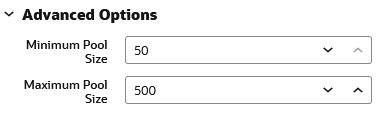
Refer to About Controlling the Pool Size in UCP in Universal Connection Pool Developer's Guide.
-
Verify that the connection was created successfully and appears in the list of connections.
-
In the Essbase web interface, on the Sources page, click Connections.
To define the connection and Datasource at application level, instead of globally, start on the Applications page instead of the Sources page. From the Actions menu to the right of an application name, launch the inspector and click Sources.
-
Click Create Connection and select Oracle Database.
-
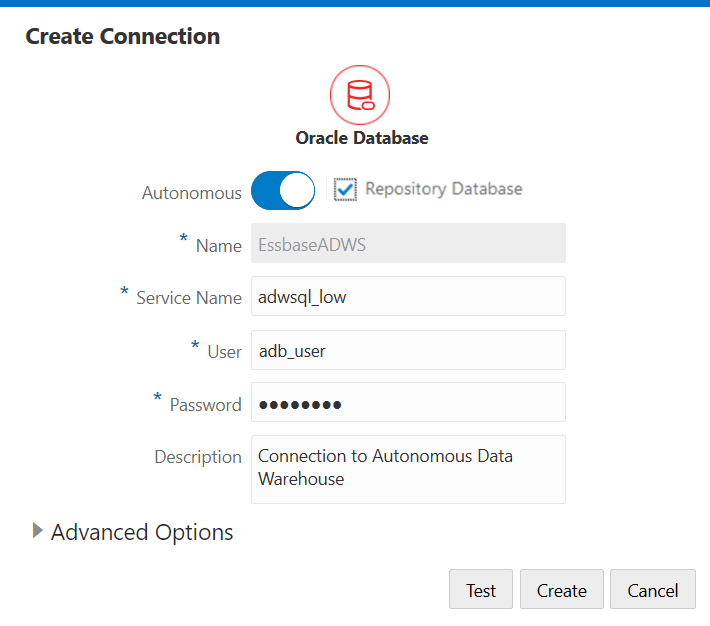
Select Autonomous using the toggle switch.
-
Enter a connection name.
If you are recreating an Autonomous AI Lakehouse connection after migrating the application using the lcmimport CLI command (or an Import LCM job), it is recommended to use a new connection name to avoid encountering errors.
-
Select a service name.
-
Select the Repository Database option. This option is required to be selected for federated partition connections.

You do not need to upload a wallet, because Essbase will use the wallet associated with the repository database.
-
Enter your Autonomous AI Lakehouse username, password, and optionally, a description.
-
Click Test to validate the connection, and if successful, click Create.
If you get connection errors, you may need to expand Advanced Options to adjust the minimum and maximum connection pool sizes.
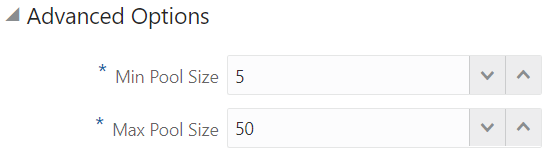
Refer to About Controlling the Pool Size in UCP in Universal Connection Pool Developer's Guide.
-
Verify that the connection was created successfully and appears in the list of connections.
Note:
Before you create the federated partition, one or more individuals must configure DBMS_CLOUD credentials. Refer to Set up Credentials for Federated Cubes for more information.