3 Downloading and Installing Oracle Key Vault
You must download the Oracle Key Vault application software, and then you can install or upgrade Oracle Key Vault.
- Downloading the Oracle Key Vault Software for Fresh Installation
To install Oracle Key Vault, download the Oracle Key Vault appliance software from Oracle Software Delivery Cloud. - Downloading the Oracle Key Vault Software for Upgrade
Perform the following steps to upgrade Oracle Key Vault. - Installing the Oracle Key Vault Appliance Software
The Oracle Key Vault installation process installs all the required software components onto a dedicated server or virtual machine. - Performing Post-Installation Tasks
After you install Oracle Key Vault, you must complete a set of post-installation tasks.
3.1 Downloading the Oracle Key Vault Software for Fresh Installation
To install Oracle Key Vault, download the Oracle Key Vault appliance software from Oracle Software Delivery Cloud.
Parent topic: Downloading and Installing Oracle Key Vault
3.2 Downloading the Oracle Key Vault Software for Upgrade
Perform the following steps to upgrade Oracle Key Vault.
Parent topic: Downloading and Installing Oracle Key Vault
3.3 Installing the Oracle Key Vault Appliance Software
The Oracle Key Vault installation process installs all the required software components onto a dedicated server or virtual machine.
If you are installing Oracle Key Vault on VMware, then set the VMX configuration parameter disk.EnableUUID to TRUE. In addition, you must set your virtual machine to use EFI boot. In some versions of VMware this is done by selecting the VM Options tab, then expanding Boot Options, and then setting the firmware to EFI. You must disable secure boot. Without this setting, the Oracle Key Vault installation on VMware will fail.
Caution:
The Oracle Key Vault installation wipes the server, repartitions the disk, and installs a hardened Oracle Linux 8. The installation erases existing software and data on the server.
Ensure that you meet the following prerequisites.
-
Ensure that the server meets the recommended requirements.
-
Request a fixed IP address, network mask, and gateway address from your network administrator. You will need this information to configure the network.
To install the Oracle Key Vault appliance:
- Make the
.isoimage available to the computer where you want to install it, and then restart the computer.The
.isoimage can be made available in any of these ways:- Burned onto a bootable DVD
- Copied onto a bootable USB stick
- Mounted with your site's virtualization software
You may need to change the boot order of your server to boot from the USB-stick or the DVD. The initialization screen appears, showing the following options:
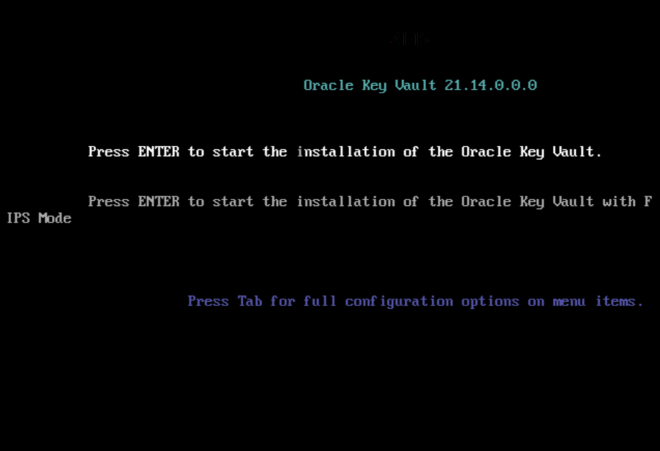
Description of the illustration 2114_initial_install_screen.png - Using the up and down arrow keys, select the desired installation option or the option to perform a memory test, and then press Enter.
Choosing the first option, Press Enter to start the installation of Oracle Key Vault, does not enable FIPS mode on the system.
Choosing the second option, Press Enter to install the Oracle Key Vault with FIPS mode enabled, automatically enables FIPS mode on the system.
The installation begins, and after several minutes, you will be asked to set the
rootuser password (with a second time to confirm it). It is important to store therootuser password securely. You will need it later to authenticate yourself at the Oracle Key Vault management console and complete the post-installation tasks.
Description of the illustration 21_set_root_user_password.png - After you set the
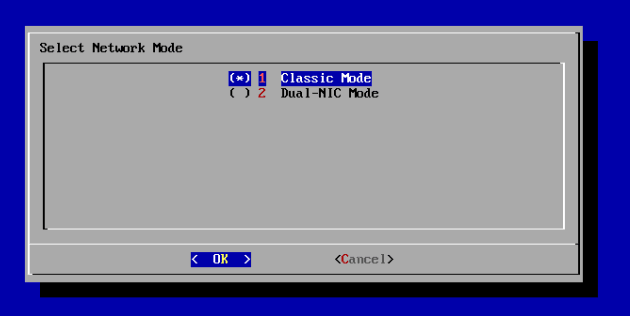
rootuser password, when prompted, log in as therootto observe the installation status. At the following prompt, enterroot, press Enter, enter therootuser password, and then press Enter again. - When prompted, re-insert the ISO disk. After you re-insert the ISO disk, the Select Network Mode window appears after a couple of minutes.

- Requirements for root and support User Passwords
Ensure that you meet these requirements forrootandsupportuser passwords.
Related Topics
Parent topic: Downloading and Installing Oracle Key Vault
3.3.1 Requirements for root and support User Passwords
Ensure that you meet these requirements for root and
support user passwords.
- The password must have at least 15 characters.
- The password must contain at least one uppercase letter, one lowercase letter, one digit, and one special character.
- The same character cannot repeat consecutively more than 3 times in the password.
- Characters from the same class cannot repeat consecutively more than 4 times in the password. For example, more than 4 lowercase letters in a row.
- The new password must have at least 8 characters that are different from the old password.
Parent topic: Installing the Oracle Key Vault Appliance Software
3.4 Performing Post-Installation Tasks
After you install Oracle Key Vault, you must complete a set of post-installation tasks.
These tasks include configuring the administrative user accounts and their one-time passwords, the recovery passphrase, as well as DNS and NTP settings.
- In the
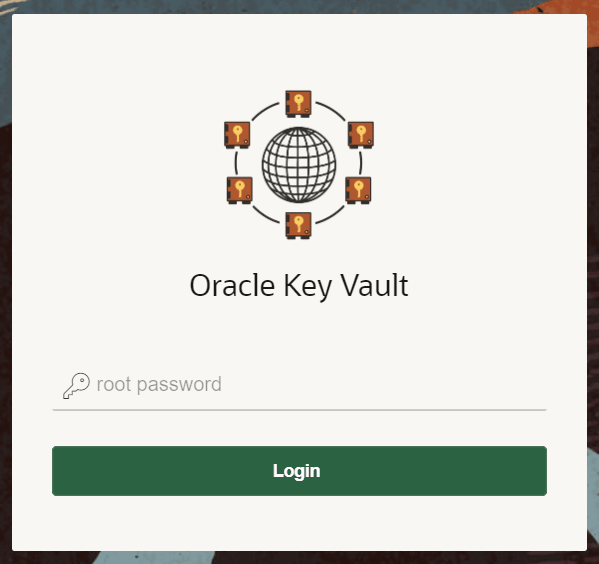
rootpassword screen, enter therootpassword.The
rootpassword screen is displayed when you connect to the Oracle Key Vault server for the first time, in order to complete the post-installation tasks. After you complete the post-installation tasks, the Oracle Key Vault login screen is displayed when you access the Oracle Key Vault management console through the web browser.After you log in with the
rootuser password, the Post-Install Configuration screen is displayed. - In the User Setup pane, create three administrative user accounts for the Key Administrator, System Administrator, and Audit Manager.
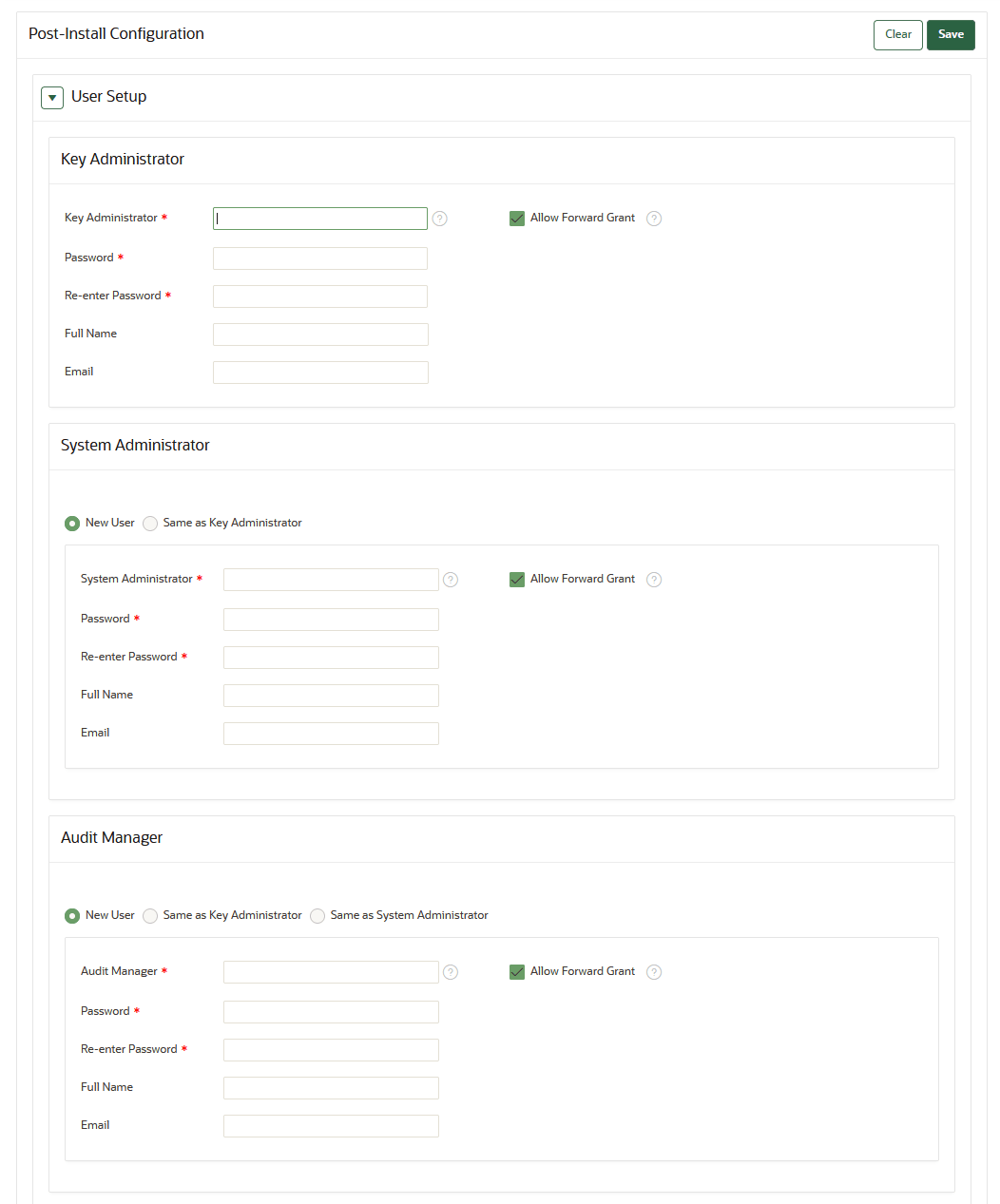
Description of the illustration 214_user_setup.png-
Enter the user name and password, the full name (optional), and email (optional) for each administrative user account.
Note that the passwords are one-time use passwords which must be changed when the user logs in the first time.
-
Ideally, create a different user account for each of these administrative roles for a strict separation of duties, or combine roles as necessary.
-
Ensure that passwords are between 8 and 30 characters in length and contain at least one of each of the following: an uppercase letter, a lowercase letter, a number, and a special character from the set: period (
.), comma (,), underscore (_), plus sign (+), colon (:), exclamation mark (!). In addition, the passphrase may include a space character ( -
If you want the user to be able to grant their role to other users, then select the Allow Forward Grant check box.
-
- In the Recovery Passphrase section, create the recovery password.
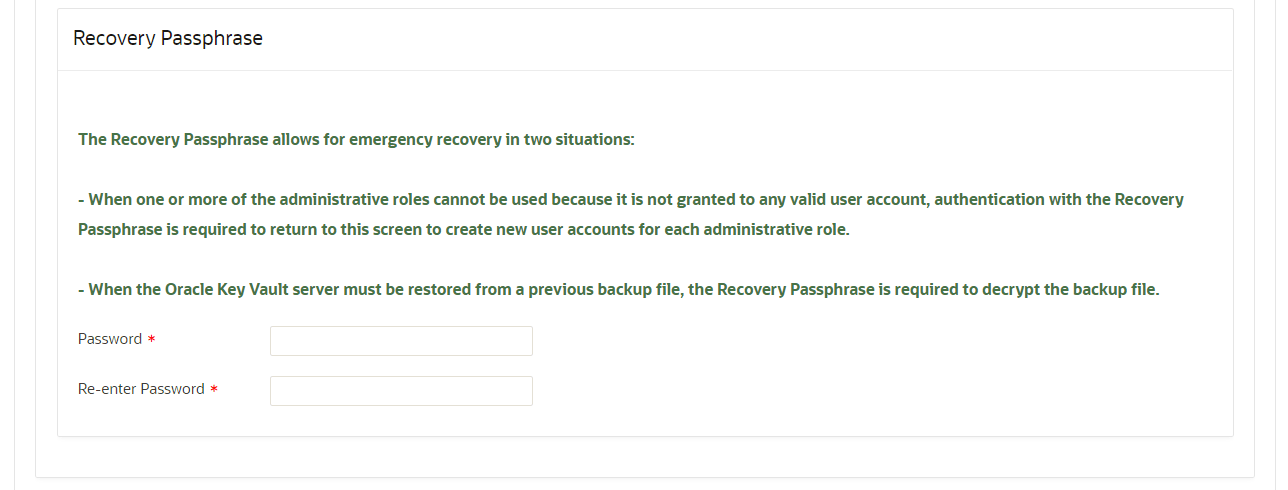
Description of the illustration 21_recovery_password.pngThe recovery passphrase must be between 8 and 30 characters in length and may only contain uppercase letters, lowercase letters, numbers, and special characters from the set: period (
.), comma (,), underscore (_), plus sign (+), colon (:), exclamation mark (!). Recovery passphrase must contain at least one of each of the following: an uppercase letter, a lowercase letter, a number, and a special character from the allowed set of special characters.For greater security, Oracle recommends that you make the recovery passphrase longer and more complex. Because this is a critical password, you must properly secure and safeguard the recovery password. The recovery password is required in the following scenarios:
-
In an emergency, when there are no administrative users available to access Oracle Key Vault
-
To restore Oracle Key Vault data from a backup
-
To reset the recovery password
-
Induct a new node into a multi-master cluster
-
To configure a hardware security module (HSM)
Caution:
It is important to establish a secure process for the storage and retrieval of the recovery passphrase, including older recovery passphrases. The only way to recover from a lost recovery passphrase is to re-install Key Vault. Note also that therootandsupportuser passwords expire after 365 days. If you log in to the Oracle Key Vault management console within 120 days before the expiration, you will see an alert that the password expires in remaining_number_of_days days. If you log in after the expiration date, then you can use the old password only to log in and change the password to a new one. -
- Click Save in the upper right corner of the Post-Install Configuration screen.
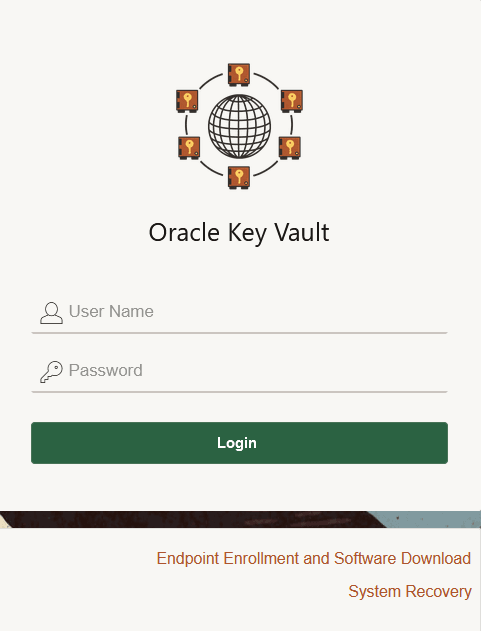
The Oracle Key Vault management console login screen is displayed:
Related Topics
Parent topic: Downloading and Installing Oracle Key Vault