Configure Observability
Use observability to debug prompts, inspect tool calls, profile latency, trace multi-step flow output, and review agent-to-agent calls. Traces also help you attribute token usage and cost to a complete or partial agent run.
Observability lets administrators send Agent Factory execution traces to a tracing provider. A trace records one end-to-end run. A span records a timed operation inside the run, such as a flow step, an LLM call, or a tool execution.
Configure a tracing provider to export traces and spans from Agent Factory flows, agents, LLM calls, and tool executions for debugging and performance analysis.
Note: Agent Factory release 26.4 supports Arize Phoenix and Comet Opik as tracing providers.
Prerequisites
Before you configure observability in Agent Factory, complete these prerequisites.
- You must be signed in to Agent Factory as an administrator.
- An Arize Phoenix or Comet Opik server must be running and reachable from the Agent Factory deployment.
-
You must know the provider’s traces endpoint. The endpoint typically uses the following format:
Arize Phoenix:
http://<phoenix-host>:6006/v1/tracesComet Opik:
https://www.comet.com/opik/api/v1/private/otel/v1/traces - If the provider requires authentication, you must have the API key.
Configure a Tracing Tool
After the tracing provider’s server is running, add the tracing tool configuration in Agent Factory.
Note: At any point in time, you can have only one tracing tool configuration. The Add tracing tool button is disabled when a tracing configuration already exists. To add a different provider, delete the existing configuration, and then add the new provider configuration.
-
Sign in to Agent Factory as an administrator.
-
In the left navigation menu, select Application settings.
-
Select the Observability tab.
-
Click Add tracing tool.
-
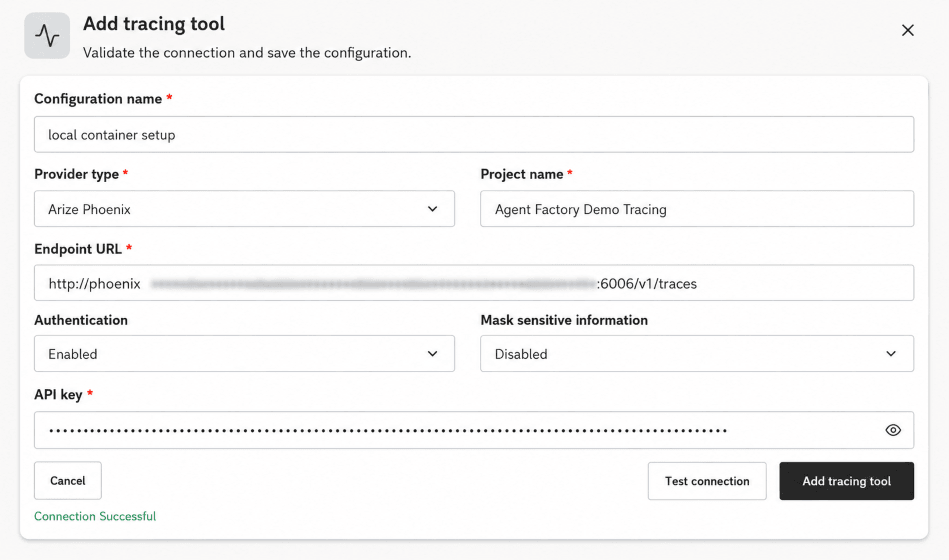
In Configuration name, enter a name that identifies this configuration.
This name identifies the saved tracing configuration in Agent Factory. Use a short name that helps administrators recognize the target environment, such as
local container setuporproduction phoenix. -
For Tracing provider, select Arize Phoenix or Comet Opik.
This field specifies the tracing backend.
-
In Project name, enter the project name where Agent Factory traces are stored.
The project name groups traces in the tracing provider. Use a project name that helps operators find traces for the deployment, environment, or team. For example, use
Agent Factory Demo Tracingfor a demonstration environment. -
In Endpoint URL, enter the provider’s HTTP traces endpoint. This can be a local deployment or a cloud server where you have set up the provider.
The endpoint URL specifies where Agent Factory exports traces. Include the
/v1/tracespath.http://<phoenix-host>:6006/v1/traceshttps://www.comet.com/opik/api/v1/private/otel/v1/tracesNote: Do not use
localhostin the URL unless the tracing provider and Agent Factory resolvelocalhostto the same runtime environment. Use a host name or IP address that Agent Factory can reach. If the host is outside the network, make sure to enable the Allow User Supplied Proxy and disable the Block Private Outbound Urls in Proxy Settings. See Configure Proxy. -
If the tracing provider requires authentication, enable authentication and enter the API key. If the tracing provider doesn’t require authentication, leave authentication disabled.
Authentication controls whether Agent Factory sends an API key when it exports traces. The API key provides the token used to authenticate to the tracing provider. To configure an API key, in Phoenix, select Settings in the left sidebar, then select System Keys. In the Create an API Key dialog, click Create Key. When the confirmation dialog appears, copy the new API key and paste it in the API key field.
-
If you want Agent Factory to redact sensitive trace payloads, enable Mask sensitive information.
This field redacts sensitive values before trace data is exported.
Note:
Enable masking when prompts, model responses, system messages, tool arguments, or tool results can contain sensitive data. When masking is enabled, Agent Factory redacts LLM inputs and outputs, tool inputs and outputs, and OpenInference attributes such as
input.value,output.value,llm.prompts,llm.completions, andtool.parameters.Agent Factory keeps non-sensitive operational metadata visible so traces remain useful. For example, traces can still include token counts, model identifiers, latency, trace IDs, span IDs, and session IDs.
-
Click Test connection.
Agent Factory validates network reachability, the endpoint path, and authentication.
-
Review the connection test result.
If the connection test fails, use the returned message to correct the configuration.
Connection Failed: 401 Unauthorized. Please check your API key.: Check whether authentication is enabled and whether the API key is correct.Connection Refused: Please ensure the tracing server is running and accessible at the specified endpoint.: Confirm that the tracing server is running and that Agent Factory can reach the endpoint URL.- Network or endpoint errors: Check the host name, port,
/v1/tracespath, firewall rules, and container networking.
-
If the connection test succeeds, click Add Tracing Tool.
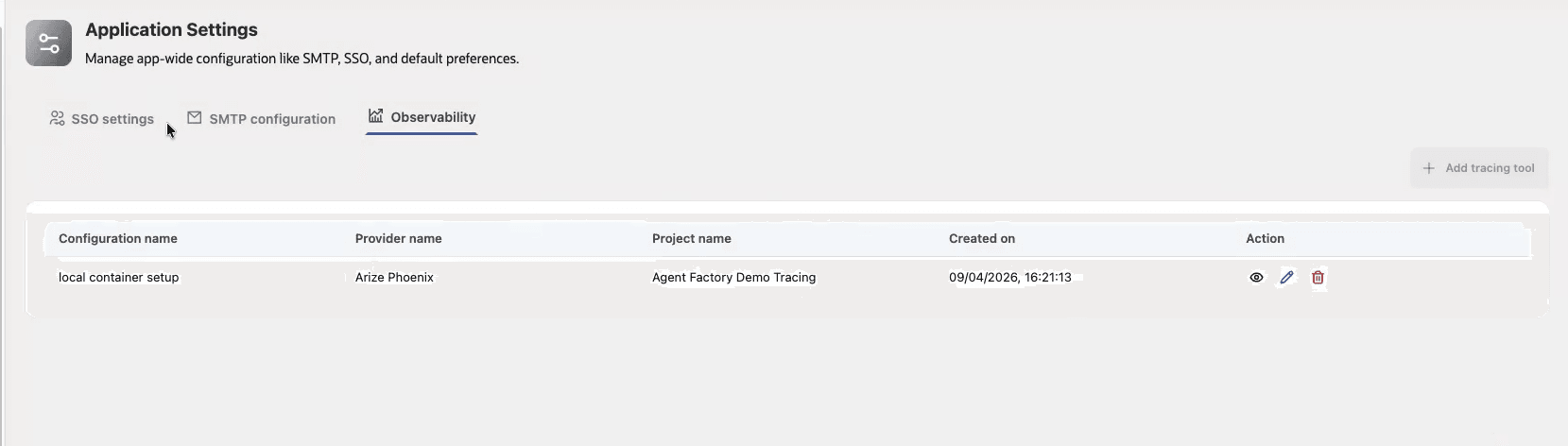
After the configuration is saved, Agent Factory shows it in the Observability table with the configuration name, provider name, project name, creation date, and actions to view, edit, or delete the configuration.
View Captured Traces
After you save an observability configuration, Agent Factory starts exporting traces for subsequent flow and agent executions.
-
Open or create a flow in Agent builder.
-
Run the flow and send a message in the chat.
-
In the tracing server, open the project that you configured in Agent Factory.
-
Select the trace for the flow run.
-
The trace tree shows the overall flow run, each flow step, tool executions, and LLM calls. Use the trace tree to inspect the execution order, latency, span attributes, and status for each flow step.
The following examples show how traces are captured for common Agent Factory runs in Arize Phoenix.
- Single flow run: When a user runs a custom flow, Phoenix shows one trace for that run. The trace contains spans for the root operation, flow execution, each step invocation, tools, and LLM generation.
- Multi-agent flow: When a flow routes work to multiple agents, Phoenix groups the related agent and sub-agent spans under the same trace. Use this view to see which agent received the request, which sub-agent ran, and which step produced the final response.
- Tool inspection: When an agent calls a tool, Phoenix shows a tool execution span. Use the span attributes and timing to check whether the agent called the expected tool and whether the tool returned successfully.
- Latency analysis: Use span durations to find slow LLM calls, long-running tools, or flow steps that add most of the run time.
- Prompt debugging: If sensitive data masking is disabled, use the LLM spans to inspect prompts and completions. If masking is enabled, Phoenix shows the operational metadata but redacts sensitive values.