Deep Data Research Agent
Create a file-backed research agent that searches prepared enterprise documents and returns cited answers in chat.
What Is a Deep Data Research Agent?
A Deep Data Research Agent is a pre-built agent that uses file data sources to prepare a searchable knowledge base for research-style questions. The agent processes selected files, configures retrieval tools, and uses an LLM to answer questions with source citations.
Use a Deep Data Research Agent when you need to research enterprise documents such as reports, technical papers, policies, product material, or other uploaded files.
Deep Data Research Agents support the following capabilities:
- File-backed research over ingested file data sources
- Configurable knowledge base preparation
- LLM and embedding model selection
- Chat-based answers that cite retrieved source documents
Before You Begin
Before you create a Deep Data Research Agent, complete these tasks:
- Configure the LLM and embedding models that the agent will use. See Configure LLM.
- Identify the files that the agent must use for research.
- Confirm that the files do not include information that users of the agent must not access.
Create a Deep Data Research Agent
-
Create a file data source.
Use the file data source flow to upload the files that the agent must research. Wait until the data source status is
uploaded. See File Source.Deep Data Research Agents use file data sources only. If you already have a ready file data source, then skip to the next step.
-
Select Deep Data Research Agent from the left navigation menu and select Create Agent.
-
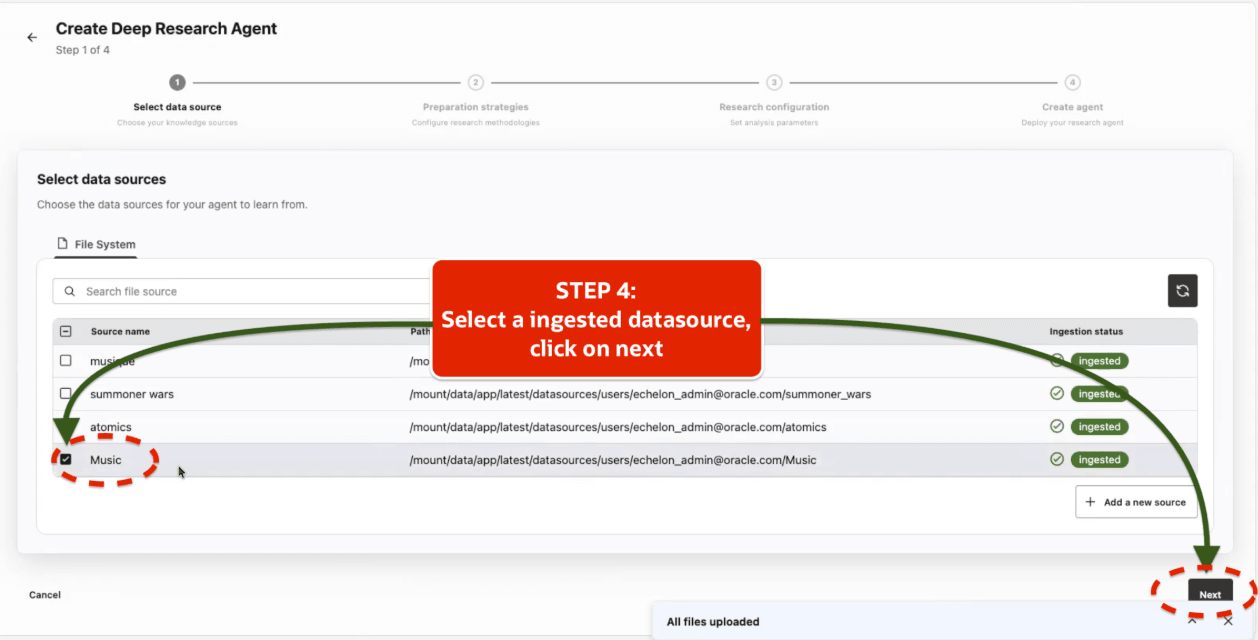
On the source selection page, select one or more ingested file data sources and click Next.
Select only ready file data sources that contain the documents users need to query. If the file data source that you need is not listed for selection, then verify that it is a file data source and that ingestion has completed.
-
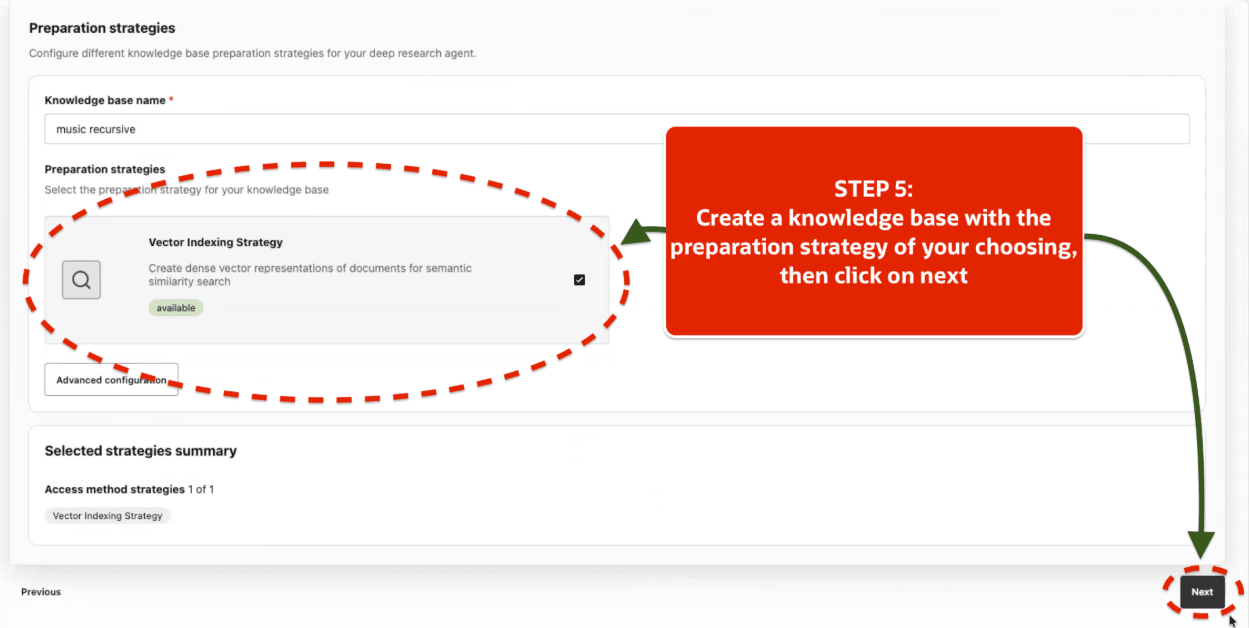
In the Preparation strategies step, enter a knowledge base name.
The knowledge base name identifies the prepared collection used by the agent. Use a clear name that identifies the document collection, project, or research domain. For example, enter
Finance research KBfor a knowledge base that contains finance reports.Select a preparation strategy.
The preparation strategy is the processing plan for converting, preparing, and indexing selected files. It controls how the selected files are converted, chunked, embedded, indexed, and made available for retrieval. Keep the default strategy unless your environment requires a specialized strategy or your administrator recommends a different strategy.
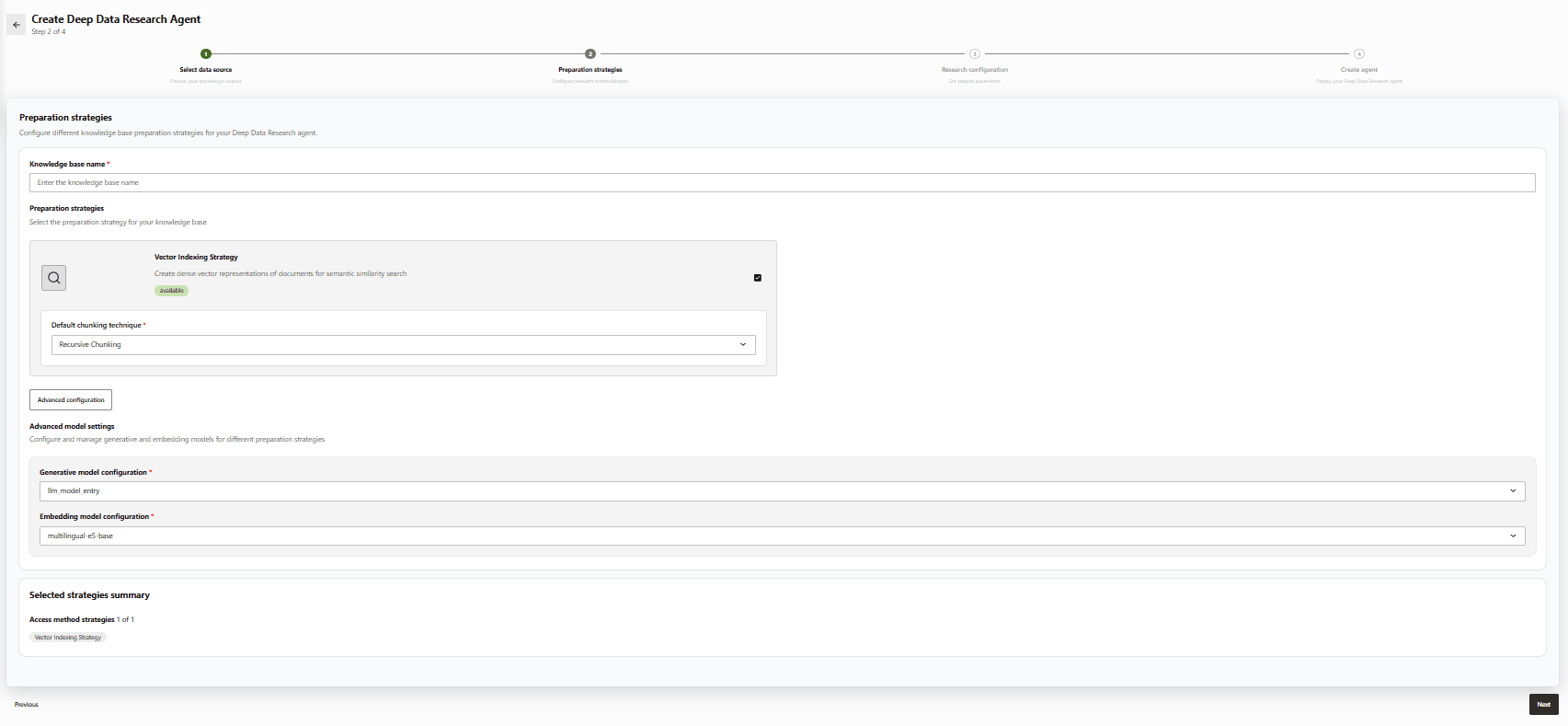
Click Advanced Configuration to review the technique choices in the selected strategy. Keep the default techniques unless you understand the retrieval impact of changing them.
Choose the chunking technique and select the generative and embedding model of your choice. Select model connections that are available in your environment. The LLM model generates responses, and the embedding model creates vector representations for retrieval. Use an approved LLM model connection for the agent’s audience and data sensitivity, and use the embedding model recommended for your environment.
-
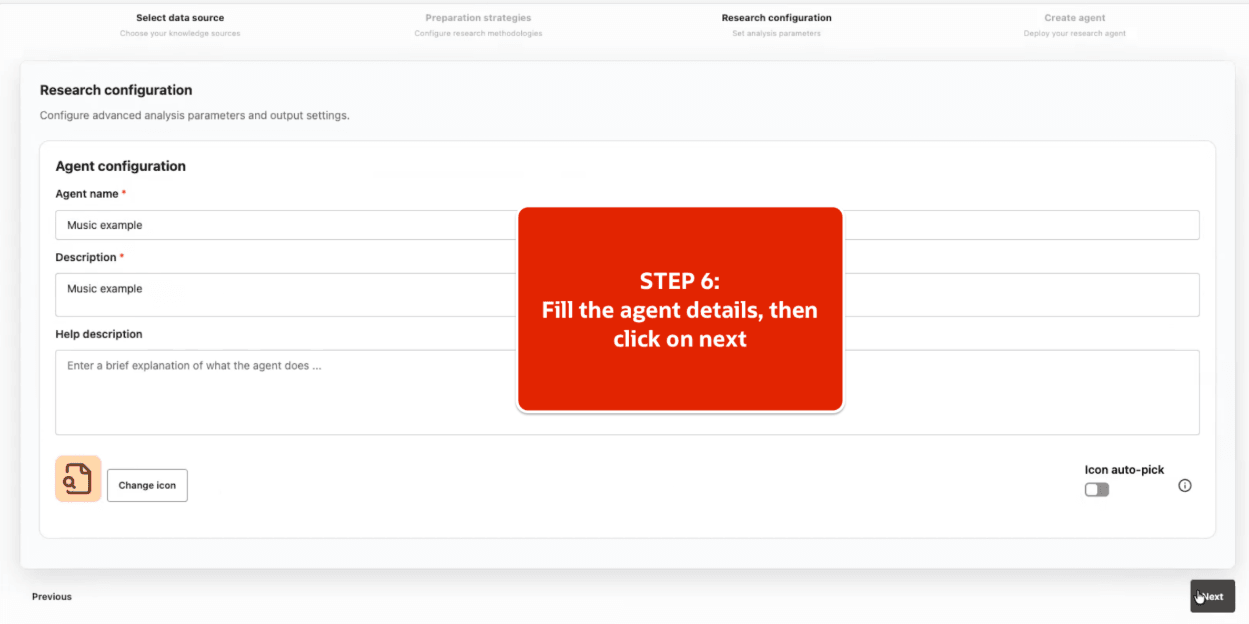
In the Research Configuration step, enter the agent details.
Provide an agent name, description, and help text. These values define the user-facing identity and purpose of the agent. Make the description specific enough to help users understand when to use the agent. Using the icon picker you can select an icon of your choice for the agent. Alternatively, enable icon auto-pick for automatic icon selection.
-
In the Create Agent step, review the configuration and publish the agent.
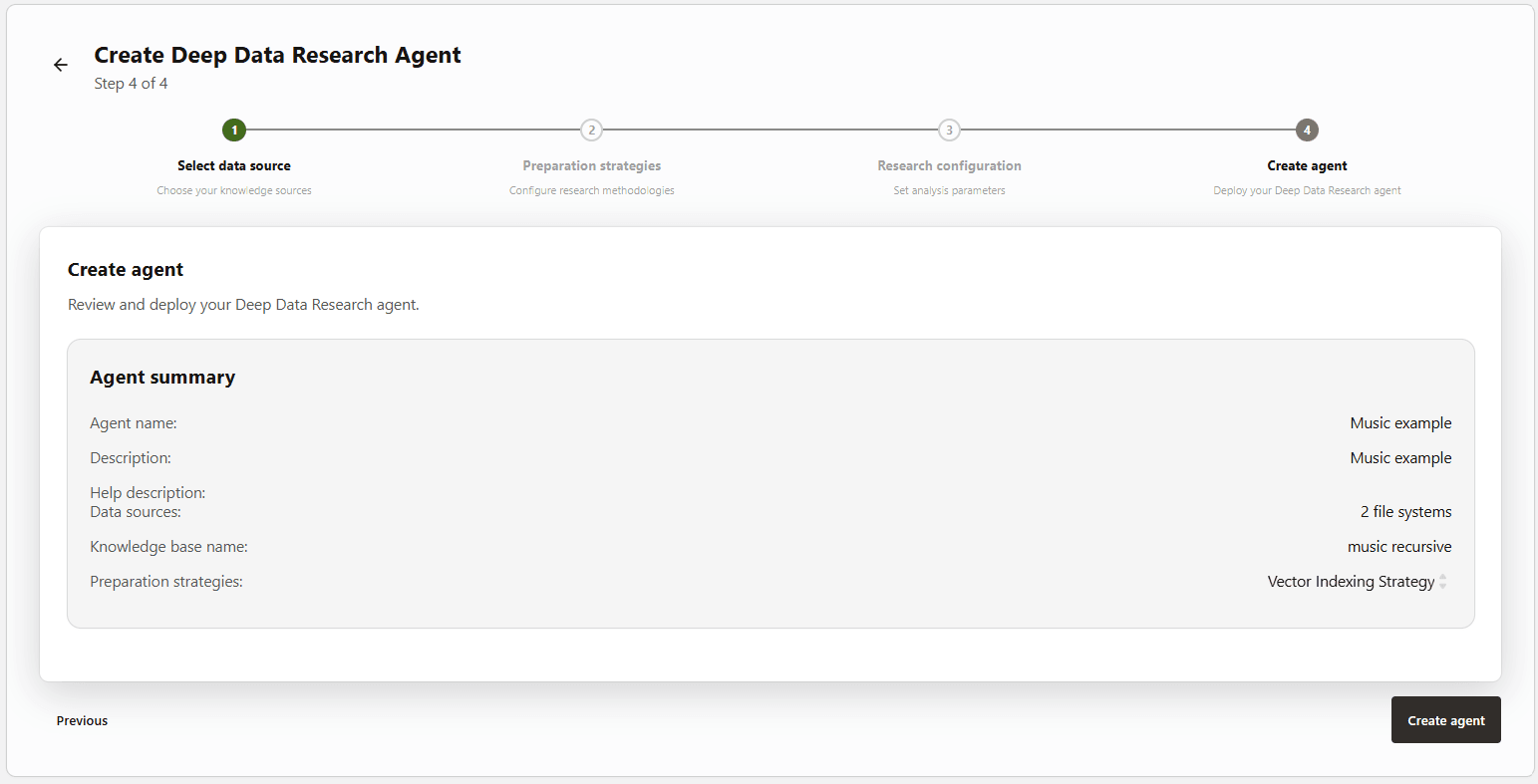
After you publish, Agent Factory creates the agent, knowledge base, retrieval tools, and assistant configuration. The agent is created immediately, but it is not available for chat until background preparation completes.
-
Monitor the agent status until the agent is available.
The agent list shows the current preparation stage, stage status, progress, and availability. Wait until the agent is ready before you start a chat.
Note: If the agent is not available after publishing, then wait for background preparation to finish. Data source ingestion and agent preparation run asynchronously. A data source or agent can take time to become available after you create it. If the status changes to an error, then review the data source status and application logs. See Data Sources Troubleshooting and Collect Diagnostics for troubleshooting and support information.
-
After the agent is ready, open the published agent and start a conversation.
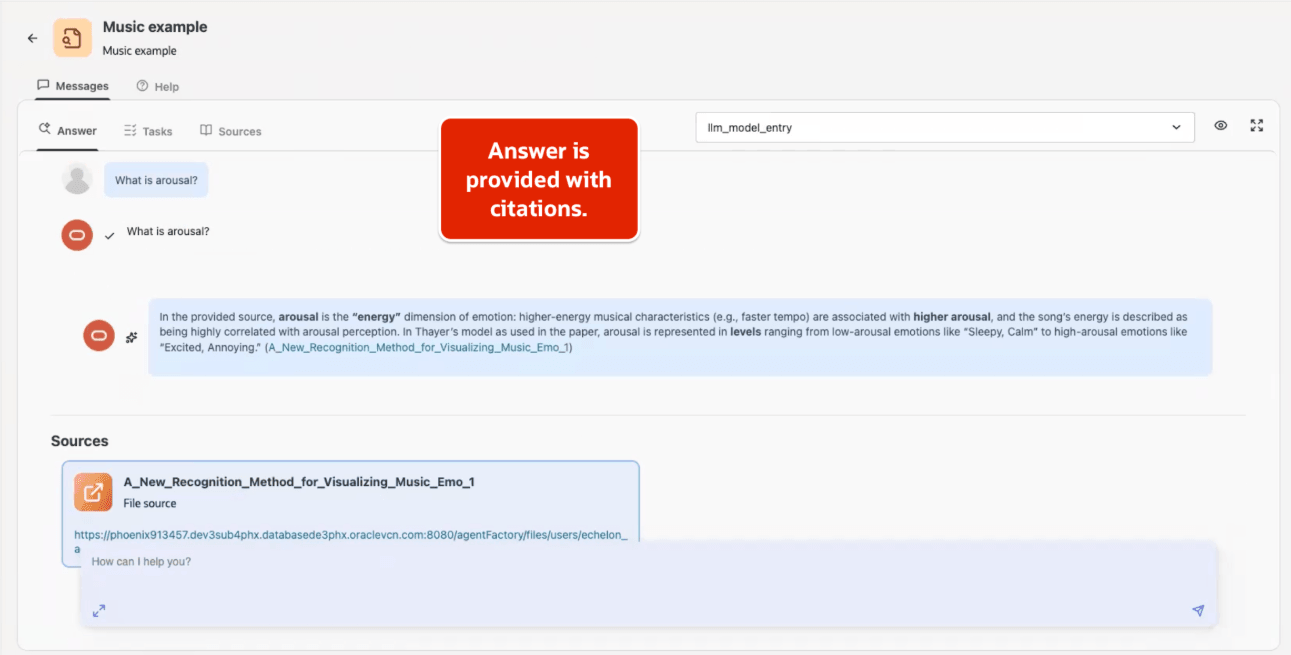
Ask questions about the selected documents. The agent searches the prepared knowledge base and returns answers with citations to the source documents.
If answers do not include the expected information, then confirm that the selected files contain relevant content and that the agent was created with the right file data sources.
Troubleshoot Deep Data Research Agents
| Symptom | Check |
|---|---|
| File source is not listed | Confirm it is a file data source and ingestion has completed. |
| Agent remains unavailable after publish | Wait for background preparation, then check preparation stage status and diagnostics logs. |
| Answers lack citations | Confirm the selected files were indexed and contain extractable text. |
| Preparation fails | Verify embedding model configuration, file support, available storage, and application logs. |
Collect diagnostics after reproducing preparation or chat failures. See Collect Diagnostics.