AI Enrichment
Use AI Enrichment to add database annotations that help Agent Factory understand schemas, tables, and related database objects.
AI Enrichment stores descriptive, business-centric metadata as annotations on supported database objects. You can use annotations to describe schemas, group related tables, and document tables and columns.
Use annotations to make database objects easier to understand and prepare them for AI-assisted workflows.
Supported Annotation Targets
You can add annotations to the following database object types:
- Schema
- Table group
- Table and table column
- View and view column
- Package, package procedure, and package function
- Function
- Procedure
- Materialized view and materialized view column
Note: Automatic annotation generation is not available currently. Add annotations manually from the object pages.
Prerequisites
- Add the target database as a data source. See Add Database Data Source.
- Confirm that the database user for the data source owns the objects that you want to annotate.
- Confirm that the database user can install the AI Enrichment packages in the target schema.
Install AI Enrichment Packages
Install the AI Enrichment packages in the target schema before you add annotations.
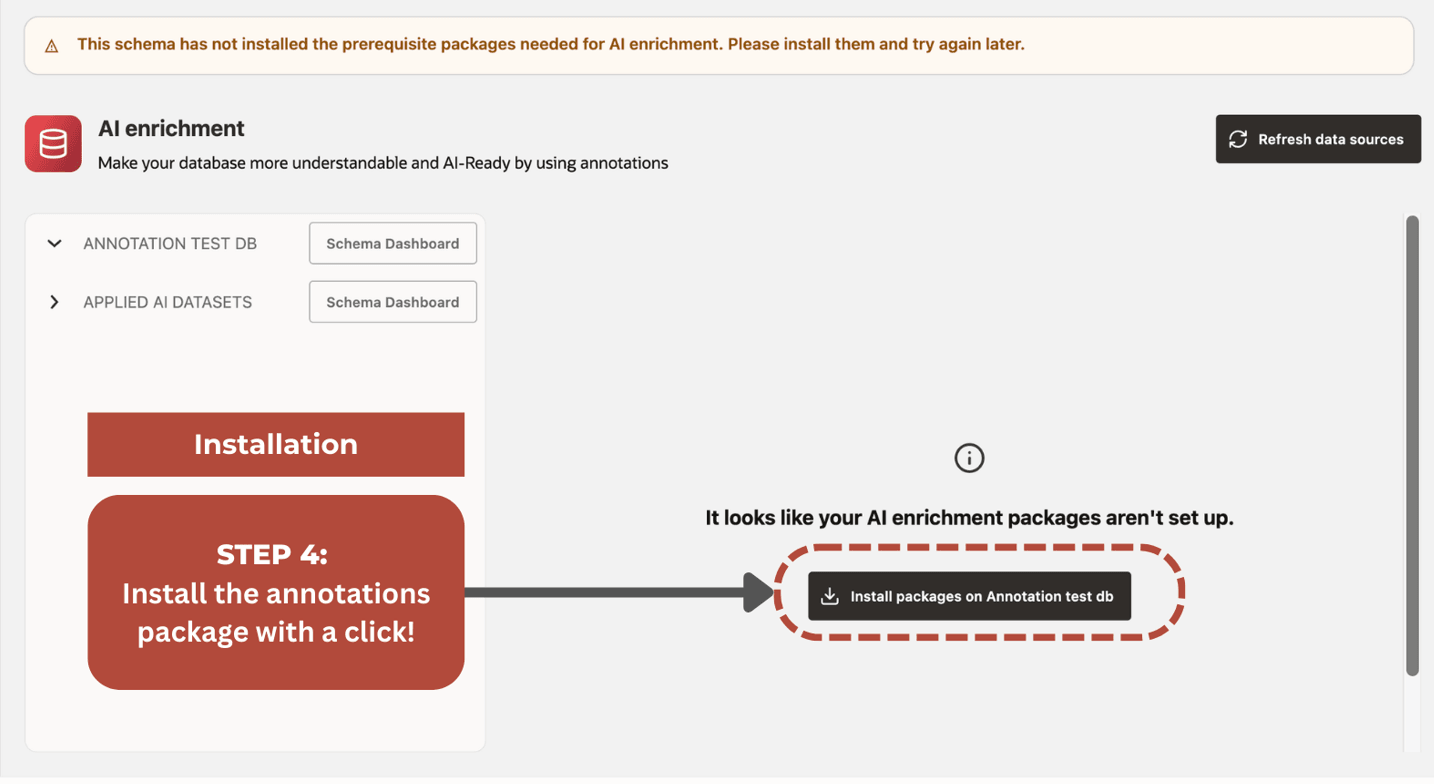
If the selected schema does not have the required AI Enrichment packages, then Agent Factory displays a warning message at the top and prompts you to install them. Select Install packages on schema_name to begin the installation.
Review the installation status in the package installation dialog. Once completed, you can add annotations.
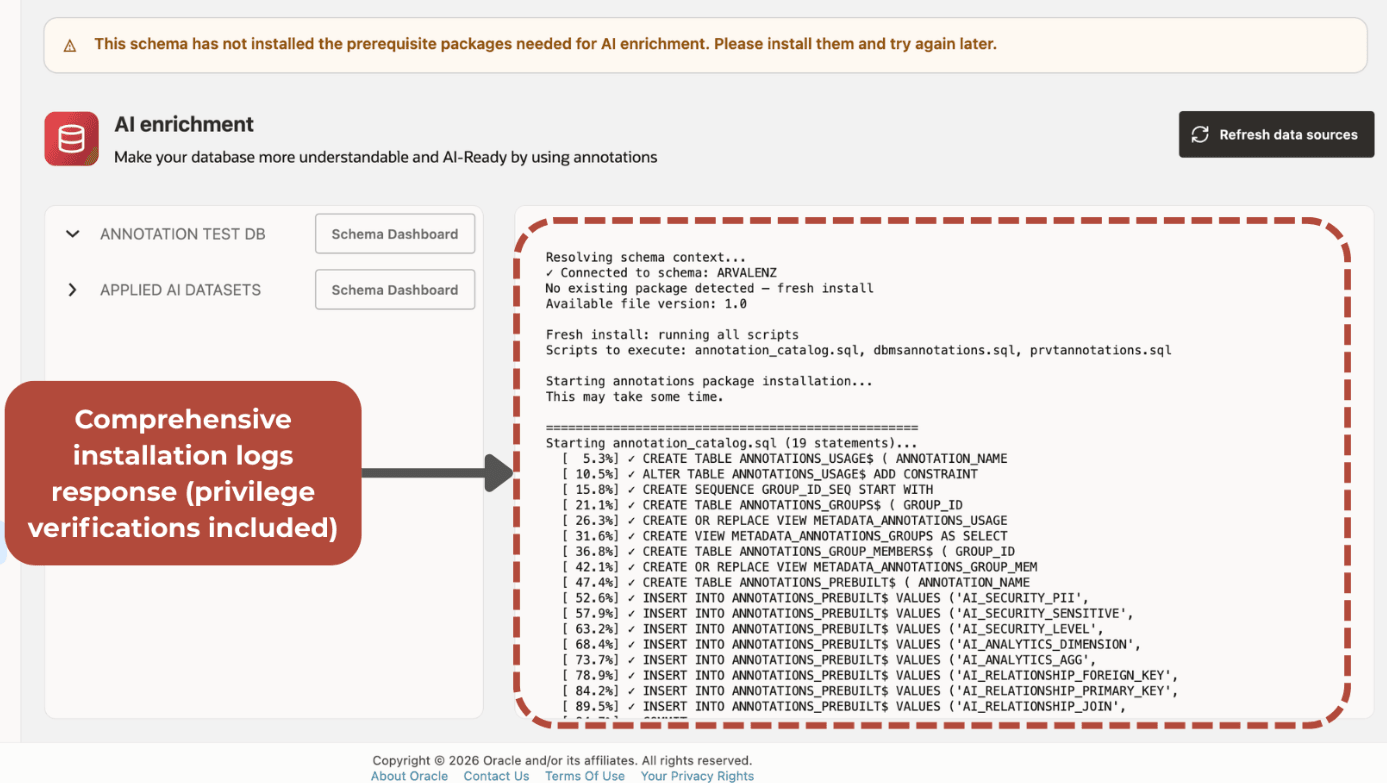
Note: To install AI Enrichment packages in a target schema, the database credential used by Agent Factory must have CREATE SESSION, CREATE TABLE, CREATE VIEW, CREATE SEQUENCE, and CREATE PROCEDURE. The credential must also have sufficient tablespace quota or UNLIMITED TABLESPACE. The intended same-schema deployment model does not require ANY system privileges.
Add Annotations
-
In the left navigation menu, select AI enrichment.
-
Select Refresh data sources if the database source was added recently.
-
Expand a database source to view the schemas and supported database objects.
-
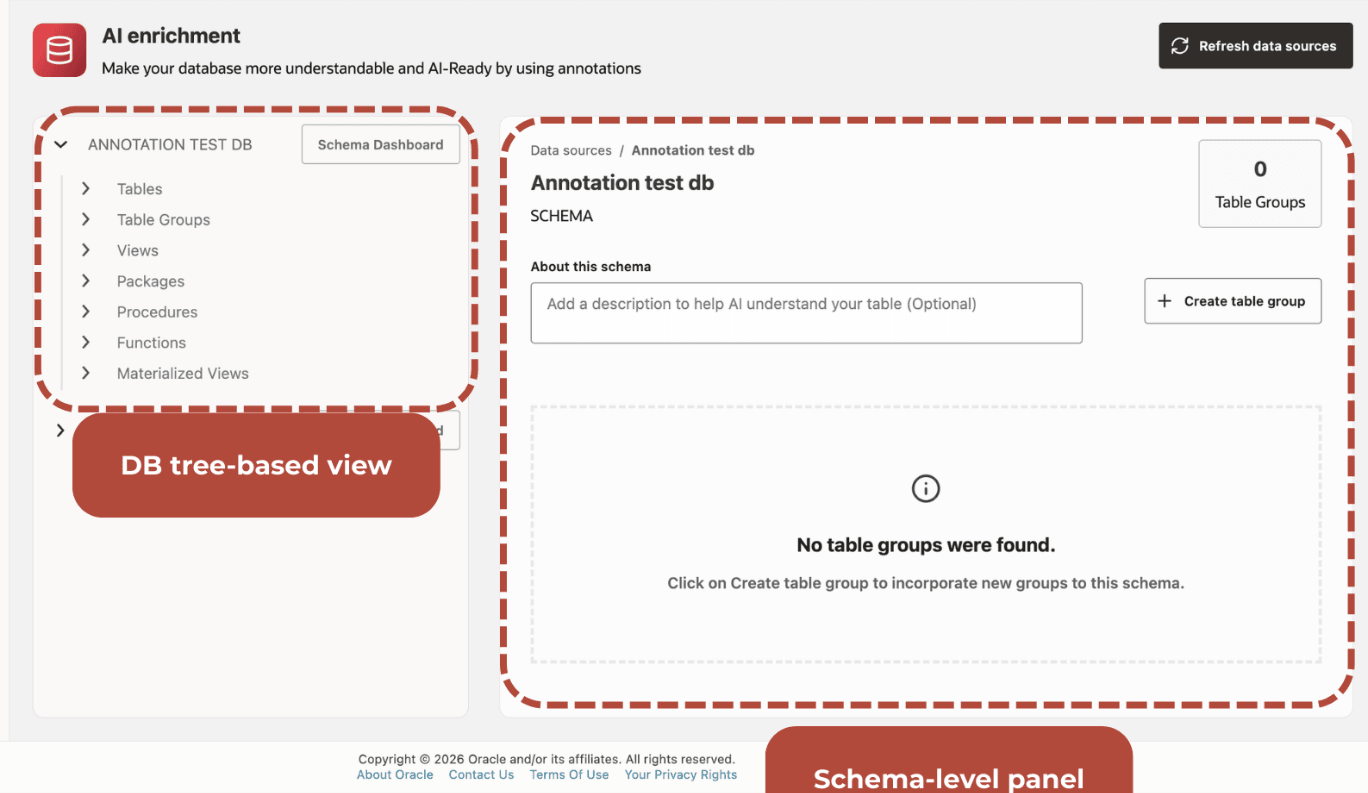
Select Schema Dashboard.
The schema dashboard displays the schema description, table groups, and actions for creating table groups. Use this dashboard to review annotation coverage across tables and columns and identify objects that still need enrichment.
-
Create a table group and add annotations.
-
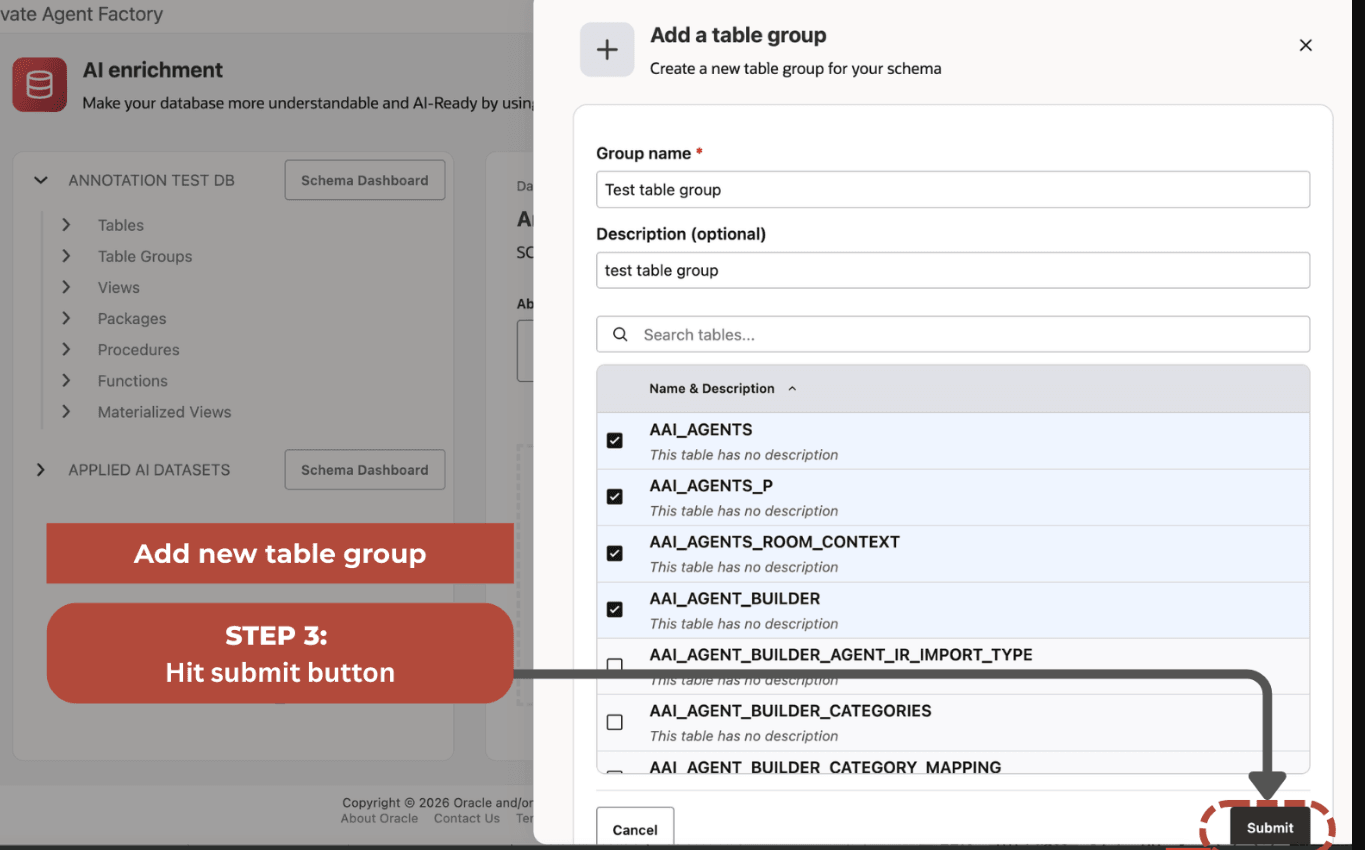
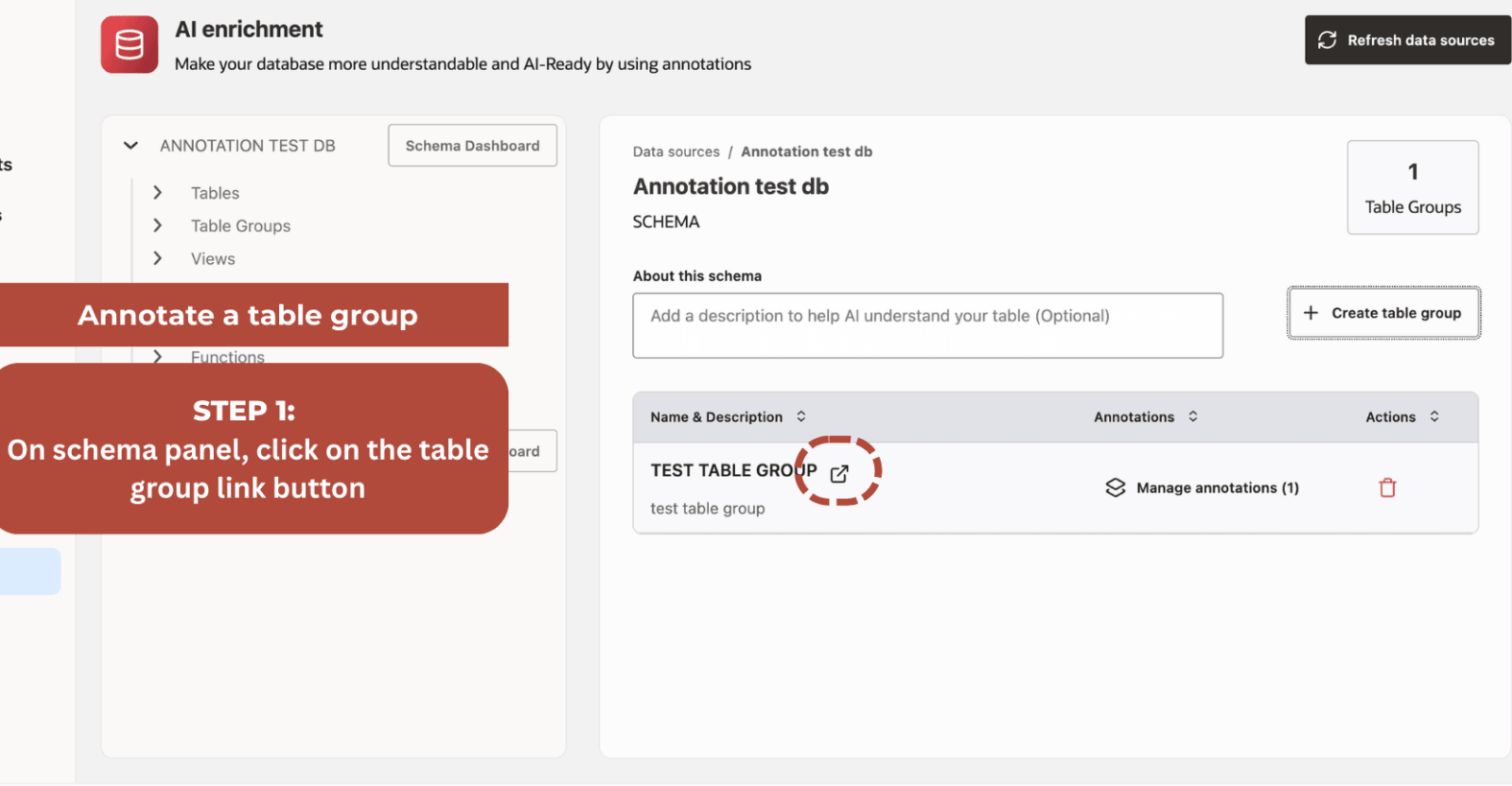
To create a table group, select Create table group. Table groups collect related tables so that you can annotate them as a logical unit. Enter a group name, select the tables that you want to group, and click Submit.
-
After you create a table group, open it to edit its name, manage its tables, and manage table group annotations.
-
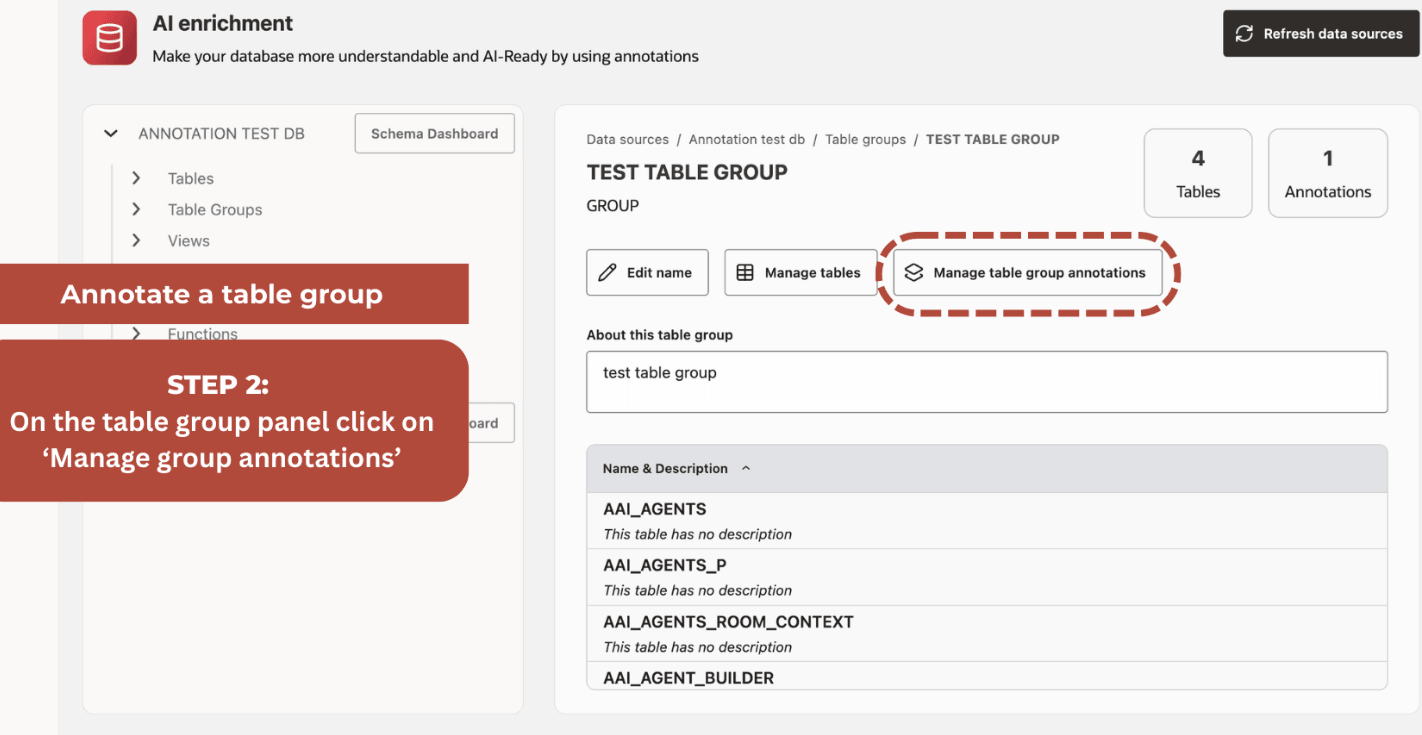
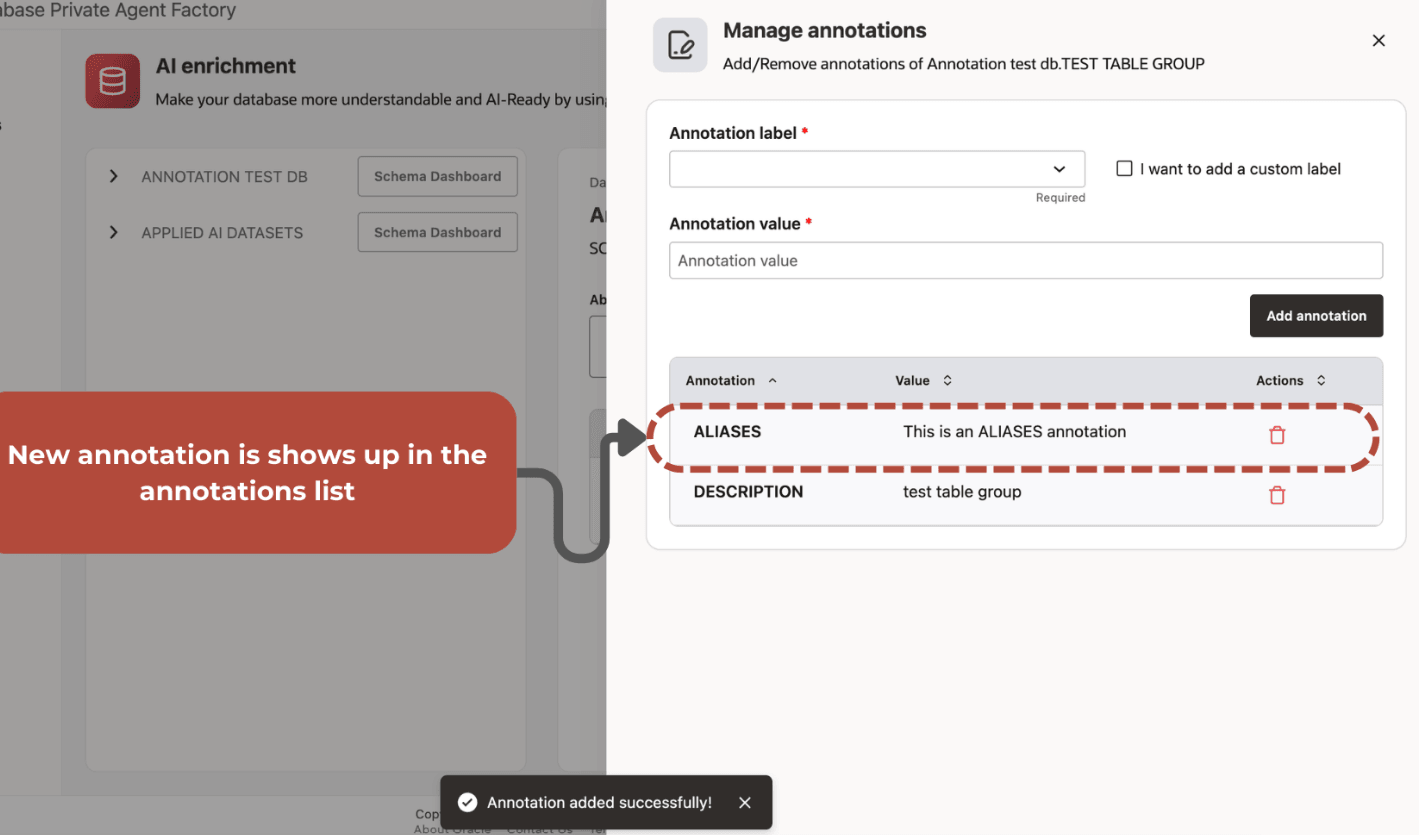
Select Manage table group annotations to annotate a table group.
-
Use annotation labels and values to document the selected object. In Annotation label, select a preset label. Preset labels include
ALIASES,DESCRIPTION,JOIN COLUMN,UNITS, andVALUES. To add your own label, select I want to add a custom label, and then enter the label.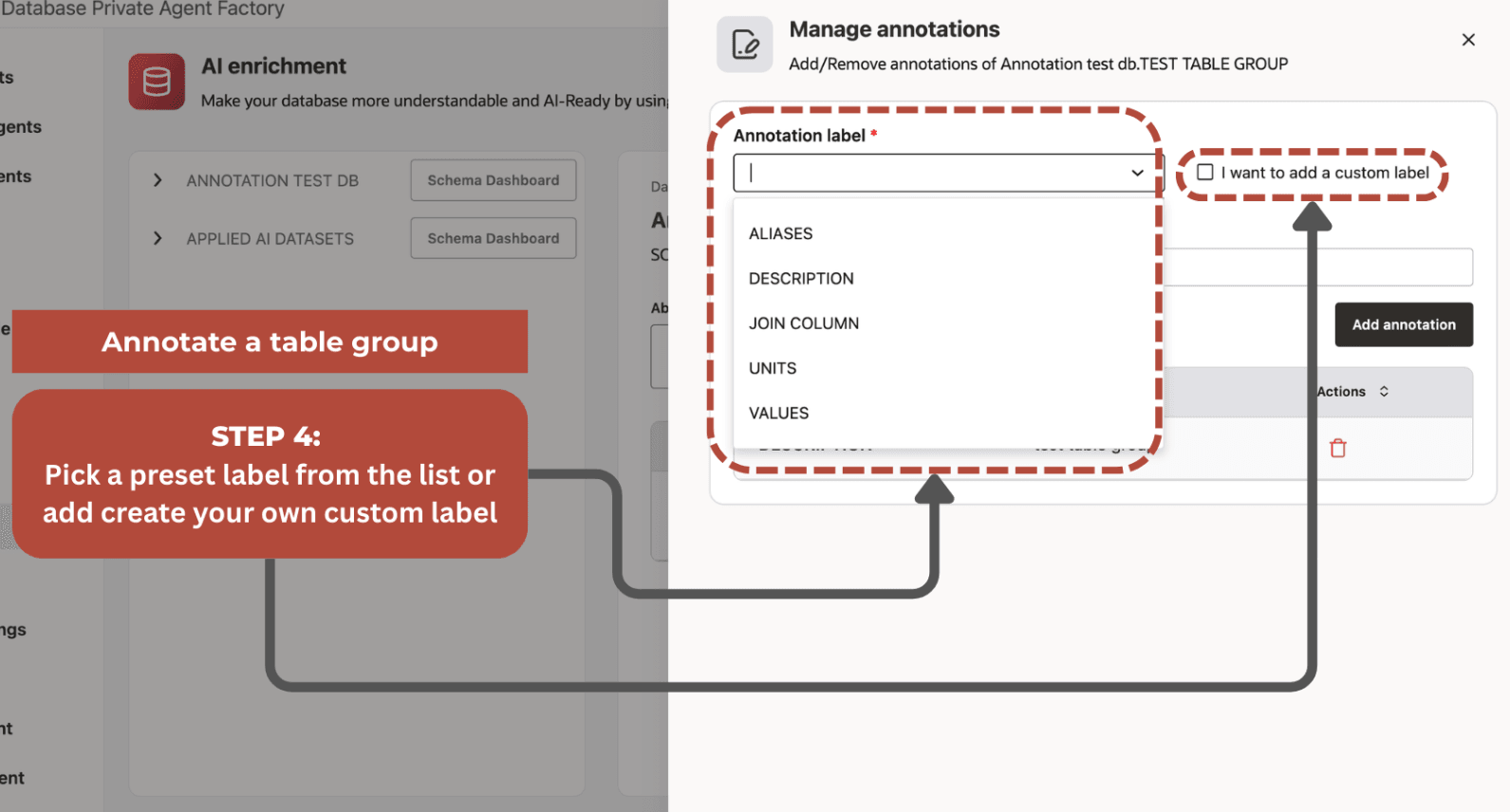
-
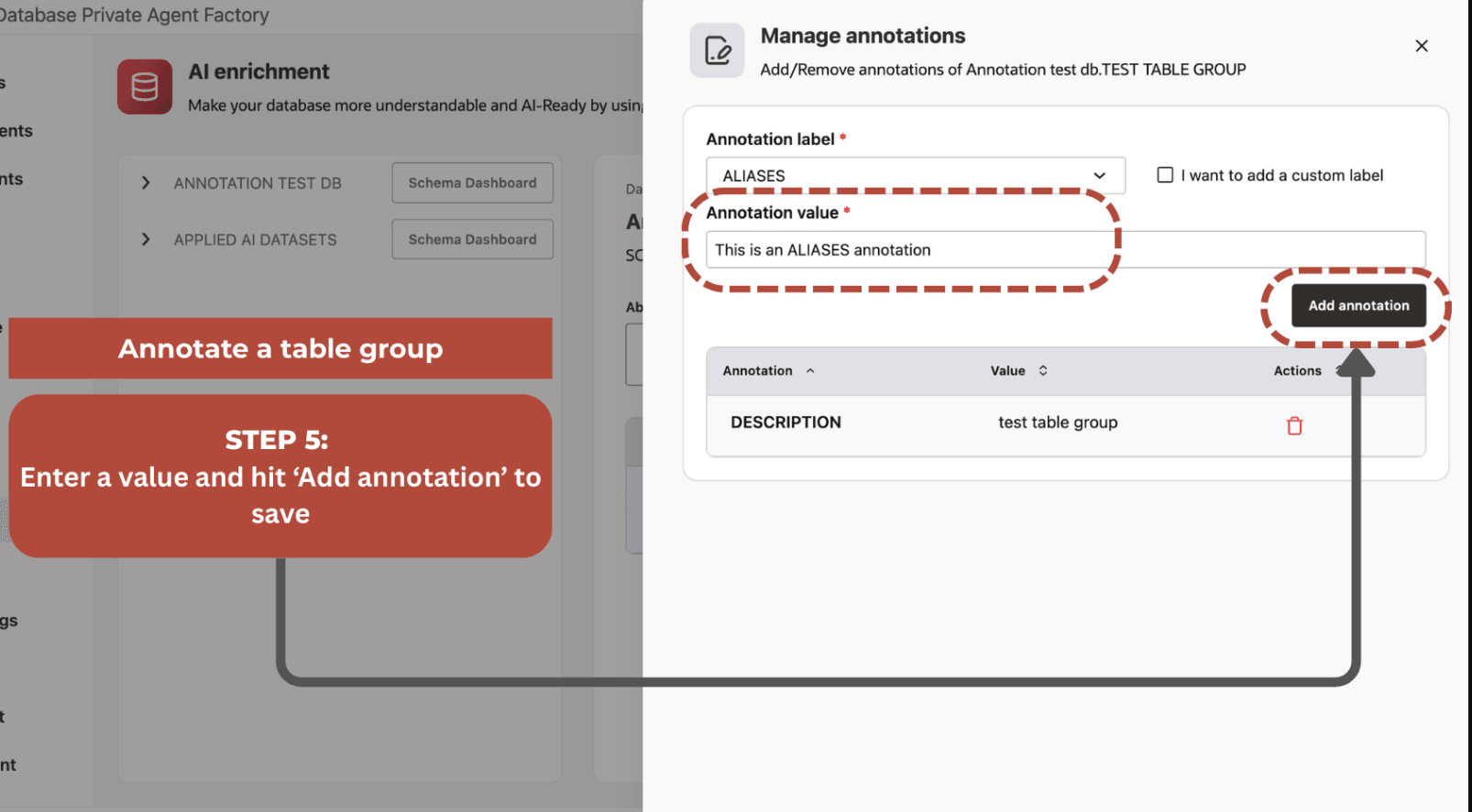
In Annotation value, enter the annotation text. Select Add annotation.
-
The annotations table displays existing annotations for the selected object. To remove an annotation, use the delete action in the Actions column.
-
-
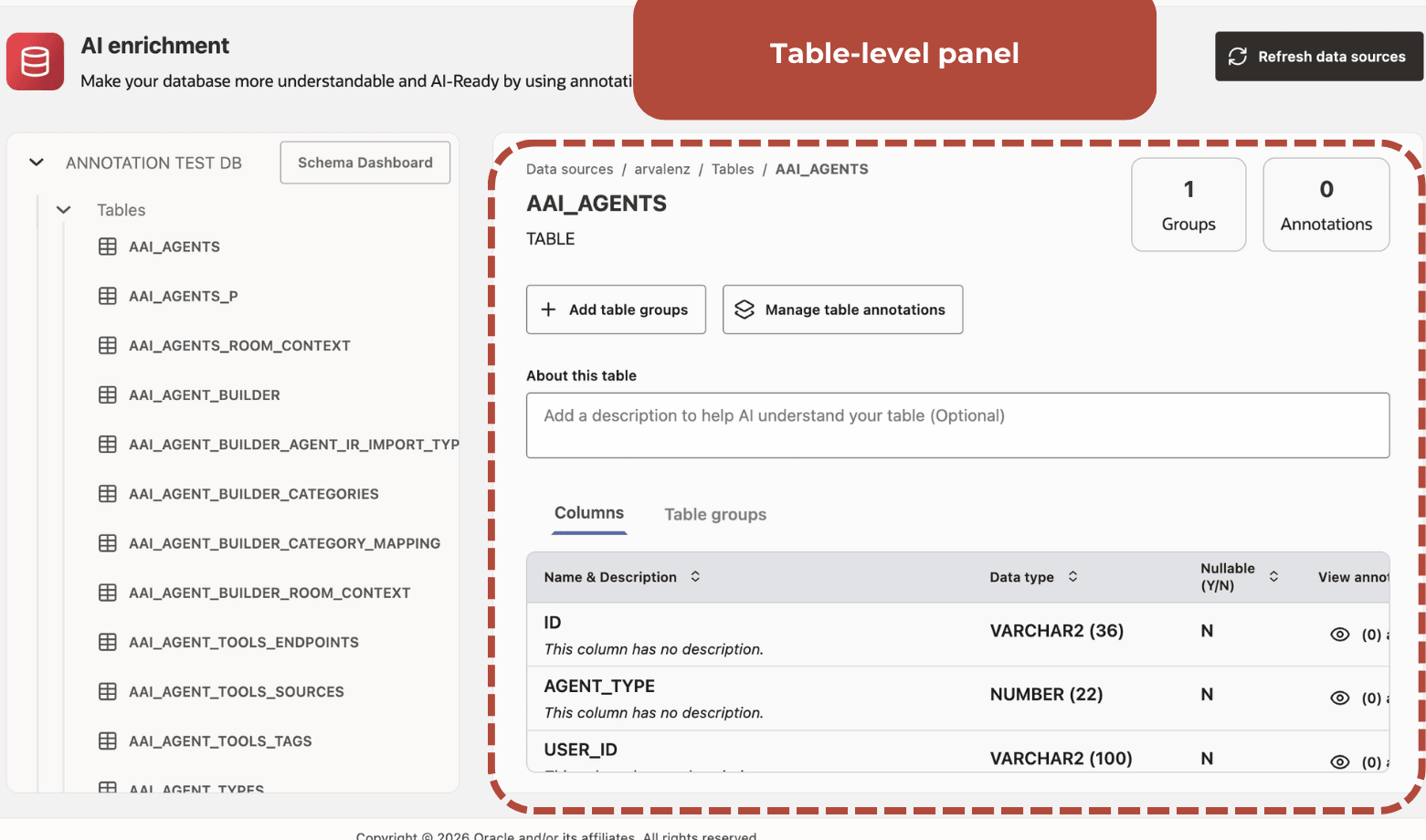
To annotate a table, expand the Tables object, select a table from the list, and then select Manage table annotations.
See Supported Annotation Targets for the database object types that you can annotate.