Knowledge Agents
What is a Knowledge Agent?
Agent that augments AI Vector Search and LLM capabilities with information from organization-approved content, including enterprise repositories (e.g., SharePoint, Google Drive, internal sites, uploaded files), and, where permitted, public web sources.
-
Contextual retrieval from unstructured sources and files
-
Grounded responses traceable to enterprise-approved sources
-
Supports unauthenticated web sources for broader knowledge retrieval
-
Supports file system sources for knowledge retrieval
-
Supports data sources from repositories such as SharePoint, Google Drive, internal sites, and uploaded files.
-
Creates context based suggestions to ask the Agent
-
Web crawling support for dynamic web pages
-
Metadata detection for PDF documents
Create a Knowledge Agent
-
Add Data Sources:
Before creating a Knowledge Agent, make sure at least one data source is configured. Knowledge Agents rely on data sources (e.g., SharePoint, Google Drive, internal sites, uploaded files) to retrieve and ground their answers. Create the knowledge sources for your agent to learn from by adding one or more unstructured data sources, such as file uploads, Microsoft SharePoint document repositories, Google Drive, or web content, including unauthenticated web pages. See Web Source, File Source, SharePoint Source, and Google Drive for instructions on adding the web, file system, SharePoint, and Google Drive data sources respectively that serve as the agent’s knowledge base.
-
Automated Data Processing:
Each data source you configure is automatically processed and progresses through the following stages.
-
Crawling: Retrieve data from configured sources.
-
Parsing: Analyze unstructured data and transform into structured format.
-
Storing: Write the structured data from parsing stage to the database.
-
Chunking: Divide the text data into chunks for direct embedding in the next stage.
-
Embedding: Convert collected data into vector representations.
-
Ingestion: Store processed data in the vector database.
Note: Data processing happens as soon as a data source is configured, and is not part of the Knowledge Agent creation.
-
-
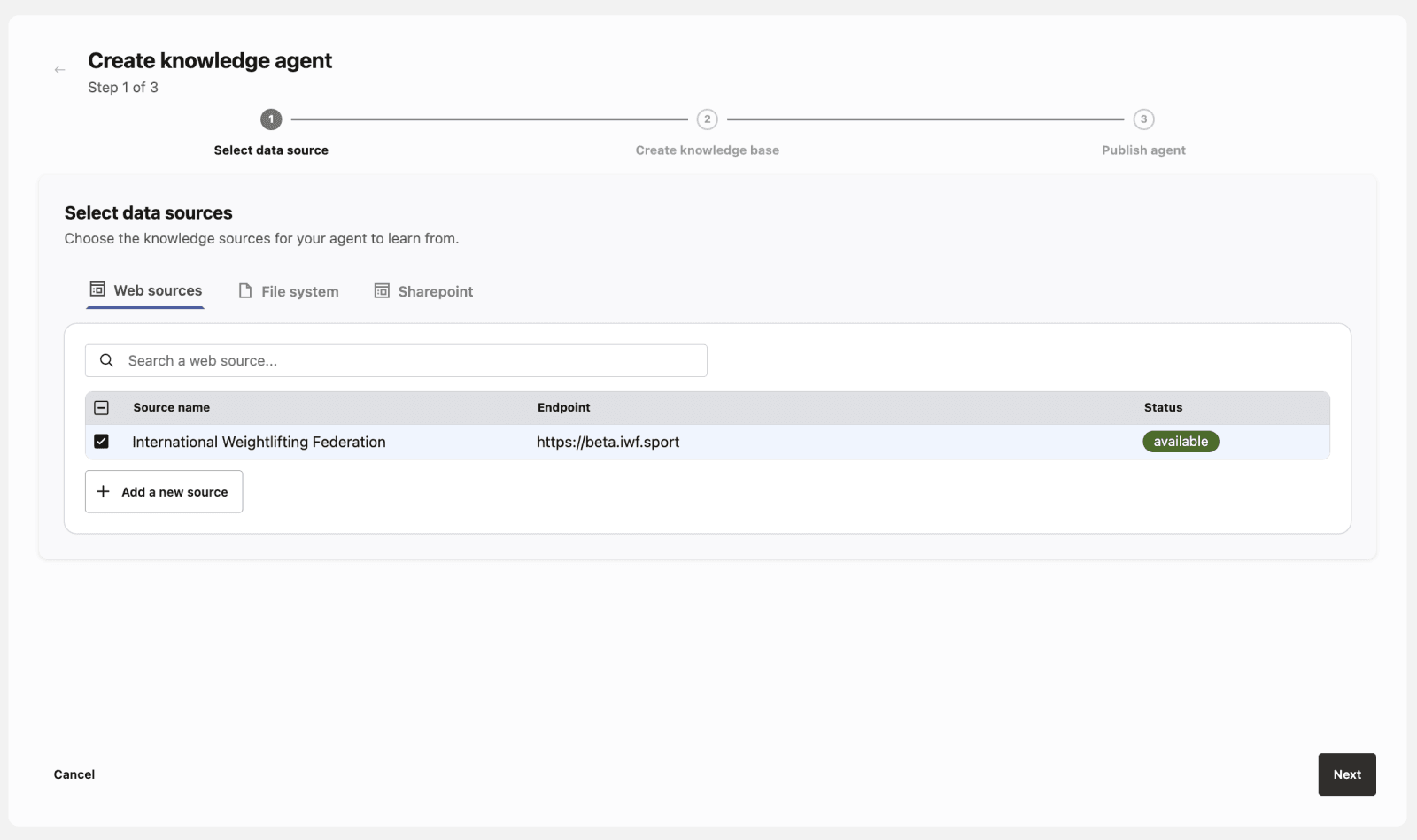
Select Data Sources:
Once the configured data is fully processed and ingested, it becomes available for selection as a data source for the Knowledge Agent. You can choose any number of data sources, including a mix of web, SharePoint, Google Drive, and file system sources.
-
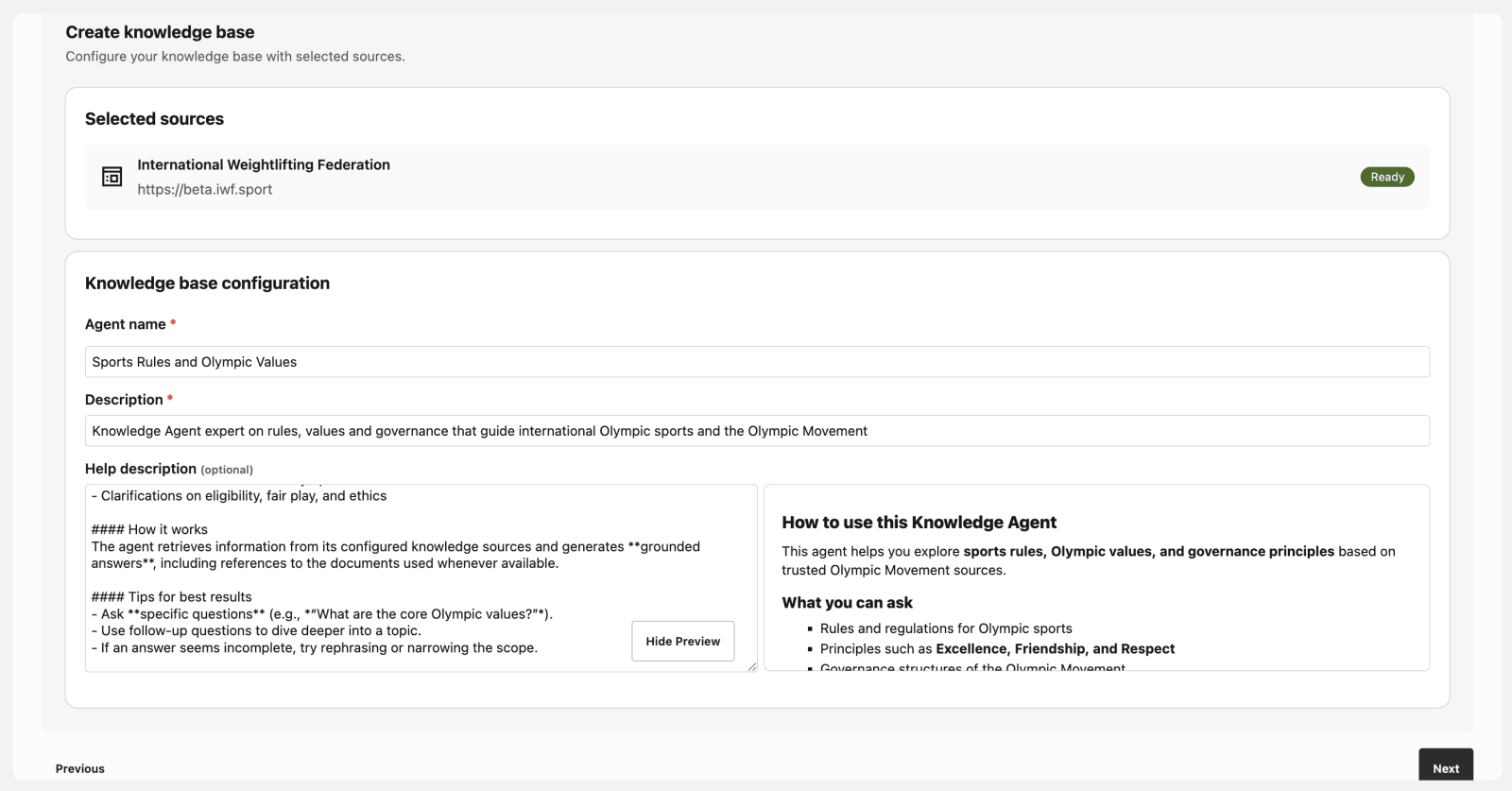
Create Knowledge Base:
Assign a name and description to the knowledge agent. Make the description as detailed as possible because it will be used for many downstream purposes.
-
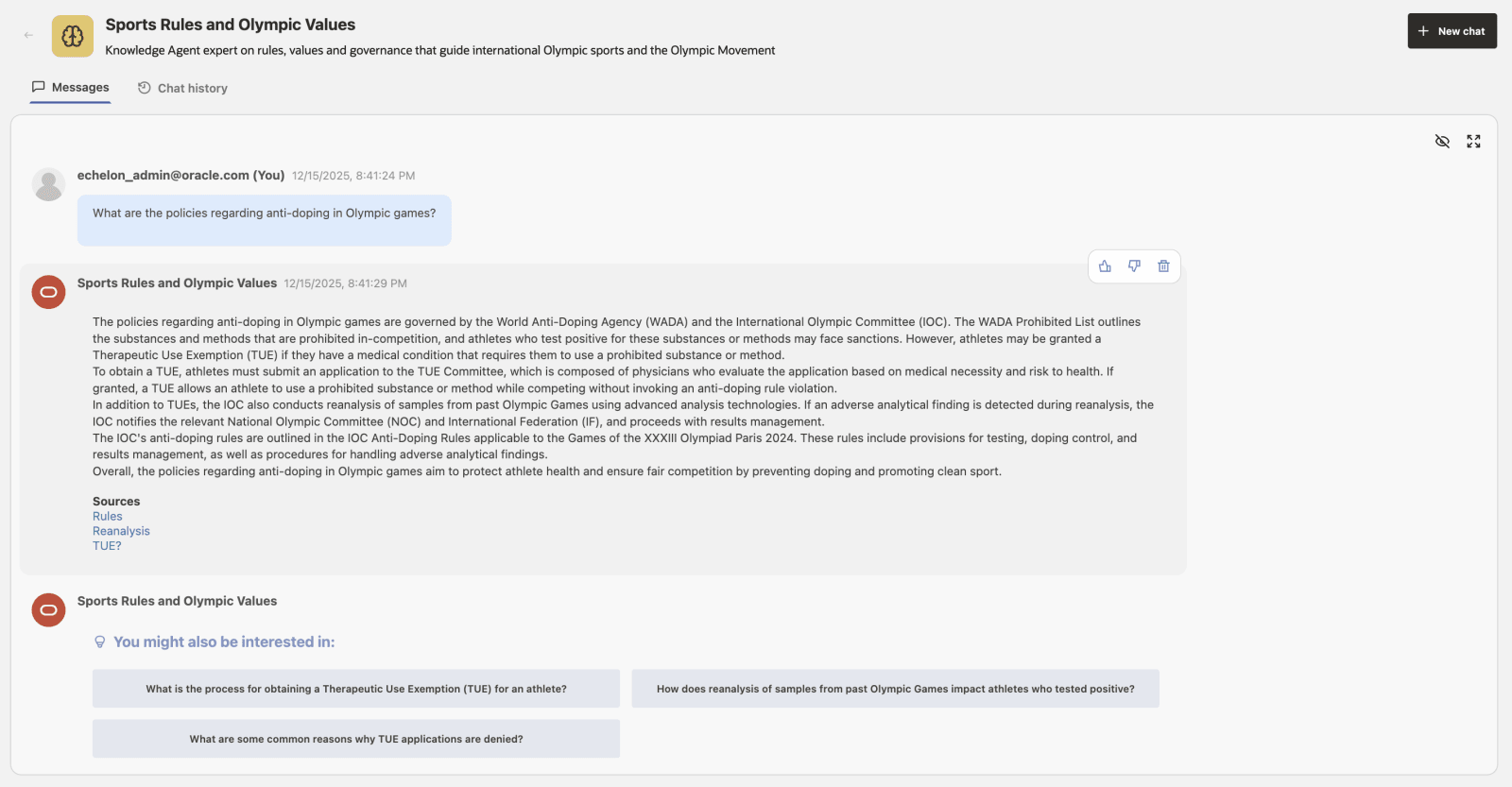
Publish the Agent and Start Conversing:
Publish the agent to make it available. Chat with the knowledge agent and receive answers based on the ingested data.
-
Click on the referenced resources to open the documents used by the LLM.
Oracle AI Database Private Agent Factory Knowledge Assistant
When running outside of an air-gapped environment, Agent Factory installation sets up an out-of-the-box knowledge assistant that can answer your questions about this documentation.
Note:
If the application is running in an air-gapped environment, the Oracle AI Database Private Agent Factory Knowledge Assistant will not be installed. Not installing this agent does not compromise the functionality of the Agent Factory application or the Knowledge Agent component.
If running outside an air-gapped environment but using a database wallet, you need to set up wallet certificates in order to install this agent. See Add Wallet Certificates.
If the agent was not installed out of the box for any of the above reasons, you can install the Oracle AI Database Private Agent Factory Knowledge Assistant from the Datasets tab by selecting Import Dataset.
The Agent Factory Knowledge Assistant is compatible with the following embedding models. During installation, the embeddings for the Agent Factory User Guide, created using one of these embedding models are imported.
- Local Embedding Model
multilingual-e5-base
- OCI Generative AI Embedding Models
cohere.embed-v4.0cohere.embed-multilingual-light-v3.0cohere.embed-english-v3.0cohere.embed-multilingual-v3.0.
You need to have one of these embedding models set as default on the Model Management screen in order to use this assistant. If you set any other model or provider, the documentation agent will not work.
Once installation is complete, you can find the Oracle AI Database Private Agent Factory Knowledge Assistant under Knowledge Agents in the left menu, ready for use. As part of this setup, Oracle data source - Oracle AI Database Private Agent Factory Documentation is also added.
You cannot delete the Oracle AI Database Private Agent Factory Knowledge Assistant as its shipped by default.
You also cannot delete the “Oracle data source - Oracle AI Database Private Agent Factory Documentation” data source, nor can you use it to create a custom knowledge agent.
What Can the Oracle AI Database Private Agent Factory Knowledge Assistant Help With?
You can ask questions about this documentation and receive responses:
- Getting Started: Steps to start using Agent Factory
- Prerequisites and Installation: Requirements and installation processes
- Database Configuration: Setting up and connecting to a database
- Authentication: Configuring authentication providers
- User and Role Management: Setting up users and roles
- Large Language Model (LLM) Management: Configuring LLMs
- Embedding Model Management: Configuring embedding models
- Data Sources: Creating and managing data sources
- Agent Creation and Training: Creating and training AI agents
- FAQs: Answers to common questions and troubleshooting tips
How to Use the Oracle AI Database Private Agent Factory Knowledge Assistant?
-
Type Your Question
Enter your question in the chat, for example: How do I add a custom Knowledge Agent? For best results, be as specific as possible with your queries. For troubleshooting related questions, mention the scenario or error message you are experiencing. Select Editor Mode icon in the chat box to view and type your query in an expanded text input area.
-
Get Expert Guidance
The Assistant will respond with relevant, accurate information drawn from Oracle AI Database Private Agent Factory documentation.
Note: The Oracle AI Database Private Agent Factory Knowledge Assistant provides information based on the latest official documentation. For sensitive implementations or Oracle-internal topics, always verify against Oracle’s official guidelines, security, and compliance policies.
-
Ask Follow-Up Questions
Need more details or clarification? Simply submit a follow-up question.
-
Provide Feedback
Help us improve! Use the thumbs up or thumbs down icons to rate the helpfulness of the response.
-
Review Chat History
You can click on “Chat History” to view your previous interactions with the Assistant at any time.
Caution: The Oracle AI Database Private Agent Factory Knowledge Assistant relies on artificial intelligence models or systems. While useful when properly used, materials generated may be incomplete and/or contain errors and inaccuracies. Your access and use of this feature is at your own risk. Oracle has no responsibility or liability for any damages resulting from such access or use.
Oracle Database Knowledge Assistant
You can install the Oracle Database Knowledge Assistant from the Datasets tab by selecting Import Dataset. You can ask queries related to Oracle Database and its related products. Database Assistant uses the below public Oracle Database sources to answer questions:
- Oracle product documentation
- Oracle technical briefs
- Oracle blogs
- Oracle error messages
- Oracle product new features guides
Once the import is completed, you can find the Oracle Database Knowledge Assistant under Knowledge Agents in the left menu. During import, the following data sources are automatically created: Oracle Product Documentation, Oracle White Papers, Oracle Error Messages, Oracle Blogs, and Oracle Product New Features.
The Oracle Database Knowledge Assistant is compatible with the following embedding models.
multilingual-e5-basecohere.embed-v4.0cohere.embed-multilingual-light-v3.0cohere.embed-english-v3.0cohere.embed-multilingual-v3.0.
You need to have one of these embedding models set as default on the LLM Management screen in order to use this assistant.
You cannot delete the Oracle Database Knowledge Assistant.
You cannot delete the data sources that are automatically created during import, nor can you use them to create custom knowledge agents.
How to Use the Oracle Database Knowledge Assistant?
-
Type Your Question
Enter your question in the chat, for example: Can I install Oracle Database Free into VirtualBox? For best results, be as specific as possible with your queries. For troubleshooting related questions, mention the scenario or error message you are experiencing. Select Editor Mode icon in the chat box to view and type your query in an expanded text input area.
-
Get Expert Guidance
The Assistant will respond with relevant, accurate information drawn from the Oracle Database sources.
Note: The Oracle Database Knowledge Assistant provides information based on the official Oracle Database documentation, technical briefs, Oracle blogs, and other sources. For sensitive implementations or Oracle-internal topics, always verify against Oracle’s official guidelines, security, and compliance policies.
-
Ask Follow-Up Questions
Need more details or clarification? Simply submit a follow-up question.
-
Provide Feedback
Help us improve! Use the thumbs up or thumbs down icons to rate the helpfulness of the response.
-
Review Chat History
You can click on “Chat History” to view your previous interactions with the Assistant at any time.
Caution: The Oracle Database Knowledge Assistant relies on artificial intelligence models or systems. While useful when properly used, materials generated may be incomplete and/or contain errors and inaccuracies. Your access and use of this feature is at your own risk. Oracle has no responsibility or liability for any damages resulting from such access or use.