Actions for Distribution Service Paths
To manage distribution paths, you can perform various tasks such as stop or pause a path, view reports and statistics, reposition the path, change its filtering, and delete a path.
From the left-navigation pane, click Distribution Service Paths. The Distribution Service Paths page is displayed. To start and stop all distribution service paths associated with the deployment, you can select the Start All Paths or Stop All Paths options from the All Path Actions drop down list.
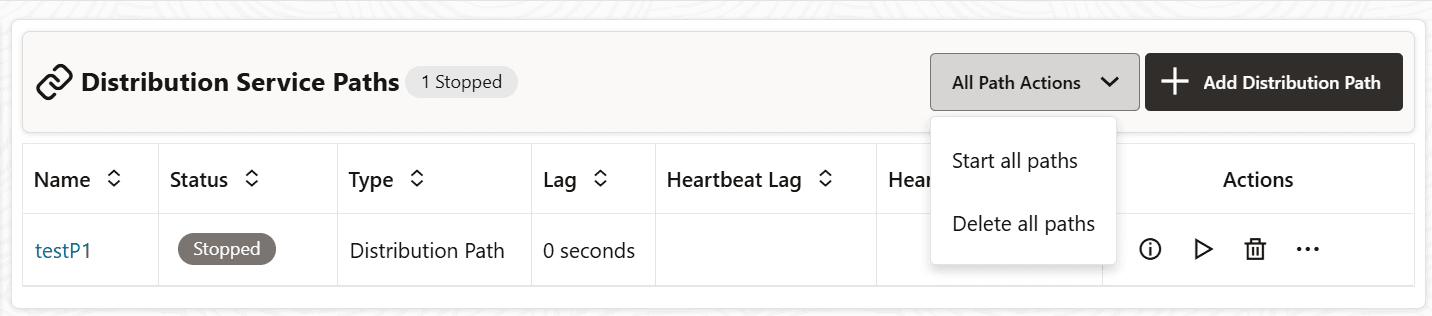
If the distribution service path is running, then the All Path Actions drop-down menu displays the option to Stop all paths.
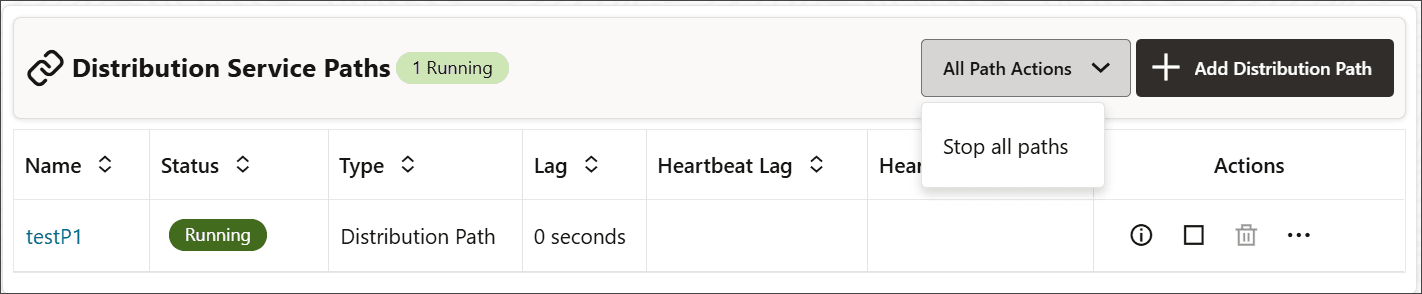
From the distribution service paths list, you can use icons from the Action column to perform the following actions to manage the selected distribution path:
-
Details: Use this icon to view details of the path. You can view the path information including the source and target. You can also edit the description of the path. Statistical data is also displayed including metrics for LCR Read from Trails, LCR Sent, LCR Filtered, DDL, Procedure, DML inserts, updates, and deletes, and so on. You can also update the App Options and TCP Options.
-
Startor Stop: Use this icon options to start or stop a path. If the path isn’t started, the Start option is displayed instead of the Stop option. For a target-initiated distribution path, you can only stop this path from the Distribution Service and cannot delete or start it from the Distribution Service. After you stop the path, it’ll not be available on the Distribution Service.
-
Delete: Use this icon option to delete a path. This option is available only when the path is in stopped state. Click Yes on the confirmation screen to complete path deletion.
-
Reposition: Use this option to change the Source Sequence Number and Source RBA Offset. See Reposition a Path.
-
Change Filtering: Use this option to enter sharding, DML filtering, DDL filtering, Procedure filtering, and Tag filtering options. See Change the Path Filtering.
Reposition a Path
You can reposition a path as required. To reposition a distribution path or target-initiated distribution path:
-
Click Distribution Service Paths from the left-navigation pane to to open the Distribution Service Paths page.
-
Click the Action button for the path and select Reposition from the drop-down list. The Reposition dialog box is displayed.
-
Specify the source trail Sequence Number and the Source RBA Offset.
-
Click Apply.
Change the Path Filtering
If you want to change the filter settings for an existing path, the steps are mostly the same as those for creating the filtering for a new path.
From the left navigation pane, click Distribution Service Paths to open the Distrbution Service Paths page.
For the specific distribution path, click Action. From the drop-down list, click Change Filtering.
| Rule Cofiguration | Task |
|---|---|
| Add paths | If you enable filtering by selecting it from the toggle button and click Add Rule , you'll see the Rule Definition dialog box.
You can also see the JSON script for the rule by clicking the JSON tab. |
After you add a rule, it is listed in Inclusion Rules. You can delete rules or edit them. When you edit a rule, you have the same options as adding a rule with the following added filters:
| Options | Description |
|---|---|
| OR AND | Select one logical operator. |
| Chunk ID | Edit or delete the database shard settings if sharding is used. |
| Object Type: | Edit or delete the type of object for the rule. |
If you want to change the filter settings for an existing path, the steps are mostly the same as those for creating the filtering for a new path.
On the Distribution Service home page, click Action for the path. From the drop-down list, click Change Filtering.
| Rule Cofiguration | Task |
|---|---|
| Add paths | If you enable filtering by selecting it from the toggle button and click Add Rule , you'll see the Rule Definition dialog box.
You can also see the JSON script for the rule by clicking the JSON tab. |
After you add a rule, it is listed in Inclusion Rules. You can delete rules or edit them. When you edit a rule, you have the same options as adding a rule with the following added filters:
| Options | Description |
|---|---|
| OR AND | Select one logical operator. |
| Chunk ID | Edit or delete the database shard settings if sharding is used. |
| Object Type: | Edit or delete the type of object for the rule. |
For setting up the filtering options in a Distribution path or the Receiver path, see the ALTER DISTPATH and ALTER RECVPATH in the Command Line Interface Reference for Oracle GoldenGate.