New Global Function to Invoke AI Agent Flows from Custom UI Components
Oracle Fusion Service extensibility now provides a client-side global function that allows system implementors to invoke AI Agent flows directly from non-conversational UI elements. This replaces the complex and risky invokeSync workaround with a clean, supported API.
With this function, AI-generated outputs — such as recommendations, summaries, or drafted content — can be surfaced in custom widgets, cards, and form fields without requiring a chat interface.
Example Use Cases
- Service Request Drafting — Automatically generate problem descriptions or email drafts inside SR workflows based on customer context
- Recommendation Cards — Display AI-suggested next-best actions or resolution steps directly on custom UI cards
- AI Writing Assistant — Trigger AI-generated content (summaries, responses) from page or application lifecycle events inside agent workspace
System Implementors can now build AI-powered UI experiences faster, with less risk and lower support overhead. This reduces improper implementations, avoids potential overcharges tied to misuse of internal APIs, and unlocks extensibility scenarios that were previously too complex to justify.
Steps to enable and configure
Leverage the Visual Builder Studio to expose your applications. To learn more about extending your application using Visual Builder, visit Oracle Help Center > your apps service area of interest > Books > Configuration and Extension.
The steps below assume you have a use case and a published AI Agent so that you can consume it from the Fusion Service UI Component.
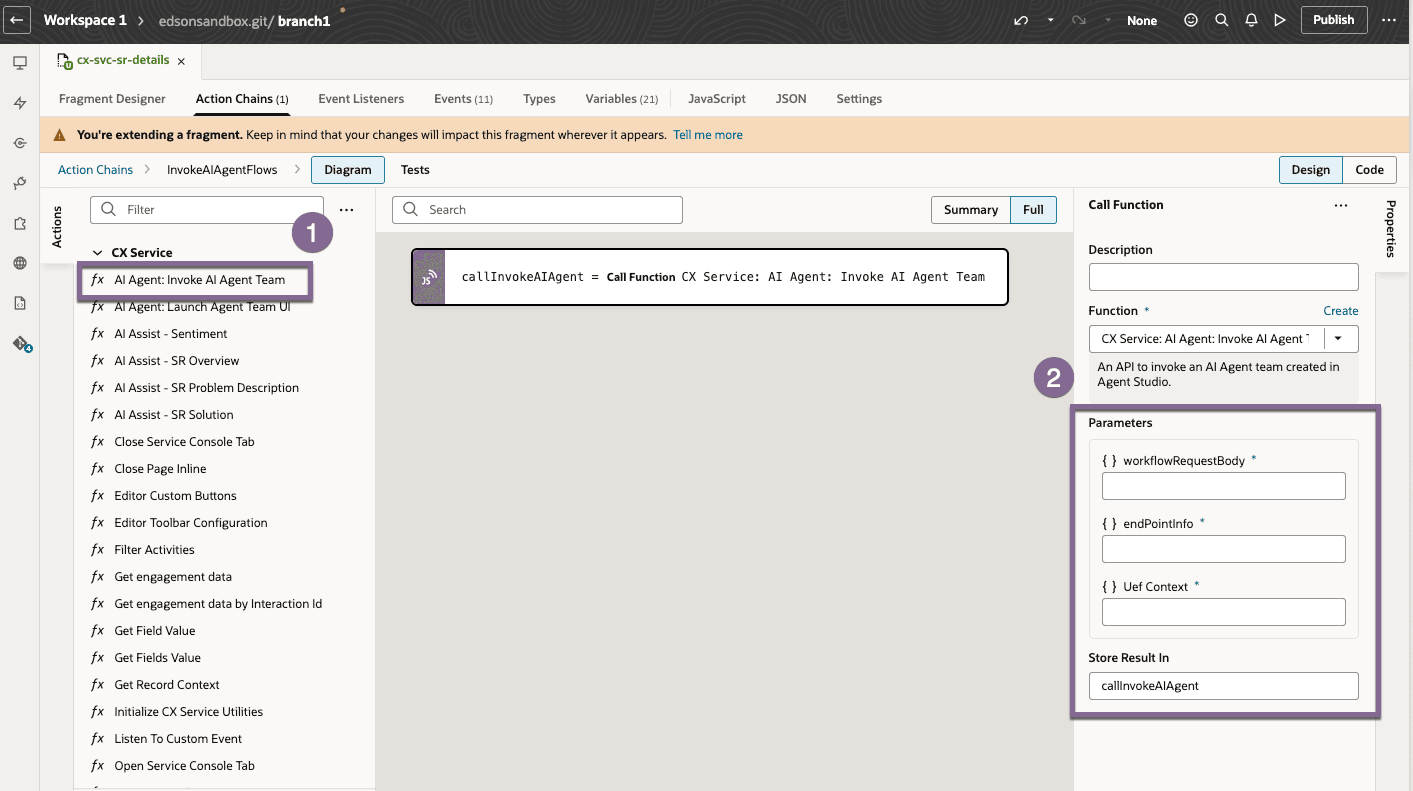
Steps to Enable
- Select the Service Page or Fragment where you want to display the AI Agent output
- Place a UI component on the page or fragment (e.g., a Text field) and assign a variable to it
- On the selected page or fragment, go to the Action Chains tab and create a new action chain
- Inside the action chain, search for and select AI Agent: Invoke AI Agent Team under the CX Service action group — or drag it directly from the Actions palette
- Pass the following parameters:
- Workflow Request Body — the input payload (message is required; all other fields are optional)
- Endpoint Info — includes agentName and version (defaults to v1 if not provided)
- Poll Interval — polling frequency in milliseconds (default: 5000)
- UEF Context — pass as $base.variables.uefContext or create a VB variable using UEFContext DataType
- Assign the result stored in callInvokeAIAgent to the variable bound to your UI component
Basci Example:
const callInvokeAIAgent = await $modules.aiAgentInteractionUtil.invokeAIAgent(
  { "message": "iPhone issue" },
  { "parameters": { "agentName": "CHAT_SNIPPET_RETRIEVAL_ASSISTANT", "version": "v1" } },
  $variables.uefContext
);
console.log(callInvokeAIAgent);
Example with full Workflow Request Body:
const callInvokeAIAgent = await $modules.aiAgentInteractionUtil.invokeAIAgent(
  {
    "version": 1,
    "message": "Summarize this SR",
    "parameters": {
      "objectNumber": "SR0000090988",
      "objectName": "ServiceRequest",
      "promptCode": "SR_Summarization",
      "triggerType": "REST",
      "content": ""
    },
    "conversational": true,
    "status": "PUBLISHED",
    "invocationMode": "END_USER"
  },
  { "parameters": { "agentName": "ORA_SERVICE_REQUEST_SUMMARIZATION_ASSISTANT", "version": "v2" } },
  $variables.uefContext
);
Stopping Polling (Optional)
- Call stopPolling passing the Agent Team Code and Tab ID
- Returns true if polling stopped successfully, false otherwise
Example for Service Console mode:
const value = CxSvcAgenticAiHelper.getInstance().stopPolling(
  "CHAT_SNIPPET_RETRIEVAL_ASSISTANT",
  __OJ_CX_SVC_SHELL__.getShell('msiRoot').getFocusedTab().key
);
Example for non-Service Console mode:
const value = CxSvcAgenticAiHelper.getInstance().stopPolling(
  "CHAT_SNIPPET_RETRIEVAL_ASSISTANT",
  window.name
);
Troubleshooting — How to Check Logs
- Open Chrome DevTools (browser top-right menu > More Tools > Developer Tools)
- Go to the Console tab and run:
-
window.oj.Logger.option('level', window.oj.Logger.LEVEL_INFO);
-
- Filter console output using the prefix SvcAiAgentHelperHandler to isolate AI Agent logs
Key things to keep in mind:
- If a new request is triggered for the same workflow on the same tab while a job is already running, the existing job is dropped and replaced
- Polling automatically pauses when the user switches tabs and resumes on return
- A job is removed from the queue once status is COMPLETED or ERROR, or after reaching 60 polling attempts
- status defaults to PUBLISHED and invocationMode defaults to END_USER if not explicitly passed
Tips and considerations
- Avoid using invokeSync going forward — this new function is the supported path
- Test AI Agent flow responses in a sandbox before embedding outputs in production UI elements
- Ensure AI Agent templates are configured and published before invoking them client-side
- Review token usage patterns to avoid unexpected consumption at scale
- Make sure to grant access to Fusion AI so that the agent can run when invoked by the Global Function.