Log Pricing Matrix Changes
Oracle CPQ 26B enhances administrative logging for pricing matrices by capturing before-and-after values of changes, in addition to existing audit data (who and when changes were made).
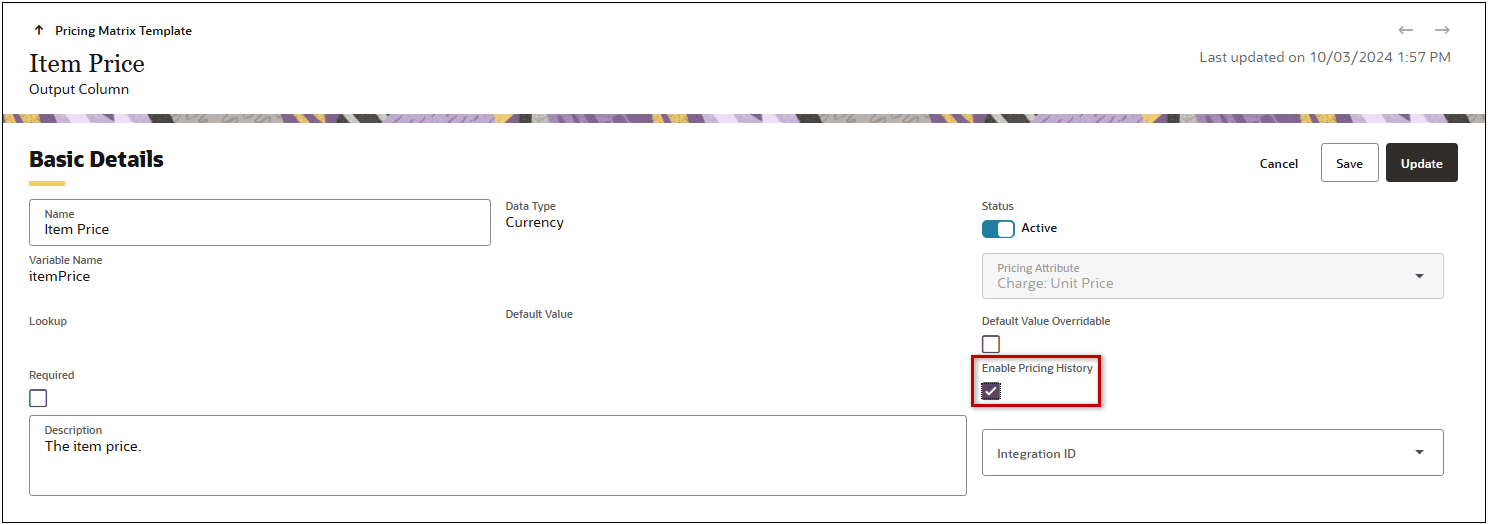
Administrators can select the Enable Pricing History option for an Attribute-based Charge template to specify which template columns will log pricing history.
View Change History
When change history is enabled for an Attribute-based Charge template column, users can view change history for an individual pricing matrix row item in a product charge.
- Navigate to a product charge with dynamic attribute-based pricing.
- Select View Change History from the line ellipsis menu for a pricing matrix row item.
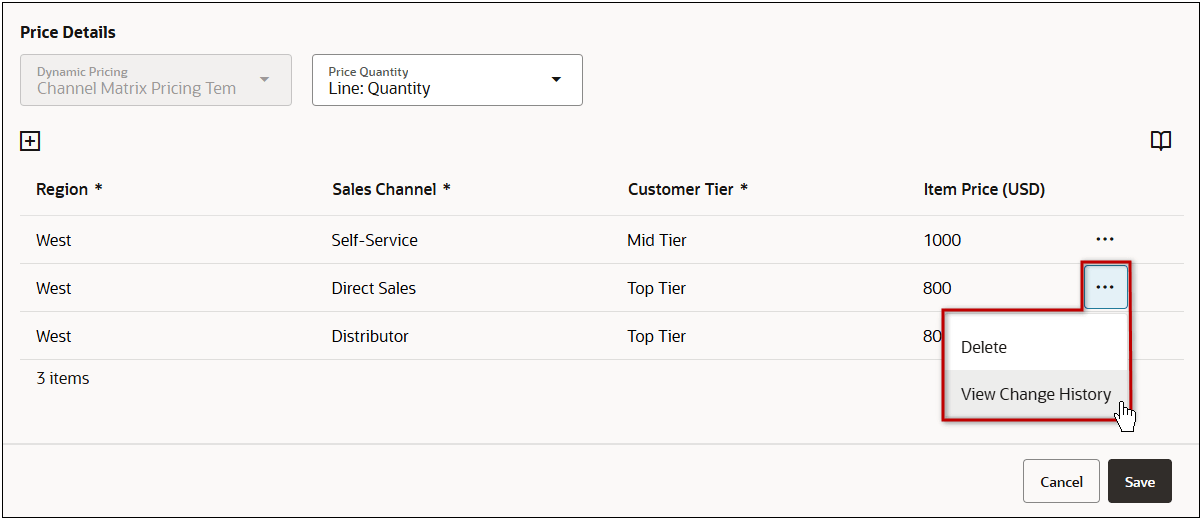
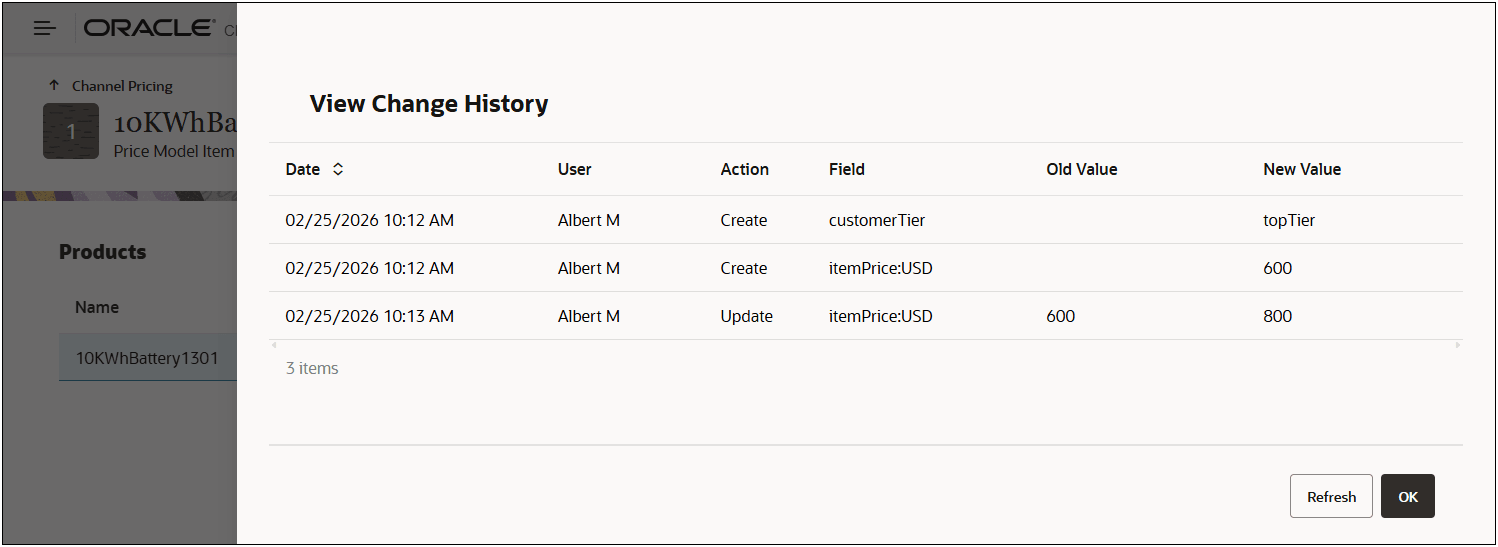
The change history displays the logged changes, who made the changes, and when the changes were made.
Export Change History
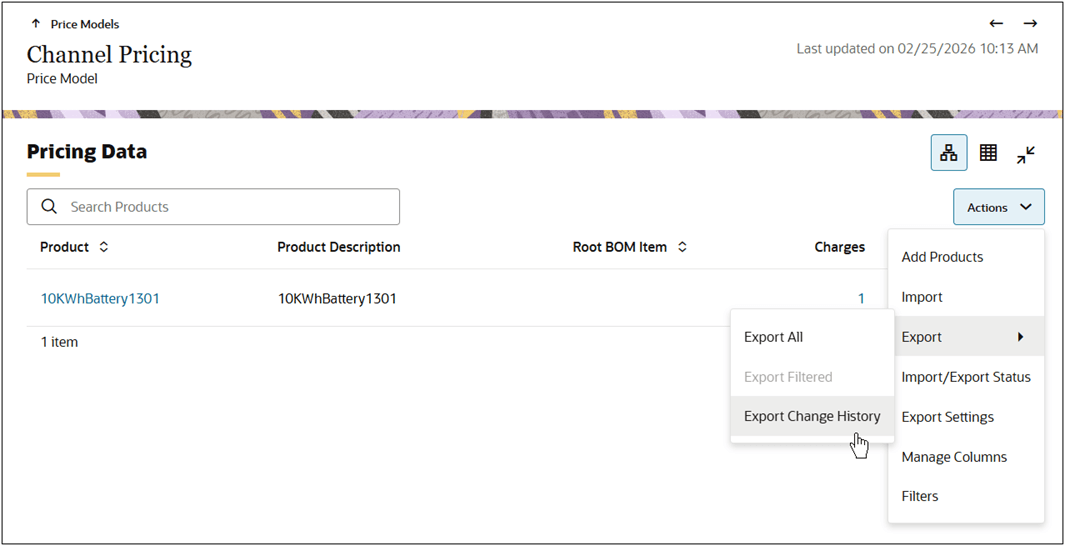
When change history is enabled for an Attribute-based Charge template column, users can also export all change history for product model with attribute-based matrix pricing.
- Navigate to CPQ Admin > Prices > Price Models.
- Select the applicable price model.
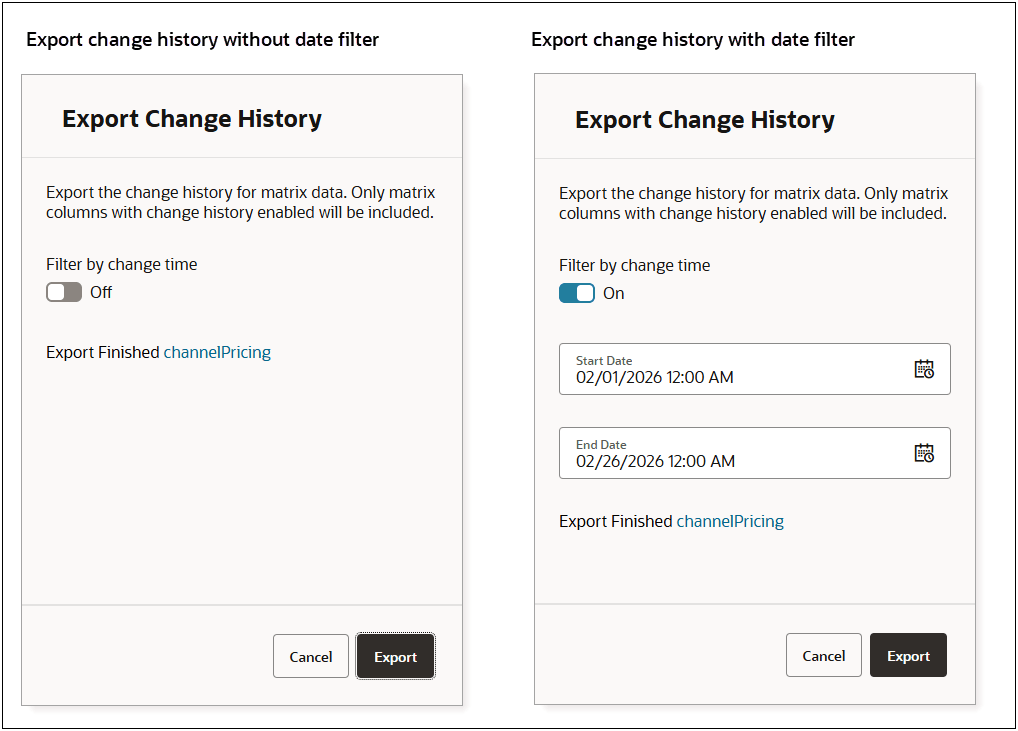
- Select Export > Export Change History from the Pricing Data Actions menu.
- If applicable, enable Filter by change time, and enter a Start Date and End Date.
- When the export is complete, click on the Export Finished link.
- Open and unzip the downloaded change history file to view the pricing history.
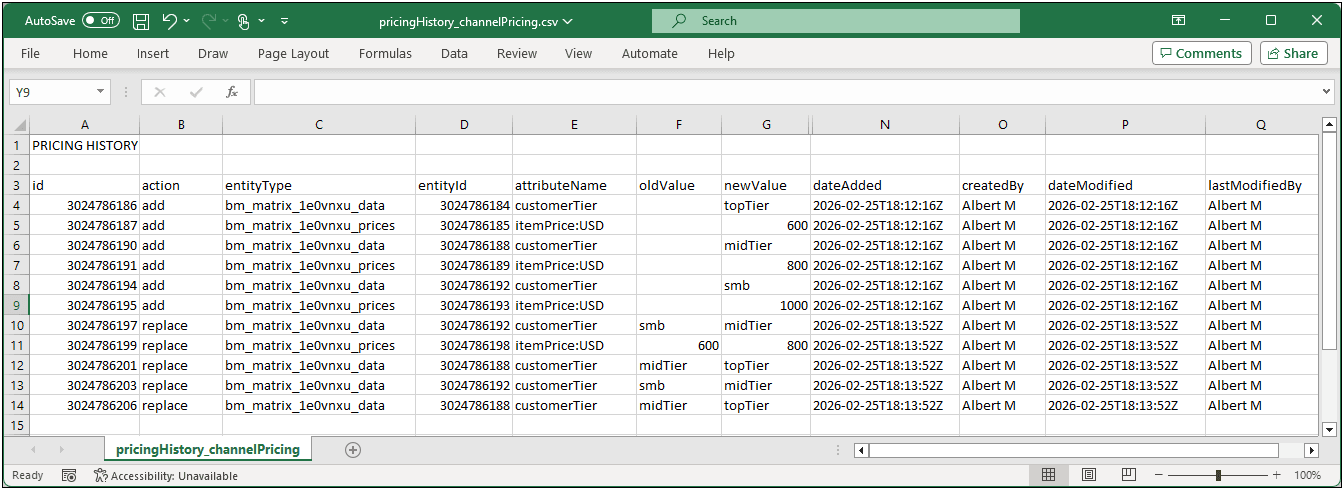
Before-and-after audit logging captures detailed change history for pricing matrices, including prior and new values, user identity, and change timestamps to support audit readiness to provide the following business benefits:
-
SOX-Ready Financial Controls: Delivers robust, traceable audit trails for list prices and pricing adjustments, supporting compliance, and improving trust in financial reporting for revenue-impacting changes.
-
Simplifies Audits & Reduces Risk: Removes the need for manual evidence gathering (such as Excel versions or screenshots), streamlines audit processes, and minimizes the risk of pricing manipulation or unauthorized adjustments.
Steps to enable and configure
Enable Price History for a Pricing Matrix Template Column
Complete the following steps to enable price history for an Attribute-based Charge type Pricing Matrix Template column.
- Navigate to CPQ Admin > Prices > Pricing Matrix Templates.
- Click on the applicable Attribute-based Charge type template.
- Click on the applicable template column, then click Edit.
- Check the Enable Pricing History option.
- Click Save or Update.
Display Enable Price History Pricing Matrix Template Column
Complete the following steps to enable price history for an Attribute-based Charge type Pricing Matrix Template column.
- Navigate to CPQ Admin > Prices > Pricing Matrix Templates.
- Click on the applicable Attribute-based Charge type template.
- Select Manage Columns from the Actions menu.
- Check the Enable Price History column.
- Click Apply.