Product Fit Data Science (DS) Model and Monitoring
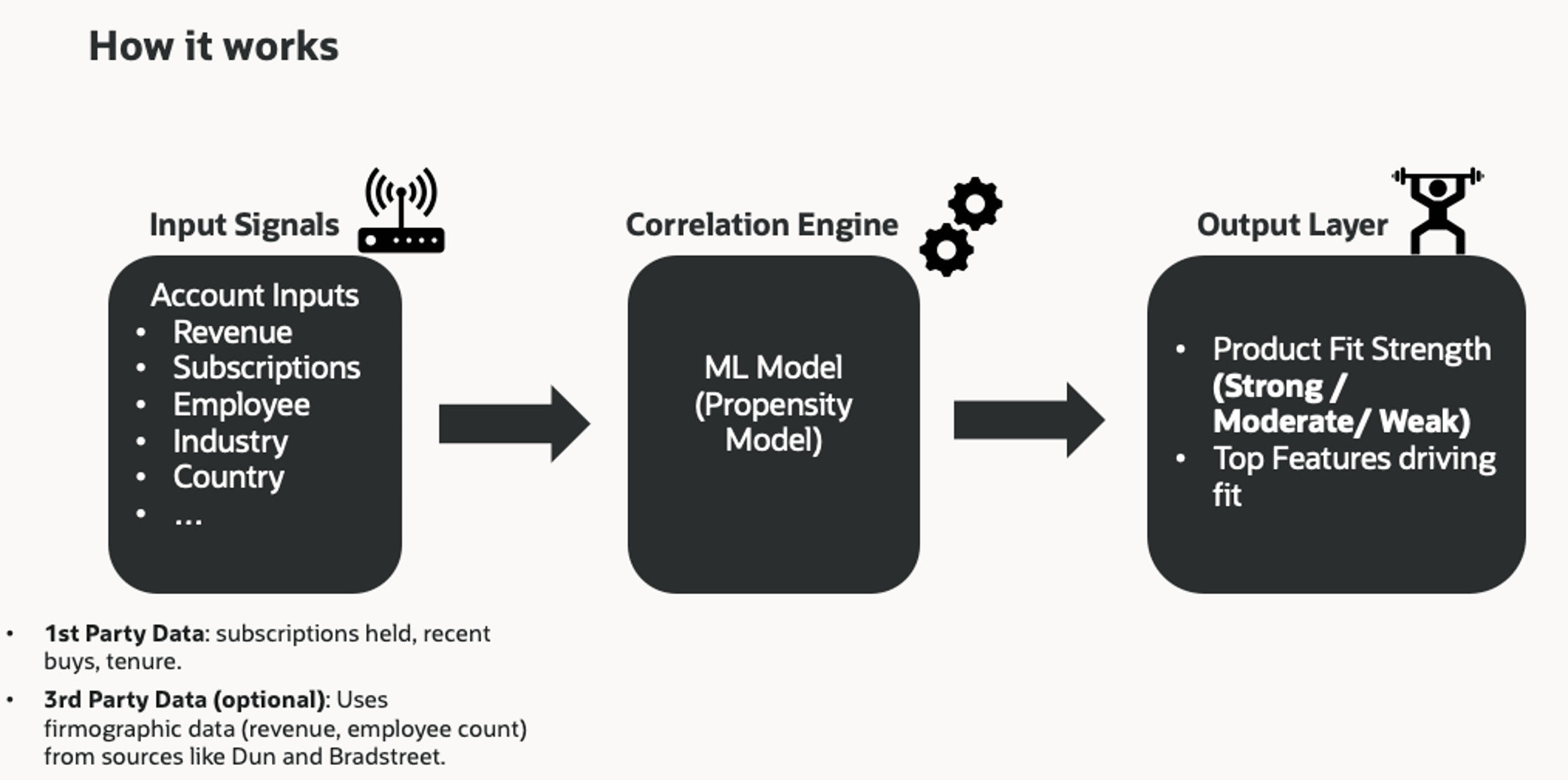
The Account Product Fit DS model is an ML model that ranks and classifies accounts by their propensity/fit for a given product, to improve account planning, account segmentation, and product recommendation-style targeting workflows.
The model output is intended to be used by Marketing and Sales teams for prioritization and targeting, by Product/Field Marketers for segmentation and campaign planning, and by Business Analysts for analysis and decision support.
Overview
Why this matters?
Customers faces challenges identifying the most suitable accounts for products when the serviceable addressable market is large; traditional eligibility criteria may not predict outcomes well. The Account Product Fit model addresses this by applying ML to create a more precise ranking system for account targeting and prioritization.
Product Fit Strength is run for the most strategic products, then surfaced throughout the marketing and sales platform - to inform segmentation, lead account prioritization, and campaign personalization strategies. Additionally, the platform includes dashboards for operationalizing the fit model, providing ongoing visibility into model performance, data drift, prediction accuracy, and retraining requirements. This closed-loop approach ensures that the model remains relevant and effective as business dynamics evolve.
Business Benefits:
- Improved account identification and prioritization at scale: Addresses the challenge of identifying the most suitable accounts in a large SAM by moving beyond basic eligibility rules to an ML-based ranking approach
- Better Sales and Marketing execution: Helps teams focus engagement and campaigns on accounts most suitable for a given product, improving resource allocation and sales effectiveness
- Stronger account planning and segmentation: Enables marketers to generate prioritized account lists for a product (or set of products) for engineered campaigns and to provide sales with conversation-ready opportunities
- Actionable outputs for downstream workflows: Produces a usable fit classification (Strong/Moderate/Weak) alongside identifiers (Account, Product) to power activation in downstream systems and processes
- Revenue-informed prioritization (where enabled): Introduces a Potential Revenue Amount concept so sales can prioritize accounts not just by fit, but also by estimated revenue opportunity with an implied confidence indicator (via count of subscribed accounts)
- Support for multiple stakeholder groups: Provides value not only to Sales/Marketing, but also to Product roles (positioning/GTM insights) and Business Analysts (trend/fit analysis)
Steps to enable and configure
You need to setup the Account Product Fit model for the strategic products that are part of your sales play. Locate the capability in Intelligence Workbench within Fusion Unity Data Platform.
How to start using the Product Fit Data Science Model:
- Query Preparation for Account Product Fit Data Science Model:
- Go to the Intelligence Workbench within Fusion Unity Data Platform. Then the first step is to set up the Query Select the Queries tab on the Intelligence Workbench screen.
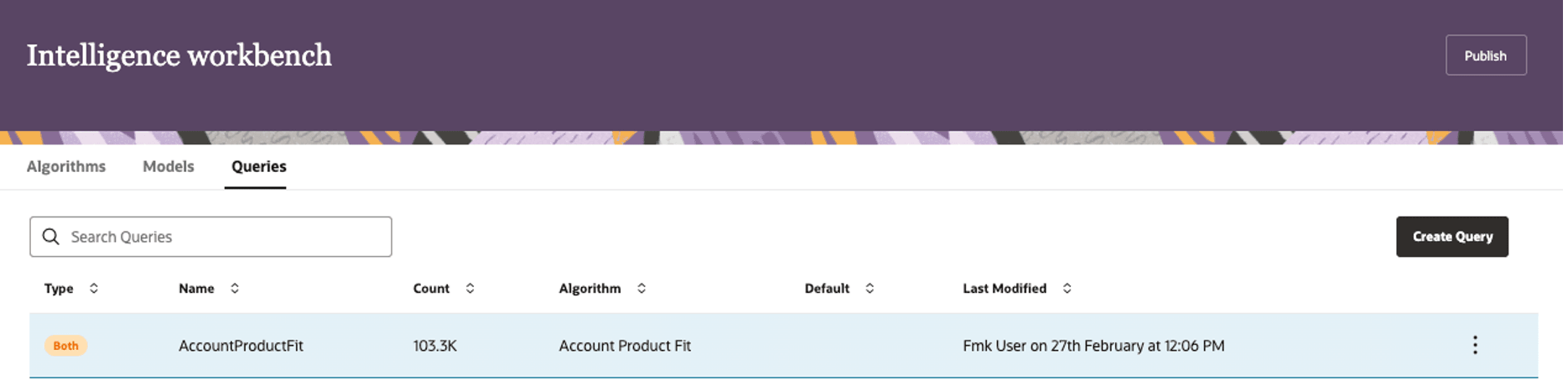
Intelligence Workbench interface
- Click on "Create Query" on the right top corner. Our Product team can help provide the starter query to edit to your needs. Once you create the query and input the right "ProductID" to model on (at the desired Product level within the Product Hierarchy), "Save" the query.
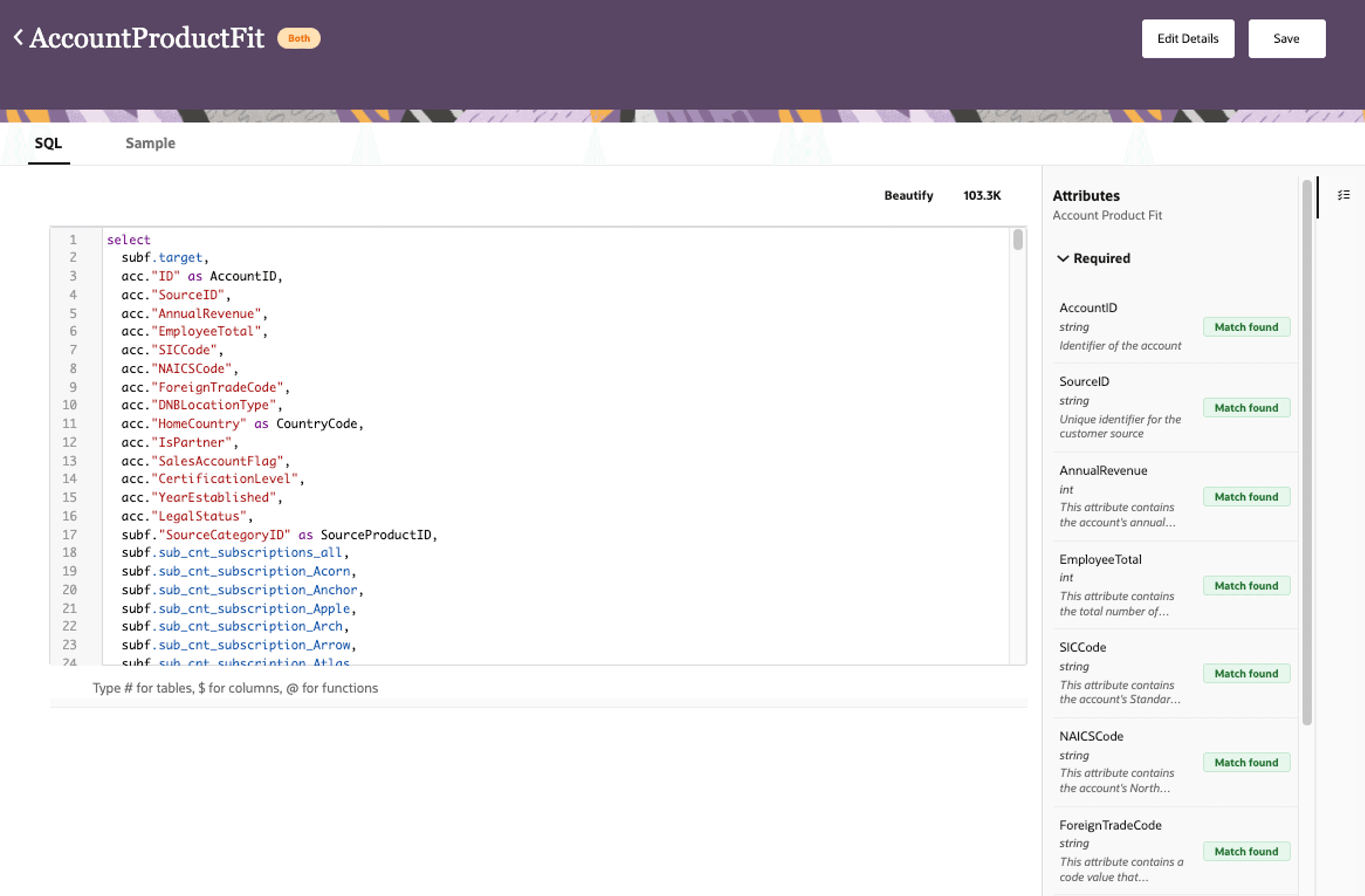
Account Product Fit interface
- Go to the Intelligence Workbench within Fusion Unity Data Platform. Then the first step is to set up the Query Select the Queries tab on the Intelligence Workbench screen.
- Account Product Fit Model Set up
- Go to the Intelligence Workbench > Models tab within Fusion Unity Data Platform.
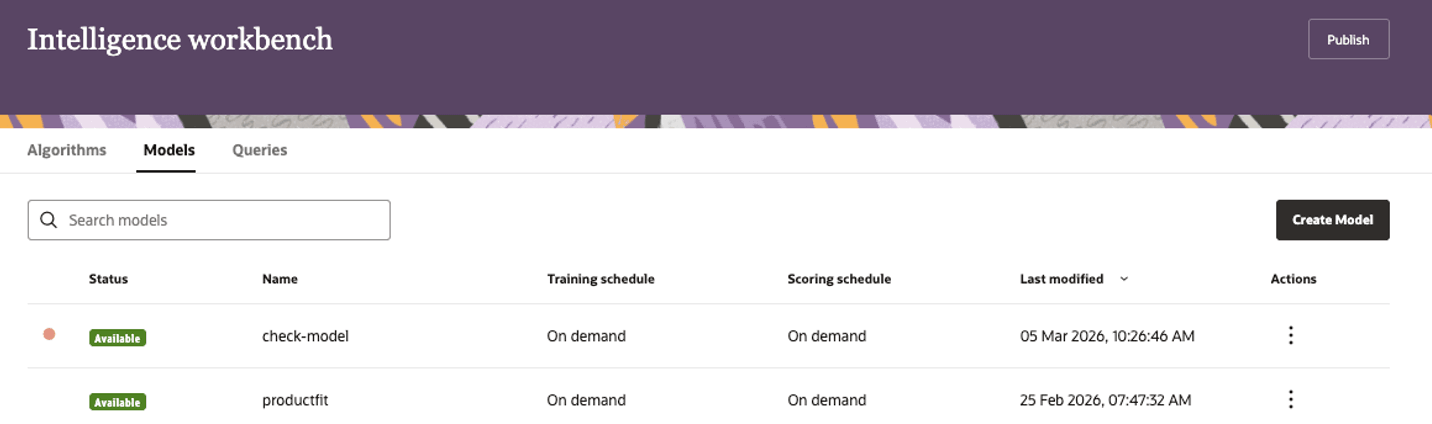
Models tab
- Click on "Create Model" and provide a Name and Description as shown in the diagram.
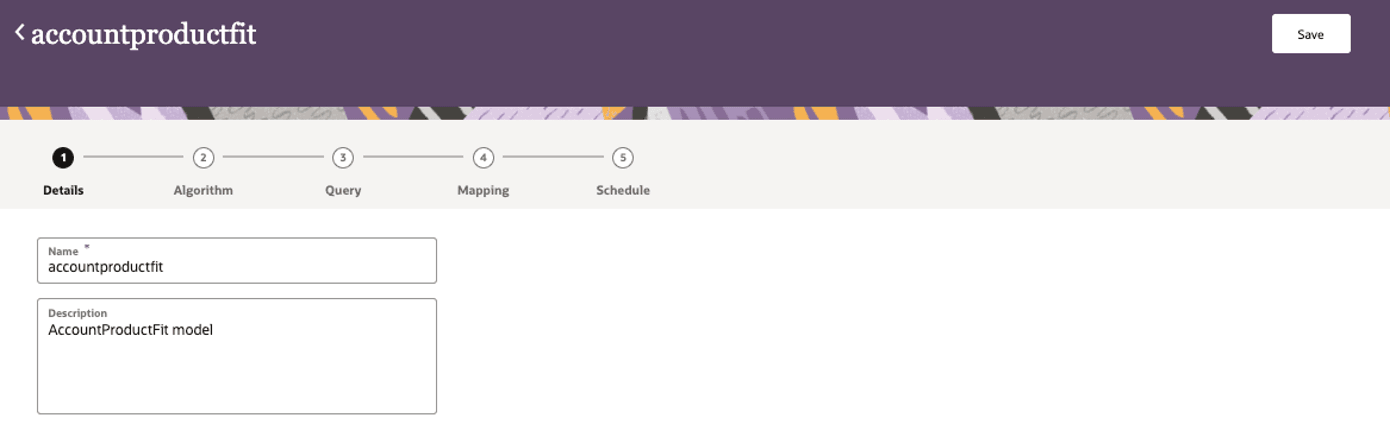
Enter details for mode
- Click on "Algorithm" step on the workflow above
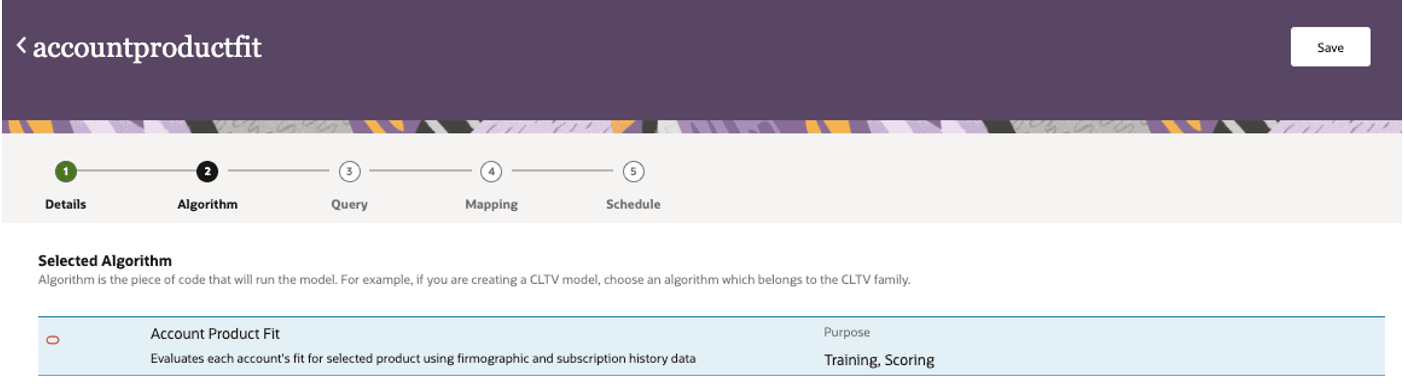
Select Algorithm step
- Click on "Query" step in the flow and select the appropriate query. You should see default queries selected in the drop down. If these are the right queries, then proceed to the next step. If not, select the appropriate query from the dropdown.
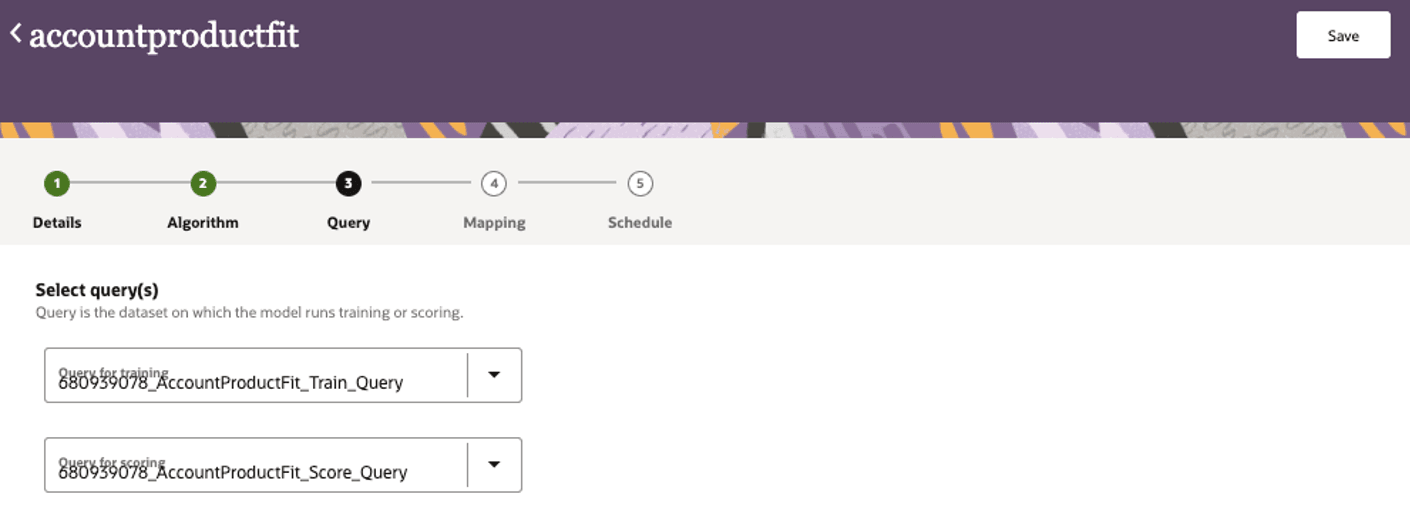
Select Query
- Review and Configure Model Inputs:
- Click on the "Mapping" step in the flow to view and review the Input attributes and Output objects and attributes. This is an important step to ensure accuracy of the input attributes to the model, as well as knowing where the output is being written.
- Examine pre-configured data sources and signals (firmographics, activities, etc.).
- Optionally collaborate with data science or analytics teams to include additional fields or fine-tune input weighting, if custom fit model tuning is supported.
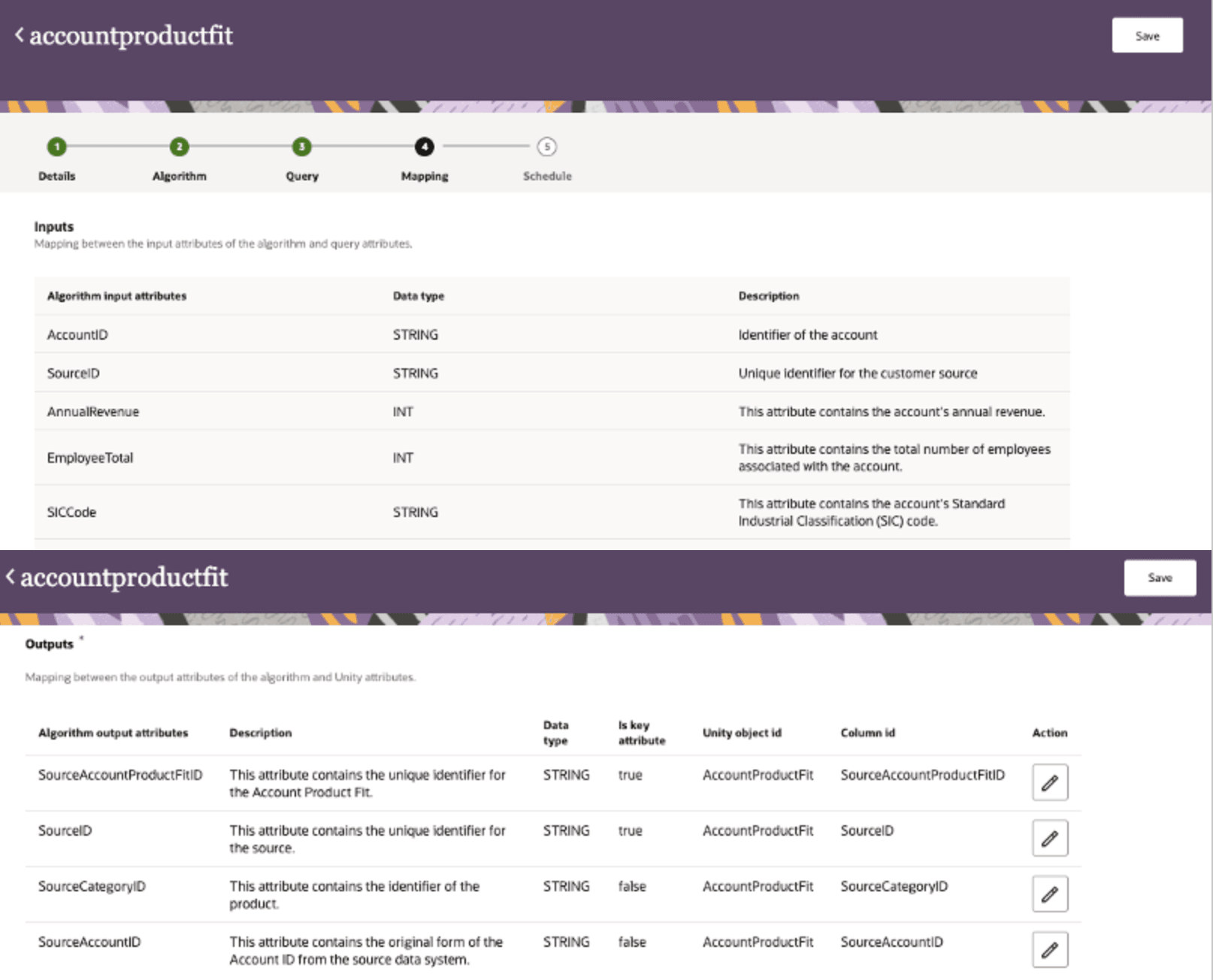
Mapping Inputs and Outputs
- Go to the Intelligence Workbench > Models tab within Fusion Unity Data Platform.
- Activate Model Training and Scoring:
- Select "Schedule" in the flow and select appropriate "Training" and "Scoring" schedule and "Save" the model.
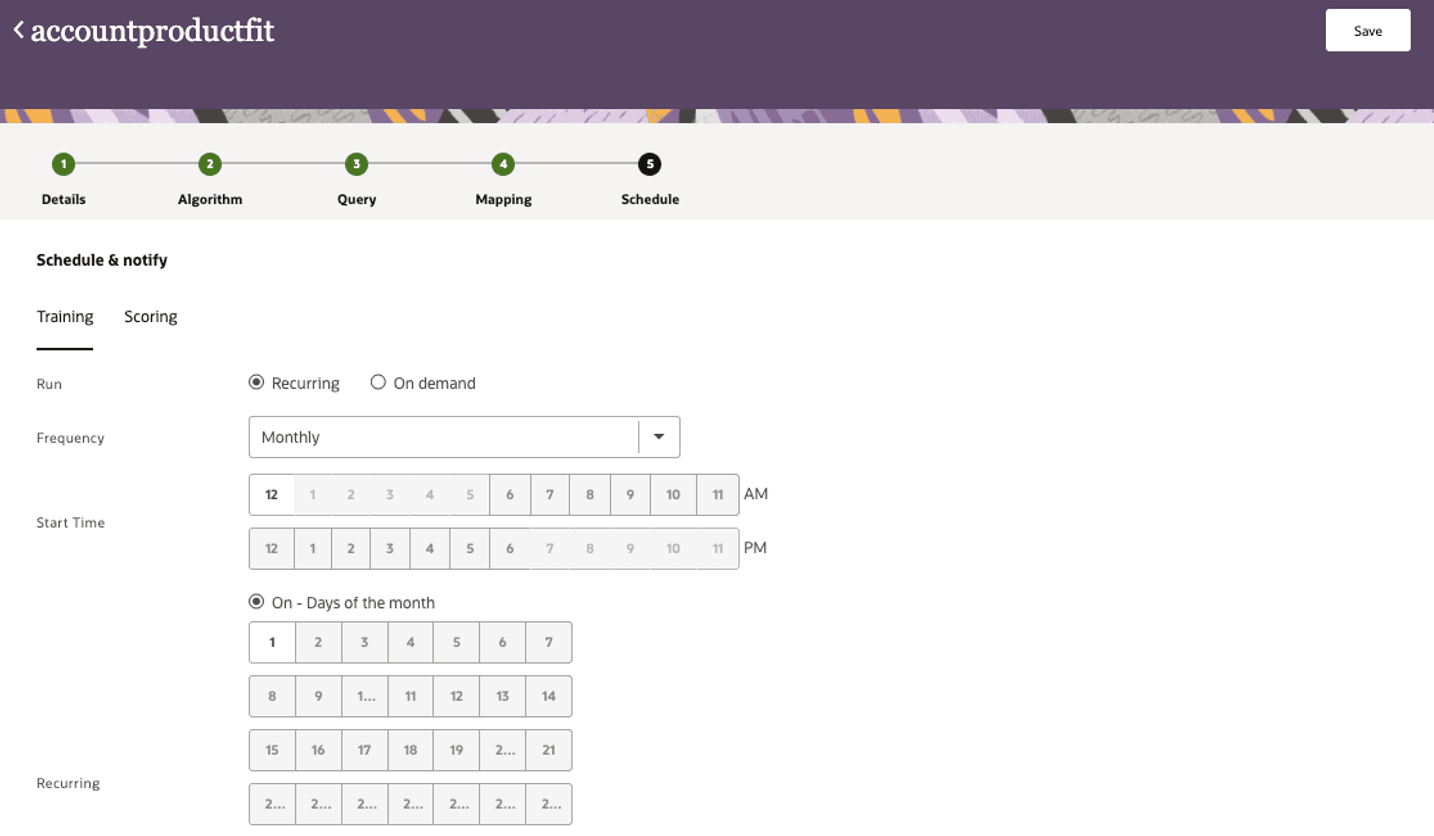
Set schedule
- You will be able to view the model under the Models tab in Intelligence Workbench.
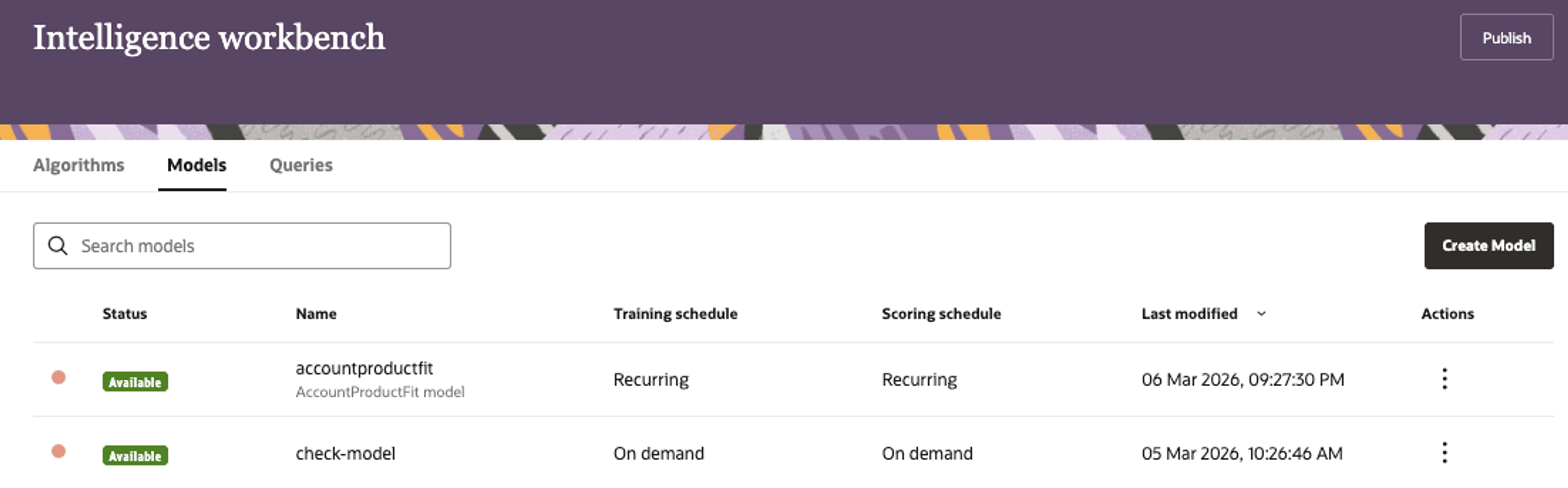
Snapshot showing existing models
- You can also view/edit/start training/scoring the model on an ad-hoc basis by clicking on the three vertical dots on the right. Once the model runs, you can also monitor it for inputs and model performance.
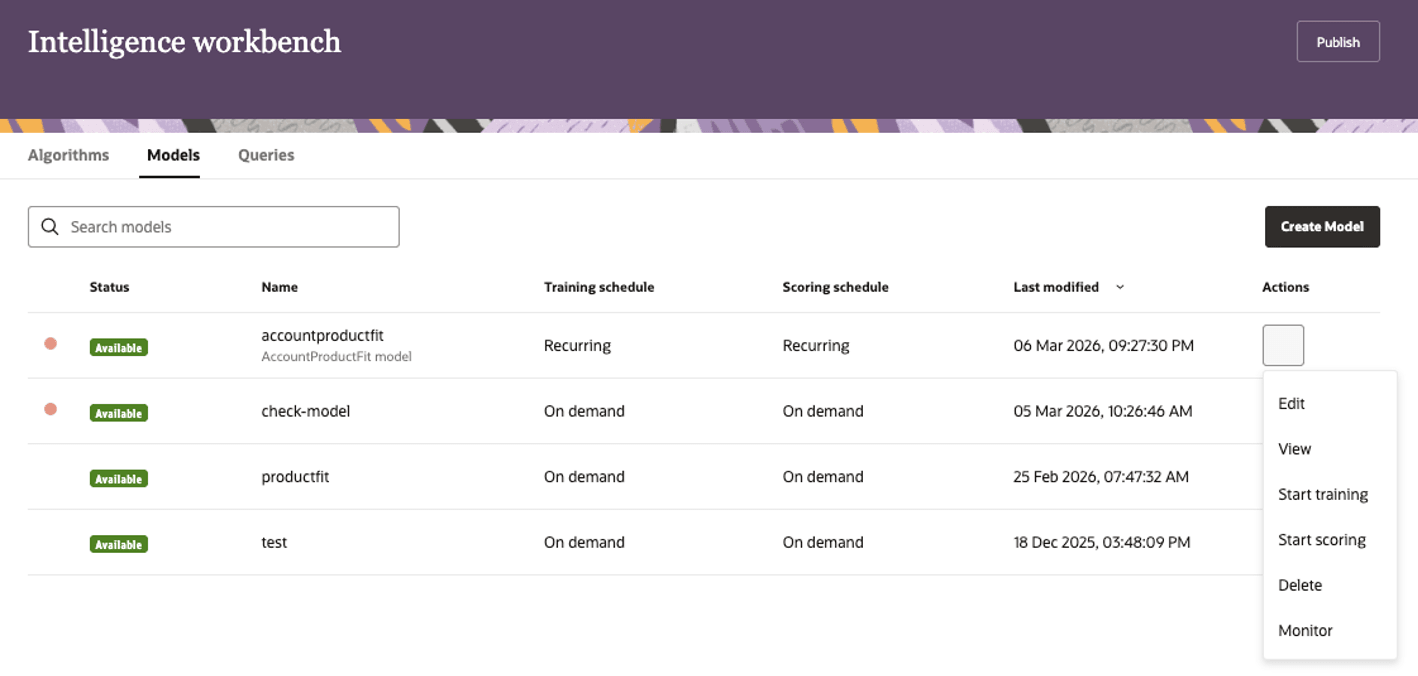
Available Actions
- Select "Schedule" in the flow and select appropriate "Training" and "Scoring" schedule and "Save" the model.
- Monitoring model inputs
- Once a model is trained, you can review the model data inputs using the Monitoring screens. Navigate to the model and select "Monitor" from the "Actions" menu against the model.
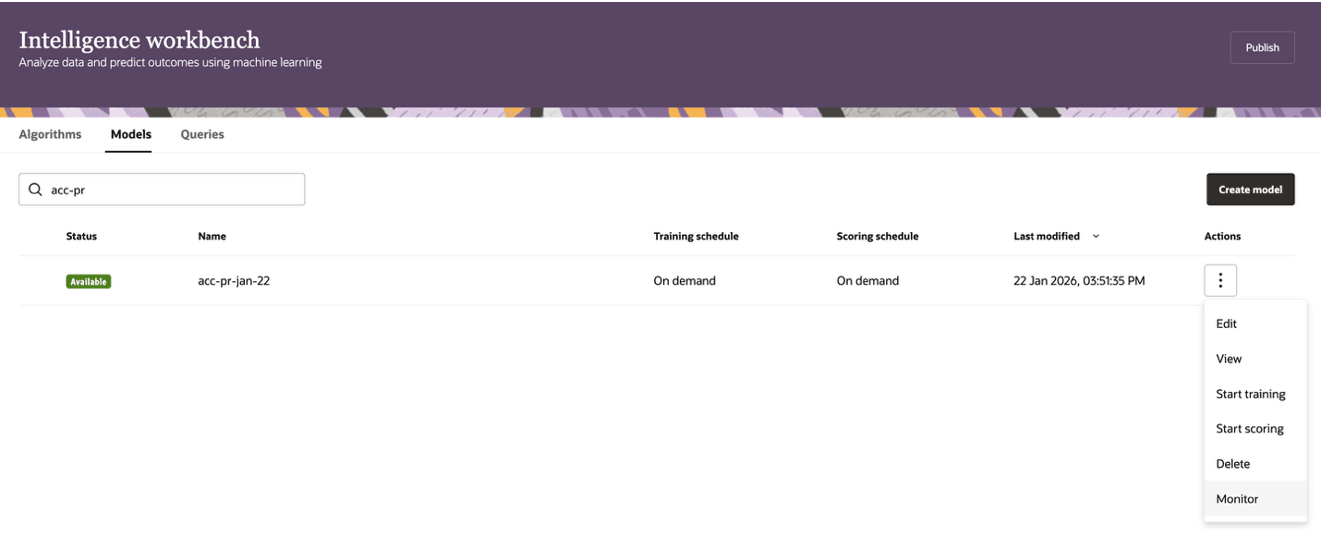
Review model data via Monitoring interfac
- The list of models run will show up in reverse chronological order in the "Overview" tab.
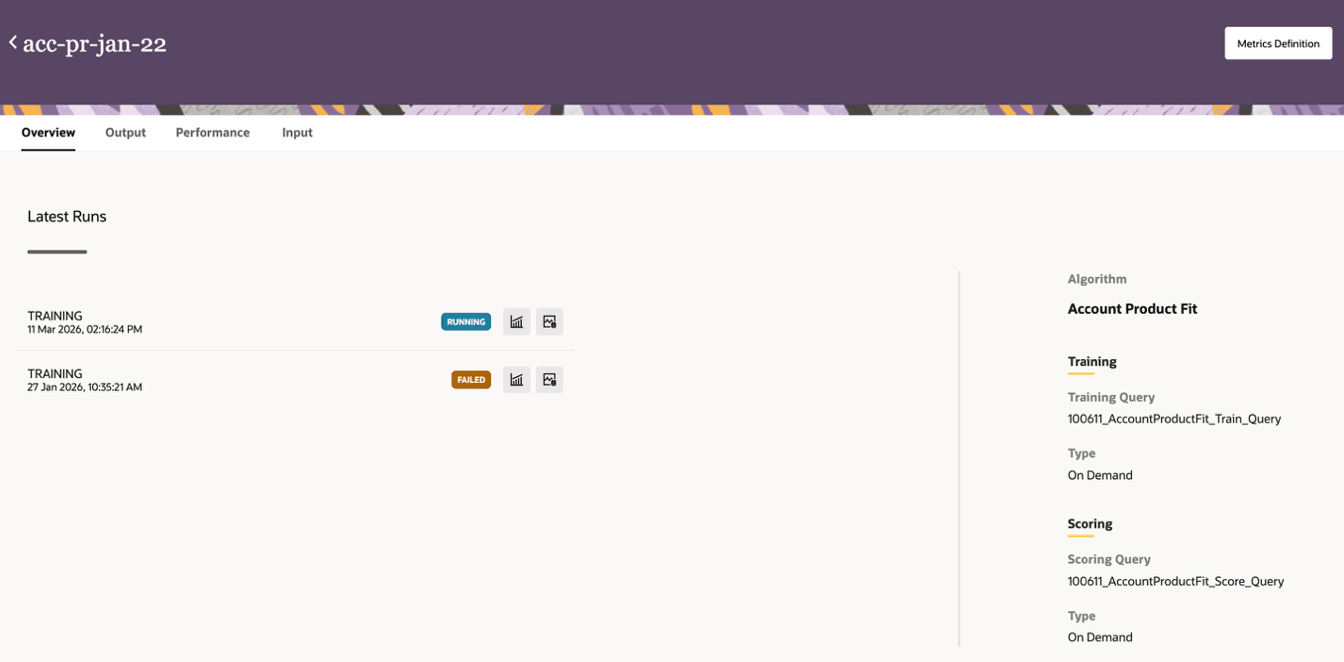
Overview displays models run
- Navigate to the ‘Input’ tab to review the model data inputs. Select the right training job from the dropdown for which you would like to monitor the data inputs
- The top section shows the aggregated metrics relevant to the model input data
- The charts below give you an ability to understand the underlying data distributions and data availability
- Subscription / Purchase Distribution: Displays the distribution of accounts based on their subscription or purchase status (subscribed vs. non-subscribed).
- Account Distribution: Shows how accounts are distributed across key firmographic dimensions.
- Data Review: Provides a summary of the mandatory and optional attributes required for the model, along with the current data density for each attribute in the input dataset
- Once a model is trained, you can review the model data inputs using the Monitoring screens. Navigate to the model and select "Monitor" from the "Actions" menu against the model.
-
Monitoring model performance
- Once the model is trained, you can review the model performance using the ‘Performance’ tab in the Monitoring module.
- Select the right training job from the dropdown for which you would like to monitor the model performance.
- The top section shows the key performance metrics. Select the ‘Metrics Definition’ to view definitions for these metrics.
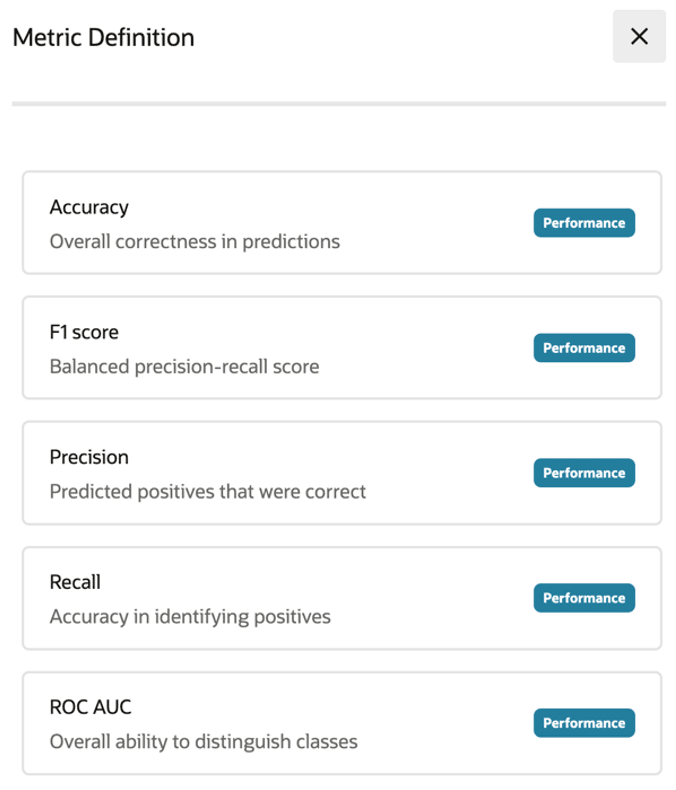
Metric Definitions
- The charts below give you an ability to understand the feature importance, gain and lift metrics from the model
- Attribute Importance: Displays the top contributing factors influencing the model’s ability to identify the accounts that are a great fit for the given product
- Actual vs Predicted matrix: Shows a detailed view of prediction accuracy by subscription status – derived from the validation dataset.
- Gain analysis: Shows the cumulative gains achieved by the model when targeting the top deciles (derived from the validation dataset)
- Lift analysis: Shows the cumulative lift over the baseline achieved by the model when targeting the top deciles (derived from the validation dataset)
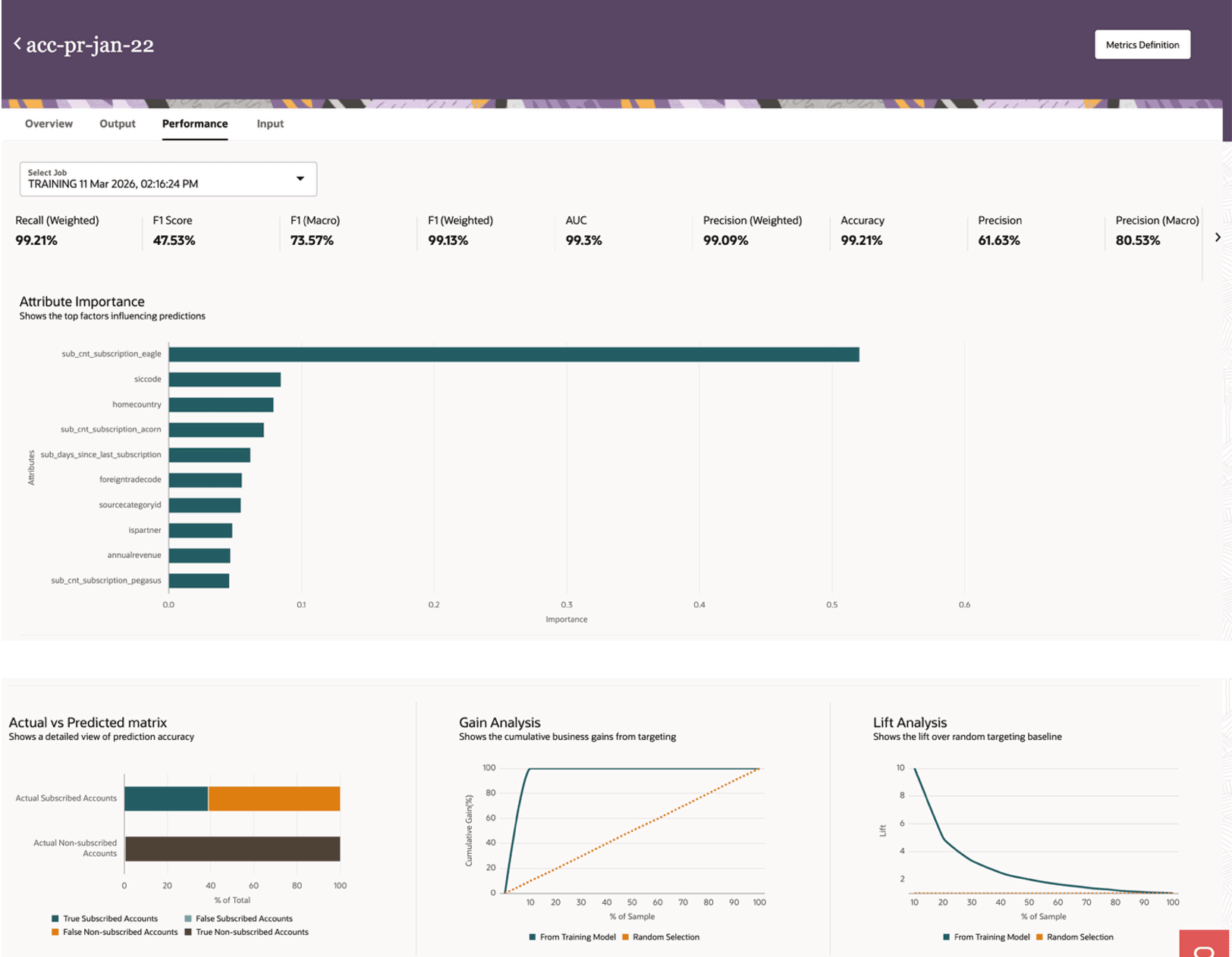
Sample metric charts
- View Output and explanation
- Navigate to "Data Viewer" screen from the homepage. Select "Account Product Fit" object from the dropdown.
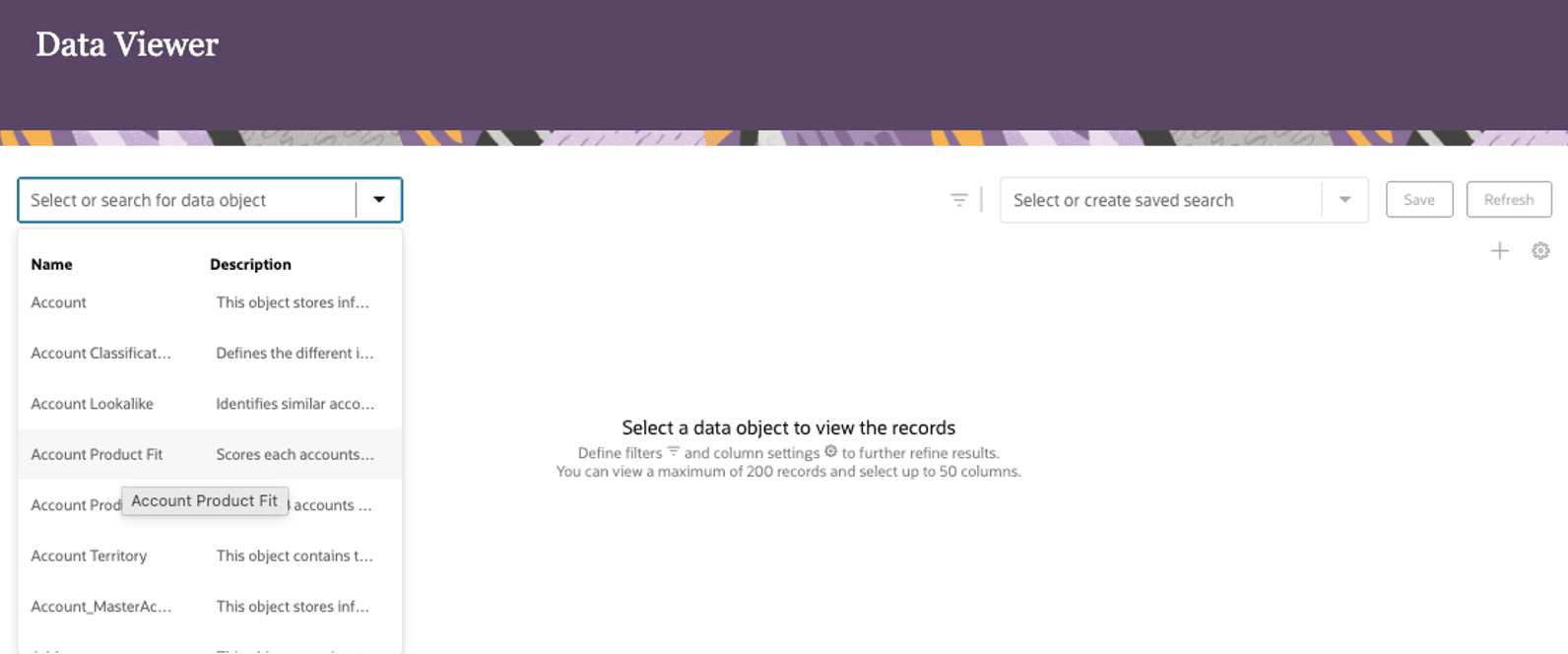
Data View interface
- Click on the "gear" icon on the right and select the appropriate columns to display and click on "Apply".
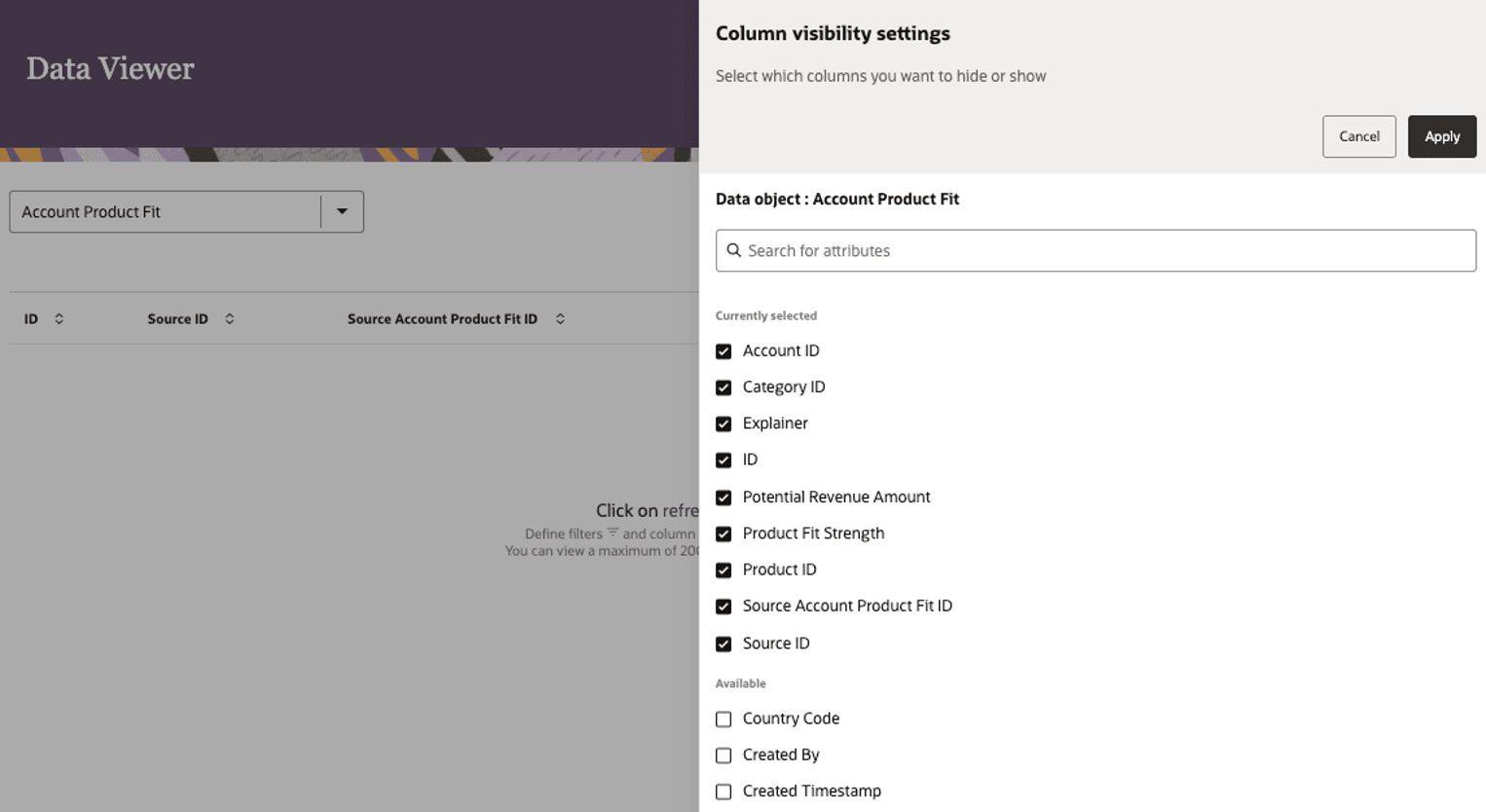
Column visibility settings
- View the Product Fit strength and explanation for each of the products that the model is set up for.
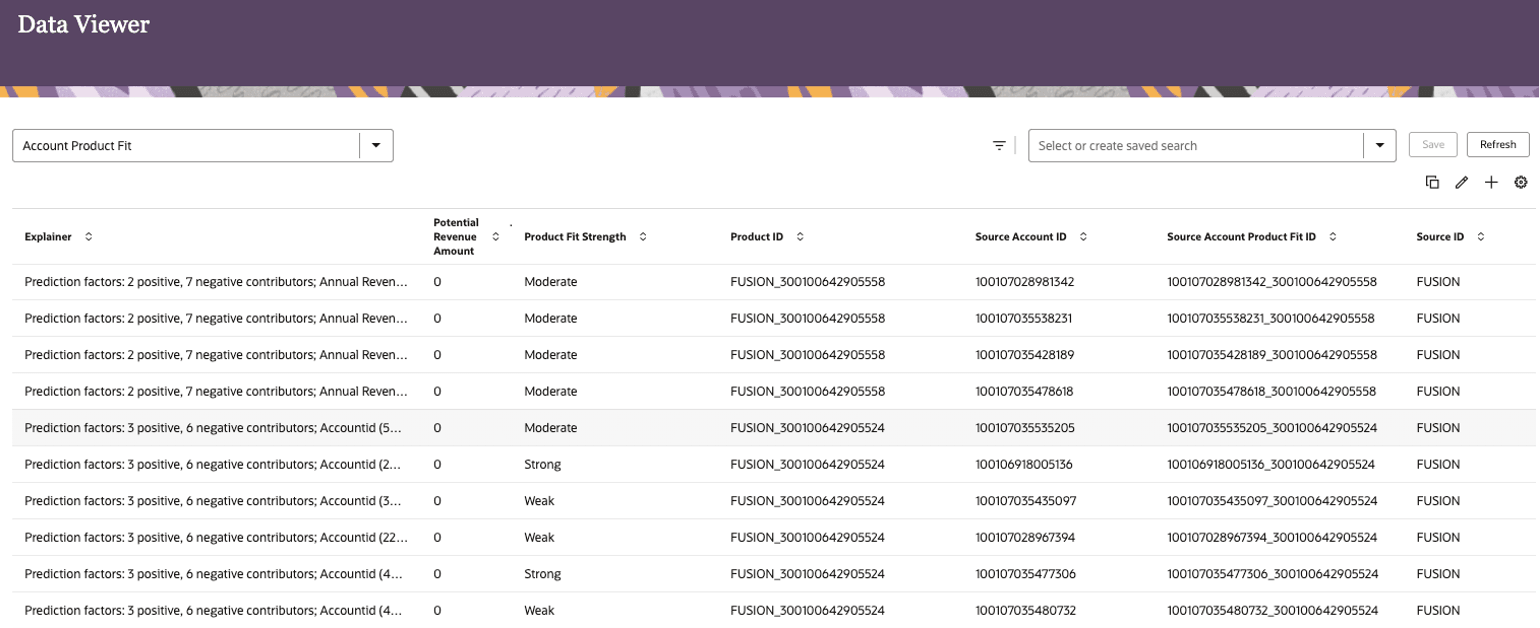
View explanations
- Navigate to "Data Viewer" screen from the homepage. Select "Account Product Fit" object from the dropdown.
- Incorporate Fit Strength into Workflows:
- Use fit strength directly in Marketing segmentation, sales prioritization, or campaign triggers.
- Monitor Model Performance:
- Regularly consult built-in dashboards to review accuracy, drift, and fit score distribution.
- Watch for performance dips, threshold warnings, or shifts in data quality/predictive relevance.
- Schedule or Initiate Retraining:
- Initiate retraining cycles manually or on a set schedule - particularly after business changes, new product launches, or data source updates.
- Confirm model refresh and re-validate output via test runs or pilot campaigns as necessary.
- Educate and Align Teams:
- Communicate fit scoring methodology, assumptions, and use cases to all marketing and sales users who rely on the scores for decisions.
- Document fit model configuration, input fields, and retraining policies for future audits and knowledge sharing.
Tips and considerations
Tips & Considerations:
- Leverage for Strategic Products: Focus on the most strategic products in the salesplays for targeted account prioritization.
- Integrate strength everywhere: Embed fit strength and explanation into dashboards, and reports, and personalization logic for maximum impact.
- Monitor and act: Schedule regular checks of model performance to avoid drift or bias, triggering retraining as business dynamics or data change.
- Document decisions: Keep a record of how the fit model is configured and used to promote transparency, compliance, and continuous improvement.