Streaming Data Collection
The newly designed Streaming Data Collection feature enables the creation and administration of data collection tags within Fusion Marketing and enables a stream of data collection from your web pages, web applications, and any other digital property where the tag is applied. Once the tag is applied to your web page, for example, and the tag is published, visitor interaction with that page is collected to better understand content effectiveness, respond in real-time to behavioral signals of interest, and drive more personalized experiences.
A ready-to-use tag, referred to as the “Default Tag”, is pre-configured and available for immediate implementation. The default tag can also be edited as needed. This tag is pre-configured to collect visitor behavioral data in a format that makes other features across Fusion Marketing ready to use. For example, interactions with emails, landing pages, or forms that are made available through the use of Fusion Marketing tactics will be collected in a format that simplifies configuration and time to value.
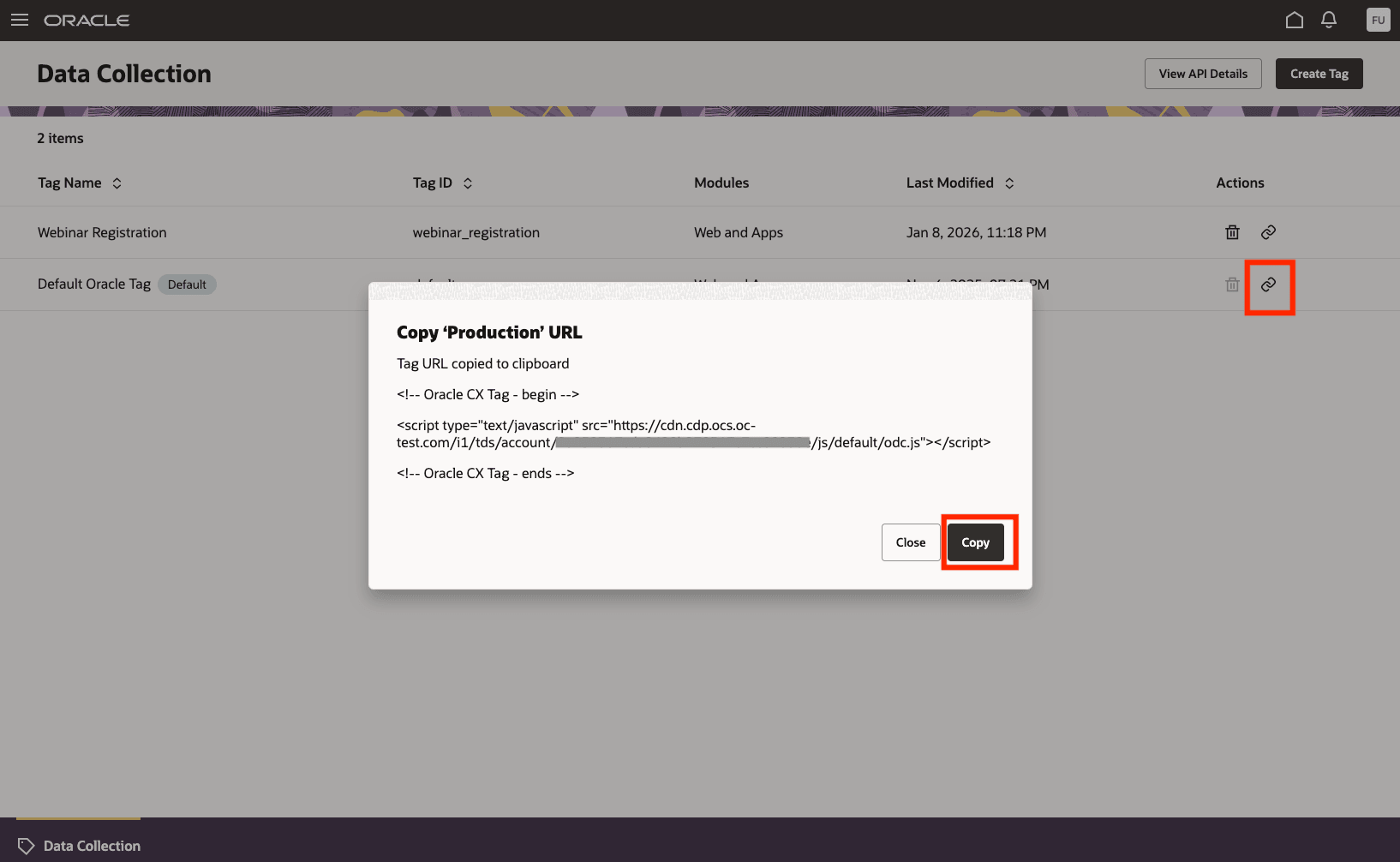
Using the default tag
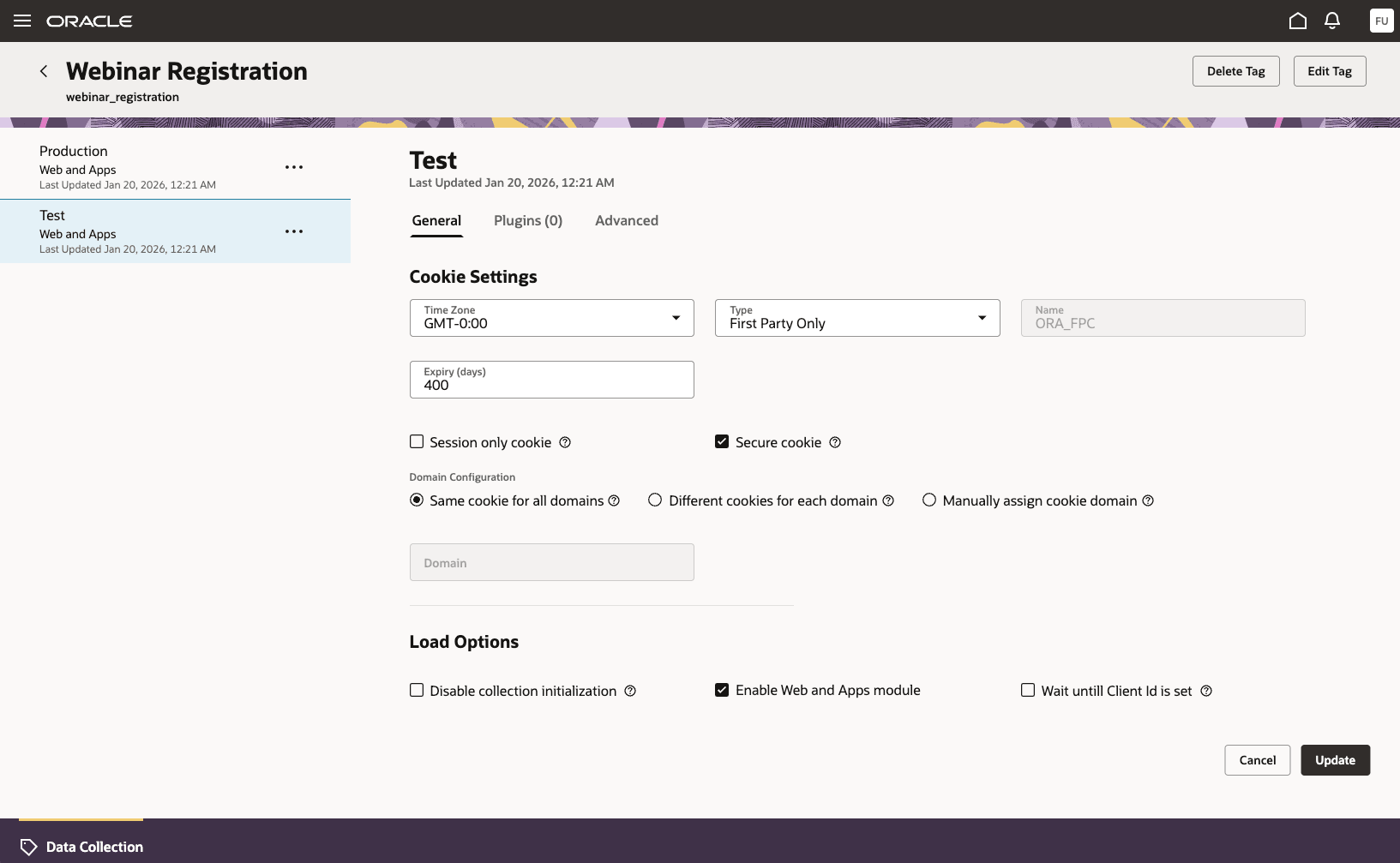
Customize the tag
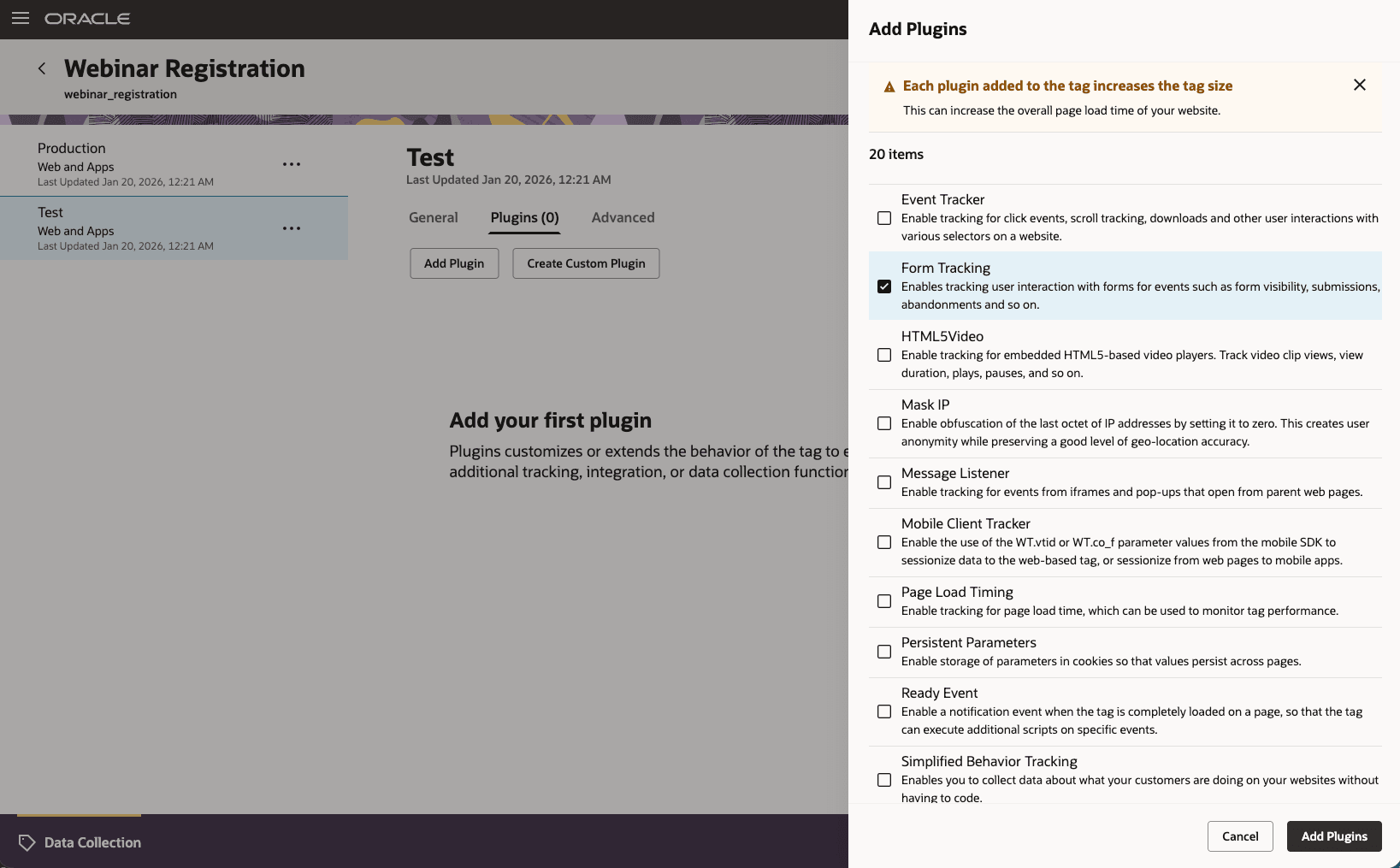
Add, enable, disable plugins when customizing the tag
Business Benefits:
-
Default tag: A pre-configured tag reduces configuration and implementation time and readily enables tracking of engagement with marketing assets
-
Real-time behavioral signals: The tag collects important behavioral signals in real-time, providing critical insights about visitor engagement and triggering of personalized experiences
-
Intuitive user experience: The all-new Streaming Data Collection user experience makes what was previously a developer-centric task accessible to marketers and other business users
Steps to enable and configure
You don't need to do anything to enable this feature.
Tips and considerations
To get started using Streaming Data Collection:
-
Access the Streaming Data Collection feature. From the Fusion home page, go to “Customer Data Platform” and then “Data Streams”. Then, click on the “Data Collection” tab.
-
To use the default tag. From the Data Collection list page, select “Default Oracle Tag”. In the “Actions” column, select the “Link” icon. From here you can copy the JavaScript tag and apply it to the web pages or web applications you want to track.
-
To create a new tag. From the Data Collection list page, click the “Create Tag” button. Fill in the required details in the creation form, then click “Create” to get the tag created. Tag gets created and takes you to the tag details page.
-
To customize a tag. In the Tag details page, select a module from a container, then click the "Edit" button. You can update the general settings and add, enable, or disable plugins as needed. Configure the settings as desired and save your changes to update the tag.
-
To publish a tag. After customizing the tag, you can publish it to production to apply your updates to the live environment. In the container options , select the “Publish” icon. Confirm your selection to make the updates available for use in production.
-
To edit an existing tag On the Data Collection list page, click the tag you want to edit to open its details page. Then, click the "Edit" button to make and save your updates.
Access requirements
Access to this feature requires the following three roles:
| Duty Roles | Role Description |
|---|---|
| Data Collection Tag Publishing | Manages tags through capabilities such as creating tags, deleting tags or modules, and publishing a container to production. |
| Data Collection Tag Management | Creates and edits tags, clones containers and their modules, and all related configurations. |
| Data Collection Tag Usage | Provides view-only access to all tags created for the account, allowing viewing the list of tags along with their metadata, configuration details, and plugins (as applicable). |