 Redwood: Enable Role-Based Mass Actions for Performance Goals from Goals Center
From this release, as administrators you can enable workers and HR specialists to select multiple performance goals and act upon them. HR specialists can select any goals, but employees and managers can only select goals that they created.
Validations are done for all the performance goals that are selected. The actions are enabled for the multiple selected goals only if all the selected goals pass the validation test and if the user has the privilege to do the action. For more information on this, see Why are some actions disabled for performance goals?
The business rule configurations done for the goal actions in Visual Builder Studio also apply. If some actions are hidden for a specific role, then the person with that role won’t be able to perform the mass action.
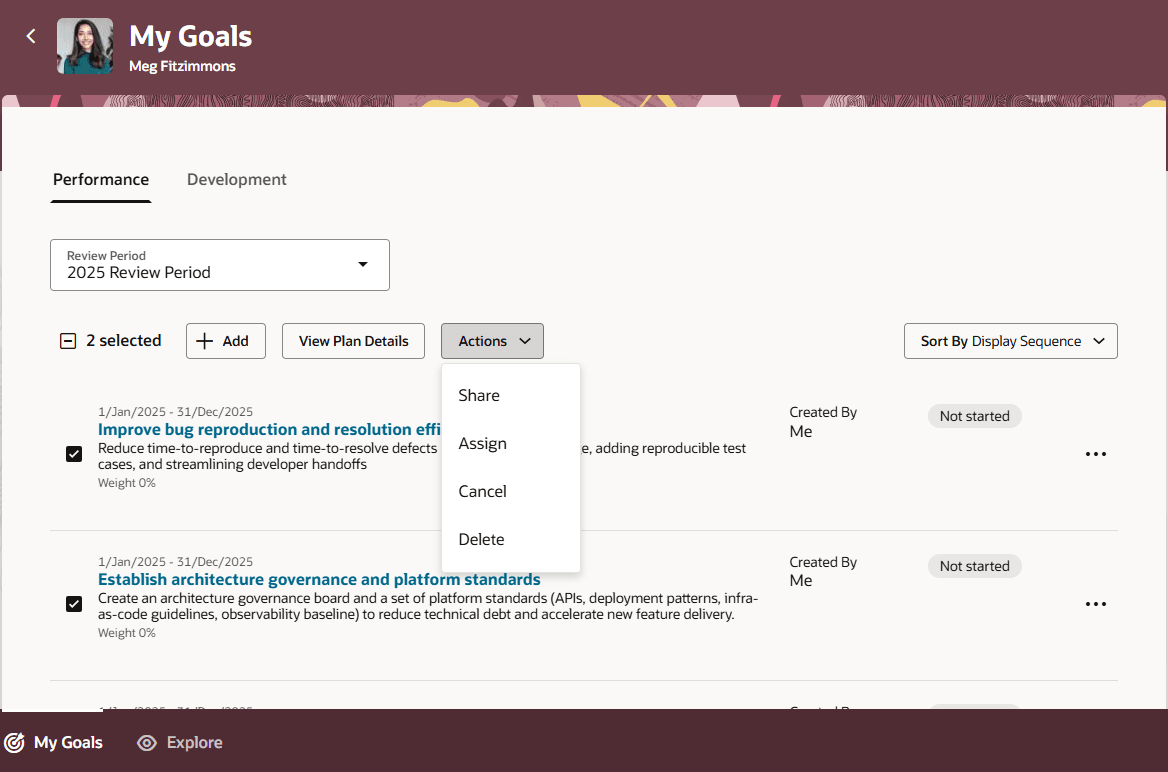
Actions for Multiple Selected Performance Goals for a Manager
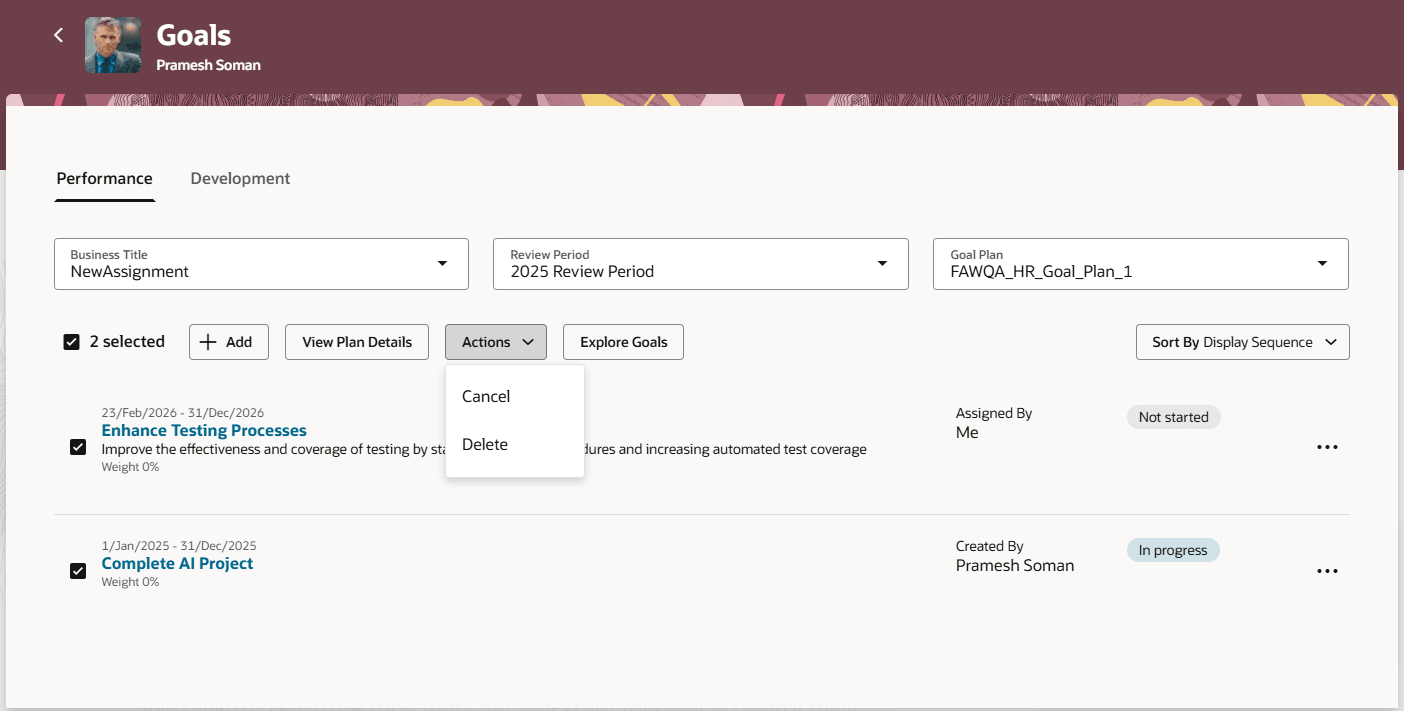
Actions for Multiple Selected Performance Goals for a HR Specialist
Business Benefit
Increase the ease of managing goals by enabling workers, managers, and HR specialists to select multiple performance goals to act on them.
Steps to enable and configure
To enable Redwood Goals Center, you need to enable the profile options indicated in the table.
|
Profile Option Code |
Profile Option Display Name |
Value |
|---|---|---|
|
ORA_HCM_VBCS_PWA_ENABLED |
Enable VBCS Progressive Web Application User Interface |
Y |
|
ORA_HRA_PERFORMANCE_DOCUMENTS_AND_GOALS_REDWOOD_ENABLED |
Enable Redwood Performance Documents and Goals Center |
Yes |
NOTE: The Performance Document, Check-in, and Goals Center features are closely connected. So, the Redwood version of these pages can all be enabled or disabled only using the common ORA_HRA_PERFORMANCE_DOCUMENTS_AND_GOALS_REDWOOD_ENABLED profile option. These features can't be enabled individually.
For more information, see How do I enable a profile option?.
For information about the privileges that need to be granted to the role of employees, managers, and HR specialists to allow to perform the action, see Privileges to Secure Goal Actions.
Ensure that the actions aren’t hidden by configuring rules in Visual Builder Studio. For more information on how to do this, see How do I hide or show a field in Visual Builder Studio?