Setting Up the Integration User in Salesforce
Use the procedures below to create and set up the Salesforce integration user.
Creating the Integration User in Salesforce
Depending on your preference, you can create the Salesforce integration user with system administrator profile or with minimum access.
These instructions are provided here for your convenience. If you have more questions about creating a user in Salesforce, refer to the documentation provided by Salesforce at https://help.salesforce.com/.
To create the integration user in Salesforce with system administrator profile:
-
Log in to your Salesforce account.
-
Create a new user.
-
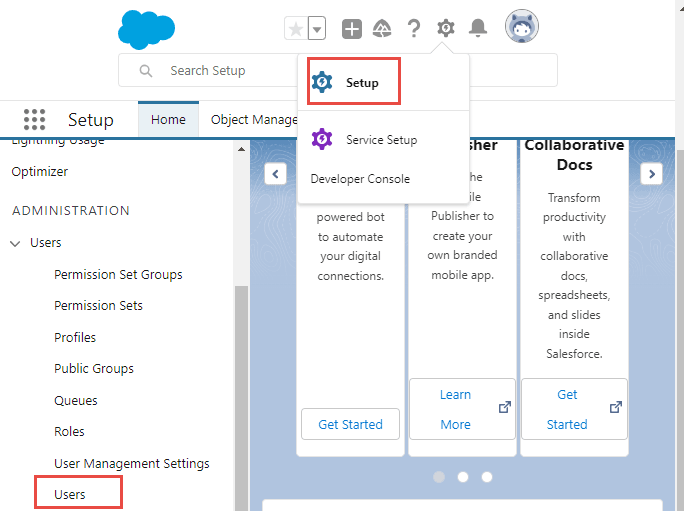
Go to Setup > Users > Users.
-
On the Setup Users page, click New User.
-
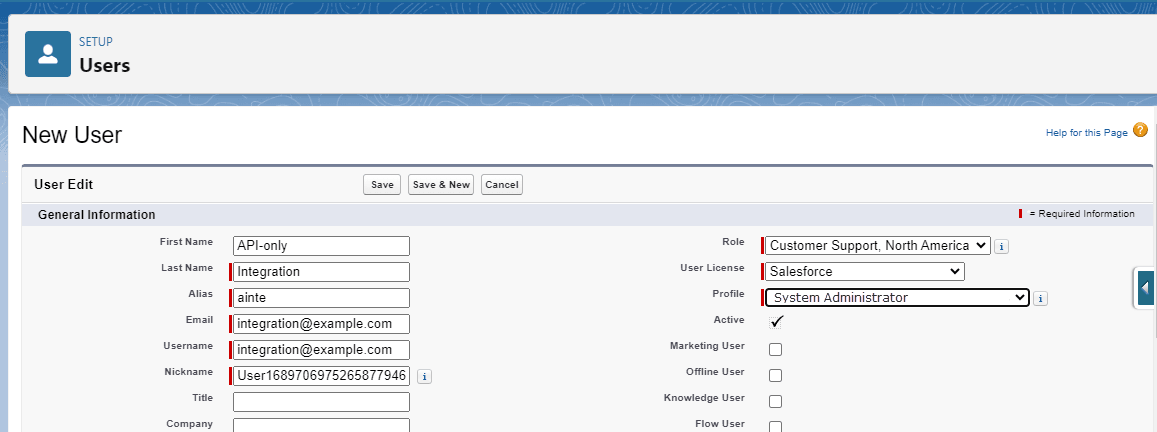
Complete the General Information fields as needed.
-
In User License, select Salesforce.
-
In Profile, select System Administrator.
-
Click Save.
Note:You will receive an email from Salesforce to verify the account and reset the password of the integration user you created. You will need the user name, password, and security token of the created integration user when creating the connection to Salesforce.
-
To create the integration user in Salesforce with minimum access only:
-
Log in to your Salesforce account.
-
Create a new user.
-
Go to Setup > Users > Users.
-
On the Setup Users page, click New User.
-
Complete the General Information fields as needed.
-
In User License, select Salesforce Integration.
-
In Profile, select Minimum Access - API Only Integrations.
-
Click Save.
Note:You will receive an email from Salesforce to verify the account and reset the password of the integration user you created. You will need the user name, password, and security token of the created integration user when creating the connection to Salesforce. You may need to reset the security token of this user to get the new security token. To do so, see Resetting the Security Token of the Integration User in Salesforce.
-
If you choose a non-system administrator for your integration user, you must assign the Salesforce API Integration Permission Set to the minimum access user. The permission set mentioned below is available only after installation of the Salesforce Connector Managed package in your Salesforce. To set this permission before running the setup wizard, go to Connector Platform > Overview > Quick Links in NetSuite and then click Install Salesforce Package.
To add the Salesforce API Integration permission set to the minimum access integration user:
-
Log in to your Salesforce account with your Administrator user.
You need to use an account with System Administrator privileges to create and add permission sets.
-
Add the permission set to your integration user.
-
Go to Setup > Users > Users and select the integration user you created.
-
Scroll down to Permission Set License Assignments and click Edit Assignments.
-
Select the Salesforce API Integration permission set in Available Permissions Sets and click Add to move the permission to Enabled Permission Sets.
-
-
Click Save.
Important Actions Before Using the Setup Wizard
If you are using a minimum access API-only integration user for Salesforce Connector, you need to ensure that you perform the following before running the setup wizard. The permission set mentioned below is available only after installation of the Salesforce Connector Managed package in your Salesforce. To set this permission before running the setup wizard, go to Connector Platform > Overview > Quick Links in NetSuite and then click Install Salesforce Package.
You need to log in to Salesforce with System Administrator role and update the minimum access API-only integration user with the actions listed below.
-
Assign the NetSuite Connector Platform ApiOnlyUser Permission Set to the integration user. - The setup wizard attempts this assignment during the Deploy Package step. For information about adding the permission set, see Adding the Permission Sets to the Salesforce Integration User.
-
Update Remote Site Settings. - Go to Setup > Security > Remote Site Settings in Salesforce and update the Remote Site Name,
Oracle_Integration_Host. On Remote Site URL, addhttps://<NetsuiteAccountID>-oraclenetsuite-px.integration.us-phoenix-1.ocp.oraclecloud.com, and then replace the <NetSuiteAccountID> with your exact NetSuite Account ID.In the following example, the URL used is
https://8487138-oraclenetsuite-px.integration.us-phoenix-1.ocp.oraclecloud.com.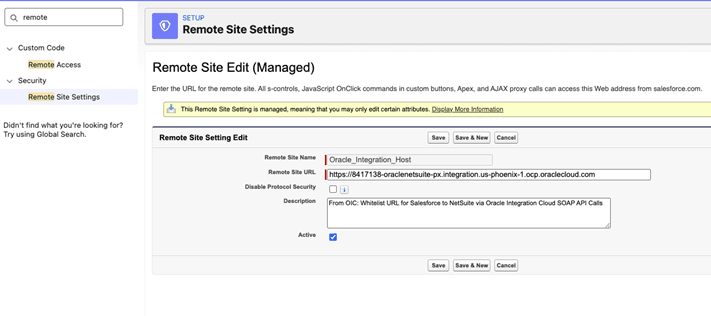
-
Update Apex class access permissions. - In Salesforce, go to Permission Sets > NetSuite Connector Platform ApiOnlyUser Permission Set > Apex Class Access > Edit. Move all classes starting with
oraclenetsuitefrom Available Apex Class to Enabled Apex Class.
Resetting the Security Token of the Integration User in Salesforce
In some instances, you may need to reset the security token. The security token is linked to the email address and password of the integration user. You can do this either by resetting the security token on Salesforce or changing the password of the integration user. If you need to log in as the integration user, ensure that in Security > Login Access Policies that Administrators Can Log in as Any User is enabled in your Salesforce account.
To reset a security token for the integration user:
-
Log in as the integration user.
-
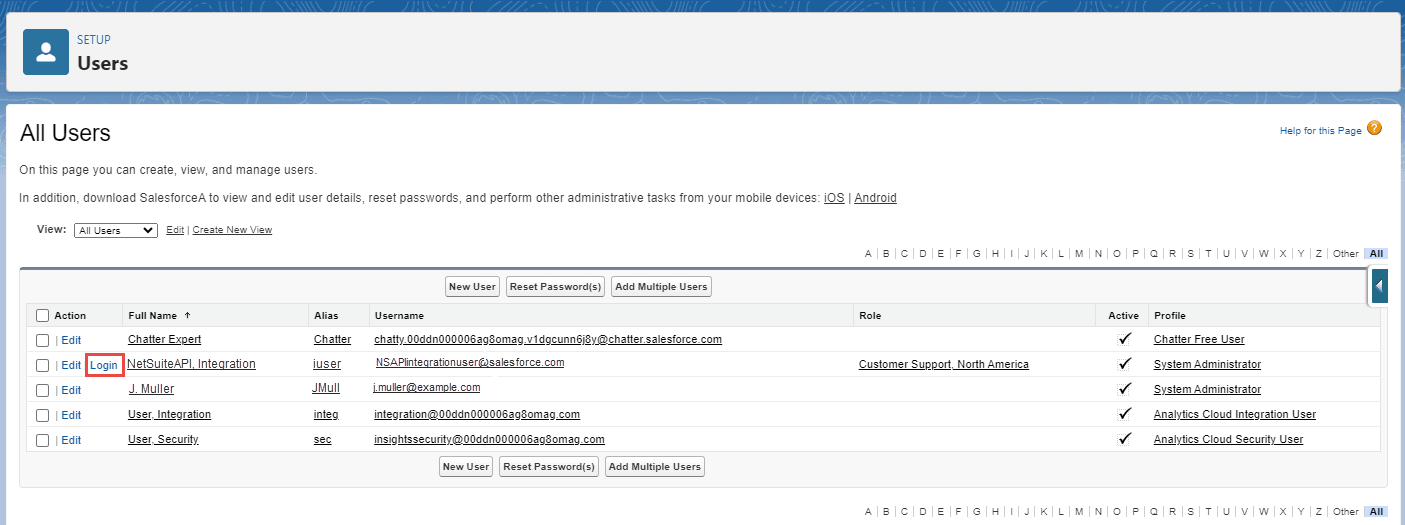
Go to Setup > Users > Users.
-
Click Login under the Action column of the integration user.
-
-
Reset the security token. Go to Reset My Security Token in Profile > Settings. You can also use the Quick Find to go to Reset Security Token.
-
Click Reset Security Token.
The security token is sent to the registered email address.
Refer to the following topics in online Salesforce Help: