Setting Calendar Preferences for a Resource
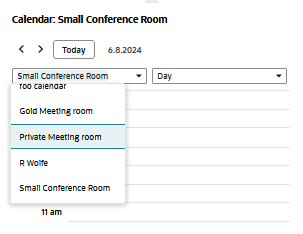
After you've created a resource record, you can select the resource in the My Calendar list on the calendar to check for availability.
Make changes to the resource record and its calendar preferences by going to Activities > Setup > Resources, and clicking Edit next to a resource.
The following fields display on the Calendar Preferences subtab of the Resource record:
-
Title - The resource name entered in the Name field appears here as the name of the calendar.
-
Daily Start Time and Daily End Time - Select the time that this calendar should begin showing events, and the time when this calendar should stop showing events.
-
Default View - Choose to display this calendar in a daily, weekly or monthly format.
-
Daily Time Increments - Select the increments of time for this calendar's daily view.
-
Sharing - Choose a level of access for this calendar. Note that you can still specify on event records how you want events to appear on this calendar.
-
Public - This gives everyone in your company access to this calendar.
-
Defined Below - This restricts everyone in your company from seeing this calendar except the people you select in the section below.
Give certain people access to this calendar by selecting a name in the User column. Only NetSuite users with login access appear in this list.
In the Access Level column, choose the level of access for each person who is allowed to see this calendar:
-
None - This person can't access this calendar.
-
View - This person can see events marked public and busy times for events marked busy.
-
Edit - This person can see, change and remove events marked public and see busy times for events marked busy.
-
Full - This person has complete access for viewing and editing this calendar.
-
-
Private events aren't shown even to people with access to this resource calendar. To grant access to private events, check the Can Access Private Events box for the selected user.