Cline and SuiteCloud Developer Assistant
SuiteCloud Developer Assistant is powered by Cline, an AI coding agent designed to work directly in Visual Studio Code. With a full understanding of your codebase, Cline can help you plan and implement complex changes, run multi-step tasks, and resolve issues.
The following best practices and tips are designed to help you get started quickly, work more efficiently, and avoid common pitfalls as you explore what Cline has to offer. These insights will help you streamline routine tasks, customize your prompts, and take advantage of powerful features to accelerate your SuiteCloud development experience. To make the most of Cline's dynamic coding approach, ensure your agent is set up for the best possible results.
Best Practices
When working with Cline, it's important to structure your requests to produce accurate reasoning, safe execution, and consistent results. To effectively communicate with Cline, you should become familiar with the following features:
Context Management - Cline manages a working context window of recent actions, referenced files, task goals, and rules. This shared memory helps SuiteCloud Developer Assistant stay aligned with your project's conventions and decisions. For more information about Context Management, see Understanding Context Management.
Memory Bank - Cline is able to maintain context across sessions. This lets SuiteCloud Developer Assistant remember key project information over time. For more information, see Cline Memory Bank.
Prompt Engineering - Well-structured prompts help Cline interpret your intent accurately and produce reliable results. Clear goals, relevant context, and specific instructions enable SuiteCloud Developer Assistant to generate more precise code and reasoning. For more information, see Prompt Engineering Guide.
Optimal Settings
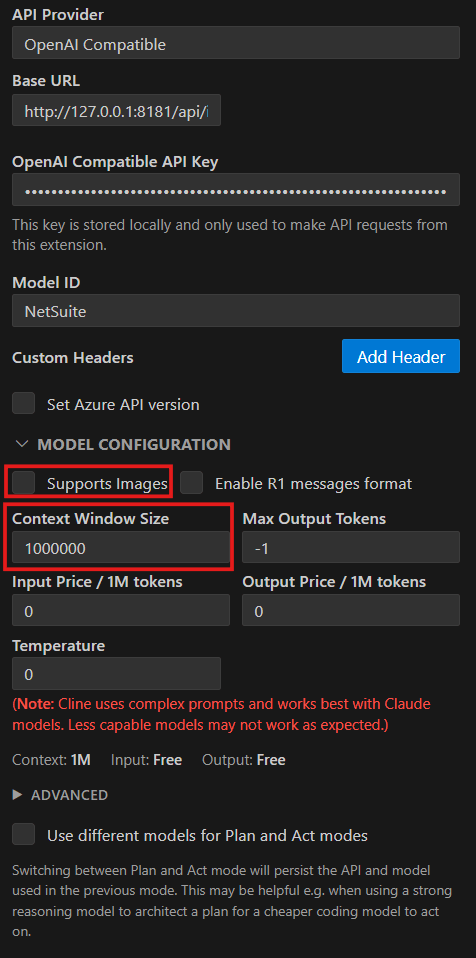
Configure your context window to 1,000,000 tokens and disable image support.
SuiteCloud Developer Assistant uses Cline as the interface to interact with large language models capable of supporting a 1,000,000-token context window. However, Cline defaults to a 128,000-token (128k) context window for OpenAI-compatible providers. This default can significantly limit the assistant's capabilities and may cause context truncation or compaction issues. You can manually configure Cline to use the full 1,000,000-token context window for better results.
Because images are not supported, disabling image options prevents confusion and error messages by making it clear that image uploads are not available.
To configure your context window to 1,000,000 tokens:
-
In VS Code, open the activity bar and click the Cline extension.
-
At the top of the Cline panel, click the gear icon to open the provider and model configuration.
-
In the Model Configuration section, locate the Model Context Window or Context Window Size setting.
-
Change the value from
128000(128k) to1000000(1M). -
Click Done to save the changes.
To disable image support:
-
In VS Code, open the activity bar and click the Cline extension.
-
At the top of the Cline panel, click the gear icon to open the provider and model configuration.
-
In the Model Configuration section, clear the Supports Images box.
Core Operational Modes
Cline operates in two primary modes, and the mode you enable determines how SuiteCloud Developer Assistant interacts with your project.
Plan Mode
In Plan Mode, Cline first prepares a clear plan of what it intends to do before making any changes to your files. This plan typically includes:
-
Which files will be read
-
Which edits will be applied
-
Which commands will be executed
This mode ensures transparency and prevents unintended changes. By reviewing the plan first, you can validate that SuiteCloud Developer Assistant has correctly understood your intent before it applies any changes. It is recommended that Plan Mode is always enabled unless you explicitly prefer full automation.
Act Mode
In Act Mode, Cline is allowed to perform the proposed actions as approved in the plan. This includes:
-
Applying edits
-
Running commands
-
Updating files
This mode is designed to support fast, iterative development when the user trusts the workflow. It is recommended to only use Act Mode on trusted projects or after reviewing the plan.
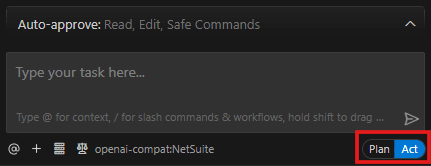
To switch between the Plan and Act modes, refer to the e Plan/Act switch next to the provider and model selector.
Automation
Cline includes optional automation features that further streamline development. These features reduce manual confirmations, but must be used deliberately based on the task and project sensitivity.
Auto-read - Auto-read lets Cline automatically read file contents when they are referenced during a task. This improves context awareness and reduces unnecessary prompts.
It is recommended that this feature remains enabled, as it is always safe.
Auto-edit - Auto-edit lets Cline automatically apply file changes without requiring manual approval of each edit. Although this can significantly speed up development, it may introduce risk if used without proper safeguards.
It is recommended to only enable Auto-edit when:
-
The project is trusted.
-
The execution plan has been reviewed.
-
The scope of the changes are small, controlled, or reversible.
Execute Safe Commands - This option lets Cline automatically run terminal commands without requiring user confirmation. This is useful for routine, non-destructive operations and testing workflows.
Auto-approve is considered safe for:
-
Testing
-
Linting
-
Reading logs/files
-
Running non-destructive commands
It should be avoided for:
-
File deletions
-
Git resets
-
Deployments
-
Migrations
-
Any destructive or irreversible commands
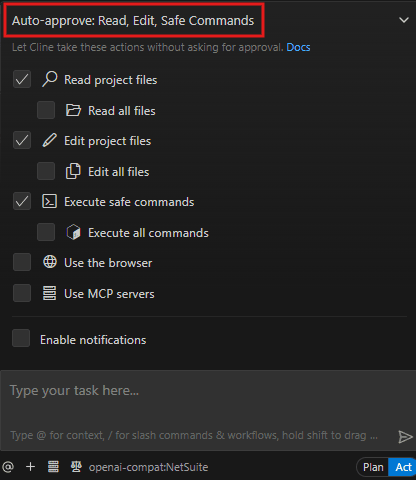
To enable or disable the automation options:
-
Click the Auto-approve tab located above the Cline chat box.
-
Select the actions you want Cline to take without requesting approval.
Rules and Workflows
Rules allow you to give Cline system-level guidance, providing a persistent way to include context and preferences for your projects or for all conversations globally. For example, you can add a rule telling Cline to make up to three verified patch edits when modifying a file. If those fail, Cline should overwrite the file, but always preserve unrelated structure and comments, without adding placeholders or omissions. Set up global and workspace-specific rules to ensure the AI consistently follows your project's standards.
With workflows, you can define a series of steps that guide Cline through repetitive tasks, such as deploying a service or submitting a PR. Workflows are slash commands that let you quickly perform repeatable processes. For example, if you have a set sequence you use for code reviews, you can create a workflow and then invoke it with a slash command. Cline will automatically run each step, so you won't have to retype the process every time. You can create global and workspace-specific workflows, and to invoke them, simply type e /workflow-name in the chat box.
Cline also offers out-of-the-box slash commands that are useful for quickly triggering specific actions or routines without manual navigation.
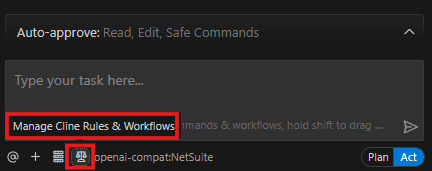
To access Cline rules and workflows, click the Manage Cline Rules & Workflows icon to the left of the provider and model selector.
Related Topics
- SuiteCloud Developer Assistant Guide
- Capabilities and Supported Tasks
- Setting Up SuiteCloud Developer Assistant Using Cline in SuiteCloud Extension for VS Code
- Providing Feedback
- Setting Up SuiteCloud Developer Assistant with Other Third-Party Tools and AI Coding Assistants
- Using SuiteCloud Developer Assistant
- Best Practices for SuiteCloud Developer Assistant
- FAQ: SuiteCloud Developer Assistant