Configure Transaction Columns
You configure transaction columns in the SuiteCommerce Configuration record.
To configure transaction columns:
-
Go to Commerce > Websites > Configuration.
-
From the Select Website list, choose the site you want to set up.
-
From the Select Domain list, select the domain you want to set up.
-
Click Configure.
-
Click on the My Account tab and the Transaction List Columns subtab.
-
Enable each type of transaction list you want to set up. You can choose from the following:
-
Return Authorization Columns
-
Quotes Columns
-
Order History Columns
-
Invoice Columns
Important:If you enable column management for a list, the settings on the Transaction List Columns subtab override any other configuration. For example, if you're integrating SCIS with your site and turn on column management, your My Account transaction columns follow these settings. To retroactively add any columns from your SCIS integration, you'll need to create them manually.
-
-
In NetSuite, go to Commerce > Websites > Configuration and choose the site and domain you want to configure.
-
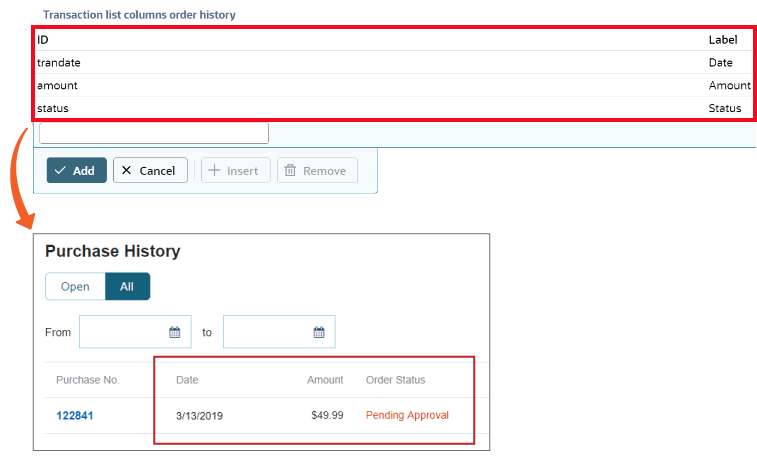
Go to the My Account tab and Transaction List Columns subtab, then add a line for each field you want to show as a column on your site.
The list order determines how columns display on your domain (top-to-bottom, left-to-right), as shown in the example below.
Note:Some columns, like the Purchase No. can't be configured.
-
Set up the Transaction List Columns table for each list you enabled:
-
Add a valid field to the
IDproperty. This property must match the Field ID of the field you want to display. -
Add the label you want to display for this field to the
Labelproperty.
Tip:Refer to the following Record Browser pages. On each page below, scroll to the Search Columns area for a list of valid fields and their IDs.
For more information about these configuration properties, see Transaction List Columns Subtab.
-